Why Fortnite Lagging After Update and How to Fix It
Experiencing severe Fortnite lag after the latest update? This troubleshooting guide helps you diagnose causes, optimize settings, and apply safe fixes to restore smooth gameplay.


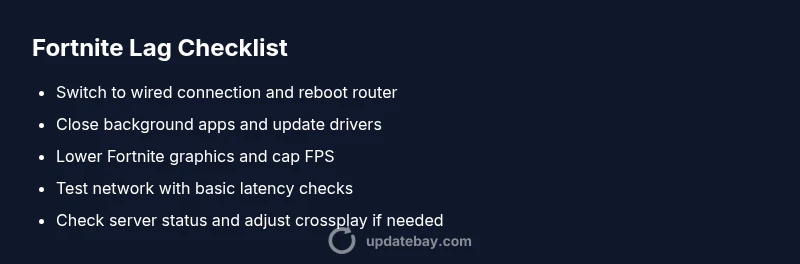
Why Fortnite lagging after update often comes from both client-side strain and occasional server hiccups. Start with quick wins: switch to a wired connection, restart your router, and lower in-game settings. According to Update Bay, the most reliable first step is reducing load on both your network and device before deeper checks.
Why Fortnite Lag After Update Happens
The latest Fortnite update can inadvertently shift performance stats, creating lag for some players even on strong hardware. In many cases, the root causes are a mix of client-side strain (cache, background apps, drivers) and server-side factors (regional queue pressure, matchmaking load). When players ask, “why is fortnite lagging so bad after update,” they’re often seeing a combination of these issues manifest in different ways: longer load times, rubber-banding, and frame drops. According to Update Bay, the most common culprits are outdated drivers, congested home networks, and temporary server-side hiccups right after patch deployment. By approaching the problem with a systematic checklist, you can quickly separate the likely causes from red herrings.
Quick Wins to Reduce Lag Right Now
If you want immediate relief, start with low-effort fixes that don’t require deep troubleshooting. First, switch to a wired Ethernet connection if you’re on Wi‑Fi, and reboot your router. Close unnecessary background apps on your PC or console and ensure Windows/macOS power settings are set to performance. In Fortnite, reduce resolution, texture quality, view distance, and shadows, then cap your frame rate to match your monitor's refresh rate. Clear your DNS cache and sign out and back into your account to refresh session data. These steps often cut the most latency and are safe to try before touching drivers or network gear. Update Bay’s experience with countless player reports confirms that these quick wins restore stability for many players after an update.
Check Your Network and Router Settings
Network health is a major driver of in-game latency. Run a simple latency test to Fortnite game server regions and note jitter, not just average latency. If your NAT type is strict or moderate, you may experience more lag; adjust router settings or enable UPnP if supported. Avoid VPNs during gameplay, and disable QoS if it prioritizes other devices over gaming. Ensure your router firmware is current and consider temporarily moving your console or PC closer to the router. While these steps don’t guarantee a fix, they address the most likely network bottlenecks that appear after an update, especially in shared home networks.
Update Bay’s Diagnostic Flow: Symptom to Solution
A structured approach helps isolate whether the lag is environmental, hardware-bound, or server-related. Start with the symptom—lag spikes during warmups or in busy match queues—and track triggers like time of day, map, or mode. Consider three main categories: network latency, device performance, and server-side status. If the symptom persists after the obvious network checks, move to device checks and then server status. Update Bay emphasizes documenting your observations so you can compare before/after results and avoid repeating steps.
Step-by-Step: Most Common Cause Fixes
- Confirm the symptom and establish a baseline for latency and frame rate. 2) Update all relevant drivers (GPU, network adapter) and ensure the operating system is current. 3) Switch to a wired connection, disable VPNs, and test with a direct path to the router. 4) In-game, lower graphics presets, reduce view distance, and cap the FPS to your monitor. 5) Reboot devices and clear game cache or reinstall game components if possible. 6) Re-test by playing a few matches and compare performance. 7) If the issue remains, consider regional matchmaking changes and server status checks. Pro tip: log results and timestamps for each change to identify what actually helped.
Fine-Tuning Fortnite Settings for Performance
In Fortnite, settings that impact latency include resolution scale, shadows, post-processing, effects, and mesh detail. Lowering texture quality, anti-aliasing, and view distance can dramatically improve frame rate on mid-range hardware. Turn off motion blur and shadows if you don’t need them for competitive play. Use a fixed framerate cap that matches your display’s refresh rate to reduce GPU workload and avoid frame tearing. Enabling borderless windowed mode can also stabilize input lag on some setups. These adjustments are safe, reversible, and frequently produce noticeable gains without changing your hardware.
Server-Side Realities and Crossplay Considerations
Even with perfect client-side optimization, Fortnite lag after update can stem from server-side issues or crossplay matchmaking complexities. If servers in your region are experiencing heavy load, you may notice longer queues and jitter. Crossplay can add routing complexity that affects latency, especially when paired with high-pidelity settings. Monitoring official server status pages and social updates helps you decide whether to wait or switch regions. The goal is to reduce variables you control while understanding when the problem originates from Epic’s side.
Prevention: Keeping Fortnite Run Smooth After Future Updates
Proactive maintenance reduces the chances of lag after a patch. Regularly update your system drivers and OS, perform routine router checks, and avoid heavy background tasks during peak gaming times. Before a planned update, ensure your internet plan can sustain the traffic and consider testing on a secondary device to gauge if the issue is device-specific. Finally, keep a backup of game files and ensure game integrity checks are enabled so future updates don’t introduce unseen corruption.
Steps
Estimated time: Total time: 20-40 minutes
- 1
Verify the symptom and baseline
Document when lag happens, what mode you’re in, and whether it’s consistent across matches. Establish a baseline of FPS, ping, and latency to compare after changes.
Tip: Keep a simple log; even a quick note helps identify what actually works. - 2
Update drivers and OS
Visit the GPU maker’s site and your motherboard or laptop vendor’s page to install the latest drivers. Install any pending OS updates to ensure optimal compatibility with the latest Fortnite patch.
Tip: Restart after updates to ensure changes take effect. - 3
Optimize network and remove bottlenecks
Switch to a wired Ethernet connection if possible. Reboot the router and disable VPNs or proxies during gaming. Run a quick speed test to verify consistent bandwidth.
Tip: Place the router closer to your gaming device if feasible. - 4
Tweak Fortnite in-game settings
Lower resolution, shadows, textures, and view distance. Cap the FPS to match your monitor and enable performance modes if available.
Tip: Test in a few quick matches to confirm stability. - 5
Run a controlled test
Play a handful of matches under similar conditions (time of day, region, and mode). Compare results to your baseline to confirm improvements.
Tip: If performance drops again, re-check recent changes. - 6
If it persists, escalate to status checks
Check Epic’s server status pages, regional forums, or social channels. If others report issues, waiting for server stability may be the only fix.
Tip: Document server status readings to share with support if needed.
Diagnosis: Player reports severe lag, rubber-banding, or stuttering in Fortnite after the latest update
Possible Causes
- highNetwork instability or high latency
- mediumGPU/CPU throttle due to overuse or power settings
- lowOutdated or conflicting graphics drivers
- mediumServer-side regional issues or crossplay matchmaking
Fixes
- easyTest network with a wired connection and restart router
- mediumUpdate GPU and network drivers, and reduce in-game load
- easyReset DNS, disable VPNs, and ensure no conflicting background processes
- easyCheck Fortnite server status and consider region changes or disabling crossplay if needed
Frequently Asked Questions
Why is Fortnite lagging after the latest update?
Lag after an update is often a mix of client-side faults and server-side load. Start with quick fixes, then move to driver updates and network checks. If issues persist, check server status and regional matchmaking.
Lag after an update is usually due to client-side or server-side factors. Try quick fixes first and then broader checks.
Should I reinstall Fortnite to fix lag?
Reinstalling is a last resort. First verify game files or run a repair to fix potential file corruption from the update. Only reinstall if fixes and verifications fail to improve performance.
Reinstall only if you suspect corrupted game files after verification.
Does crossplay affect lag after an update?
Crossplay can introduce routing complexity that affects latency. If lag persists, try toggling crossplay off and testing again.
Crossplay can impact latency; test with it off if problems continue.
How can I tell if the lag is server-side?
Check the official Fortnite server status pages and see if multiple players in your region report issues. If peers in other regions are affected, server-side problems are likely.
Server-side lag usually shows up across many players; verify server status.
When should I contact support?
If lag persists after all fixes, contact support with your device specs, region, steps taken, and any logs or symptoms. This helps expedite a resolution.
If issues persist after fixes, reach out to support with details.
Watch Video
What to Remember
- Identify if lag is client-side or server-side before deep fixes.
- Start with quick wins like wired connections and lower in-game settings.
- Update drivers and reduce GPU/CPU load for stability.
- Monitor server status and crossplay impacts if issues persist.