Why Fortnite Update Not Working: Troubleshooting Guide
Urgent guide to fix why Fortnite update is not working. Quick checks, diagnostic flow, and step-by-step fixes so you can get back into the game fast.


Fortnite update not working is usually caused by corrupted downloads, an outdated launcher, or network blocks. Start with quick fixes: verify game files, restart the launcher, free disk space, and ensure Fortnite and the launcher are up to date. If needed, disable VPN, reset network, and retry. These steps resolve most issues quickly.
Why Fortnite Update Not Working: The Urgency Behind a Live Issue
When the Fortnite update won’t install or apply, players lose access to new content, balance changes, and seasonal events. According to Update Bay, the most common causes are corrupted download data, an outdated Epic Games Launcher, or temporary server-side maintenance. The frustration is real, but the fix ladder is predictable: rule out the simplest issues first, then progress to deeper checks. This article uses a practical troubleshooting flow so you can get back to battle as soon as possible, with clear steps, checks, and proven workarounds tailored for Windows, macOS, consoles, and mobile. The goal is simple: identify the bottleneck quickly and restore your ability to update without risking your saves or progress.
Fortnite updates are data-heavy, and even small hiccups can stall the entire process. You’ll often see error codes and messages that point to a root cause, such as a failed download, insufficient space, or a blocked connection. While server status can influence timing, most users can fix the problem locally by adjusting a few settings and reattempting the update. Update Bay’s guidance emphasizes a systematic approach: start with fast wins, then move to targeted fixes, and finally consider a clean reinstall only if necessary.
As you troubleshoot, keep a note of any changes you make and the exact error messages shown. This habit speeds up help calls and ensures you don’t re-run steps that didn’t help. If the issue involves a console, check the system software version and any ongoing maintenance notices from the platform holder. If you’re on PC, verify permissions for the Epic Games Launcher and Fortnite folders to prevent write errors. This section lays out the diagnostic flow you’ll use throughout the article.
answerPlaceholders_meta_moveon):null},
Quick Checks Before Deep Troubleshooting: Don’t Skip the Obvious
Before diving into complex fixes, run through a handful of quick checks that solve the majority of Fortnite update problems. This is about efficiency and getting you back to the game fast. Start with disk space, launcher status, and a simple network test. If any of these fail, you’ll save time by addressing them first rather than chasing deeper causes. Also, confirm the platform’s server status and whether the game is in maintenance mode. These checks are your first line of defense and often resolve the issue without changing any game files.
Key quick checks include:
- Free disk space: Fortnite needs room for temporary files and downloaded assets. Delete unneeded files or move them to external storage if you’re low.
- Launcher health: Close the Epic Games Launcher completely and relaunch. If you use a beta or testing launcher, switch back to the stable version.
- Network sanity: Try a wired connection if possible, or switch from a VPN to a direct connection. Disable any firewall rules that might block the launcher from reaching Fortnite servers.
- Server status: Check Epic Games and Fortnite social channels for maintenance notices or outages. If maintenance is ongoing, you’ll need to wait for service to resume. These steps often fix the majority of in-progress updates.“],
Steps
Estimated time: 60-90 minutes
- 1
Check system basics and storage
Begin with the simplest checks: make sure your device meets the minimum requirements, you have enough free disk space, and the Fortnite installation folder has proper write permissions. These prerequisites prevent many update failures due to blocked writes or insufficient space. If space is tight, free up space by moving media or uninstalling unused apps.
Tip: Clear temporary files and cache to ensure a clean update environment. - 2
Verify game files and launcher integrity
Open the Epic Games Launcher, navigate to Fortnite, and select verify. This compares your local files against the official versions and repairs or re-downloads corrupted assets. Do the same for the launcher itself if an option exists to verify or repair the app.
Tip: If verification fails, note the error code for support. It often points to a specific corrupted asset. - 3
Update launcher and game to latest versions
Ensure both the Epic Games Launcher and Fortnite are on the latest builds. Outdated components can fail to download new patches or fail to apply updates correctly. Enable automatic updates if you prefer hands-off maintenance.
Tip: After updating, restart the launcher and try the update again. - 4
Adjust network and firewall settings
Temporarily disable VPNs or proxies and test a direct connection. If you’re on a strict firewall, allow Fortnite and the launcher through. Reset router/modem and flush DNS to clear stale routes that might block the update.
Tip: Document any IP blocks or DNS changes in case you need to revert. - 5
Consider a clean reinstall if needed
If updates still fail after the above steps, consider a clean reinstall of Fortnite. Back up saved data if applicable, then uninstall and reinstall the game. This fixes deeply corrupted installations that simple repairs can’t touch.
Tip: Reinstall only after attempting all less disruptive fixes. - 6
Monitor for server-side issues and seek support
If all else fails, check official Fortnite channels for ongoing outages and known issues. If a server problem is suspected, wait and retry later. When contacting support, share your device details, error codes, and the steps you’ve already tried to expedite help.
Tip: Prepare a concise report to speed up the resolution process.
Diagnosis: Fortnite update fails to install or update
Possible Causes
- highCorrupted game or download data
- highOutdated Epic Games Launcher or Fortnite version
- mediumNetwork blocks, VPN/proxy interference, or firewall rules
- lowServer maintenance or regional outages
- lowInsufficient disk space or corrupted permissions
Fixes
- easyVerify integrity of Fortnite files and re-download missing components
- easyUpdate the Epic Games Launcher and Fortnite to latest version
- easyReset network equipment, disable VPN, and test a different network
- easyCheck disk space and permissions; run launcher as administrator where applicable
- easyIf issues persist, temporarily wait for server issues to resolve or reinstall Fortnite
Frequently Asked Questions
What should I try first if Fortnite won’t update?
Start with quick checks: verify files, restart the launcher, ensure enough disk space, and test a stable network. If the problem persists, move on to deeper diagnostics. These initial steps solve most update failures.
Try verifying files, restarting the launcher, and checking your network first; that usually fixes the update.
Why does Fortnite say the update failed due to disk space?
Fortnite requires free space for the patch and temporary files. Clear space by deleting unused apps or moving media to another drive before reattempting the update.
If you’re low on disk space, free some up and try the update again.
Can antivirus or firewall settings block Fortnite updates?
Yes, aggressive firewall or antivirus rules can block the launcher from downloading or applying updates. Temporarily whitelist Fortnite and the Epic Games Launcher, then retry.
Sometimes security software blocks the update; add Fortnite and the launcher to the allowed list.
Is Fortnite down for maintenance when updates fail?
Update failures can coincide with maintenance or outages. Check official channels for maintenance notices and server status before troubleshooting further.
There may be maintenance; check Fortnite’s status page or social updates.
Will reinstalling Fortnite fix update issues?
A reinstall can fix deeply corrupted installations but should be a last resort. Back up saves if possible, then reinstall Fortnite from the latest launcher.
Reinstall as a last resort after other fixes fail.
Do platform-specific issues affect Fortnite updates more on consoles?
Consoles can be impacted by system updates, storage constraints, or cache data. Follow the console’s update and storage management guides, then retry Fortnite after a restart.
Console updates and storage issues can interfere with Fortnite; check those first.
Watch Video
What to Remember
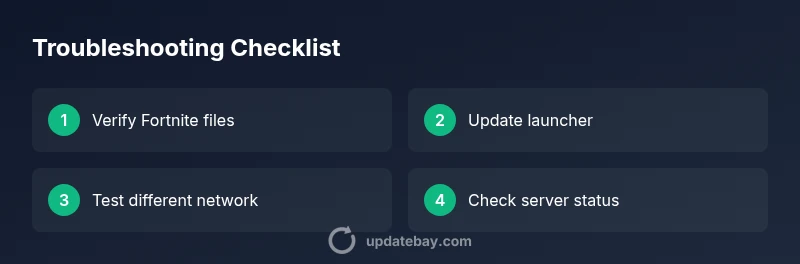
- Verify game and launcher files first
- Update launcher and Fortnite to latest versions
- Test alternate networks if blocked
- Ensure sufficient disk space and proper permissions
- Wait for server issues to resolve if maintenance is ongoing