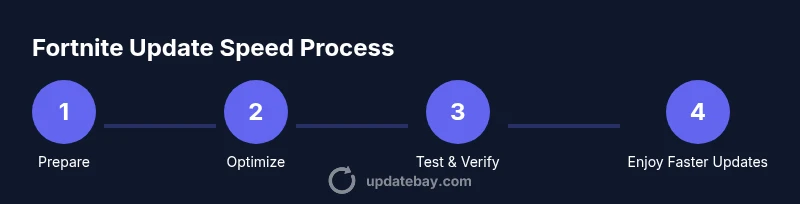
How to Make Fortnite Update Faster
A complete, expert guide to accelerating Fortnite updates with tried-and-true network, system, and launcher tweaks. Learn practical steps from Update Bay to reduce wait times and get back to gameplay faster.


Goal: accelerate Fortnite updates by optimizing your network, hardware, and launcher settings. This guide covers practical, step-by-step actions you can take now—switch to a wired connection, pause other downloads, clear cache, and ensure your graphics and network drivers are up to date. You’ll learn quick wins and deeper tweaks to reduce update waits and keep you in-game longer.
Why Fortnite Updates Slow Down
If you’ve ever started a Fortnite update only to watch it crawl, you’re not alone. The question of how to make Fortnite update faster comes up often among gamers who want to drop into the action without long download waits. The reasons vary from network bottlenecks to storage and launcher inefficiencies. According to Update Bay, most slowdowns are avoidable with a focused, layered approach. By understanding where time is spent, you can target the biggest culprits first and see meaningful reductions in wait time.
In practice, update speed is affected by your internet connection, the health of your storage subsystem, and how the Fortnite launcher manages cached data. If you’re on Wi‑Fi, you may be fighting interference or bandwidth contention from other devices. If you’re on a PC with an SSD, you may still run into throttling if other processes occupy the drive queue. The goal is to minimize contention, keep data streaming smoothly, and ensure the launcher has priority access when the update begins.
Quick Wins to Speed Up Updates
Before diving into deeper fixes, try these fast actions. They can deliver noticeable improvements with minimal effort:
- Use a wired Ethernet connection instead of Wi‑Fi to reduce interference and latency. Update Bay findings indicate that a stable wired link often trims stubborn delays.
- Pause all nonessential downloads and streaming apps during the update window to free bandwidth for Fortnite.
- Clear the Fortnite cache and launcher cache to remove stale data that might slow the patching process.
- Ensure your PC or console is not performing heavy disk I/O from background tasks—kill or suspend heavy applications temporarily.
- Set Fortnite to download during off-peak hours if your platform supports it, avoiding network congestion in peak times.
If you follow these steps, you’ll often see the update progress move faster, getting you back into the game sooner. The Update Bay team recommends using these tweaks as a baseline before attempting more technical changes.
Optimize Your Network for Gaming
A solid network is the backbone of a fast Fortnite update. Start with a few foundational checks and gradually layer on refinements:
- Verify that your router’s firmware is up to date and consider enabling Quality of Service (QoS) rules that prioritize Fortnite’s traffic. This reduces competing bandwidth from other devices.
- Choose a server region that’s geographically close to you to minimize routing hops and latency. If your launcher offers region selection, pin to the closest nearest option.
- Disable VPNs or proxy services during the update, which can add extra hops and slow data delivery. If you must use a VPN for security, test speed with it off first.
- Test different DNS providers (for example, fast, reputable options) to see if name resolution speed affects download pacing.
Note: Real-world results vary by home network, but these changes often yield a smoother, faster update experience. Update Bay’s analysis shows that optimizing routing and prioritization can noticeably improve perceived speed.
Prepare Your System and Storage
Beyond network tuning, system readiness matters for a fast Fortnite update. Prepare your hardware and storage so data can stream without interruption:
- Ensure your storage drive has enough free space and is not nearly full. A nearly full drive can degrade write speeds and caching behavior during large downloads.
- Run a quick health check on your drive and consider a lightweight defragmentation if you’re on an HDD (not needed for SSDs).
- Keep your operating system and graphics drivers up to date, as updates often come with performance improvements and compatibility fixes that help patching processes.
- Close nonessential background processes that might compete for disk I/O or CPU time during the update.
Updating firmware or drivers is a practical, low-risk step that Update Bay frequently recommends for gamers chasing smoother downloads.
Manage Fortnite Launcher Settings
Launcher settings can significantly impact how efficiently updates are applied. Check and adjust these options:
- Enable automatic updates for Fortnite so patches start promptly when you’re online. If you’d rather schedule, pick a time when your device isn’t actively used.
- Limit or disable in-launcher overlays and background check scans during updates, as these can momentarily spike CPU usage and slow the process.
- Clear or reset the launcher’s cache if you notice repeated slowdowns or corrupted patch data.
- Ensure the launcher itself has the highest priority in your system’s task manager.
These tweaks help the patching process run with fewer interruptions and less contention for resources.
Advanced Techniques for Power Users
For players comfortable with deeper tinkering, consider these advanced steps:
- Allocate a dedicated portion of your SSD for Fortnite patch data to reduce interference from other apps. This creates a more predictable write path during updates.
- Use a wired connection with a high-quality router and consider enabling 802.11ac or 802.11ax modes for better throughput and stability.
- Temporarily disable background cloud backups or antivirus scans during the update window to reduce disk and CPU contention. Remember to re-enable protections afterward.
- If updates are still sluggish, try performing the update from a fresh restart in Safe Mode with Networking to minimize startup processes.
Note: Advanced tweaks may carry risk if misapplied. Proceed carefully and back up important data. The Update Bay team cautions that these steps should be undertaken by users comfortable with system configuration.
Common Pitfalls and How to Avoid Them
To prevent regressing progress, steer clear of these missteps:
- Don’t assume a faster connection will always translate to faster updates if the server is congested or throttled.
- Avoid keeping unnecessary apps open that consume bandwidth, CPU, or disk I/O during updates.
- Don’t ignore firmware updates for routers and modems; outdated firmware can bottleneck even a strong line.
- Don’t ignore power settings; set your device to a high-performance profile during the update window to maximize throughput.
Being mindful of these pitfalls helps sustain an efficient patching process.
Authority Sources
For readers who want to verify guidance or explore official steps, consider these sources:
- https://support.epicgames.com/hc/en-us (Epic Games Support – Fortnite updates and launcher guidance)
- https://www.nist.gov (National Institute of Standards and Technology – network performance best practices)
- https://www.cisa.gov (Cybersecurity and Infrastructure Security Agency – safe network usage and backing up data)
These sources provide credible context for the network and system optimization principles discussed here.
When to Consider Upgrades or Alternatives
If updates remain consistently slow despite applying the outlined optimizations, you may consider hardware or service upgrades that have a broad impact beyond Fortnite:
- Invest in a faster router and improve home network layout to reduce congestion. A wired setup remains the most impactful upgrade for many households.
- Consider upgrading to a solid-state drive (SSD) with ample free space or increasing RAM if your system frequently bottlenecks during large downloads.
- If you play on a console, check for system firmware updates and storage expansion options that can improve overall performance.
The Update Bay team recommends evaluating hardware benefits in the context of your overall gaming setup. Minor improvements can compound into noticeably faster updates over time.
Tools & Materials
- Stable wired Ethernet connection(Prefer gigabit Ethernet; avoid flaky Wi‑Fi when updating)
- PC or console with latest firmware(Update system software before patching)
- Fortnite launcher/app(Ensure it’s the latest version before starting a patch)
- Cool, quiet environment(Helps prevent device throttling during long updates)
- Optional SSD or external storage(Faster cache and patching for large updates)
Steps
Estimated time: approximately forty-five minutes
- 1
Prepare the baseline
Close unnecessary applications, save work, and reboot your device. This clears temporary states and ensures a predictable environment for the update. Then verify Fortnite launcher is up to date and ready to patch.
Tip: A fresh restart can reset stubborn background processes that steal bandwidth or disk I/O. - 2
Switch to a wired connection
Connect your device directly to the router using a reliable Ethernet cable. Disable Wi‑Fi temporarily if you’re experiencing interference. Run a quick speed test to confirm stable throughput.
Tip: Wired connections reduce latency and packet loss that commonly slow patch downloads. - 3
Pause competing downloads
Pause any other large downloads or streaming services on your network. This frees up bandwidth for Fortnite and helps the patch progress more quickly.
Tip: Check for background services or cloud backups that might resume automatically. - 4
Clear Fortnite caches
Clear launcher and patch cache to remove potential corrupt data. A fresh cache can prevent re-downloading already-present files.
Tip: Only clear caches if you’ve confirmed it won’t remove vital local save data. - 5
Update drivers and OS
Update network drivers, GPU drivers, and the OS to ensure optimal download handling and patch integration.
Tip: After updating, reboot again to ensure changes take effect. - 6
Tune launcher settings
Enable auto-update in the Fortnite launcher and allocate the launcher higher priority if your OS allows it. Disable overlays during the update.
Tip: Higher launcher priority helps during the critical patch download window. - 7
Start the update and monitor
Begin the update and watch the progress. If it stalls, pause and resume or restart the launcher. If the issue persists, move to advanced steps.
Tip: Don’t cancel the update; instead, restart the launcher to avoid corrupt patch states. - 8
Evaluate hardware upgrades
If slow patches persist, assess hardware upgrades like SSDs or extra RAM as a longer-term solution for overall performance.
Tip: Hardware upgrades yield benefits beyond Fortnite updates and enhance general gaming performance.
Frequently Asked Questions
Why is Fortnite updating so slow on my network?
Slow updates usually come from network congestion, server throttling, or local device bottlenecks. Starting with a wired connection and closing other bandwidth-heavy tasks often resolves the issue. If the problem persists, investigate storage and launcher settings.
Fortnite updates slow down mainly due to network congestion or device bottlenecks. Start with a wired connection and closing other tasks; if needed, check storage and launcher settings.
Does upgrading to an SSD help Fortnite updates?
Upgrading to an SSD can improve overall patching performance by speeding up disk I/O and caching. It’s one of several practical upgrades that Update Bay recommends for gamers seeking faster patch times.
An SSD can help with patching by speeding disk access and cache performance, especially on systems that frequently download large updates.
Will using a VPN speed up Fortnite updates?
Using a VPN often adds extra hops and overhead that slow data transfer. In most cases it does not speed up Fortnite updates. If you’re testing speed, try disconnecting the VPN and compare results.
Usually not. VPNs tend to slow down downloads because data travels farther and more processing is involved.
Is there a difference between updating on console vs PC?
Both platforms can benefit from similar principles: stable network, clean caches, and updated firmware. Consoles may rely more on internal storage, while PCs can be more sensitive to background processes.
Both console and PC updates benefit from a stable connection and clean caches; the specifics depend on your hardware and background activities.
How long should a Fortnite update take?
Update duration varies with network speed, server load, and hardware. If you follow the steps in this guide, you’ll reduce the typical wait time and improve consistency.
Times vary, but following these steps should reduce the usual wait and make progress steadier.
Can background apps affect the update?
Yes. Background apps can compete for bandwidth and disk I/O, slowing patch downloads. Close or suspend nonessential apps during the update window.
Absolutely—close other apps to reduce contention during the patch download.
Watch Video
What to Remember
- Prioritize a wired connection for patch downloads.
- Close background apps to free up bandwidth and disk I/O.
- Clear caches and update drivers before patching.
- Follow a structured step-by-step plan to minimize stalls.
- Consider hardware upgrades for long-term speed gains.