How to Update a Laptop: Step-by-Step Guide for 2026
Learn how to update a laptop safely—covering OS, drivers, and BIOS. This guide from Update Bay offers practical steps, tools, and safety tips to keep your device current without risk.


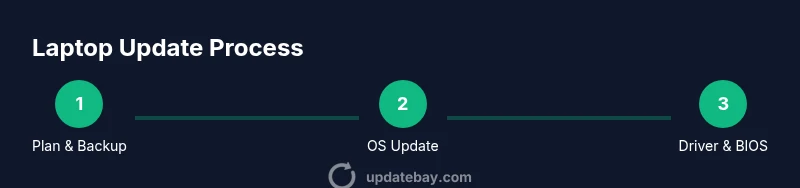
This guide shows you how to update a laptop safely, covering operating system updates, driver refreshes, and BIOS/firmware when required. Before you begin, ensure your battery is charged or plugged in, you have a reliable internet connection, and you have a full data backup. You’ll use official update tools and perform a structured verification after finishing.
Why Updating a Laptop Matters
Keeping a laptop up to date is essential for security, performance, and compatibility. When you update a laptop regularly, you reduce exposure to malware, improve system stability, and ensure new software supports your hardware. According to Update Bay, maintaining current software and firmware translates into fewer crashes and faster, smoother experiences. In this guide, we align best practices with broad hardware and software ecosystems, so you can update confidently without risking data loss or downtime. The core idea is simple: regular, measured updates protect your investment and extend the device’s useful life. You’ll see how updates strengthen defenses, close known vulnerabilities, and improve overall responsiveness. By following a structured routine, you reduce guesswork and keep your machine ready for new apps and features.
The Update Bay team emphasizes proactive maintenance: scheduled updates align with your usage patterns and minimize surprise downtime. Along the way, you’ll learn how to verify success, address common hiccups, and recover gracefully if something goes wrong. This section sets the foundation for a practical, repeatable process you can repeat every few weeks or months depending on usage and risk posture.
Types of Updates You Should Consider
There isn’t a single update to rule them all—the most impactful improvements come from a combination of OS updates, driver updates, and firmware changes. Operating system updates install security patches, performance enhancements, and new features. Driver updates refresh critical components such as graphics, audio, wireless adapters, and input devices, ensuring compatibility with the latest software. BIOS or firmware updates can optimize power management, thermal behavior, and hardware compatibility, but they require careful handling and must be sourced directly from the manufacturer. Regularly applying these updates—preferably through official channels—helps keep the machine secure, compatible with current apps, and less prone to hardware conflicts. Update Bay suggests prioritizing critical security patches, then feature updates, then optional driver improvements when convenient. In practice, many laptops benefit from a monthly check-in with the manufacturer’s updater, followed by quarterly driver reviews and occasional BIOS reviews when a vendor release is flagged as important.
Preparation and Backups
Before starting any update cycle, prepare by backing up your data and creating a recovery point if your OS supports it. Use both a local backup (external drive) and a cloud backup for redundancy. Make sure you have access to the manufacturer’s official update tools and the latest system image or installation media if you intend to perform a major upgrade. Additionally, ensure your battery is charged or the laptop is plugged in, and disable auto-sleep during the update window. By taking these precautions, you minimize the risk of data loss or interrupted updates that can leave the device in an unstable state. Create a simple rollback plan: know how to restore from backup and identify a point where you can reattempt updates with a different strategy if needed.
Safe Update Practices Across Platforms
Windows, macOS, and Linux share common safety steps but differ in execution. On Windows, use Windows Update or the vendor’s update tool to apply OS and driver updates, and verify that essential services remain running afterward. On macOS, rely on Software Update and the App Store for drivers and firmware, and reboot to complete installation. Linux users should apply distribution-specific package updates (and kernel upgrades) via the official package manager, followed by a system reboot. Regardless of platform, avoid updating while on battery power alone, if possible, and confirm the update completed with a restart and a quick check of core functions. Keep a list of installed versions so you can notice changes after updates and spot regressions quickly.
Post-Update Verification and Maintenance
After updates complete, check that the system boots normally and all critical hardware is functioning. Verify that security settings are intact, antivirus or security suites are up to date, and essential software still runs as expected. Review version numbers in Settings > About and compare with the official release notes to confirm you’re on the intended build. If something seems off, use a restore point or a known-good backup to roll back. Finally, schedule automatic updates to keep your laptop current without repeated manual intervention. Consider setting up a monthly reminder to review update notes and test essential workflows.
Troubleshooting Common Update Scenarios
Updates don’t always install cleanly. If an update stalls, pause and recheck your internet connection, then retry from a clean restart. For OS issues, use built-in recovery options, such as system restore points or fresh start options, to reflow the update process. If a driver or firmware update causes instability, roll back to the previous version and report the issue to the manufacturer if it persists. In rare cases, a full reinstall using official media may be the most reliable path to a clean baseline. In all cases, keep your backups handy and avoid making other major changes during the update window.
Tools & Materials
- Backup drive or cloud storage(Create a full data backup before updating anything.)
- Charged laptop and reliable power adapter(Keep power connected throughout the update.)
- Stable internet connection(Prefer wired Ethernet or a stable Wi‑Fi network.)
- Official update tool from the manufacturer(Download from the vendor’s official site.)
- BIOS/firmware file (if advised)(Only use if the manufacturer explicitly instructs you to update BIOS.)
- Screwdriver set (optional)(Only for hardware access; not needed for standard software updates.)
Steps
Estimated time: 60-180 minutes
- 1
Plan and back up data
Choose your update targets (OS, drivers, firmware) and create a complete backup. Verify that the backup can be restored, and set a rollback point if your OS supports it. This protects against data loss and gives you a clean restore path.
Tip: Test restore from the backup on a separate machine or a test file to ensure it works. - 2
Update the operating system
Run the official OS updater to apply security patches and feature improvements. Close nonessential apps to speed installation and prevent interruptions. Reboot if prompted and sign back in to confirm updates completed.
Tip: Avoid multitasking during an OS update to prevent conflicts. - 3
Update drivers and firmware
Use the vendor’s updater to refresh drivers for graphics, audio, networking, and input devices, as well as firmware where applicable. After installation, reboot and test hardware components (sound, Wi‑Fi, trackpad).
Tip: If multiple driver updates are available, install them in batches to identify issues more easily. - 4
Update BIOS/UEFI only if advised
Follow the manufacturer’s instructions precisely when updating BIOS/UEFI. Ensure the device remains powered throughout; a power loss during BIOS flash can brick the motherboard. This step is only needed if recommended by the vendor.
Tip: Read release notes before proceeding to ensure benefits justify the risk. - 5
Reboot and verify
After all updates, perform a full reboot and verify that the system boots normally. Check version numbers, test core apps, and ensure security software remains active and up to date.
Tip: Create a quick post-update checklist to confirm essential functionality. - 6
Schedule future updates
Enable automatic updates where appropriate and set reminders to review notes from major releases. Regular monitoring helps catch issues early and keeps the laptop secure.
Tip: Keep a log of update dates and outcomes for future reference.
Frequently Asked Questions
What should I back up before updating my laptop?
Back up essential files and create a system image if possible. This protects personal data and provides a full restore path if something goes wrong during updates.
Back up your files and create a system image to restore quickly if something goes wrong.
Can I update BIOS on any laptop?
BIOS updates are vendor-specific. Only update BIOS when the manufacturer directs you to and follow their exact instructions to avoid risking the motherboard.
Update BIOS only if your manufacturer instructs you and follow their precise steps.
What if an update fails to install?
If an update fails, reboot and retry the process. If problems persist, revert to a restore point or a known-good backup and consult official support resources.
If it fails, reboot, retry, and if needed revert to a restore point and contact official support.
Is it safe to enable automatic updates?
Automatic updates are convenient and help keep you protected, but ensure backups exist and monitor initial updates to catch any issues early.
Automatic updates are convenient and safer with backups and initial monitoring.
How long do updates typically take?
Update duration varies by device and scope, but plan for a window that allows OS, driver, and firmware updates plus a reboot.
Duration varies, but set aside enough time for OS, drivers, and a reboot.
Should I update BIOS or firmware regularly?
Only update when the vendor recommends it or when you encounter hardware issues resolved by a firmware fix. Otherwise, routine OS and driver updates are typically sufficient.
Update BIOS only if recommended or needed; otherwise OS and driver updates are usually enough.
Watch Video
What to Remember
- Back up before starting any update.
- Use official update tools from the manufacturer.
- Verify updates with a post-install check.
- Don’t skip BIOS/firmware only if advised.
- Schedule regular maintenance to stay current.