How to Get Updated Satellite Images: A Practical Guide
Learn where to find up-to-date satellite imagery, compare sources, and build a practical workflow to pull fresh images for monitoring, planning, and analysis.


If you’re wondering how to get updated satellite images, this guide shows you where to find near real-time and recent imagery, the tradeoffs between free and paid data, and a practical workflow to pull, preprocess, and verify fresh images for your area of interest. You’ll learn source options, access methods, and quick checks to ensure data freshness.
What updated satellite imagery means and why it matters
Updated satellite imagery refers to recent captures from Earth-observing satellites that are available for analysis after processing, with refresh cadences ranging from minutes for weather geostationary satellites to days for Landsat or Sentinel missions. For anyone exploring how to get updated satellite images, the key is to define your area, required resolution, and acceptable delay. Your goals shape which sensors you’ll rely on, how you access the data, and how you validate freshness. In practice, you’ll often combine multiple sources to balance cadence, coverage, and detail. When evaluating imagery, expect terms like near real-time, rapid refresh, and post-processed—each reflects how quickly a dataset becomes usable after capture. Start by outlining your use case, the geographic extent, and the level of temporal precision you need, then map those needs to concrete data sources and tools.
By framing the task clearly, you’ll avoid chasing images that don’t meet your timing requirements. The Update Bay team notes that a well-scoped plan reduces time-to-insight and prevents wasted processing effort. If you’re wondering how to get updated satellite images efficiently, this planning step pays off immediately by guiding your source selection and workflow choices.
Where to find up-to-date imagery: primary sources
The most reliable starting point for updated satellite imagery is to use a mix of open data portals and commercial offerings, chosen based on your needs for speed, resolution, and licensing. Core open data sources include NASA’s Worldview and Earthdata catalog, which provide near real-time and recent imagery across multiple sensors; the Copernicus Open Access Hub (ESA) for Sentinel data; and NOAA’s GOES and JPSS feeds for weather-focused imagery. For higher cadence and dramatic detail, you may consider commercial providers that offer streaming access, archival collections, and tailor-made feeds. When choosing sources, consider the area you’re monitoring, the desired resolution, and whether cloud cover or atmospheric conditions will impact your analysis. The Update Bay team emphasizes validating timestamps in metadata to ensure you’re using the most recent images available for your region.
Understanding refresh rates and latency across sensors
Sensor cadences determine how often you can expect fresh imagery of any location. Weather satellites (geostationary) can deliver frequent observations of the same region, while optical and radar satellites vary from daily to every few days depending on orbit design and sensor coverage. For example, optical sensors such as Landsat or Sentinel-2 provide regular revisits to most land areas, but gaps can occur due to cloud cover. Radar sensors, like Sentinel-1, offer all-weather capabilities and can provide frequent imaging regardless of cloud conditions. Latency—the time between capture and availability—depends on processing queues, data licensing, and distribution channels. If your use case requires timely updates, plan to combine data streams (e.g., radar for baseline updates and optical for detail) to maintain continuity even when one source is temporarily unavailable.
Free vs paid data: licensing, access, and latency
Free data from agencies like NASA, ESA, and NOAA is typically sufficient for many monitoring tasks and research, with generous usage terms and broad accessibility. Free data may still have latency due to processing pipelines and cloud cover in optical imagery. Commercial data offers higher cadence, higher spatial resolution, and sometimes faster delivery, but comes with licensing terms and subscription costs. The choice between free and paid data often narrows to your required freshness, resolution, and how you intend to use the imagery. A practical approach is to start with open data to validate workflows and then layer in commercial data if you need tighter update windows or specialized spectral bands. The Update Bay analysis shows that many practitioners achieve robust results by leveraging a hybrid strategy that blends both sources when necessary.
How to programmatically access imagery: APIs and platforms
Programmatic access is the fastest way to obtain updated imagery and automate the update cycle. Major options include NASA APIs for data discovery and retrieval, the Copernicus Open Access Hub for Sentinel data, AWS Open Data for cloud-hosted imagery, and Google Earth Engine for scalable processing and curated collections. Each platform has its own authentication model and data formats (typically GeoTIFF, JP2, or Cloud-Optimized GeoTIFF). Start by registering for a developer account, testing a small region, and building simple queries to fetch metadata before downloading full scenes. Using open source tools like Python with rasterio and geopandas, or cloud-based notebooks, can significantly accelerate your workflow.
Workflows: from data discovery to usable imagery
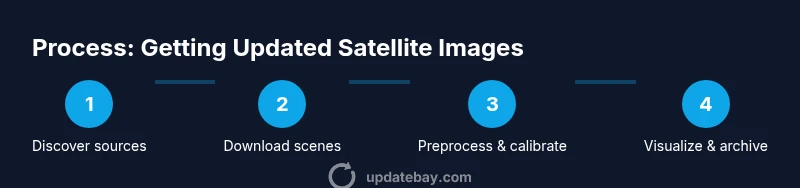
A practical workflow begins with data discovery—identifying candidate scenes that cover your area and satisfy your timing needs. Next, retrieve and preprocess imagery (reprojection, clipping to your AOI, cloud masking). Then, verify metadata (timestamp, projection, footprint) and perform any needed calibration or atmospheric correction. Finally, organize the results with consistent naming conventions and store them in a project folder or cloud bucket. Automating these steps with a script or notebook reduces manual effort and ensures you consistently pull fresh data for ongoing monitoring or reporting. The key is to keep a reproducible record of your steps and parameters so colleagues can reproduce results.
Common pitfalls and verification: cloud, metadata, and georeferencing
Cloud cover, atmospheric effects, and misaligned projections are frequent sources of errors in updated imagery. Always check the image timestamp and compare against your target window to confirm freshness. Verify the coordinate reference system (CRS) and perform a quick overlap check with known shapefiles to ensure proper georeferencing. Cloud masks are essential for optical data; rely on the mask provided with the scene or run a quality assessment. If imagery fails basic checks, revert to an alternate scene or diagnostic data product. Building a small validation checklist helps you catch issues early and avoid downstream mistakes.
By staying mindful of these challenges, you’ll improve the reliability of your updated imagery pipeline and reduce wasted processing time. The goal is to maintain a robust, auditable workflow that consistently yields usable images for your area of interest.
Practical starter workflow for a small area
For newcomers, a compact starter workflow makes it easier to see results quickly. Begin by selecting a small AOI (e.g., a neighborhood or park) and choose one optical and one radar source to compare freshness. Use a free portal to locate recent scenes, then download a scene that covers your AOI and aligns with your date window. Apply basic preprocessing (clip to AOI, reproject to a common CRS, and apply cloud masking). Visualize the result and compare with prior imagery to confirm that the update is indeed recent. This hands-on experiment provides a tangible sense of how updated satellite imagery can support basic monitoring tasks.
How to store and organize imagery for reuse
Organization is critical for long-term projects. Adopt a consistent naming convention that includes source, sensor, date, and AOI. Maintain a metadata file that records CRS, pixel size, cloud cover, and processing steps. Use a dedicated folder structure with separate raw, processed, and analyzed data, and consider using a data catalog or simple database to track asset provenance. Proper storage and documentation save time when you need to re-run analyses or compare updates over time.
Tools & Materials
- Stable internet connection(Broadband or ethernet for large data transfers)
- Account with data providers(NASA Earthdata, Copernicus Open Access Hub, etc.)
- Geospatial software(QGIS, ArcGIS, or equivalent for visualization and processing)
- Programming environment(Python with rasterio/geopandas or Google Earth Engine API)
- Cloud storage or local storage(Sufficient space to store raw and processed scenes)
Steps
Estimated time: 2-4 hours
- 1
Define your imagery goals
Specify the geographic area, the minimum resolution, and the acceptable update frequency. This will guide sensor and data-source choices and prevent scope creep.
Tip: Write a one-paragraph goal statement and keep it visible during the entire workflow. - 2
Select data sources based on needs
Choose a mix of open data and, if needed, commercial data to meet your cadence. Consider cloud cover and sensor type when evaluating options.
Tip: Start with free sources to validate the workflow before adding paid data. - 3
Set up access and authentication
Register for required API keys or credentials and test a basic query to fetch metadata for a small AOI.
Tip: Store credentials securely and rotate keys periodically. - 4
Discovery and selection of scenes
Search catalogs for scenes that cover your AOI and fall within your date window. Prioritize scenes with low cloud cover and recent timestamps.
Tip: Maintain a shortlist of candidate scenes for quick comparison. - 5
Download and preprocess imagery
Download the chosen scenes, clip to AOI, reproject to a common CRS, and apply mask (cloud or noise).
Tip: Automate a standard preprocessing recipe to ensure consistency. - 6
Validate freshness and metadata
Check the timestamp, sensor, and CRS. Verify that the data aligns with your planning window.
Tip: Keep a small metadata log for each scene you use. - 7
Integrate into your workflow
Incorporate imagery into your analysis or visualization workflow, whether in GIS, notebooks, or dashboards.
Tip: Document processing steps so teammates can reproduce results. - 8
Automate where possible
If updates are ongoing, script the end-to-end pull, preprocess, and store steps to reduce manual effort.
Tip: Test automation on a controlled AOI before scaling up.
Frequently Asked Questions
What counts as 'updated' imagery for practical use?
Updated imagery typically means data that has a recent acquisition date and has completed processing to be usable. The exact freshness depends on the sensor and provider, but you should aim for scenes within your target window and with current metadata.
Updated imagery means data that has a recent acquisition date and ready-to-use processing. Choose sources with a cadence that matches your needs and check the metadata for freshness.
Which data sources are free and reliable for updates?
Free sources include NASA, ESA, and NOAA portals that provide near real-time and recent imagery across multiple sensors. They are widely used for monitoring, planning, and education with permissive licenses.
Free sources like NASA, ESA, and NOAA offer near real-time imagery for many use cases with permissive licenses.
Can I get real-time imagery for my area?
Real-time imagery is possible for certain sensors, especially weather and radar satellites, but optical real-time data is less common due to processing and distribution delays. Plan with the sensor cadence in mind.
Real-time imagery exists for some weather and radar sensors, but optical updates usually come with small delays.
What software tools are best to process updated imagery?
Common tools include GIS platforms like QGIS or ArcGIS, plus Python libraries (rasterio, geopandas) or cloud-based platforms like Google Earth Engine for large-scale processing.
QGIS or ArcGIS plus Python libraries or Google Earth Engine are great for processing updated images.
How can I automate getting updated imagery?
Automation involves scripting data discovery, download, preprocessing, and validation. Start with a small AOI and iteratively build a repeatable pipeline that runs on schedule.
Set up a repeatable pipeline that discovers, downloads, preprocesses, and validates imagery on a schedule.
Are there licensing restrictions on using satellite data?
Licensing varies by source. Free data generally allows broad use for research and analysis, while commercial data may require licenses for redistribution or commercial applications.
Licenses vary; free data is usually broad-use, commercial data may have redistribution rules.
Watch Video
What to Remember
- Define your goals to choose the right data sources.
- Use a mix of free and paid data to balance freshness and cost.
- Automate discovery, download, and preprocessing where possible.
- Always verify timestamps and georeferencing before analysis.
- Document your workflow for reproducibility and future updates.