How to Get Updated Google Earth Images: A Practical Guide
Learn practical, step-by-step methods to access the latest Google Earth imagery. This educational guide covers tools, workflows, verification, and trusted sources to ensure you’re working with fresh, credible visuals.


By following practical steps, you can access updated Google Earth imagery for planning, research, or curiosity. Use Google Earth Pro for desktop or the web version, enable time controls and dated imagery, and explore Google Maps updates or official satellite data feeds. Have a Google account, a stable internet connection, and access to compatible devices to begin.
how to get updated google earth images
Accessing fresh imagery matters for planning field work, environmental monitoring, real estate analysis, and travel planning. In practice, there is no single 'real-time feed' you can pull from every location; imagery refresh cycles depend on data availability, licensing, and the location’s importance to partners. According to Update Bay, the most reliable path is to combine official Google Earth views with cross-checks from reputable data providers and government resources. In this guide, you’ll learn to interpret what 'updated' means in Google Earth, how to initiate a search for recent frames, and how to document your findings for reports or decisions. The goal is not to chase the latest pixel in every corner of the globe, but to identify credible, fresh frames that support your task. You’ll build a practical workflow you can reuse for projects ranging from urban planning to natural-resource assessments, with clear steps you can follow today.
What counts as updated imagery on Google Earth
Updated imagery refers to newer data replacing older frames for a given geographic area. This can include recent satellite passes or aerial surveys conducted in the last months or years, depending on data availability. Google Earth surfaces imagery pulled from multiple sources, including satellite constellations and aerial campaigns, then schedules releases according to processing capacity and licensing. In some locations the difference between dates can be dramatic, in others it may be subtle. The age of the imagery is typically shown in the interface as a date stamp or metadata; if a date is missing, you may need to check the image’s source notes or compare with government datasets. Practically, do not assume that a newer date automatically equals higher quality—resolution, cloud cover, and sensor type all influence usefulness. The practical takeaway is to evaluate freshness in the context of your project’s needs and seek corroborating data when precision matters.
Quick-start: using Google Earth Pro and the web version
Get up and running quickly with the basics. Install Google Earth Pro on your computer or open the Google Earth web app at earth.google.com. Sign in with your Google account to enable sync and save favorites. Search for your location, then switch to imagery view and locate the time or date control in the toolbar. If your version supports it, drag the time slider to see imagery from different dates; note the displayed dates and any notes accompanying each frame. You can also toggle between basemaps and datasets to compare optical imagery with other layers, such as aerial photographs. When possible, adjust the display settings (resolution, rendering quality) to improve clarity. For planning tasks, set up a simple map of your area with the latest frame highlighted and export a screenshot or a map tile for your report.
Advanced methods: time sliders, historical imagery, and external data sources
Time sliders enable you to explore changes over time by sliding through dates. In Google Earth Pro, historical imagery archives may be accessible via the Data or Historical Imagery panels. When available, cross-verify with external datasets like NASA Earthdata, USGS Landsat, or ESA Copernicus programs. These sources provide cadence and historical coverage that complements Google’s imagery. Compare the same location across datasets to confirm that the frame you’re using is recent and relevant. For example, Landsat data may reveal decades of historical context, while updated high-resolution imagery from commercial providers can supplement that perspective. Keep track of the licensing terms for each source and ensure your use complies with permissions if you publish results.
Common pitfalls and verification best practices
Imagery freshness is context-dependent; cloud cover, sensor maintenance, and processing queues can delay availability. Dates may be missing or mis-leading if metadata is incomplete. Always cross-check with at least two independent sources before relying on a frame for critical decisions. When possible, compare with government or academic datasets to assess recency and thematic accuracy (for example, urban development could be verified against land-use datasets). Document your verification steps and keep a clearly labeled log with dates, sources, and confidence levels. Finally, remember that imagery is a snapshot in time; you may need to repeat checks periodically as new frames are published.
Authoritative sources
To deepen your understanding and verify imagery freshness, consult these authoritative sources:
- NASA Earthdata: https://earthdata.nasa.gov
- USGS: https://www.usgs.gov
- NOAA: https://www.noaa.gov
These resources provide high-quality data and guidelines about imagery cadence, data governance, and licensing, which can help you triangulate Google Earth imagery with trusted datasets.
Tools & Materials
- Computer or mobile device with internet(Desktop or mobile; Google Earth Pro on desktop recommended for advanced features)
- Google account(Required to access saved views and sync data)
- Google Earth Pro or Google Earth web access(Install the desktop app or use the browser version)
- Stable internet connection(Essential for loading high-resolution imagery)
- Optional: external data sources (NASA Earthdata, USGS Landsat)(Useful for cross-verification of freshness)
Steps
Estimated time: 60-90 minutes
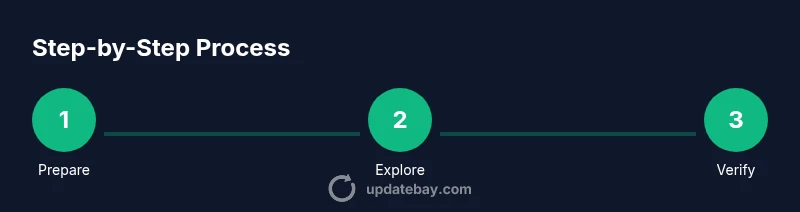
- 1
Prepare your tools and accounts
Install Google Earth Pro on your desktop or open the Google Earth web version. Sign in with your Google account and verify your internet connection. This setup ensures you can access the latest imagery and save your findings.
Tip: Verify that your browser or app is updated to support the latest time-slider features - 2
Open a location and enable the date view
Search for your target area and switch to imagery view if the interface offers a time/date control. This lets you compare imagery from different dates and understand update cadence.
Tip: If the time slider is hidden, check the View or Tools menu for imagery options - 3
Use the time slider to find newer frames
Drag the time slider forward to preview more recent imagery. Note the date stamps and any update notes that accompany the frame.
Tip: Look for a timestamp in the lower corner of the image or the layer panel - 4
Cross-verify freshness with external sources
If you need higher cadence or confirmation, compare with NASA Earthdata or USGS Landsat data for the same region.
Tip: Cross-check at least two independent sources when decision-critical - 5
Capture, annotate, and save your findings
Take screenshots or export tiles for your report. Add notes about the date, source, and whether you’re using this for planning.
Tip: Maintain a simple log with dates and URLs for future reference - 6
Set up a cadence or alert if available
Some platforms allow you to save views or subscribe to updates; enable notifications where possible to stay current.
Tip: Regularly revisit your saved areas to catch fresh imagery
Frequently Asked Questions
How often does Google update imagery in Google Earth?
Imagery updates vary by region and data availability. Google releases new frames when fresh data is provided by partners, so some areas refresh more often than others.
Updates depend on region and available data from partners; you’ll see newer frames when data arrives.
Can I see real-time updates?
Google Earth imagery is not real-time. You’ll see near-current frames when fresh data is published, but exact real-time feeds are not guaranteed.
It isn’t real-time, but you can view the newest frames once data is published.
Do I need a paid plan to access updated imagery?
Most updated imagery is accessible with standard Google Earth Pro or Google Earth web; some advanced datasets may require enterprise access.
For most users, no paid plan is required.
How can I verify the freshness of an image?
Cross-check the date stamp on the frame, compare against other sources, and look for official release notes from data providers.
Check the date on the image and compare with other sources.
Are there regional differences in data availability?
Yes, imagery cadences and sources vary by region due to licensing and data sharing agreements.
Region affects how often imagery is refreshed.
Watch Video
What to Remember
- Plan: check multiple dates for each area
- Verify: cross-check with external data sources
- Save: log dates and sources for audits
- Stay evergreen: imagery cadence varies by region