How to Update Work on Google Maps
Step-by-step instructions to update your business work information on Google Maps, including verification, hours, address, categories, photos, and monitoring changes for faster visibility.


You're going to learn how to update work information on Google Maps, including claiming ownership, editing hours and address, selecting the right categories, and uploading fresh photos. This step-by-step guide covers claiming, editing, publishing, and monitoring changes, with practical timelines and safety tips. By the end, you’ll keep your listing accurate and visible to customers.
Understanding why updating work information on Google Maps matters
Local customers rely on accurate listings to find, reach, and trust a business. When someone asks how to update work on google maps, the fastest and most reliable results come from listings that reflect current hours, locations, and services. Inaccuracies can lead to missed opportunities, wrong directions, or calls to the wrong business. Update Bay's analysis shows that businesses that keep their Google Maps profiles current tend to earn higher visibility in local search results, more profile views, and better conversion rates. The data also suggests that updates tied to verified ownership are processed faster and more reliably. As you plan updates, prioritize data accuracy over cosmetic changes, because the listing’s primary purpose is to inform customers. This section explains why maintaining your listing matters and how to approach updates methodically so you won’t be surprised by miscommunication or outdated information. The guidance here aligns with Update Bay’s best practices to help you keep pace with evolving customer expectations.
Planning your updates: scope, accuracy, and timing
A successful update starts with a clear plan. Determine which elements need refreshing (hours, address, phone, categories, attributes, photos) and set a realistic timeline. Decide whether you will update hours for holidays, add services you offer, or adjust location markers. Create a simple checklist to avoid missing fields, and schedule a review point to verify after changes publish. Consider external factors such as seasonal hours or temporary closures. By mapping out what to change and when to change it, you’ll reduce back-and-forth corrections and improve the odds your edits appear quickly.
Verifying your business identity on Google Maps
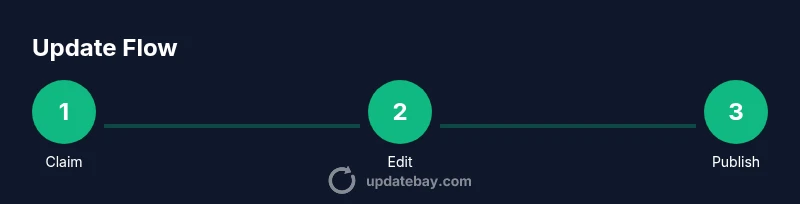
Ownership verification is a critical gatekeeper for making substantial updates. Start by signing into Google Business Profile (the control panel for Google Maps listings). Locate your business, claim ownership if needed, and complete the verification method offered (phone, email, or postcard). Verification not only unlocks editing capabilities but also improves trust signals for customers. If you manage multiple locations, repeat the process for each listing. Keep records of verification codes and confirm you can access the associated email or phone number.
Updating hours, address, and attributes: step-by-step guidance
Once you’re verified, open your listing editor and navigate to the info sections for hours, address, and attributes. For hours, include regular daily times and any holiday hours, noting exceptions clearly. For address, ensure the pin on the map matches the correct entrance; adjust the marker if needed using the pull tool and street view for precision. In attributes, add relevant features such as accessibility, payments accepted, or service options. Save changes and preview how they appear on Maps to catch formatting errors. Where possible, add context like “Mon-Fri 9:00–17:00” to reduce ambiguity. If you offer delivery or curbside pickup, include those services in the appropriate fields.
Managing user-generated information and photos
Photos and user-generated content can significantly impact engagement. Upload high-quality, well-lit photos that show your storefront, interior, products, and staff. Keep captions accurate and rights-cleared. Respond to reviews professionally to reinforce credibility. If customers flag outdated information in reviews, check the listing promptly and correct any misstatements. Regularly refreshing visual content signals that your listing is actively managed and trustworthy. Remember to remove outdated imagery that no longer reflects the business.
Special cases: multiple locations, franchise vs. single location, and service areas
For businesses with multiple locations, update each listing individually to avoid cross-location errors. Franchises should maintain consistent naming conventions and category choices across all locations, while local nuances (such as service areas or hours) can differ. If you operate a service-area business without a physical storefront, use the service-area settings to define your coverage, ensuring Google Maps shows you where you operate and can serve customers. For new locations, verify quickly to secure editing rights before data drifts.
Best practices for changes to be visible quickly
To accelerate visibility, verify ownership, use precise hours and addresses, and add diverse, high-quality photos. Ensure consistency with other directories (think NAP: name, address, phone) to improve trust signals. Schedule regular audits of your listing—at minimum quarterly—to catch inconsistencies arising from mergers, relocations, or policy changes. Use the Maps preview feature to verify how edits appear to users and adjust as needed. Finally, monitor insights for views and actions to gauge impact of updates.
Common pitfalls and how to avoid them
Avoid listing conflicts: mismatched hours, wrong categories, or incorrect addresses undermine trust and can trigger verification prompts. Don’t rely on a single phone number for multiple listings in different towns. Avoid posting low-quality photos; curate imagery that accurately represents the business. If changes aren’t visible after publishing, wait a few hours and recheck, or submit a re-verification request if necessary. Keep a changelog to track edits and their timestamps.
Signals Google Maps uses to rank updates and how to monitor impact
Google Maps uses signals such as ownership verification status, data accuracy, completeness of profile, user engagement, and recency of updates to determine ranking and visibility. Regular, verified updates with rich media tend to perform better in local search. Monitor performance via the dashboard’s insights and local knowledge panels, looking for changes in views, calls, and direction requests after edits. Use these signals to tailor future updates and maintain a competitive listing.
Tools & Materials
- Google account with manager access(Linked to the business in Google Business Profile)
- Verified ownership status(Complete verification for edits)
- Up-to-date business information(Legal name, address, phone, website)
- Stable internet connection(Wired or strong Wi‑Fi for smooth updates)
- Smartphone or computer(Device to access Google Business Profile)
- Quality photos or logos(High-resolution images (at least 1024x768))
Steps
Estimated time: 30-45 minutes
- 1
Verify ownership
Sign in to Google Business Profile, locate your business, claim ownership if needed, and complete the verification method offered (phone, email, or postcard). Verification unlocks editing capabilities and improves trust signals.
Tip: Use the fastest verification method available and keep verification codes secure. - 2
Open listing editor
Navigate to the info sections of your listing and prepare to edit hours, address, and attributes. Review current data before making changes to minimize errors.
Tip: Enable the Maps preview to see exactly how edits appear to users. - 3
Update hours
Enter regular hours and add special hours for holidays or events. Use a consistent format (e.g., 9:00 AM–5:00 PM) and note any exceptions clearly.
Tip: Avoid ambiguous times like 9–5 without AM/PM indicators. - 4
Update address/location
Ensure the pin matches the physical entrance. Adjust the marker if needed using the map tools and verify with Street View for precision.
Tip: If you relocate, ensure the old listing is updated or marked as closed. - 5
Update category and attributes
Select the most specific primary category and add relevant attributes (accessibility, payment options, services). This improves discoverability and relevance.
Tip: Prioritize one primary category that best represents your core business. - 6
Add photos and multimedia
Upload high-quality photos: storefront, interior, products, and team. Include a cover image and alt text for accessibility and SEO relevance.
Tip: Aim for a minimum of 3–5 photos; ensure you have rights to all imagery. - 7
Publish and monitor
Submit updates and then monitor live listings for consistency and timing. Check insights for views, calls, and direction requests.
Tip: Use the Maps button to view the live listing from a user perspective.
Frequently Asked Questions
Do I need to verify ownership to update a listing?
Yes. Verification is typically required for major edits to a listing. Without verification, some changes may be limited or delayed.
Yes, verification is usually required to edit critical listing details.
How long do updates take to appear on Google Maps?
Updates can appear within minutes to hours, depending on verification status and system processing. Significant edits may take longer during peak periods.
Usually minutes to hours, depending on verification and review.
Can I edit multiple locations at once?
You can manage locations individually. Some accounts have bulk tools for certain tasks, but edits are typically per listing.
Edit each listing individually, or use bulk tools if available.
What about photos and reviews?
Add fresh photos, ensure rights to use them, and respond to reviews. Photos can influence engagement and trust significantly.
Upload new photos and respond to reviews to boost engagement.
What happens if Google detects conflicting information?
Google may flag inconsistencies and request re-verification or additional proof. Keep data consistent across profiles to minimize flags.
Consistency helps avoid verification prompts and ranking issues.
How can I check if changes are live?
Open Google Maps, search for your business, and compare the listing with your dashboard. Look for a live badge or updated hours and photos.
Use Maps search to see the live listing and verify edits.
Watch Video
What to Remember
- Verify ownership before editing.
- Update hours, address, and categories accurately.
- Add high-quality photos and keep data consistent.
- Publish changes and monitor live listings.
- Regular audits prevent outdated information.