Can Windows Update Cause Internet Problems? A Practical Troubleshooting Guide
Explore how Windows updates can impact internet connectivity, common symptoms, and a practical step-by-step flow to restore your connection quickly.


If your internet vanishes after a Windows update, the most likely causes are a conflicted network driver, DNS hiccup, or a pending restart. Start by rebooting your router and PC, then run Windows Update troubleshooter. If the issue persists, roll back recent drivers or reset network settings as a safe next step.
Why can Windows Update cause internet problems
If you recently updated Windows and now your internet bandwidth drops, disconnects, or you cannot reach certain sites, you are not alone. The most likely culprits are changes to the network stack, driver conflicts, or misconfigured services introduced during the update. According to Update Bay, software updates can alter default network parameters even when the change seems minor on screen. The Update Bay team found that a surprising share of issues stem from three areas: the wireless or Ethernet adapter driver, the DNS resolver, or a background service that resets network settings after an update. Understanding these culprits helps you apply safe, targeted fixes without guessing. In practice, you’ll often be addressing one of these components rather than chasing a random bug.
How Windows updates interact with the network stack
Windows updates don’t just install apps; they can touch the very fabric of your network stack. Updates may replace or roll back drivers, modify Wi‑Fi security settings, or alter DHCP and DNS behavior. Even small changes—like a refreshed DNS cache, a new firewall rule, or a renamed network profile—can disrupt connectivity. When you install an update, Windows may also schedule background tasks that briefly interrupt network traffic. The net effect is often a temporary hiccup that can be fixed with a structured approach rather than a panic reset.
Common symptoms you might notice after an update
After a Windows update, you might see one or more of these symptoms: websites load slowly or fail to load entirely, certain apps can’t reach online services, VPN connections drop, or your device reports limited or no connectivity. You may also notice DNS resolution delays, higher latency, or inconsistent Wi‑Fi signal stability. Some users report that rebooting the router fixes the issue, while others find that a driver update or DNS flush resolves the problem. These symptoms point to problems in the network path—local device settings, router behavior, or ISP compatibility with updated protocols.
Quick checks you can do before deep troubleshooting
Before diving into heavy troubleshooting, run through these easy checks: verify the router and modem are powered and show normal lights, confirm the Ethernet or Wi‑Fi adapter is enabled, and temporarily disable VPNs or proxies to rule them out. Run a quick speed test and ping a reliable site to gauge baseline latency. Flush the DNS cache and renew your IP address, then restart both your PC and your router. If you have multiple devices, check whether the problem is device-specific or network-wide. These quick checks can save time and prevent unnecessary changes.
Diagnostic flow overview for can Windows update cause internet problems
Symptom → Diagnosis → Solution is a practical loop you can follow. Start with the simplest checks (cables, power, toggling hardware) and progressively move to more involved steps (driver updates, network resets). If symptoms persist after each fix, proceed to the next item in the diagnostic list rather than jumping straight to a major change. This flow helps you isolate whether the root cause is hardware, software, or a service misconfiguration introduced by the update.
Step-by-step fixes you can try in order
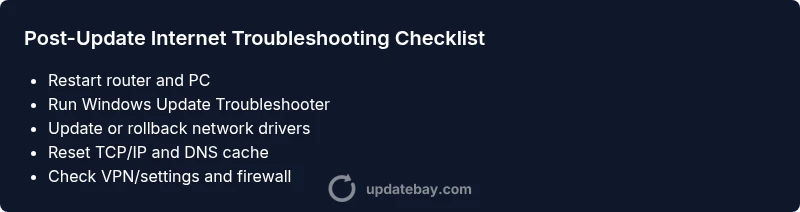
- Save work and reboot all networking gear to clear transient errors. 2. Run the Windows Update Troubleshooter to catch known issues. 3. Update, rollback, or reinstall your network driver to align with the latest Windows components. 4. Reset Windows network settings and flush DNS to restore a clean state. 5. Check VPN/proxy settings and firewall rules that could block connectivity after updates. 6. If still affected, consider a System Restore or clean boot to identify software conflicts. Tip: document each change and test connectivity after every step.
Steps
Estimated time: 45-60 minutes
- 1
Back up work and disconnect sensitive devices
Before making changes, save open documents and disconnect any devices that could complicate testing. This keeps data safe if you need to reset or roll back components.
Tip: Create a restore point before driver updates if possible. - 2
Reboot router and PC
Power cycle your router and PC to clear transient issues. Wait 60 seconds between power cycles to ensure a clean restart.
Tip: A full power cycle often resolves DNS and IP lease problems. - 3
Run built-in network troubleshooter
Open Windows Settings > Update & Security > Troubleshoot > Additional troubleshooters and run the Network Adapter troubleshooter.
Tip: Note any recommended actions; confirm changes before applying. - 4
Update or rollback network drivers
In Device Manager, expand Network adapters, right-click your adapter, and choose Update driver or Roll Back Driver if the option is available.
Tip: If both options fail, try a different driver version from the manufacturer. - 5
Reset network stack and DNS
Open an elevated Command Prompt and run: netsh winsock reset, netsh int ip reset, ipconfig /flushdns, ipconfig /release, ipconfig /renew.
Tip: Run commands one by one and reboot after completion. - 6
Test connectivity and decide on next steps
After each change, test a few websites and a ping test to a reliable host. If issues persist, consider System Restore or a clean boot to isolate software conflicts.
Tip: Document results to track what works.
Diagnosis: After a Windows update, internet connection drops or becomes unstable.
Possible Causes
- highOutdated, corrupted, or conflicting network driver
- mediumDNS cache issues or DNS server changes introduced by update
- lowNew firewall rules or VPN/proxy misconfiguration
- lowWindows services for networking paused or disabled
Fixes
- easyUpdate or rollback the network driver via Device Manager
- easyReset the TCP/IP stack and flush DNS
- easyReset network settings (Network reset) or disable VPNs
- easyTemporarily disable security software or firewall to test
- mediumRoll back the Windows update or use System Restore
- mediumPerform a clean boot to identify software conflicts
Frequently Asked Questions
Can a Windows update cause Wi-Fi to stop working?
Yes. Updates can alter drivers, DNS behavior, or firewall rules, leading to Wi‑Fi instability. Start with driver updates, DNS flush, and a network reset before considering rollback.
Yes. Windows updates can disrupt Wi‑Fi by changing drivers or DNS; try updating drivers and resetting the network first.
Should I roll back a Windows update if it causes internet problems?
Rollback is a reasonable option if the issue clearly started after the update. Use Windows Update history to uninstall the latest quality or feature update, then test connectivity.
Rolling back the recent update can help if you’re sure it caused the issue; test connectivity after.
Why does DNS sometimes fail after an update?
Updates can reset DNS settings or corrupt the DNS cache. Flushing DNS, renewing IP, and verifying the DNS server are common fixes.
DNS can fail after an update due to cache or server changes; flush and verify settings.
Is it safe to reset network settings?
Resetting network settings is generally safe and often resolves stubborn issues, but you may need to reconfigure Wi‑Fi passwords and VPNs afterward.
Resetting network settings is usually safe and can fix many problems; you may need to reconnect to networks.
What if the problem started after a driver update?
If the driver update caused problems, try rolling back the driver or installing an alternative version from the manufacturer. A clean install of the driver can help too.
Driver updates can break things; roll back or reinstall a stable version.
When should I contact support?
If you’ve tried all standard fixes with no relief, or you’re dealing with hardware faults, contact your ISP or device manufacturer support for deeper diagnostics.
If problems persist after all steps, reach out to support for advanced help.
Watch Video
What to Remember
- Start with quick checks before deeper fixes.
- Use built-in troubleshooters for fast wins.
- Drivers, DNS, and VPNs are common culprits after updates.
- Roll back or restore safely if the problem persists.