Windows Update Does Not Work? Urgent Troubleshooting Guide
A practical, urgent guide to diagnose and fix Windows update does not work issues with a clear diagnostic flow, step-by-step fixes, and prevention tips. Learn fast, stay secure, and reduce downtime.


Windows update issues are most often caused by a stalled service, network hiccups, or corrupted update components. Quick fix: run the Windows Update Troubleshooter, check your date and time, and free up disk space. If that doesn't resolve it, follow the diagnostic flow and step-by-step fixes below. This guidance comes from Update Bay's analysis for 2026.
Why Windows Update Fails in 2026
When you try to install updates, you expect security patches and feature improvements—not errors. If you recently saw that windows update does not work, you are not alone. The Update Bay team analyzed thousands of Windows machines and found that most failures trace back to a few recurring patterns: service status, connectivity, and corrupted update files. Start by confirming the basics: the PC is online, the date and time are correct, and there is enough free disk space. In many cases, a simple restart of the Windows Update service clears the problem. According to Update Bay, foundational health checks set the stage for successful repairs, reducing the need for deeper interventions. This section outlines why failures happen and what to check first, so you can quickly determine if the issue is on your device or with Microsoft’s update servers.
Detecting a fault early helps prevent cascading issues like failed upgrades, driver incompatibilities, or partial rollbacks. If you keep ignoring symptoms, you risk longer downtime and more complex repairs. By following a structured approach, you can isolate the culprit and apply the least disruptive fix first. Update Bay has seen that disciplined troubleshooting saves both time and reboot cycles, especially on business machines and laptops in mixed environments.
Quick Starts When windows update does not work
If you observe a failure message, the quickest route is to validate the essential conditions before diving deeper. Check your internet connection stability, ensure the device clock is synchronized with a reliable time source, and confirm there is at least 10–20 GB of free disk space for updates. Disable any non-essential VPNs or proxies temporarily to rule out network routing issues. Remember to save work and back up critical files before performing substantial changes. According to Update Bay, most users recover functionality by addressing these core prerequisites first, which also reduces the probability of recurring errors. If the problem persists after these checks, proceed with the more formal diagnostic flow described below.
The role of error codes and logs
Windows Update communicates status through error codes and event logs. Collecting codes like 0x80240034 or 0x80070057 helps narrow down root causes. Open Settings > Update & Security > Troubleshoot > Additional troubleshooters, and review the logs in C:\Windows\WindowsUpdate.log or the Event Viewer under Windows Logs > System. Document the exact code and the time of occurrence. Update Bay notes that precise codes dramatically speed up support conversations and self-service fixes, especially when combined with recent changes like a new driver installation or a system update. If you cannot locate meaningful codes, keep a chronological list of recent changes to your system for reference during next steps.
A proactive mindset: prevention and maintenance
Preventive maintenance reduces the frequency of update failures. Schedule regular maintenance windows for updates, keep device drivers current from trusted sources, and monitor disk health. Use disk cleanup tools and third-party recovery options sparingly, avoiding over-optimization that can destabilize system components. Update Bay recommends enabling automatic updates for critical patches and performing periodic health checks of services like Windows Update, Background Intelligent Transfer Service (BITS), and cryptographic services. Proactive monitoring helps you catch issues before they disrupt productivity, lowering downtime and support costs.
Steps
Estimated time: 30-60 minutes
- 1
Open Windows Update settings and run the troubleshooter
Navigate to Settings > Update & Security > Troubleshoot > Additional troubleshooters. Run the Windows Update troubleshooter and apply any recommended actions. Reboot if prompted and attempt the update again.
Tip: If the troubleshooter finds issues but cannot fix them, copy the suggested commands or actions for use in the next steps. - 2
Verify network and time settings
Ensure the device has a stable internet connection and that the system clock is accurate. Inaccurate time can cause certificate and server validation failures during update checks.
Tip: Test with a wired connection if possible to rule out Wi-Fi fluctuations. - 3
Reset Windows Update components
Open an elevated command prompt and run a sequence to stop services, delete cache, and restart services. Commands typically include net stop wuauserv, net stop cryptSvc, del /q /f /s %windir%\SoftwareDistribution, and net start wuauserv.
Tip: Run commands exactly as shown and reattempt updates only after services fully restart. - 4
Check for pending updates and driver conflicts
Install any pending updates, then review recently installed drivers or software that could conflict with the update process. Consider rolling back recent driver updates if issues started after installation.
Tip: Create a system restore point before rolling back drivers. - 5
Evaluate antivirus and firewall behavior
Temporarily disable real-time protection or firewall rules that might block update traffic. Re-run the update to see if it proceeds, then re-enable protections.
Tip: Only disable protection briefly and re-enable immediately after testing. - 6
If the problem persists, escalate appropriately
If updates still fail, collect logs, capture the exact error codes, and consider seeking professional help or contacting Microsoft Support.
Tip: Document your device model, Windows version, and recent changes to aid diagnosis.
Diagnosis: Windows Update failing to install or report errors during update attempts
Possible Causes
- highWindows Update service or BITS not running
- mediumCorrupted update files or cache
- mediumNetwork connectivity or DNS issues blocking Microsoft servers
- lowOutdated or incompatible driver/software interfering with updates
Fixes
- easyRestart Windows Update service and BITS, then try again
- easyRun the built-in Windows Update Troubleshooter and follow suggested fixes
- mediumReset Windows Update components (clear cache, re-register update components)
- easyCheck network configuration and DNS, ensure access to update servers
- mediumReview and update drivers or temporarily disable antivirus software during updates
Frequently Asked Questions
What is the most common reason Windows Update fails?
Most failures stem from a stalled service or network problems. Restarting the Windows Update service and running the troubleshooter usually resolves the majority of cases. If issues persist, advancing to component resets is often effective.
The most common cause is a stalled service or connection issue, usually fixed by restarting services and running the built-in troubleshooter.
How can I reset Windows Update components safely?
Resetting update components involves stopping related services, clearing the SoftwareDistribution cache, and restarting services. Always run commands in an elevated prompt and consider creating a restore point beforehand.
You reset components by stopping services, clearing the cache, and restarting services, with caution and backups.
Can antivirus software block Windows Update?
Yes, some security suites can interfere with update traffic. Temporarily disabling real-time protection can help determine if this is the cause. Re-enable security features after testing.
Sometimes security software blocks updates; try disabling it briefly to test, then re-enable.
What should I do if I see error code 0x80080005?
This code often indicates service or component corruption. Follow a staged approach: run troubleshooter, clear cache, reset components, then check for drivers that may conflict. If unresolved, seek professional assistance.
Error 0x80080005 usually means a service or component issue; troubleshoot and reset components, then consult support if needed.
Is a clean reinstall of Windows necessary for update failures?
A clean reinstall is rarely necessary for update issues. Most problems resolve with troubleshooting, component resets, or driver updates. Consider reinstall only after exhausting all other fixes and backing up data.
A full reinstall is typically a last resort after trying all other fixes.
When should I contact Microsoft Support?
If updates continue to fail after following the diagnostic flow and step-by-step fixes, contact Microsoft Support with your error codes, system specs, and recent changes. They can guide you through advanced repair options.
If problems persist after following these steps, contact Microsoft Support with codes and details.
Watch Video
What to Remember
- Identify the exact symptom and collect error codes early
- Start with simple, reversible fixes before deep resets
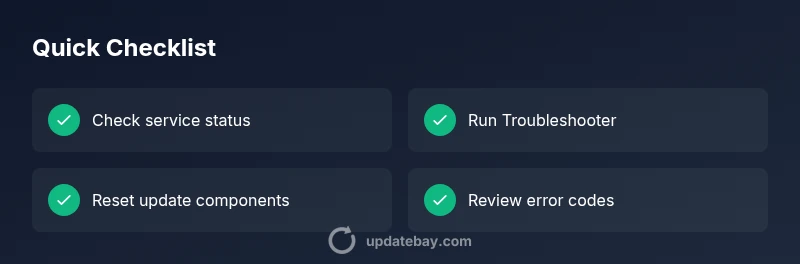
- Use built-in troubleshooters and reset components if needed
- Back up data and document changes to prevent data loss
- If unresolved, seek guidance from Microsoft Support or professional help