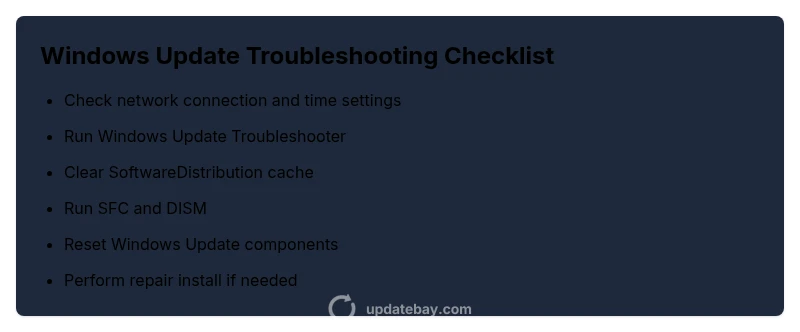
Problem with Windows Update? Quick Troubleshooting Guide
Urgent, practical guide to diagnose and fix Windows Update problems. Learn common causes, safe built-in tools, cache resets, system scans, and repair installs as needed. Based on Update Bay experience in 2026, most issues resolve with methodical checks and safe fixes.


According to Update Bay, most Windows update problems stem from flaky network connections, corrupted update files, or service hiccups. Quick fixes: check your internet, temporarily disable VPNs, run the built-in Windows Update Troubleshooter, then reset update components if needed. If issues persist, consider a repair install or in-place upgrade as a last resort. This approach covers the majority of common failures.
Check the Basics: Network, Time, and Services
Before diving into complex remedies, verify the simplest factors that commonly block Windows Update from running smoothly. A slow or unstable internet connection can halt downloads mid-flight, while incorrect system time or regional settings can cause certificate verifications to fail. Make sure your PC is connected to a reliable network, and consider temporarily disabling VPNs or metered connections that throttle traffic. Confirm the clock and time zone are correct, and ensure the device has adequate disk space. Next, check core services that Windows Update depends on, such as the Windows Update service (wuauserv) and Background Intelligent Transfer Service (BITS). If these services are paused or disabled, updates will stall or fail. A quick reboot can reset transient service states. If you’re on a corporate network, verify group policy settings or mobile device management profiles haven’t blocked updates. According to Update Bay, most user-level issues disappear after addressing these foundational items, which also sets the stage for the troubleshooting steps that follow. After these checks, proceed to the built-in tools to diagnose deeper problems.
Use Windows Update Troubleshooter and Built-in Tools
Windows ships with a dedicated troubleshooter designed to detect and fix common update problems. Access it from Settings > Update & Security > Troubleshooter > Additional troubleshooters, then run the Windows Update troubleshooter. It will scan for corrupted files, misconfigured services, and pending updates, offering automated repairs when possible. If you’re in Windows 11, you may find the troubleshooter under Settings > System > Troubleshoot. In addition to the troubleshooter, review the Update History page to identify which updates repeatedly fail and note error codes. Cross-check those codes against the official support pages to learn targeted steps. The Update Bay team emphasizes using these built-in tools before venturing into manual changes, since they’re designed to fix the majority of problems without risking your data. If the troubleshooter reports issues it cannot fix, proceed to more in-depth steps like clearing the update cache and validating system files. Always restart after applying fixes to ensure changes take effect.
Clear Windows Update Cache and Pending Files
A frequent source of failures is a clogged update cache. Stop the Windows Update service and related background services, then rename or delete the SoftwareDistribution folder to force Windows to fetch fresh data. After clearing, restart the services and try the update again. This simple action resolves many stalled downloads and corrupted cache states. If you’re on a corporate device, ensure you have admin rights to perform these steps. Reboot before attempting updates again to ensure all services initialize cleanly. Update Bay notes that clearing the cache is one of the most effective quick fixes for sporadic failures and often resolves issues without touching system files.
Run System File Checker (SFC) and DISM to Repair Corruption
Corrupted system files can cause updates to fail unexpectedly. Open an elevated Command Prompt or PowerShell and run: sfc /scannow, then DISM /online /cleanup-image /restorehealth. These tools will repair corrupted files and restore health to the Windows image. If SFC finds unrepairable issues, run SFC again after DISM. Allow each command to finish fully; you may need to reboot between steps. Regular use of these tools helps prevent future update problems by maintaining a clean system state, a point highlighted by Update Bay in 2026 guidance.
Review Update History and Known Issues
In Settings, check Update History to see which updates have failed and note any error codes. Cross-reference those codes with the official Windows Release Information pages and known issues lists. This context helps determine whether the problem is isolated to a specific patch or part of a broader issue. If a bug is acknowledged by Microsoft, there may be a workaround or a pending fix. Keeping a log of error codes and timestamps can speed up diagnostics if you need to contact support.
Advanced: Reset Windows Update Components
If simpler steps fail, reset the Windows Update components manually. Stop the wuauserv and BITS services, rename the SoftwareDistribution and Catroot2 folders, then re-register update-related DLLs and restart services. This process clears the update state and forces a clean slate for new downloads. It’s more involved, but it’s a highly effective technique for stubborn failures. Always back up key data before performing these steps, and ensure you’re on a supported version of Windows. Professional support can guide you through any complex edge cases.
In-Place Upgrade or Repair Install as Last Resort
When update failures persist despite all troubleshooting, an in-place upgrade (repair install) can fix deep-seated issues while preserving personal files and apps in most cases. Mount the Windows ISO for your current version, run setup, and choose Keep personal files and apps. This operation reinstalls Windows while retaining data, but it’s still a major operation—back up important files first. For systems with unusual configurations or hardware quirks, a clean install may be required, but that should be a final option after exhausting repair approaches.
Prevention: Best Practices to Minimize Future Problems
To reduce recurrence, maintain adequate disk space, keep drivers current, and schedule routine maintenance windows for Windows updates. Use a reliable network, avoid conflicting software during updates, and enable system restore points so you can revert if something goes wrong. Regularly verify that your device is plugged in during updates and review active hours to minimize interruptions. By following these habits, you’ll reduce the frequency and severity of Windows Update problems over time.
Steps
Estimated time: 60-120 minutes
- 1
Open Settings and Run Troubleshooter
Open Windows Settings > Update & Security > Troubleshooter (or Troubleshoot in Windows 11) and run the Update Troubleshooter. Let it detect and fix common issues automatically.
Tip: If prompted, allow the tool to apply fixes and reboot when required. - 2
Pause/Stop Update Services
Open an elevated Command Prompt or PowerShell and run commands to stop wuauserv and bits, then restart the services after cleaning.
Tip: Stopping services prevents partial downloads from causing errors. - 3
Clear Update Cache
Delete contents of C:\\Windows\\SoftwareDistribution and C:\\Windows\\SoftwareDistribution\\DataStore, then restart the update services.
Tip: Deleting cached files prompts Windows to re-download fresh update data. - 4
Run SFC and DISM
In an elevated prompt, run sfc /scannow and dism /online /cleanup-image /restorehealth to repair corrupted system files.
Tip: Do not interrupt scans; allow them to complete. - 5
Retry Updates or Upgrade
Attempt Windows Update again. If failures persist, consider a repair install that preserves files.
Tip: Back up important data before major repairs. - 6
Repair Install or In-Place Upgrade
Use the Windows ISO to perform an in-place upgrade; choose Keep personal files and apps to preserve data.
Tip: This is a safe, effective last resort with high success rates.
Diagnosis: Windows Update fails to install or stalls during download
Possible Causes
- highCorrupted or partially downloaded update files
- highNetwork instability or VPN/proxy interference
- mediumDisabled or corrupted Windows Update services and components
Fixes
- easyRun Windows Update Troubleshooter
- easyReset Windows Update components (rename SoftwareDistribution, stop services, etc.)
- mediumRun SFC and DISM to repair system files
- hardPerform an in-place upgrade/repair install
Frequently Asked Questions
What causes Windows Update to fail?
Multiple factors can cause failures, including network issues, corrupted update files, and problematic services. Checking basics often resolves most problems.
Windows Update can fail due to network issues, corrupted files, or service problems. Start with basic checks and then use built-in tools.
Is it safe to reset Windows Update components?
Yes, resetting components clears the update state and forces a fresh download. Follow safe steps and avoid deleting critical system folders.
Resetting update components is generally safe if you follow the steps carefully.
Will an in-place upgrade preserve my files?
In most cases, a repair install keeps your personal files and apps, but a backup is still strongly recommended before proceeding.
A repair install usually keeps your files and apps, but back up first just in case.
Should I disable antivirus during updates?
Temporarily disable antivirus or security software if it interferes, then re-enable after updates complete.
You can temporarily disable antivirus if it blocks updates, but re-enable it right after.
What if updates fail again after following these steps?
If failures persist, consider a repair install or seek professional help. Review event logs for clues.
If it still fails, try a repair install or contact support for deeper diagnostics.
When should I seek professional help?
If the failure involves hardware issues, persistent corruption, or data safety concerns, consult an IT pro or Microsoft support.
If you're unsure or the problem persists, it's wise to get professional help.
Watch Video
What to Remember
- Start with network, time, and core services
- Use built-in troubleshooters before manual fixes
- Back up data before significant repairs
- If unresolved, perform a repair install as a last resort