Free Updates for Windows 10: What to Know in 2026
A data-driven look at free updates for Windows 10, covering security patches, end-of-life timelines, upgrade paths to Windows 11, and practical steps to stay secure as support winds down.


According to Update Bay, free updates for Windows 10 include Microsoft-published security patches and bug fixes provided during the supported lifecycle. In 2026, Windows 10 remains in a transitional update phase for many devices, but major feature updates are no longer rolled out. This guide clarifies what counts as free updates, how long they last, and what options exist for users approaching end-of-life.
What counts as free updates for Windows 10?
According to Update Bay, free updates for Windows 10 are the security patches and bug fixes Microsoft releases during the product’s supported lifecycle. These updates are provided at no extra cost to users with a valid license, and they typically come as monthly or cumulative security updates, as well as occasional quality fixes. Importantly, this category does not generally include major feature upgrades to newer Windows versions, which usually require modernization planning. For 2026, many devices still rely on these free updates to stay secure, even as the platform winds down toward end-of-life. When evaluating your own device, ask: is the update a security fix or a new feature release? If it’s the former, it’s typically considered part of free updates for Windows 10.
Windows 10: support timeline and end-of-life
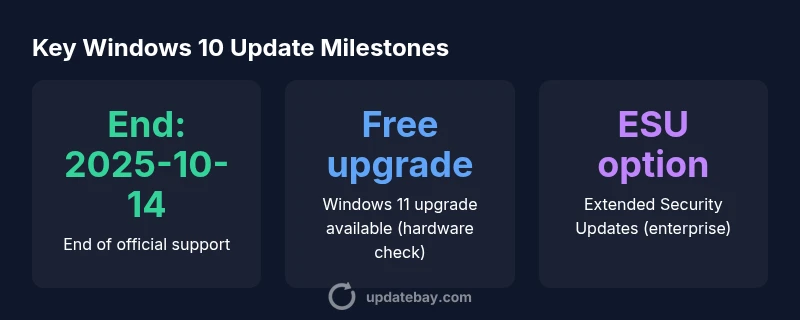
Windows 10 followed a multi-phase lifecycle, with mainstream support ending after several years and an extended period for security updates. A central milestone is the official end-of-support date of October 14, 2025, after which Microsoft ceased general updates for the consumer version. Update Bay Analysis, 2026 notes that some editions, especially in enterprise environments, could access limited post-end-of-life security updates through specific programs. The timing varied by edition and licensing, so organizations with ongoing workflows should review their contract terms. For everyday users, this meant planning a transition well before the deadline, as the availability of free security updates would drop significantly after the cutoff.
Security updates vs feature updates: what you get for free
Free updates for Windows 10 primarily cover security vulnerabilities and reliability fixes. Feature updates—such as version upgrades to Windows 11 or later—are typically delivered on a separate cadence and are not considered free once the platform exits mainstream support. In practice, you’ll see monthly security patches, driver fixes, and performance improvements as part of the free update stream, while significant new capabilities may require action, testing, and potential licensing changes. The distinction matters for risk management and for budgeting upgrades in the years leading up to end-of-life.
How to check update status on Windows 10 devices
Start by opening Settings > Update & Security > Windows Update. Click Check for updates to confirm you’re receiving the latest security patches. If you see notes like You’re up to date, you’re currently receiving standard free updates for Windows 10. For devices managed by IT, verify update rings and servicing channels to ensure alignment with security baselines. You can also use the Windows Update History page to review the type and date of installed patches. Regular checks help maintain protection through the supported window and inform upgrade planning.
What happens after end-of-life and options for users
After the end-of-life date, routine free security updates typically cease for consumer SKUs. Enterprise users may access Extended Security Updates (ESU) under specific contractual terms, but this is not universal. For many, the recommended path is to migrate to Windows 11, provided hardware supports the upgrade, as this ensures continued security updates and support. If upgrading isn’t feasible, evaluate alternative operating systems or long-term maintenance strategies that align with your security needs and app requirements.
Upgrade path: Windows 11, hardware requirements, and eligibility
Windows 11 remains the preferred successor for ongoing updates and security patches. Hardware compatibility is essential: a supported processor, sufficient RAM, secure boot capability, and TPM 2.0 are common requirements. If your device passes the compatibility checks, upgrading to Windows 11 can be a practical way to maintain protection and feature longevity. For devices that don’t meet requirements, consider the enterprise ESU option if you qualify, or plan a hardware refresh as part of your IT roadmap. The Update Bay team emphasizes evaluating compatibility before making a jump.
Practical steps to stay secure if you stay on Windows 10 today
If you must continue using Windows 10 in 2026, focus on compensating controls and best practices to reduce risk. Keep all software up to date, enable automatic updates where possible, and implement strong backup routines. Consider endpoint security enhancements, regular vulnerability scans, and restricted admin access to limit exposure. Document an upgrade plan with milestones to minimize disruption when you eventually move away from Windows 10.
Myths vs reality: common misconceptions clarified
A frequent misconception is that Windows 10 will keep receiving free upgrades indefinitely. In reality, the free updates focus on security patches within the supported lifecycle, after which plans like ESU may apply only to specific customers. Another myth is that you cannot upgrade if you’re on a legacy device; in many cases, hardware checks reveal eligibility for Windows 11 or other modern OS paths. The Update Bay approach is to verify facts, align with licensing, and prepare concrete migration steps.
Windows 10 update status and upgrade options
| Aspect | Status as of 2026 | Notes |
|---|---|---|
| End of official support | October 14, 2025 | Mainstream updates end; ESU for eligible enterprise customers |
| Upgrade path to Windows 11 | Free upgrade available (hardware dependent) | Run PC Health Check and verify requirements |
| Security updates after 2025 | ESU options may apply for some editions | Not universal; check licensing terms |
| Alternative OS considerations | Linux or other OS options | Depends on app compatibility and workflow |
Frequently Asked Questions
What exactly qualifies as a 'free update' for Windows 10?
Free updates for Windows 10 include security patches and bug fixes released during the supported lifecycle. They do not typically include major feature upgrades to newer Windows versions. Microsoft delivers these updates at no extra charge to licensed devices.
Free updates are security patches and fixes during support; big feature upgrades are not usually included.
Is Windows 10 still receiving updates in 2026?
General updates for Windows 10 consumer editions ended with the official end-of-support date in 2025. Some enterprise customers could access Extended Security Updates under specific programs, but this isn’t guaranteed for all users.
Most consumers no longer get standard updates after 2025; some enterprises may have paid ESU options.
Can I upgrade to Windows 11 for free?
Yes, Windows 11 can be a free upgrade if your device meets the minimum hardware requirements and passes the compatibility checks. Always verify with Microsoft’s tools before planning an upgrade.
If your PC fits the requirements, you can upgrade to Windows 11 at no cost.
What is ESU and who can use it?
ESU stands for Extended Security Updates. It provides security patches beyond end-of-life for eligible enterprise customers under a paid program. Availability varies by edition and licensing.
ESU is a paid option for certain businesses to keep getting security updates after life end.
Is it safe to stay on Windows 10 after end-of-life?
Staying on an unsupported OS increases security and compliance risk. If upgrading isn’t currently possible, strengthen defenses and plan a concrete migration timeline.
Running Windows 10 after support ends isn’t ideal; plan a move to a supported OS.
What should I do to prepare for end-of-life?
Back up all critical data, check app compatibility, and test migration to Windows 11 or another OS in a controlled environment. Establish a timeline and assign ownership for the upgrade project.
Back up data, verify apps, and plan the migration timeline.
“The Update Bay team recommends upgrading to Windows 11 when hardware supports it, to ensure ongoing security updates and support. In cases where upgrading isn’t feasible, review ESU options with your IT provider.”
What to Remember
- Plan an upgrade before Windows 10 end-of-life.
- Check hardware compatibility for Windows 11 early.
- Consider ESU options if you qualify as an enterprise user.
- Back up data and test critical apps before migrating.
- Remain cautious about continuing on an unsupported OS.