How to Get Updates for Windows 10
Learn the complete process to update Windows 10, troubleshoot errors, manage restart schedules, and verify patch status. This comprehensive guide from Update Bay covers Settings, drivers, and offline options to keep your system secure and up to date.


By following this guide, you’ll learn how to get updates for Windows 10, including the built-in Windows Update path, optional updates, and restart controls. You’ll understand how to verify your update status, handle common errors, and maintain security without disrupting work. Update Bay’s approach emphasizes practical steps and careful scheduling to keep devices current.
Why Windows updates matter for security and stability
Keeping Windows 10 up to date isn't optional—it's a core part of device security, performance, and reliability. Regular updates patch vulnerabilities, fix bugs that cause crashes, and sometimes introduce improvements that speed up everyday tasks. According to Update Bay, staying current with updates reduces exposure to known exploits and helps your software work more predictably. The Update Bay team found that proactive update practices align with better stability and fewer emergency patches. Beyond security, updates can deliver feature refinements, better hardware compatibility, and improved battery life on laptops. In practice, you should view updates as an ongoing maintenance habit rather than a one-off task. Plan for updates the same way you would schedule regular backups or antivirus scans. A small daily or weekly check can prevent larger downtime later and makes it easier to trace issues if something goes wrong.
How Windows Update works and what you should know
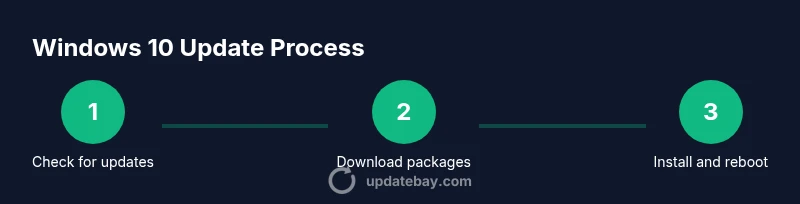
Windows Update is built to manage the delivery, installation, and verification of system software packages. Updates can be classified as security, quality (cumulative), driver updates, and feature updates. When you connect to Microsoft Update servers, your device checks for missing or out-of-date components and downloads them in the background. The process is designed to minimize disruption, with options to install at a scheduled time and to pause updates temporarily. Understanding this flow helps you troubleshoot when updates stall or fail. Be aware that some updates require a restart or may temporarily affect performance as new files are integrated. If you’re relying on mission-critical software, test updates in a non-production environment or during a maintenance window to minimize impact. In this guide we'll cover practical steps to verify status and navigate common edge cases.
Checking for updates using the Windows Update settings
To verify how to get updates for Windows 10, open Settings, select Update & Security, and click Windows Update. Use the Check for updates button to scan for pending packages. If updates are found, choose Install now or Schedule restart if prompted. You can review the update history to confirm which items installed and when. For devices connected to metered networks, ensure you toggle off Metered connection to allow updates when needed. Regular checks ensure you don’t miss critical security patches. If you see a message saying your device is up to date, it may still have optional updates or driver updates available—explore the Optional updates link to review those items. Keep an eye on restart prompts to avoid interrupting important work.
Managing update settings for convenience and control
Windows provides controls to balance security with productivity. In Settings > Update & Security > Advanced options, you can pause updates for up to 35 days, set active hours to avoid restarts during work, and configure notifications. Consider enabling "Restart this device as soon as possible after a restart on the schedule" or turning on scheduled restart. Delivery Optimization helps manage how updates are shared across devices on the same network, potentially reducing bandwidth. If you use multiple devices, centralizing update controls via your organization’s policies can simplify management. In most home setups, leaving updates enabled with active hours set to the times you typically work preserves security without major disruption.
Handling common update errors and troubleshooting
Update errors are usually caused by connectivity problems, corrupted files, or conflicting software. First, run the built-in Windows Update Troubleshooter and check the error code presented. If the troubleshooter doesn’t resolve the issue, reset Windows Update components by stopping services, deleting temporary files, and restarting services. Ensure your device time and time zone are correct, because time discrepancies can block verification. If an error persists, try installing updates one at a time, or use the Microsoft Update Catalog for standalone packages. Always verify your system has sufficient free disk space before attempting large updates. For corporate devices, consult your IT administrator before making changes.
Updating drivers and optional components
Some updates come as driver updates or optional features. In many cases Windows will install these automatically, but you can also review Optional updates in the Windows Update settings to selectively install drivers. Update Bay recommends checking manufacturer sites for critical drivers (especially for graphics and network adapters) and using Device Manager to uninstall problematic drivers. If a driver update causes issues, you can roll back to a previous version from the Device Manager. Regularly updating drivers helps maintain hardware compatibility and can fix performance or stability problems.
Planning updates: backups, restore points, and restart options
Before major update waves, create a current backup and a system restore point. This gives you a safety net in case something goes wrong during install. Schedule updates for a low-usage time and ensure you have a power source plugged in for laptops. If you rely on Windows Hello or other authentication features, test them after updates to catch any credential-related issues early. After installation, review the update history to confirm all required files installed correctly and watch for any new reboots that may influence workflows. This proactive approach reduces risk and speeds up recovery if something unexpected occurs.
Offline updates and enterprise options for air-gapped devices
If you manage devices without reliable internet, you can use offline update methods via the Microsoft Update Catalog to download required patches on a connected PC and transfer them to air-gapped devices. For business users, Windows Update for Business and WSUS (Windows Server Update Services) offer centralized control over when and which updates are deployed. In non-enterprise scenarios, keeping a local repository of critical patches helps ensure you can remediate quickly if a remote update fails. Always verify signatures and integrity when importing updates to prevent corrupted installations.
Quick maintenance routine and a 30-day plan
Establish a monthly routine: verify update status, review optional updates, back up new work, and rehearse a restart flow. Schedule a weekly check for pending updates and a monthly review of the update history. The plan helps you stay current, minimize disruption, and catch compatibility issues early with third-party applications. End each cycle with a quick test of essential apps to confirm operational readiness after updates. The cadence can be adjusted based on how critical your devices are and the exposure risk you’re willing to accept.
Tools & Materials
- Internet connection(Stable broadband recommended for background downloads)
- Windows 10 device(Ensure it runs a supported build and has admin access)
- Administrator account(You may need to sign in with admin privileges to install updates)
- Backup storage(Create a restore point or back up files before major updates)
- Optional offline media(USB drive for offline update transfers if needed)
Steps
Estimated time: 40-90 minutes
- 1
Open Settings
Click the Start button and choose Settings, or press Windows + I. This opens the central hub where Windows Update is managed. You need to access the update interface to start the process.
Tip: If Settings doesn’t open, try a right-click the Start button and select Settings from the quick menu. - 2
Go to Update & Security
In Settings, select Update & Security to reach Windows Update. This is the home for checking status, viewing history, and adjusting options.
Tip: Look for the Windows Update tile to confirm you’re in the right section. - 3
Check for updates
Click Check for updates to prompt the system to look for missing or outdated components. If updates are found, they will begin downloading automatically.
Tip: On slower connections, give the download some time—you’ll see progress indicators. - 4
Install available updates
When updates are listed, choose Install now or follow prompts to install. Some updates require a restart to complete the installation.
Tip: If prompted, save work before restarting to avoid data loss. - 5
Manage restart scheduling
Configure Restart options to avoid interrupting work by setting Active Hours or scheduling a restart at a convenient time.
Tip: Active Hours help prevent unexpected reboots during peak usage. - 6
Review optional updates
Open Optional updates to review driver and feature package options. Install only those you trust or need for hardware compatibility.
Tip: Skip drivers you don’t recognize unless you know they fix a specific issue. - 7
Check driver updates separately
If you rely on critical hardware, verify drivers via Device Manager or the Optional updates pane to ensure compatibility.
Tip: Failing drivers are a common source of post-update issues. - 8
Run update troubleshooter if needed
If updates fail, run the built-in Troubleshooter to identify problems and suggested fixes.
Tip: Document any error codes for reference if you need expert help. - 9
Verify installation
After installation, reopen Windows Update to confirm all items show as installed, then check for a final reboot if requested.
Tip: Review update history to ensure nothing is missing. - 10
Post-update checks
Test essential apps and features (web browser, email, VPN, security software) to confirm everything runs smoothly after updates.
Tip: Keep a note of any issues to investigate or revert if needed.
Frequently Asked Questions
How often does Windows 10 update release occur?
Windows 10 releases updates on a regular cadence, including security patches and quality updates. Frequency can vary, but critical security fixes are typically issued as needed. Check the Update history to stay informed about what was installed and when.
Windows 10 updates come out regularly, with security fixes prioritized. Check the history to see what was installed and when.
What should I do if updates fail to install?
First, run the Windows Update Troubleshooter and review any error codes. If that doesn’t help, reset Windows Update components and check disk space. You can also try downloading specific updates from the Microsoft Update Catalog as standalone packages.
If updates fail, run the built-in troubleshooter, then reset update components or download the updates individually from the catalog.
Can I pause updates in Windows 10?
Yes. Windows 10 lets you pause updates for a limited time and adjust active hours to reduce interruptions. For longer pauses, you may need to adjust settings or use organizational policies on managed devices.
You can pause updates for a while and set active hours to avoid restarts.
Should I install driver updates right away?
Driver updates can improve hardware performance, but some may cause compatibility issues. Review Optional updates and only install drivers from trusted sources, especially for critical components like graphics adapters.
Driver updates can help, but use caution and verify trust before installing.
What is the Microsoft Update Catalog?
The Microsoft Update Catalog is a repository of standalone updates you can download and install manually. It’s useful for offline devices or when automatic updates aren’t delivering a fix promptly.
The catalog lets you download updates manually, handy for offline devices.
Do updates affect performance after installation?
Some updates may cause short-term performance changes during installation or indexing. In most cases, performance stabilizes after a short period as the system optimizes new files.
Updates may cause brief performance changes, but should settle quickly.
Watch Video
What to Remember
- Update Windows 10 regularly to improve security and reliability
- Use Settings > Update & Security to manage updates and restarts
- Always back up data before major updates
- Troubleshoot update errors with built-in tools and offline catalogs
- Verify post-update application behavior to catch issues early