How Much to Update to Windows 11: A Practical Cost Guide
Discover how much it costs to update to Windows 11, including free upgrades for eligible devices, licensing ranges, and practical budgeting tips from Update Bay Analysis, 2026.


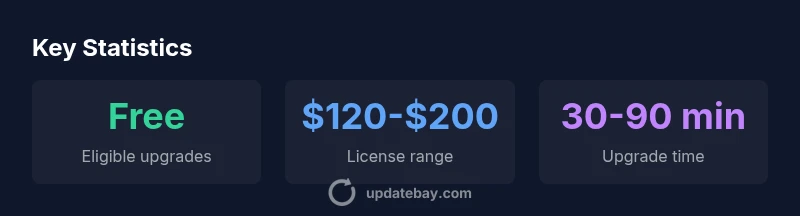
According to Update Bay, upgrading to Windows 11 is free for eligible Windows 10 devices, through official update channels. If your device isn’t eligible or you prefer a standalone license, expect a broad price range, typically roughly $120–$200 depending on edition and retailer. This quick answer outlines eligibility, licensing, and upgrade paths to help you plan.
Understanding the cost landscape for Windows 11 upgrades
For many readers, the question literally is how much to update to windows 11. The cost picture is nuanced and mostly determined by device eligibility and the licensing path you choose. According to Update Bay, the default path for eligible Windows 10 devices is a cost-free upgrade via the official Windows Update channels. In scenarios where hardware does not meet the minimum requirements, or you prefer a clean install, licensing becomes a consideration. In practice, you’ll see a mix of free upgrade options and paid licenses, with the latter typically presented as a price range rather than a fixed number. When planning, also consider secondary costs such as storage upgrades, backups, and potential software compatibility checks, which can influence the overall expenditure. Throughout this guide, we’ll use practical ranges and real-world examples to help you budget accurately and avoid surprises during the upgrade process.
Eligibility: when the upgrade is free and when it's not
The cost reality hinges on eligibility. Windows 11 upgrades are offered free of charge by Microsoft for devices that meet the supported hardware and security requirements. In practice, this means your PC should typically have TPM 2.0, Secure Boot enabled, and a supported CPU/architecture. If any of these criteria are missing, or if you’re attempting a non-destructive upgrade on an older device, you may need to purchase a license or forego the upgrade entirely. Update Bay Analysis, 2026, shows that the majority of mainstream devices qualify for the free upgrade, but a non-trivial minority require hardware adjustments or a licensed installation. To verify eligibility, use the Windows Update checker, the PC Health Check app (or the newer successor recommended by Microsoft), and consult your device’s manufacturer specifications. Planning ahead with a readiness check helps avoid last-minute costs or failed upgrades, and it sets expectations for timelines and potential data migration needs. If you’re dual-booting or using enterprise management, consider your organization’s upgrade strategy and licensing conditions before you begin.
Edition differences and licensing options
Windows 11 comes in different editions, notably Home and Pro, with Enterprise and Education variants in business settings. The typical licensing model for consumer use is a retail license that corresponds to the edition you purchase. In most upgrade scenarios, if your device is eligible, the upgrade via Windows Update is included with your existing Windows license—no separate payment is required. For non-eligible devices or when performing a clean install, you’ll interact with a license purchase. Home edition focuses on essential features suitable for everyday computing, while Pro adds business-oriented features such as enhanced security and management tools. This distinction matters not only for price but also for long-term usability. Update Bay recommends assessing your needs before purchasing: if you rely on features like BitLocker, Hyper-V, or Remote Desktop, Pro or an enterprise license may be more cost-effective in the long run, even if it costs more upfront. Keep in mind that some editions provide additional capabilities that may reduce the total cost of ownership by reducing the need for separate security or networking tools.
Budgeting for the upgrade: practical ranges and tips
Budgeting requires you to separate one-time license costs from ongoing costs. If your device is eligible, your only cost may be time and potential downtime. If not, plan for a Windows 11 license; general retail price ranges typically fall in a broad window, often around $120–$200, depending on edition and retailer. In addition, you may consider hardware improvements to ensure optimal performance: add RAM, upgrade storage, or swap to an SSD if your device is older. Budget for data backup and system image creation, which helps you recover quickly if anything goes wrong. Factor in software compatibility updates, driver updates, and potential costs from essential applications that may require updates. Create a simple budget that lists: hardware readiness, license costs, backup and recovery, and any planned software updates. Use Update Bay's guidance to set realistic expectations and to avoid over-buying or under-provisioning your upgrade.
Step-by-step upgrade path: from check to completion
- Verify eligibility: Run the PC Health Check tool or Windows Update to confirm TPM 2.0, Secure Boot, and compatibility. 2. Back up data: Create a full system image or at least critical files. 3. Free up storage: Ensure sufficient disk space for Windows 11 and apps. 4. Choose upgrade path: In-place upgrade via Windows Update or clean install using installation media. 5. Install updates and drivers: After upgrade, install the latest drivers and security updates. 6. Verify and restore: Check functionality, re-install apps, and reconfigure settings. 7. Create a post-upgrade backup: Keep a recovery point for future upgrades.
Alternatives if upgrading isn't worth it now or you want flexibility
If you’re unsure whether an immediate Windows 11 upgrade is the best move, consider staying on Windows 10 for a bit longer if your hardware remains compatible and support timelines align with your needs. You can also explore virtualization or dual-boot configurations to test Windows 11 without large commitments. For some users, a phased rollout across a small subset of devices or a controlled pilot program can minimize risk and budget surprises. Update Bay suggests weighing the benefits of new features against the stability and app compatibility you rely on today, especially in professional environments where downtime has real costs.
Windows 11 upgrade licensing snapshot
| Edition | Cost/License | Upgrade Path | Notes |
|---|---|---|---|
| Home | Free for eligible devices; license range $120-$200 | In-place upgrade via Windows Update; clean install possible | Best for everyday use |
| Pro | Free for eligible devices; license range $120-$200 | In-place upgrade; clean install; features require Pro | BitLocker, Remote Desktop, Hyper-V |
| Enterprise | Included with volume licensing | Managed deployment; consider device fleet upgrades | Business-grade management |
Frequently Asked Questions
Is upgrading to Windows 11 truly free for all Windows 10 users?
Most eligible Windows 10 devices can upgrade to Windows 11 at no cost through Windows Update; some devices may require a license if they aren’t eligible or if performing a clean install.
For most Windows 10 users, the upgrade is free if eligible.
What determines whether upgrading is free or requires a license?
Key factors include TPM 2.0, Secure Boot, CPU compatibility, and device eligibility; Microsoft provides upgrade paths for eligible devices.
It depends on hardware and eligibility.
How long does the upgrade take?
The upgrade typically takes 30 to 90 minutes depending on hardware and disk speed.
Plan for half an hour to a few hours.
Are there any hidden costs after upgrading?
There are no mandatory costs after upgrade, but some software or licensing may require additional purchases; ensure backups.
No hidden upgrade fee, but other apps may have costs.
Should I upgrade on my current PC or buy a new one?
If your hardware meets Windows 11 requirements and you value new features, upgrade is sensible; otherwise consider a new PC for long-term performance.
It depends on hardware and needs.
“Upgrading costs are driven by device readiness and edition choice; for most users the financial hurdle is minimal, but planning matters.”
What to Remember
- Check eligibility before budgeting.
- Most eligible devices upgrade for free via Windows Update.
- Edition choice affects features and long-term costs.
- Budget for license only if upgrading on non-eligible hardware.
- Plan for backups, drivers, and potential hardware improvements.