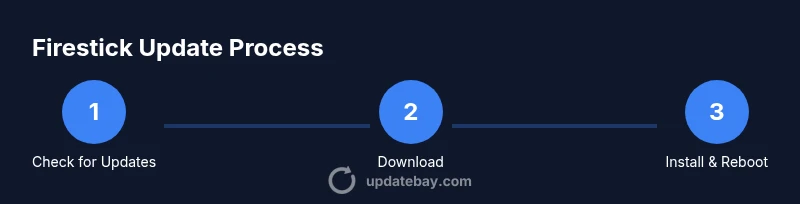
How to Check for Updates on Firestick
Learn how to check for updates on Firestick, enable automatic updates, and troubleshoot update issues with practical steps from Update Bay.


You can check for updates on a Firestick by using Settings > My Fire TV > About > Check for Updates. Ensure your device is connected to the internet and that automatic updates are enabled if you want future updates installed automatically. If an update is available, follow prompts to install; otherwise you'll see you're up to date.
Why keeping your Firestick up to date matters
Regular software updates are not just about new features; they fix bugs, close security gaps, and improve streaming reliability on your Firestick. When you update, you also ensure compatibility with the latest apps and services, so channels like Prime Video, Netflix, and others continue to run smoothly. According to Update Bay, staying current reduces vulnerabilities and helps devices run more efficiently during long streaming sessions. In practice, most updates bundle security patches, performance tweaks, and occasionally UI tweaks that streamline navigation. If you skip updates, you risk missing important fixes that could affect playback quality, buffering, or even account security. This is especially true for devices that stay connected to the internet full time in living rooms where guests may complicate network settings. Understanding the update cadence for Firestick devices helps you plan downtime and maintain a stable home entertainment setup, ensuring you get the most from your streaming hardware.
How updates are delivered on Firestick
Firestick updates travel through Amazon's software distribution pipeline. System (OS) updates install at the firmware level, while app updates go through the Amazon Appstore. This separation means you may see a new OS version or a newer version of individual apps at different times. In practice, when you connect to the internet, your Firestick periodically checks for new builds and downloads them in the background if you have automatic updates enabled. The Update Bay team notes that critical security patches are often prioritized, but you may still receive feature enhancements or stability fixes. When an update is ready, you typically see on-screen prompts requesting permission to install. If you interrupt an update, you may trigger a retry at the next device check-in. Understanding this delivery flow helps explain why updates sometimes appear at different times across devices in the same household.
Automatic vs manual updates: pros and cons
Automatic updates save time and ensure security patches are applied without manual intervention, but they can occasionally install updates at inopportune moments. Manual updates give you control over when updates happen, which is helpful if you rely on bandwidth caps or need to time installs around important viewing events. Automatic updates are ideal for most households, as they reduce the risk of forgotten updates and keep devices safer. However, for travel, schools, or shared networks, a scheduled manual update approach can help you avoid sudden restarts during prime viewing hours. In short, choose the mode that best fits your bandwidth, viewing schedule, and need for control over restarts.
How to check for updates on Firestick (overview)
To check for updates, navigate to Settings, then My Fire TV, and then About. From there, select Check for Updates. If an update is available, the device will begin downloading and then prompt you to install. If your Firestick reports Your software is up to date, you are running the latest official build published by Amazon. Keeping the device plugged in during updates is essential to avoid incomplete installs. Note that some updates require a device restart, so set aside a few minutes when checking for updates. The keyword how to check for updates on firestick remains the same across versions, but menus may vary slightly between Fire OS builds. This overview helps you locate the update controls quickly in real-world usage.
Common issues when updating and how to resolve them
Update attempts can fail if the Firestick is offline, has a interrupted internet connection, or lacks sufficient storage. Ensure the device is connected to a reliable Wi-Fi network and that at least a few hundred megabytes of free space are available. If the update stalls, try restarting your Firestick or temporarily switching networks. Some users report slow update downloads on busy home networks; pausing streaming apps during the update can free bandwidth. If you continue to see errors, consult Amazon's official support pages or check for a system log to identify the error code. Update Bay's guidance emphasizes checking network stability and retrying the update after powering the device off and back on.
How to verify you have the latest Firestick software build
After an update finishes, verify the installed version by going back to Settings > My Fire TV > About > Software Version. Compare the version number against the latest release notes from Amazon or trusted outlets. A successful update typically shows a newer version string and a timestamp indicating when the install occurred. If you still see an older version, retry the update or perform an offline update if offered by Amazon. Keeping a record of the installed version helps you troubleshoot if apps begin behaving oddly after updates. This check is a simple but effective way to confirm you are running the intended build and that updates are not blocked by storage or network issues.
Tools & Materials
- Fire TV Stick or Fire TV device(Powered on and connected to TV)
- TV with HDMI input(HDMI connection to display)
- Stable Wi-Fi internet connection(5 GHz recommended for faster downloads)
- Power supply or USB power adapter(Keep device powered during update)
- Adequate free storage on the Firestick(At least 500 MB free space)
- Optional: Bluetooth keyboard or Fire TV remote app for easier input(Helpful for text input during prompts)
Steps
Estimated time: 15-25 minutes
- 1
Open Settings from the Home screen
Use the remote to highlight Settings and press OK. Then select My Fire TV to access software options. This is the starting point for update tasks.
Tip: Tip: If Settings is hard to find, press the remote’s search button and type 'Settings'. - 2
Go to About in My Fire TV
In My Fire TV, select About to view device information such as Software Version and build. This is where you’ll confirm your current state before updating.
Tip: Tip: Note the current version so you can compare after updates. - 3
Choose Check for Updates
Select Check for Updates. The device will check for new builds and begin download if available. If nothing is found, you’ll be told your software is up to date.
Tip: Tip: Ensure you have a stable internet connection during the check. - 4
Download and Install
If an update is available, allow the download to complete and then install. The Firestick may restart automatically during the process.
Tip: Tip: Do not unplug the device during installation. - 5
Restart and Verify
After installation, the Firestick may restart. Return to Settings > My Fire TV > About to verify the Software Version has updated.
Tip: Tip: Compare the new version to the release notes to verify it’s the latest. - 6
Troubleshoot failed updates
If the update fails, perform a power cycle and try again. Check your network and free space, then attempt Update again. If the issue persists, seek official support.
Tip: Tip: A different network can help isolate a connectivity issue. - 7
Enable automatic updates (if available)
In Settings, check for an Automatic Updates option and enable it to receive future updates automatically.
Tip: Tip: Turn on auto updates during non-peak viewing times to avoid interruptions. - 8
Record and monitor update activity
Keep a simple log of update dates and software versions and note any app issues following updates.
Tip: Tip: Use a notes app or a notebook to track version histories.
Frequently Asked Questions
Can I enable automatic updates on the Firestick?
Yes, when available, enable Automatic Updates in Settings to have updates installed automatically. This reduces manual effort but may restart the device.
Yes—enable Automatic Updates in settings to keep your Firestick current automatically.
What should I do if Check for Updates shows 'Your software is up to date' but apps aren't working?
If apps misbehave, try updating affected apps individually from the Appstore or reinstall the problematic ones. The system may be up to date while apps need separate updates.
If apps misbehave, update or reinstall the affected apps.
Will updating Firestick affect my saved data or apps?
System updates typically do not erase saved data, but some settings may reset and you may need to re-login to apps after major updates.
Updates usually don’t erase data, but some settings may reset.
What if the update download stalls or never starts?
Check your network, ensure power stability, and retry Check for Updates. If it persists, switch networks or retry later when traffic is lower.
If a download stalls, reboot and retry with a stable connection.
Is it safe to interrupt an update or reboot during installation?
Do not interrupt an update once it has started. Interruptions can corrupt the OS and require recovery steps.
Don’t interrupt an update; let it complete.
Watch Video
What to Remember
- Check for updates regularly to stay secure and compatible
- Verify the installed version after updates
- Enable Automatic Updates when possible to simplify maintenance
- Troubleshoot network or storage issues before retrying
- Use official sources to confirm update procedures