Where is Update on Firestick: A Practical Guide to Fire TV Updates
Discover where updates come from, how to check and install updates on your Fire TV Stick, and common issues. Practical steps, OS considerations, and best practices to keep Fire OS and apps current.


Where is update on Firestick? Updates come from Amazon's Fire OS and the Amazon Appstore. To locate them, go to Settings > My Fire TV > About > Check for Updates. You can also rely on automatic updates that run in the background. This guide shows exactly where to look, how to update, and how to troubleshoot.
Why updating Firestick matters
Keeping your Fire TV Stick up to date matters for security, performance, and access to new features. Updates fix vulnerabilities, improve app compatibility, and streamline the user experience on Fire OS. For security-conscious users, timely patches reduce exposure to known issues, while feature updates can bring improved navigation, better video playback, and new app integrations. In 2026, the Update Bay team observed that devices that stay current tend to exhibit fewer crashes and smoother app performance over time. If you’re wondering where is update on firestick, the answer is simple: your device will periodically pull updates from Amazon’s servers, and you can control when and how those updates are applied. This makes it worthwhile to understand where updates originate and how to manage them effectively.
Key takeaway: Regular updates protect your device and unlock improvements that enhance streaming reliability and security.
Where to get updates (official channels)
Official Firestick updates are delivered through two primary channels: Fire OS system updates and Amazon Appstore app updates. Fire OS updates come from Amazon and install via Settings paths (Settings > My Fire TV > About > Check for Updates). App updates arrive through the Amazon Appstore and can be managed alongside OS updates. Update Bay’s analysis confirms these channels are the most reliable sources for current firmware and app patches. If you rely on sideloaded apps, be aware they may not receive official updates, which can create compatibility issues.
Tip: Always verify the source before updating, and avoid third-party patchers that could compromise device security.
How to check for updates on Firestick
Checking for updates is straightforward. Open Settings, navigate to My Fire TV, select About, and choose Check for Updates. If an update is available, you’ll be prompted to download and install. For automatic updates, ensure the feature is enabled under Settings > Preferences > System > Auto Update. Some updates require you to restart the device. If you don’t see updates, check your network connection and ensure you have enough storage space. Update Bay notes that network stability and adequate free space are common prerequisites for a smooth update process.
Note: If you want to confirm you’re on the latest version, compare the OS build number shown in About with the latest release notes published by Amazon.
Understanding Fire OS update cadence
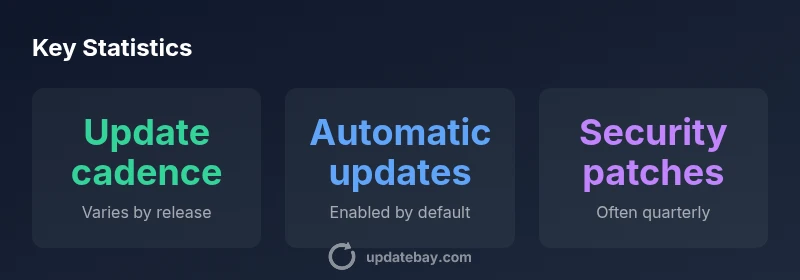
Fire OS updates follow a cadence that can vary by region and hardware baseline. Major OS upgrades may occur less frequently than smaller security patches, while app updates happen continuously through the Amazon Appstore. The cadence is influenced by security advisories, feature rollouts, and compatibility testing across devices. If you miss an update window, you’ll typically receive subsequent patches in the next rollouts, with Amazon often prioritizing devices that are actively used for streaming. Stay informed by regularly checking Settings and Appstore notes, and consider enabling automatic updates for a hands-off approach.
Takeaway: Don’t rely on memory—let the device update itself when possible, and check periodically for notable release notes.
How to manually trigger updates
When you want to force an update, start with a reliable internet connection and enough internal storage. For OS updates, go to Settings > My Fire TV > About > Check for Updates, then install. For app updates, open the Amazon Appstore, go to “Apps” or your library, and choose Update All if available. If an update fails, clear the device’s cache, restart, and try again. In some cases, you may need to remove and reinstall persistent apps or perform a lightweight reset of settings (not a full factory reset) to clear stubborn update hooks. The Update Bay guidance emphasizes verifying the update log after installation to confirm success.
Pro tip: Keep a backup of your preferences, as updates can alter app permissions or default behaviors.
Common update issues and fixes
Users frequently encounter stuck updates, download failures, or space-related errors. Common fixes include freeing storage, ensuring a stable Wi-Fi connection, and clearing cache data for the Amazon Appstore. If the OS update stalls, try restarting the Firestick, temporarily disabling VPNs, and attempting the update again. For persistent problems, check the Fire TV support pages for known issues and workaround steps. Update Bay’s troubleshooting notes suggest avoiding power cycles that could corrupt the update process and verifying the device’s time settings, which must be correct for secure connections during downloads.
Checklist: 1) Verify network and storage, 2) Retry, 3) Check for known issues, 4) Consider a partial reset if needed.
Security and privacy considerations for updates
Keeping updates automatic reduces risk exposure by applying patches promptly. However, if you frequently sideload apps or use external APKs, be mindful that some updates can change permissions or require new security settings. Always review permission prompts after an update and ensure you’re on trusted channels. Update Bay recommends turning on automatic updates for OS and apps unless you have a strong reason to postpone, and regularly monitor the release notes to stay informed about security improvements. Disabled auto-updates can leave your device vulnerable to exploits or compatibility issues with new streaming apps.
Bottom line: Updates tighten security, improve stability, and should be part of a routine maintenance plan.
What updates typically include for OS and apps
OS updates usually deliver security patches, performance enhancements, and compatibility fixes for new streaming standards. App updates focus on bug fixes, UI improvements, and new features within the built-in Amazon Appstore ecosystem. Not every release is dramatic, but even small improvements can reduce buffering, improve search quality, and reduce crashes. For power users, the new features in Fire OS may affect how background processes operate, so read release notes before installing major upgrades.
Observation: OS updates affect the entire device, while app updates optimize individual apps.
Best practices for staying up to date
- Enable automatic OS and app updates for maximum protection
- Regularly check release notes and support pages
- Maintain adequate storage space to avoid partial updates
- Avoid sideloading critical updates from untrusted sources
- Schedule updates during low-usage periods to minimize disruption
Following these practices helps maintain performance and security. Update Bay’s 2026 guidance emphasizes consistency over intensity: a predictable update routine reduces the risk of outages and ensures compatibility with new streaming services.
Comparison of Firestick update methods
| Update Method | What it updates | Frequency |
|---|---|---|
| Automatic updates | System and apps | Continuous/automatic |
| Manual update (Settings) | OS and apps | As-needed |
| App updates (Appstore) | Individual apps | As released or on user demand |
Frequently Asked Questions
Where can I find updates for my Fire TV Stick?
Updates are delivered via Fire OS in Settings > My Fire TV > About > Check for Updates, and through the Amazon Appstore for app updates. Enable automatic updates for seamless maintenance.
You can find updates in Settings under My Fire TV, then About, and choose Check for Updates. Apps update through the Amazon Appstore, and automatic updates simplify everything.
Why isn’t my Firestick updating automatically?
Auto-update can be paused by a low-power setting, insufficient storage, or a paused network. Verify that automatic updates are enabled and that there is enough storage and a stable network connection.
If auto-update isn’t working, check that it’s enabled, ensure you have space, and confirm your network connection.
Should I update OS and apps together?
OS updates and app updates are separate but often released together. Keeping both current improves compatibility and security. Check both channels and apply updates as they become available.
Yes. Update both OS and apps to stay secure and compatible.
How long do updates typically take?
Update times vary with size and network speed, but most updates complete within a few minutes to about an hour for large OS upgrades. Avoid interrupting the process once it starts.
Most updates take only a few minutes, but larger OS upgrades may take longer.
What if an update fails?
If an update fails, retry after ensuring network stability and storage space. Clearing cache, restarting the device, and reinstalling problematic apps can help. If problems persist, consult official Fire TV support.
Retry with good network and space; restart if needed, and check support if it continues.
Are there security risks with updating?
Updates are designed to patch vulnerabilities. Only install updates from official channels to minimize risk. Avoid sideloading or third-party patches that could compromise your device.
Updates reduce security risks when obtained from official sources.
“Regular updates are the backbone of a secure, reliable Fire TV experience. Stay current to maximize performance and protect your streaming environment.”
What to Remember
- Enable automatic updates for OS and apps to reduce risk.
- Check for updates regularly if you disable auto-update.
- Free storage space to avoid stalled updates.
- Review release notes before major OS upgrades.
- Avoid sideloading for critical updates to minimize risk.