Fire Stick Update Guide: How to Update Your Fire TV Stick in 2026
Learn how to update your Fire TV Stick safely, enable automatic updates, and troubleshoot common issues. This guide covers steps, tools, and best practices to keep Fire OS current for better security and performance. Updated with updates from Update Bay (2026).


This guide shows you how to update your Fire TV Stick to the latest software, verify the update status, enable automatic updates, and troubleshoot common update failures. According to Update Bay, timely updates improve security and performance. You’ll learn how to check for updates manually, what to do if an update stalls, and how to protect your device during the update process. Prerequisites: a stable internet connection and a linked Amazon account.
What a Fire Stick update is and why it matters
A Fire Stick update refers to the system software and security patches delivered to Amazon's Fire TV Stick devices. These updates refresh the Fire OS, improve performance, fix bugs, and patch security vulnerabilities. Regular updates help streaming apps run more smoothly, reduce crashes, and extend the device’s lifespan. According to Update Bay, staying current with updates is a cornerstone of reliable, secure streaming. By understanding what an update includes and when it happens, you can plan maintenance without interrupting your viewing experience.
In practice, updates can include enhancements to the user interface, improved compatibility with apps, and security hardening that guards against newly discovered threats. While most updates occur automatically, occasional manual checks ensure you don’t miss important releases. Recognize that some updates may require a brief reboot and could momentarily pause playback. Being prepared makes the process seamless.
Key terms to know: system updates (complete OS changes), security patches (vulnerability fixes), and app updates (individual app improvements). Keeping both the device and apps current maximizes compatibility with streaming services like Prime Video, Netflix, and live channels.
How updates are delivered on Fire TV and what to expect
Fire TV Stick updates are typically delivered over the air using your internet connection. The device periodically checks for updates in the background, and a notification appears when a new version is ready. Updates are usually staged in waves to minimize service disruption; some users may receive updates later than others. It’s common for devices to download updates while idle and then install them during a reboot.
Automatic updates are the easiest path—when enabled, the Fire Stick will download and install updates automatically during idle periods. If you prefer control, you can check for updates manually via the settings menu. Understand that large OS updates can take several minutes and may require the device to reboot. Planning update windows during low-use times helps maintain a smooth viewing experience.
Based on Update Bay research, most users see fewer issues when automatic updates are enabled, though occasional delays occur with regional rollout differences. If you rely on specific apps for live events, consider scheduling updates around those times to avoid interruptions.
Pre-update checks and best practices before you start
Before initiating any update, prepare the Fire Stick for a smooth install. Ensure the device is powered (prefer a dedicated power adapter rather than USB power from a TV), and connect to a stable Wi‑Fi network with adequate bandwidth. Close background apps to minimize memory contention during installation. Verify you have a linked Amazon account and that the device is not in a state of error (e.g., stuck on a boot logo).
Check storage space on the Fire Stick; if available space is low, uninstall unused apps or clear cache to free space for the update package. Ensure you’re on a comfortable viewing setup—avoid updates during important watching sessions. Finally, note any error codes you see; they can help when troubleshooting.
Step-by-step: how to update your Fire Stick manually (high-level)
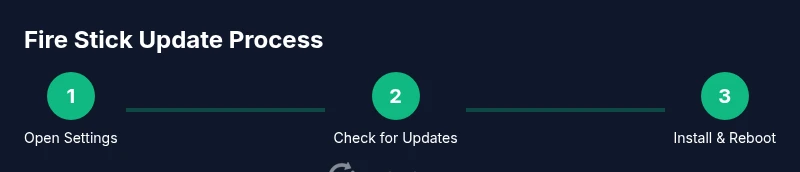
- Open Settings from the Fire TV home screen and navigate to My Fire TV or Device, then About. Here you’ll find the update status and version information. This high-level path is the foundation for the detailed, step-by-step guide in this article.
- If an update is listed, choose Install to begin the process. The device will download, install, and reboot. Do not unplug the power during installation.
- After reboot, return to About to confirm the new version installed. If there’s no update available, you’re already current.
- If you need to force an update and nothing shows, consider clearing cache for the relevant system apps and retrying. In some cases, performing a factory reset is a last resort.
- For ongoing maintenance, turn on automatic updates if your device offers that option.
Note: Steps may vary slightly by Fire OS version or device model, but the general flow remains the same.
Tools & Materials
- Fire TV Stick (3rd gen or newer) with remote(Ensure it is powered and connected to HDMI on your TV.)
- Stable internet connection (Wi‑Fi, 5 GHz recommended)(A strong connection reduces download interruptions.)
- TV with HDMI input and working remote(Needed to navigate menus during the update.)
- Amazon account linked to the Fire Stick(Needed for account-linked update features and settings.)
- Optional USB-C power adapter and cable(Useful if the stick relies on USB power.)
Steps
Estimated time: 15-25 minutes
- 1
Power up and land on the Fire TV home screen
Make sure the Fire Stick is plugged in and the TV is set to the correct HDMI input. Ensure a stable internet connection before starting. This prevents mid-update interruptions and helps verify the update state afterward.
Tip: Keep the remote within reach and avoid pressing other buttons during the update window. - 2
Open Settings and locate update options
From the home screen, select Settings, then navigate to My Fire TV (or Device) and choose About. This is where version info and update options live. You’re setting up the path to either automatic or manual updates.
Tip: If your menu differs, use the general Settings route and locate About or Update sections. - 3
Check for updates and start the install
Choose Check for Updates. If an update is available, select Install to begin downloading and installing. Leave the device plugged in and let it complete the process; interruptions can corrupt the update.
Tip: If you see a message that you’re up to date, you’re already current. - 4
Allow the update to complete and reboot
The device will download, install, and then reboot automatically. Do not unplug power or press other inputs during the reboot.
Tip: If the screen goes blank during installation, stay patient—some devices take longer than others. - 5
Verify the update version after reboot
Return to Settings > My Fire TV > About to confirm the new software version is installed. This confirms a successful update.
Tip: Capture the new version number for your records. - 6
Enable automatic updates (if available)
Look for an option like Install updates automatically or Automatic updates in Settings. Enabling this reduces future manual steps.
Tip: Automatic updates reduce maintenance tasks but monitor for any new issues after a major release.
Frequently Asked Questions
Do I need to update my Fire Stick if the update is optional?
Optional updates often include minor bug fixes and feature improvements. If you rely on apps or services that require the latest OS support, install it. Otherwise, you can schedule a later installation.
Optional updates usually offer fixes and improvements; install when convenient, especially if you need full app compatibility.
What if my Fire Stick won’t update?
If an update won’t install, restart the device and retry. Check your internet connection, free space, and whether the device is plugged in. If it still fails, try a factory reset as a last resort and reattempt the update.
If updates fail, reboot, check connection and space, then try again; factory reset is a last resort.
Can updates affect installed apps or settings?
Most updates are designed to be compatible with existing apps. Some apps may temporarily adjust to new OS changes; if a critical app stops working, check for an app update or contact the developer.
Updates can change how apps behave; check for updates if something looks off.
How long does a typical Fire Stick update take?
Most updates take 5-20 minutes depending on size and network speed. A reboot may extend the total time slightly.
Usually around a 10-minute window, plus a reboot.
Is it safe to sideload updates or use third-party sources?
Sideloading updates from unofficial sources is risky and can void warranties or brick the device. Stick to official updates via Settings or Amazon.
Avoid unofficial updates; stick to official channels for safety.
Watch Video
What to Remember
- Update your Fire Stick to improve security and performance
- Use automatic updates when possible to reduce maintenance
- Verify the new version after reboot to confirm success
- Avoid interruptions during installation for best results
- Enable auto-updates if your device supports it