How to manage updates on iPhone: A practical guide
Learn how to manage updates on iPhone with a practical, step-by-step approach. Enable automatic updates, schedule checks, back up safely, and troubleshoot issues to keep iOS and apps secure and smooth.


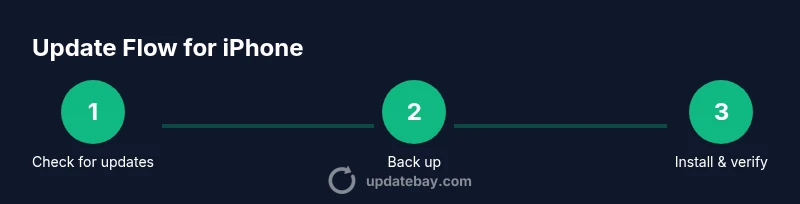
Goal: keep your iPhone up to date with iOS and apps. Start by enabling automatic iOS updates and automatic app updates. Then check for new iOS versions weekly, review release notes, and back up your data before installing. After major updates, verify essential apps work and free space if needed.
Why keeping your iPhone updated matters
Staying current with updates is essential to security, performance, and new features. For many users, the question isn’t if updates exist, but how to manage updates on iphone effectively. According to Update Bay, timely updates reduce exposure to exploits and improve battery management and app compatibility. In practice, a disciplined update routine prevents unexpected crashes and keeps your data safer.
First principles: iOS updates patch system-level vulnerabilities, while app updates fix bugs in individual apps. The interplay between these two update streams affects stability more than either stream alone. When you adopt a daily or weekly update habit, you also set yourself up to catch introduced compatibility issues early. The goal is not to chase every release, but to apply critical updates promptly and test essential workflows after installation.
In this guide, you’ll learn a practical, technician-like approach to managing updates. We’ll cover automatic vs. manual updates, backup strategies, how to recognize safe update behavior, and steps to recover if something goes wrong. This approach is designed for the typical user who wants to minimize risk while keeping devices secure and responsive.
Core concepts: iOS updates vs. app updates
There are two parallel update streams on iPhone that you should manage separately but view through a single lens. iOS (the operating system) updates bring security patches, performance improvements, and new system features. App updates, installed from the App Store, fix bugs and introduce app-specific enhancements. Keeping both streams in sync reduces the chance of crashes, slows, or feature gaps.
Key differences to remember:
- Scope: iOS updates affect the kernel and system services; app updates affect individual apps.
- Timing: iOS updates are less frequent but larger; apps update more often.
- Rollout style: iOS updates may require a reboot; app updates update in the background with minimal disruption. A balanced approach is to enable automatic iOS updates for important security patches while allowing controlled, periodic app updates to avoid unexpected interface changes. This approach minimizes disruption while preserving security and compatibility. For tech savvy readers, you can also monitor release notes to anticipate changes that might affect your favorite apps.
Setup: enabling automatic updates
Enabling automatic updates reduces the mental load of staying current. Start by turning on automatic iOS updates so the device downloads and installs critical patches in the background, usually overnight when plugged in. Then enable automatic app updates so apps stay current without manual taps.
Steps to enable:
- Open Settings. 2) Tap General. 3) Tap Software Update. 4) Toggle Automatic Updates on. 5) Return to Settings > App Store and enable Automatic Updates for apps.
Notes:
- Automatic updates default to downloading over Wi‑Fi and on battery power when possible. If you frequently use cellular data, consider leaving only essential updates on cellular.
- Ensure your iPhone is charged or connected to power during updates to prevent mid-install interruptions. Those interruptions can leave you in a fragile state that requires a restore.
Manual update workflow: when and how to check
A manual update check is a safety net to catch updates that didn’t install automatically or to review release notes before applying changes. The recommended cadence is at least weekly for iOS and after major app releases you rely on.
What to do:
- Open Settings > General > Software Update to see if a new iOS version is available. If yes, read the release notes to understand changes and potential impacts.
- In the App Store, go to your profile to review App Updates, and consider pausing automatic updates if you want to inspect changes first.
- Before installing any major update, back up your data using iCloud or a computer backup. This ensures you can recover if something goes wrong.
Best practice: perform updates when you have a reliable Wi‑Fi connection, a charger available, and a window of time to complete the process. After installation, test critical apps and features (mail, messages, banking, and maps) to confirm normal operation.
Troubleshooting common update issues
Update problems are common yet solvable with disciplined steps. If an update stalls, try these approaches before panicking:
- Check storage: iOS updates require free space. Remove large unused apps or media, then retry.
- Reset network settings: A quick reset can resolve download issues without erasing data.
- Force restart: A simple reboot can clear stuck processes that block updates.
- Re-download the update: If the update package is corrupted, delete it and restart the download.
- If problems persist, restore from backup and reattempt the update.
Important: avoid attempting a restore unless you have a recent backup; restores erase personal data and settings.
Security and privacy considerations after updates
Patches often close vulnerabilities that hackers exploit, so applying updates promptly matters for privacy. After an update, review app permissions, especially if your apps request new access to location, photos, or background activity. If your device becomes unusually slow after an upgrade, it’s worth checking for rogue processes or third-party profiles that may have been installed.
Best practices:
- Keep a current backup to recover from data loss during updates.
- Enable two‑factor authentication for your Apple ID to reduce account takeover risk.
- Review app privacy settings and limit data sharing where possible.
- Stay informed about known issues via release notes, which Update Bay analyzes and communicates so you don’t miss critical details.
Maintenance: storage and performance after updates
Updates can rearrange files and caches, temporarily affecting storage and performance. Plan a light cleanup a few days after updating to reclaim space and refresh system caches. Steps include:
- Review storage usage under Settings > General > iPhone Storage and remove unused media or old messages.
- Offload unused apps while preserving documents and data.
- Reindex or re-sync services like Mail, Photos, and Notes to restore responsiveness.
- Run a quick battery health check to monitor any drop after updates.
In practice, regular housekeeping reduces update friction and keeps your device running smoothly. If you notice prolonged slowdowns, consider a factory reset as a last resort after backing up.
Authority sources
For accuracy and context, refer to trusted sources:
- Apple Support: https://www.apple.com/support/
- U.S. Cybersecurity and Infrastructure Security Agency (CISA): https://www.cisa.gov
- National Institute of Standards and Technology (NIST): https://www.nist.gov
Tools & Materials
- iPhone with internet access(Must be your own device and connected to a stable network)
- Stable Wi-Fi network(Prefer 5 GHz for faster downloads)
- Apple ID and password(Needed for backups and authentication)
- Backup method (iCloud or computer)(Back up before updates)
- Charger or power source(Keep device charged during updates)
- USB-C/Lightning cable (optional)(For local backups or device restoration)
Steps
Estimated time: Estimated total time: 25-40 minutes
- 1
Open Settings and review current state
Open the Settings app and check your current iOS version and available storage. Note any apps that require updates before proceeding.
Tip: Charge the device before starting. - 2
Enable automatic iOS updates
Navigate to General > Software Update and turn on Automatic Updates. This ensures critical patches install in the background.
Tip: Keep device on a stable power source during the first run. - 3
Enable automatic app updates
Go to Settings > App Store and enable Automatic Updates so apps stay current without manual taps.
Tip: Consider limiting cellular data use if you have a limited plan. - 4
Back up your data before updating
Create a fresh backup via iCloud or Finder/iTunes so you can recover if something goes wrong.
Tip: Verify backup completion before proceeding. - 5
Check release notes and compatibility
Read the iOS release notes and any app update notes to understand changes and potential impacts on your workflow.
Tip: Note any critical app incompatibilities. - 6
Install the update
If an iOS update is available, tap Install Now and follow prompts. Ensure the device remains connected to power.
Tip: Avoid interrupting the process once it starts. - 7
Verify post-update operation
After the update finishes, open core apps (Mail, Messages, Maps, Banking) to confirm normal behavior.
Tip: If something seems off, reboot and test again. - 8
Post-update maintenance
Clear unnecessary storage, reindex apps, and monitor battery health for 24–72 hours after update.
Tip: Plan routine checks every few weeks.
Frequently Asked Questions
What happens if I delay updates for a long time?
Delaying updates can expose your iPhone to security risks and compatibility issues. Regular updates help protect data and keep apps functioning smoothly.
Delaying updates can leave your iPhone at risk and may cause apps to behave oddly.
Can I update without a Wi‑Fi connection?
You can update over cellular if your device supports it and you have enough data, but OS updates are large and usually best on Wi‑Fi.
You can update using cellular data if allowed, but it's best to use Wi‑Fi.
How can I verify a successful update?
Check Settings > General > About to confirm the software version and test essential apps to ensure proper operation.
After updating, check the iOS version and test core apps.
What should I do if the update fails?
If an update fails, retry after ensuring a fresh backup. Restart the device, and if necessary, restore from backup before attempting again.
If it fails, try again after reboot and restore from backup.
Is it safe to roll back an iPhone update?
Downgrades are not typically supported by Apple; you should plan to update to newer versions rather than downgrade.
Downgrades aren’t typically supported; you should plan updates, not downgrades.
Watch Video
What to Remember
- Enable automatic iOS and App updates.
- Back up your data before updates.
- Review release notes and test core apps afterward.
- Monitor storage and performance after updates.