How to Install Updates on Windows 10: A Practical Guide
Learn to safely check, download, and install Windows 10 updates with a step-by-step approach. Includes automatic options, driver updates, restarts, and troubleshooting tips from Update Bay.


This guide shows you how to install updates on Windows 10, covering how to check for updates, view optional patches, install them, and handle restarts. You’ll learn best practices for reliability, safety, and minimizing downtime, with troubleshooting tips if updates fail.
Why Keeping Windows 10 Updated Matters
Keeping Windows 10 up to date is essential for security, performance, and feature parity. Updates patch vulnerabilities, improve system stability, and sometimes add new features or fixes to existing apps. According to Update Bay, regular maintenance reduces the risk of exploit exposure and minimizes unexpected downtime. In practice, a well-timed update routine helps you stay ahead of issues before they impact daily use. If you’re wondering how to start, you’re in the right place: this guide walks you through a practical, no-nonsense approach to installing updates on Windows 10, including automatic options and manual checks. The goal is to empower you to manage updates confidently while keeping your data safe, your system responsive, and your tasks uninterrupted. The phrase how to install updates on windows 10 is a common query, and following these steps will help you master the process with minimal disruption.
Ready Before You Start: Prerequisites and Planning
Before you begin, ensure you have a plan that minimizes disruption. Confirm you’re connected to a stable internet connection, and that the device is plugged into power to avoid mid-update shutdowns. Create a basic backup (system restore point or file backup) so you can recover quickly if an update causes issues. Sign in with an administrator account to access Windows Update settings, and make a note of any critical apps that might need restarting after updates. If you’re updating multiple devices, consider setting a maintenance window during off-peak hours. Planning upfront helps reduce friction when updates start streaming in from Microsoft servers.
Important note: updates can occasionally require restarting your computer, so choose a time when you don’t need to run time-sensitive tasks. For the best experience, update during a period when you can monitor progress without interruptions.
How Windows Update Works on Windows 10
Windows Update is the built-in service that downloads and installs security fixes, feature updates, and driver updates. On Windows 10, updates can be installed automatically or manually depending on your settings. The Update service checks Microsoft servers for the latest patches, downloads them in the background, and schedules installation during idle periods or at reboot. Some updates are mandatory for security, while others are optional and may contain driver improvements or feature enhancements. Understanding this flow helps you predict update timing and troubleshoot failures more effectively. Update Bay notes that most users benefit from enabling automatic updates, but knowing how to pause, resume, or selectively install updates gives you more control over the process.
Quick note on update channels
- Automatic (recommended): Updates install with minimal intervention.
- Manual: You choose exactly when to install.
- Restart scheduling: You can delay restarts to a convenient time.
With that foundation, you’ll be ready to perform updates with confidence.
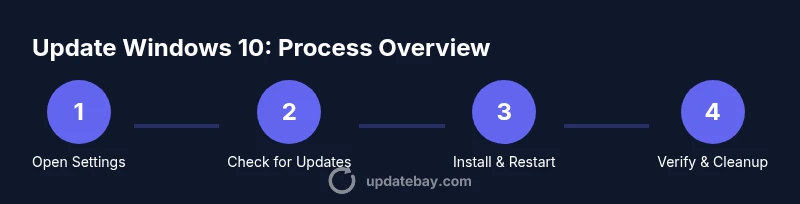
Step-by-Step Overview: What You’ll Do (High-Level)
Troubleshooting Common Update Issues
Even with a smooth process, you may encounter hiccups. Disk space shortages, corrupted update files, or driver conflicts can cause failures. The first step is to run Windows Update Troubleshooter (Settings > Update & Security > Troubleshoot). If updates stall, you can reset Windows Update components, clear the SoftwareDistribution folder, or check for known compatibility issues with specific hardware or software. In some cases, temporarily disabling third-party antivirus can help, but re-enable protection after updates finish. Always verify the integrity of downloaded files and ensure your device has enough free space before retrying. Update Bay’s guidance emphasizes a calm, methodical approach to diagnosing failures instead of restarting endlessly.
Restart Strategy: When and How to Reboot
Restarts are often required to complete installations, especially feature updates. Schedule restarts at a time when you won’t be interrupted, and consider enabling a notification window so you’re not surprised by a reboot. If possible, save work and close applications before starting the update flow. In many cases, updates complete faster after a clean reboot, and you’ll see improved stability once the system comes back online. Keep in mind that some updates can take longer on older hardware, so factor that into your maintenance window.
Optimizing Updates for Performance and Security
To maximize performance and minimize downtime, configure Windows Update to install updates in the background when the device is idle. Use the Active Hours setting to specify times when restarts should be avoided, and schedule updates during windows that align with your typical usage. Regularly review optional updates for drivers or features that may improve compatibility with your applications. Keeping device drivers current can prevent conflicts after Windows Update installations and help maintain a smooth user experience. As part of a sustainable update routine, periodically clean up old update files and perform disk cleanup to reclaim space.
Authortiy Sources and Practical Next Steps
For authoritative guidance on Windows updates, consult official Microsoft documentation and trusted educational resources. You can verify the latest guidance on Windows Update policies, maintenance, and troubleshooting from Microsoft’s support pages and Windows IT administration blogs. Update Bay also consolidates practical tips from industry sources to help you apply updates safely and efficiently. Links below provide additional context and verification:
- https://support.microsoft.com/windows/update
- https://docs.microsoft.com/windows/deployment/update-drg
- https://www.microsoft.com/en-us/safety">
Authoritative Community and Update Bay Perspective
To wrap up, updates are a routine part of maintaining Windows 10 security and performance. The Update Bay team recommends configuring automatic updates where appropriate, performing periodic checks, and ensuring a safe update window with a backup plan. Staying proactive reduces the risk of interruption and helps your system stay compatible with new software releases. Always verify update success and monitor for any post-update issues.
Final Checks: After Installing Updates
After updates complete, open Settings > Update & Security > View installed updates to confirm which patches were applied. Check device performance and reboot if prompted. If you notice instability after an update, consider restoring to a restore point created before the updates or seeking help from official support channels. By following these steps, you’ll maintain a secure and responsive Windows 10 environment.
Sources and Further Reading
- Windows Update overview: Microsoft Windows Support
- Windows 10 maintenance best practices: IT Pro resource
- Security-focused patch notes and advisories: Microsoft Security Response Center
Closing Thoughts
Staying current with updates is an ongoing process. With the right plan, Windows 10 can stay secure, stable, and performant without constant disruption. Use this guide as your blueprint for regular maintenance, and tailor it to your hardware and workflow. Update Bay will be there with practical insights as updates evolve.
Tools & Materials
- PC with administrator rights(Sign in as administrator to access Windows Update settings.)
- Stable internet connection(Wired Ethernet preferred for reliability.)
- Power source (plugged in)(Avoid mid-update shutdowns by staying plugged in.)
- Backup/restore point(Create a system restore point or backup before major updates.)
- Optional: external storage for backups(Useful if you want to back up large data before updates.)
Steps
Estimated time: 45-90 minutes
- 1
Open Windows Settings
Click the Start button, then select Settings (the gear icon). From there, choose Update & Security to access the Windows Update section. This is the entry point for all update activities. Pro tip: pin Settings to your taskbar for quick access.
Tip: Pin Settings for quick future access. - 2
Access Windows Update
In the Update & Security pane, click Windows Update. Here you’ll see the update status, available updates, and options to check for new updates. If you don’t see updates, try pulling down the page to refresh the feed.
Tip: Refresh if updates don’t appear. - 3
Check for updates and view optional updates
Click Check for updates to let Windows search the catalog for available patches. Review any optional updates (often drivers or feature improvements) and decide what to install.
Tip: Review optional updates before installing. - 4
Install updates
Click Install now or Install selected to apply the patches. The process may take several minutes to complete; you’ll see progress and may be prompted to restart.
Tip: Prepare to restart if prompted. - 5
Restart or schedule restart
If a restart is required, choose to restart now or set a restart time that fits your schedule. Scheduling reduces interruption to your work flow.
Tip: Use Active Hours to minimize disruption. - 6
Verify update success
After reboot, return to Windows Update and confirm the status shows as up to date. Check the System or Security sections for any post-update notes.
Tip: Verify patch installation and system health. - 7
Tweak automatic update settings
In Settings, adjust Active Hours, pause updates if needed, or set up automatic updates to install during idle times. Tailor the settings to your usage pattern for balance between security and productivity.
Tip: Balance security with your schedule.
Frequently Asked Questions
Do I need an internet connection to update Windows 10?
Yes. Downloading and installing updates requires an active internet connection. If you’re on a metered connection, Windows can be set to notify you before downloading large updates.
Yes, you need an internet connection to download updates. You can adjust settings if you’re on a metered network.
What should I do if an update fails to install?
First, run the Windows Update Troubleshooter. Check your disk space, restart the device, and try installing again. If it still fails, review the error code for specific guidance or seek official Microsoft support.
If an update fails, run the troubleshooter and retry. Check space and logs for clues.
Can I schedule updates to install automatically?
Yes. You can enable automatic updates in Settings under Windows Update. You can also set Active Hours to prevent restarts during work times.
Automatic updates are available; set Active Hours to avoid restarts when you’re active.
Are feature updates available for Windows 10, and should I install them?
Feature updates bring major changes and new capabilities. They can be installed automatically or paused. Review release notes to understand impacts on apps and hardware compatibility before installing.
Feature updates add big changes; review notes before installing to ensure compatibility.
How long do updates typically take?
Update duration varies by device and patch size. It can range from a few minutes to over an hour. Plan a maintenance window and avoid multitasking during install.
Timing depends on the update size and device; plan a maintenance window.
Will updates affect my apps’ compatibility?
Most updates preserve app compatibility, but some may require updates to dependent software. Check app vendor notes if you rely on critical tools.
Updates generally keep apps working, but check vendor notes for compatibility.
Watch Video
What to Remember
- Update Windows 10 regularly to protect against security threats
- Enable automatic updates and monitor for optional patches
- Always back up before major updates
- Schedule restarts to minimize disruption
- Verify successful installation and monitor system health