How to Install Update in Windows 11
Learn how to install updates in Windows 11 with a clear, step-by-step approach. This guide covers checking for updates, choosing which updates to install, handling restarts, and troubleshooting common issues—backed by Update Bay insights for 2026.


You will learn how to install updates in Windows 11, covering how to check for updates, understand the types (feature vs quality), manage update settings, and handle restarts and troubleshooting. This quick guide is designed for beginners and power users alike, with practical steps and safety tips to keep your system secure and stable.
Why updating matters
Keeping Windows 11 up to date matters for security, stability, and performance. If you’re curious about how to install update in windows 11, this guide will walk you through the steps, options, and common pitfalls. According to Update Bay, regular updates reduce exposure to known vulnerabilities and improve overall system reliability. The Update Bay team found that devices that stay current tend to experience fewer crashes and compatibility issues with new software releases. By prioritizing updates, you shield your data, preserve performance, and extend the life of your device in a fast-changing tech landscape. This article stays practical, focusing on concrete steps you can take today in 2026.
Understanding update types in Windows 11
Windows 11 updates fall into two broad categories: feature updates and quality updates. Feature updates introduce new capabilities, interfaces, and experiences, often on a semi-annual cadence. Quality updates, by contrast, are smaller patches that address security vulnerabilities, reliability improvements, and bug fixes. If you’re trying to decide what to install, prioritize quality updates first for security, then assess feature updates based on your needs. This distinction matters because some users may see multiple update prompts in a single cycle, and understanding the difference helps you plan maintenance windows more effectively.
Checking for updates and adjusting settings
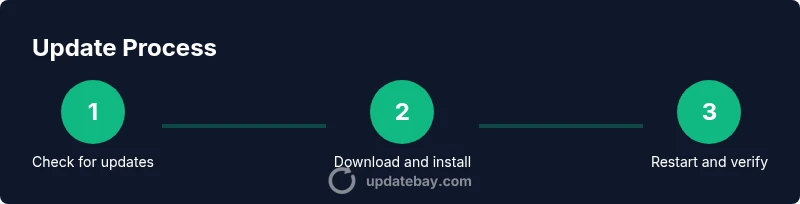
To begin, open Settings and navigate to Windows Update. From there, press Check for updates to fetch the latest patches. You’ll see a list of available updates, including any optional driver updates. This page also lets you pause updates temporarily, set active hours, and view update history. For best results, ensure your device is connected to the internet, and avoid running other heavy tasks during a large feature update. This task is simple but central to keeping your system secure and smooth.
Managing restarts and active hours
Windows Update offers restart controls to minimize disruption. Set Active Hours to prevent unexpected restarts during work or study times, and schedule a convenient restart window if needed. When an update requires a reboot, save your work, then select Restart now or wait for the scheduled time. Proper restart management reduces productivity impact and ensures updates finalize correctly, with all files properly replaced.
Troubleshooting common update issues
If updates fail to install, start with the basics: verify online connectivity, ensure there’s enough storage space, and run the Windows Update troubleshooter. Clear the software distribution cache if necessary and retry installation. If problems persist, consult the update history for error codes and search for official guidance. Remaining calm and methodical often resolves most update hiccups without needing advanced IT support.
Best practices for smooth updates
Maintain a regular update routine: enable automatic updates where appropriate, back up important files, and perform updates during a planned maintenance window. Prefer a wired connection for large feature updates when possible, stay on supported hardware, and review optional updates before installing drivers. These habits reduce the risk of failed installs and minimize downtime when updates arrive.
Keeping updates part of your routine
Treat updates as a regular maintenance task rather than a one-off event. Schedule monthly checks, enable automatic updates, and keep a note of your Windows build number after each major patch. As you gain familiarity, you’ll be able to anticipate when updates roll out, plan around business-critical tasks, and maintain a secure, stable Windows 11 environment.
Tools & Materials
- PC or device with Windows 11(Ensure the device is currently running Windows 11 with an active license.)
- Stable internet connection(Prefer a reliable network to avoid partial downloads.)
- Power source(Keep laptops plugged in during updates to prevent shutdowns.)
- Backup plan(Optionally back up important files before major feature updates.)
- Sufficient storage space(Ensure there is enough free space for downloads and installation.)
Steps
Estimated time: 25-45 minutes
- 1
Open Settings and access Windows Update
Open the Start menu, click Settings, then select Windows Update to begin.
Tip: Use Windows+I to open Settings quickly. - 2
Check for updates
In Windows Update, click Check for updates to download the latest patches.
Tip: If updates show as optional, install the ones you need first. - 3
Review available updates
Review the list of updates, including optional drivers, and decide which to install now.
Tip: Uncheck items you don’t need if bandwidth is limited. - 4
Install updates
Click Install and allow Windows to download and apply the patches.
Tip: Avoid using the device for heavy tasks during this period. - 5
Restart to complete installation
If prompted, restart your PC to finalize the update process.
Tip: Save work before restarting and choose Restart now if urgent security fixes exist. - 6
Verify installation
After reboot, go back to Windows Update > View update history to confirm success.
Tip: Note the build number for reference if you need support. - 7
Maintain routine updates
Configure Active Hours and automatic maintenance to keep Windows 11 up to date with minimal disruption.
Tip: Schedule updates during low-usage times when possible.
Frequently Asked Questions
Why aren’t updates installing automatically?
Automatic updates can be paused by Active Hours, metered connections, or policy settings. Check Windows Update settings and ensure the device is online.
Check Windows Update settings and ensure the device is online.
What should I do if updates fail to install?
Run the Windows Update troubleshooter, free up disk space, and retry installation. If problems persist, view update history and search for error codes.
Run the troubleshooter and retry the install.
Can I postpone updates?
Some updates can be deferred with Active Hours and pause updates options, but critical security updates should be installed promptly.
You can pause updates temporarily, but don’t delay security fixes.
Are updates required for security?
Yes. Security and quality updates are essential for protection against threats and compatibility with apps.
Security updates keep your device protected.
How do I view update history?
Open Settings > Windows Update > View update history to see installed and pending updates.
Check the history to confirm what was installed.
What is the difference between feature and quality updates?
Feature updates add new features and changes; quality updates provide security and reliability fixes.
Feature updates bring changes; quality fixes improve security and stability.
Watch Video
What to Remember
- Keep Windows Update enabled for security and reliability
- Distinguish feature vs quality updates to plan maintenance
- Back up data before major feature updates
- Use Active Hours to minimize disruption during updates