How to Make Update Faster on PS4
Learn proven techniques to speed up PS4 system updates, including wired networking, storage optimization, and USB update methods. Update Bay shares practical steps and troubleshooting tips for faster PS4 firmware installs.


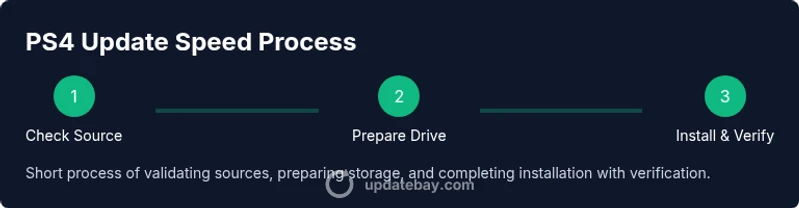
By using a wired Ethernet connection, freeing space, and choosing the USB update method only when needed, you can accelerate PS4 firmware installs. Start with a direct, stable network, verify you have the official update file ready, and avoid multitasking during the process. This guide covers practical steps to make updates faster on PS4.
Why updating PS4 can feel slow and what to do about it
Firmware updates can feel slow because of network conditions, limited storage, or busy PS4 hardware. If you're wondering how to make update faster on ps4, start by assessing your environment and the update file source. In this section, we explain the primary bottlenecks and how to address them. By tackling connectivity, storage, and firmware readiness, you set the stage for a smoother install. The right combination reduces wait times and minimizes the chance of corrupt downloads. Update Bay's practical guidance emphasizes stable networks and deliberate preparation to improve outcomes for everyday users.
Check your network: wired Ethernet, router settings
A wired Ethernet connection is consistently faster and more reliable than Wi‑Fi for PS4 updates. If possible, connect the PS4 directly to your router with a Cat5e/Cat6 cable. Disable bandwidth-heavy devices during the update, and if you must use Wi‑Fi, choose a 5 GHz network with a strong signal. Additionally, ensure your router firmware is up to date and consider placing your PS4 closer to the router to reduce interference.
Clear disk space and manage storage for faster updates
PS4 updates often require temporary space to unpack and install system files. Free at least 10–20 GB of space before starting an update (more for larger firmware files). Move or delete unused games and apps, back up data you want to keep, and empty the download folder. If you’re running out of space, consider upgrading the PS4’s internal drive or using an external USB drive for game data while keeping the update on the internal drive.
Update procedures: online vs USB drive
You can update PS4 system software online over the internet or via a USB drive using a downloaded update file. Online updates are convenient but rely on your network; USB updates bypass network speed constraints but require careful file placement. For USB updates, download the correct PS4UPDATE.PUP file from Sony’s official site, format the USB drive as FAT32 or exFAT, and place the file in the correct folder path. This method can be faster when network conditions are poor.
Step-by-step quick optimization checklist
Use this quick checklist to speed up updates:
- Connect with Ethernet and pause other devices
- Free 15–20 GB of space
- Prepare the official update file in advance
- Start the update when network traffic is lowest
- Avoid turning off the PS4 during update These steps reduce retry times and help complete the update faster.
Optimize your PS4 settings for faster downloads
Adjust PS4 settings to maximize download efficiency. Go to Settings > System > Automatic Updates and turn on features that download while in Rest Mode if you plan to update overnight. In Settings > Network, ensure 'Test Internet Connection' shows expected speeds and enable 'Limit bandwidth during download' off if your router supports traffic prioritization. These tweaks can lower overall update time.
Use a local cache or download queue strategies
If you routinely update multiple PS4s or share one update file across devices, use a local cache strategy. For USB updates, keep a single repository of the update file in a known folder for quick access. Organize downloads during off-peak hours, and consider scheduling firmware checks to avoid long waits during peak times.
Practical troubleshooting if updates stall
Updates can stall due to interrupted downloads or corrupted files. If the update stalls, cancel and restart the download, reboot the PS4, or switch to USB by downloading the file anew. Check your network status for instability, and verify the file integrity by re-downloading from Sony’s official site. When in doubt, pause and resume later.
Advanced tips: OS-level cleanup and background tasks
For power users, occasional OS-level cleanup helps. Rebuild the PS4 database from Safe Mode, clear cache, and ensure the internal drive has healthy SMART attributes by using professional tools if you know how. Do not perform risky disk operations unless you’re comfortable with the process. These steps can reduce friction during updates.
Routine maintenance to keep updates fast
Establish a simple maintenance routine:
- Regularly check for firmware updates
- Keep the drive tidy and backed up
- Maintain stable network hardware and firmware
- Plan updates during off-peak hours Consistent maintenance pays off with shorter update times and fewer errors over the life of your PS4.
Tools & Materials
- Ethernet cable (Cat5e or better)(Prefer wired connection for stability; connect directly to router or via powerline adapters)
- PS4 console(Ensure it’s powered and connected to the internet)
- USB flash drive (8GB+)(Needed if using USB update method; format to FAT32 or exFAT and create PS4/UPDATE.PUP path)
- Official PlayStation update file (PS4UPDATE.PUP)(Download from Sony's official site; ensure match with your PS4 model)
- Computer or mobile device with internet(To download and transfer update file if not using direct download)
Steps
Estimated time: 35-60 minutes
- 1
Verify official update source
Navigate to Sony's official PS4 update page and confirm the file matches your PS4 model. This ensures compatibility and reduces risk of corrupted installs. Always use the official download to avoid malware or tampering.
Tip: Bookmark Sony's download page for quick access during future updates. - 2
Choose update path
Decide between online (direct download) or USB update depending on network conditions. USB can bypass slow networks but requires correct file setup.
Tip: If your network is fast, online is simplest; if not, USB may save time. - 3
Connect via Ethernet
Plug the PS4 into a router using a wired connection. A stable link reduces the chance of interrupted downloads and speeds up the overall process.
Tip: Avoid using a shared hub; a direct router connection is best. - 4
Free storage space
Clear unused apps and games to free space for unpacking and installation. A larger buffer reduces post-download pauses and errors.
Tip: Aim for at least 10–20 GB extra space if updating a major firmware. - 5
Prepare USB update (if chosen)
If using USB, format the drive as FAT32 or exFAT and create PS4/UPDATE.PUP in the root or specified path. Copy the official update file to this location.
Tip: Double-check file name and folder structure before plugging into PS4. - 6
Download the update file
If updating online, start the PS4 update from Settings > System Software Update and let it download. If USB, transfer the file to the PS4 after preparing the drive.
Tip: Do not unplug the PS4 or USB drive during download. - 7
Start the update
Begin the installation when download completes. Follow on-screen prompts and avoid powering off the console mid-install.
Tip: Keep the console on a stable power source; consider using Rest Mode if supported. - 8
Monitor progress
Watch the progress bar and messages. If the progress stalls beyond a reasonable window, cancel and retry with a fresh download.
Tip: If using USB, verify the correct folder and file path before retry. - 9
Verify update completion
After reboot, check Settings > System > System Information to confirm the firmware version. A successful update is indicated by the new version value.
Tip: Take a quick note of the version for future reference. - 10
Post-update cleanup
Restore any settings changed for the update and re-enable apps or features you had paused. Run a quick game or app to ensure stability.
Tip: If issues appear, consult Sony's support resources or Update Bay's troubleshooting notes. - 11
Plan a quick backup
Back up saved data before major updates when possible. This minimizes loss if something goes wrong during the process.
Tip: Use cloud saves or a local external drive for backups. - 12
Document the process
Keep a simple log of dates, firmware versions, and steps that worked. It helps with faster updates in the future and troubleshooting.
Tip: Note any network changes or file locations for next time.
Frequently Asked Questions
What slows PS4 updates the most?
The biggest culprits are a weak network, insufficient storage, and long download times. Improving connectivity and freeing space can noticeably speed up updates.
Slow PS4 updates are usually caused by network problems or low storage. Improving connectivity and storage helps a lot.
Can updating via USB be faster than online?
Yes, USB updates bypass slow internet connections. You must download the official file and place it correctly on a USB drive before starting the update.
Yes, USB updates can be faster if your internet is slow. Make sure you use the official file and correct USB setup.
Should I update while the PS4 is in Rest Mode?
Enabling background downloads and automatic updates in Rest Mode can let updates proceed with minimal user involvement. Ensure features are enabled in Settings.
Yes, updating in Rest Mode is convenient if you enable automatic updates.
How can I verify the update completed successfully?
Go to Settings > System > System Information to check the firmware version. The shown version confirms completion and correctness.
Check Settings > System > System Information to verify the version after updating.
Is it risky to update offline?
Updating offline using the official update file is generally safe if you use the right file and follow the folder path precisely. Mismatch can cause failures.
Offline updates are fine when you use the official file and correct folder structure.
What if the update stalls or fails?
If an update stalls, cancel, reattempt with a fresh download or try USB. Restart the PS4 and ensure a stable power source during the process.
If it stalls, restart and retry with a fresh download or USB, using a stable power source.
Watch Video
What to Remember
- Use a wired connection for speed.
- Free ample disk space before updating.
- Choose USB update only when network is slow.
- Follow official sources to avoid corrupted updates.