Mastering iphone app auto update on iPhone: A Practical Guide
Learn how to enable, customize, and troubleshoot iphone app auto update on iPhone. This educational guide covers settings, data usage, and best practices for smooth app updates.


You will learn how to enable, customize, and troubleshoot iphone app auto update on your iPhone. This guide covers iOS settings, data usage considerations, and common pitfalls, so you can keep apps current without surprises. Whether you're a casual user or power user, understanding these controls helps save battery, data, and headaches.
Why iphone app auto update matters
Keeping your iPhone apps current with iphone app auto update is more than convenience; it's a security and performance matter. When you enable automatic updates, apps receive patches for vulnerabilities, bug fixes, and new features as soon as Apple and developers release them. According to Update Bay, staying current with updates reduces friction when apps rely on updated APIs and platform features. This approach also helps minimize the risk of compatibility issues after iOS updates, since apps are tested against the latest operating system environment. In practice, enabling auto updates means less manual checking, more consistent behavior, and a smaller chance that critical fixes slip through the cracks. Tech enthusiasts and everyday users benefit from a smoother experience with fewer surprises during daily use, travel, or work tasks. Keeping track of what updates occur can also reassure you that your data remains protected because many updates include security patches and privacy improvements. If you manage multiple devices or families, a centralized approach to updates can simplify maintenance while preserving control over when data-heavy downloads happen.
How iPhone app auto update works behind the scenes
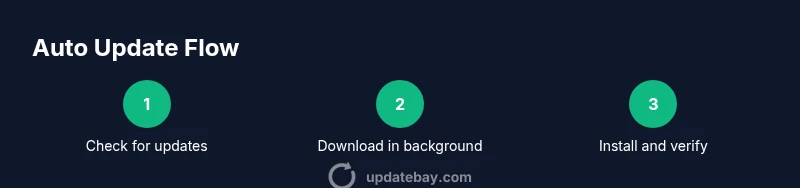
App updates begin in the background. The App Store periodically checks for newer versions of installed apps and downloads them when your device meets your configured conditions (such as being connected to Wi‑Fi). The system relies on a combination of server-side signals from developers and client-side settings on your iPhone. With auto updates enabled, you won’t need to manually tap Update All; updates roll in automatically as devices are idle and have sufficient battery. Update Bay notes that understanding these background processes helps you plan updates around data plans and battery life, especially if you’re managing several devices.
Default settings to enable on your iPhone
To begin, ensure your iPhone is on the latest iOS and your Apple ID is active. Open Settings, then tap App Store to check that App Updates and Automatic Downloads are turned on. Automatic Updates lets apps install in the background, while Automatic Downloads ensures new apps and updates land on your device without manual prompts. If you want to conserve data, consider leaving updates on Wi‑Fi only. Regularly verify storage availability, since large updates can momentarily require more space. These defaults form a reliable baseline for most users and align with best practices highlighted by Update Bay.
Customizing update timing and data usage
If you want more control, adjust when and how updates occur. In Settings > App Store, you can enable App Updates and consider allowing updates over Wi‑Fi only, which helps protect you from cellular data overages. Some users prefer manual updates for critical apps or those with frequent changes. You can still keep a healthy update cadence by checking App Store > Updates at a defined interval. Being predictable about update timing reduces the chance of interruptions during important tasks and helps manage battery life more effectively.
Managing updates for multiple devices in a family plan
Families sharing devices can still benefit from centralized update management. Enabling automatic updates on each iPhone or iPad reduces the need to remind everyone to check for new versions. If some family members have limited data or storage, you can encourage them to enable Wi‑Fi‑only updates and keep automatic Downloads enabled for a smoother experience. Consistency across devices helps ensure security patches and feature improvements are applied uniformly, minimizing compatibility issues.
Troubleshooting update failures and storage issues
When updates stall or fail, start with a quick check of network access and available storage. Go to Settings > General > iPhone Storage to verify enough space for the update. If the update fails, sign out and back into iCloud, restart the device, and retry. Clearing cache in the App Store by toggling App Updates off and back on can help refresh downloads. For persistent problems, temporarily turning off Low Power Mode can improve background activity related to updates. These steps reduce disruption and help you regain a smooth update flow.
Security, privacy, and app integrity
Auto updates prioritize security by delivering fixes as soon as they’re ready. Apple’s vetting process, combined with developer patch notes, informs users about what changes are coming. To maintain privacy, review app permissions after updates and stay aware of any changes to data access. While auto updates increase convenience, you should still be mindful of sensitive permissions and review changes when updates occur. Regularly updating apps contributes to a safer, more stable device experience.
Best practices for keeping apps updated without surprises
Adopt a routine: periodically review App Store updates, keep Wi‑Fi enabled during updates, and monitor battery health prior to large updates. Maintain a visible backup habit, using iCloud or a computer backup before major iOS or app updates. Benchmark your data usage during updates, especially if you’re on a capped plan. By combining proactive checks with automatic updates, you can reduce friction and maintain a responsive device ecosystem across your everyday tasks.
What to do if an update causes issues or needs rollback
If an update causes unexpected behavior, first try restarting the app or device. If problems persist, you can revert temporarily by postponing updates for affected apps and waiting for a hotfix. Report issues to the developer and check for known issues or notes from Apple. When a patch is released to address problems, update promptly. This approach minimizes downtime while preserving access to desired features.
Tools & Materials
- iPhone with latest iOS version(Ensure your device is running the current iOS build)
- Apple ID with a valid payment method(Needed for purchase verification and account access)
- Stable Wi-Fi connection(Preferred for faster, data-safe updates)
- Sufficient free storage on device(Check in Settings > General > iPhone Storage)
- Backup method (iCloud or computer backup)(Back up before major updates)
- Mac/PC with Finder or iTunes (optional for manual updates)(Useful if you prefer manual update paths)
Steps
Estimated time: 15-25 minutes
- 1
Verify prerequisites
Confirm you have a recent iOS version, a valid Apple ID, and enough storage. This reduces update failures and ensures a smooth process.
Tip: Check Settings > General > iPhone Storage before starting. - 2
Open App Store settings
Navigate to Settings > App Store to review your update options and ensure App Updates is enabled.
Tip: Turn on Automatic Downloads for Apps and Updates if you want seamless changes. - 3
Enable automatic updates
Toggle App Updates to allow updates to install in the background when conditions are suitable.
Tip: Prefer Wi‑Fi over cellular data to avoid extra charges. - 4
Consider data usage controls
Decide if you want updates to occur on cellular data. If not, restrict to Wi‑Fi only.
Tip: You can still update manually when you need to. - 5
Check update status
Visit App Store > Updates to monitor which apps have updated recently.
Tip: Enable push notifications for updates if you want real-time alerts. - 6
Troubleshoot issues
If updates fail, restart the device and retry. Sign out/in of Apple ID if needed.
Tip: Free up space and ensure a stable network connection.
Frequently Asked Questions
What is iphone app auto update?
Auto update automatically downloads and installs app updates on your iPhone. This keeps apps secure and compatible with the latest iOS features without manual effort.
Auto update keeps your apps current without you having to prompt updates.
Can I disable auto updates?
Yes. You can turn off automatic updates in Settings > App Store. You can then update apps manually from the Updates tab in the App Store.
You can disable automatic updates and update apps manually when you prefer.
Do auto updates use cellular data?
Auto updates can be restricted to Wi‑Fi in Settings. If allowed on cellular, updates may consume data, so use caution on limited plans.
Updates may use cellular data if allowed; you can restrict to Wi‑Fi only.
What should I do if an update fails?
Check storage, retry the update, and consider signing out of iCloud and back in. If problems persist, use a trusted backup and wait for a fix.
If an update fails, retry after checking storage and network, and consult support if needed.
Is it safe to update apps automatically?
Generally safe: updates include security patches and bug fixes. Review patch notes and permissions after updates.
Auto updates are designed to be safe and keep you secure, but stay informed about changes.
Watch Video
What to Remember
- Enable automatic updates for security and convenience.
- Monitor data usage and battery impact during updates.
- Check update status in App Store to stay informed.
- Back up before major updates to protect data.