How to Stop Updates from Windows: Practical, Safe Methods
Learn safe, effective ways to stop updates from Windows. This expert guide covers pause options, policy edits, registry tweaks, and the risks to security and system stability.


Goal: pause or manage Windows updates without compromising security or stability. This guide walks you through safe, reversible methods to stop updates from Windows using built-in settings, service tweaks, and registry options. Start with quick pause options and proceed to deeper controls only if necessary, always weighing reboot timing, software compatibility, and security implications.
Why Windows updates exist and why you might want to stop them temporarily
Windows updates are essential for security, feature improvements, and stability. They fix bugs, close security gaps, and ensure devices can run with current drivers and apps. Yet there are legitimate reasons people want to stop updates from Windows temporarily: you’re in the middle of a critical project, you have limited bandwidth, or you need to avoid unexpected restarts during important work. According to Update Bay, while updates are a cornerstone of platform safety, users frequently seek practical control to balance security with workflow. The aim of this article is to give you safe, reversible options rather than a blanket, permanent disablement. The term 'how to stop updates from Windows' often shows up in searches because many users want predictable timelines and reboot behavior. You’ll learn what each option does, what it protects, and what it might risk. Remember that updates frequently deliver both security patches and compatibility improvements; turning them off reduces exposure to new vulnerabilities momentarily, but it can leave your system vulnerable if you delay essential fixes too long. Before you begin, backup critical files and make sure you have a restore point or a known-good recovery option. The information here focuses on Windows 10 and Windows 11, but the underlying principles apply across recent Windows versions.
Pause updates: the quick, safe first step
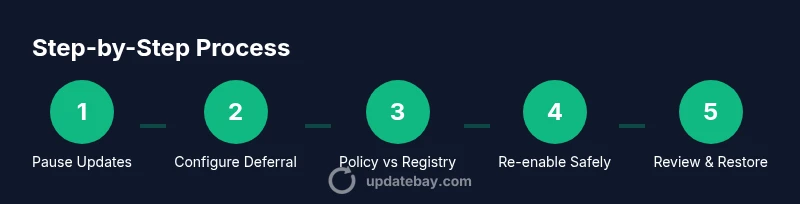
For many users, the simplest first step is to pause updates. In Windows 10 and Windows 11, you can halt updates for a defined window and then resume when convenient. This approach minimizes reboot interruptions while still allowing you to approve or reject specific updates later. To pause, open Settings, navigate to Windows Update, and choose 'Pause updates' for the maximum allowed period (typically up to 7 days, extendable in steps up to 35 days, depending on edition and policy). When you pause, Windows will still download but not install updates, which gives you control over when changes occur. If you’re using a metered network, pausing can also save bandwidth. After the pause window ends, Windows will prompt you to install updates, but you can re-pause or defer again if needed. Note that some updates may still be installed to protect critical vulnerabilities, even during a pause. Always verify that essential security patches aren’t overdue. If you anticipate longer downtime, consider combining the pause with other methods described here. Update Bay strongly recommends testing any pause in a controlled environment to ensure you don’t miss critical patches.
Defer updates and stagger installations when needed
Deferring updates is a more flexible approach than a hard pause. On Windows 10 and Windows 11, you can delay feature updates and quality updates for a limited period, with variations by edition. The general strategy is to set a scheduled window during which updates can be installed, while making room for your work schedule. In practice, this means selecting a deferral period that aligns with project timelines and maintenance windows. To implement, open Settings > Windows Update > Advanced options, and choose the deferral settings available to your edition. By deferring, you reduce disruption while still maintaining a path to security patches. This method supports longer-term stability without surrendering protection entirely, which is valuable for machines used in production environments. If you’re unsure about how long to defer, aim for a predictable cadence—e.g., defer for a specific number of weeks and re-evaluate before the next cycle. Remember: even with deferral, you should eventually install updates to minimize risk.
Pro-level controls: Group Policy Editor (Windows Pro/Enterprise)
For Windows Pro, Enterprise, or Education editions, Group Policy Editor offers granular control over update behavior. This is a safer, auditable method than registry edits if you manage multiple devices. Steps: 1) Press Win+R, type gpedit.msc, and press Enter. 2) Navigate to Computer Configuration > Administrative Templates > Windows Components > Windows Update. 3) Open 'Configure Automatic Updates' and set it to 'Enabled'. 4) Choose a policy option such as 'Notify for download and notify for install' or 'Auto download and notify for install' depending on your needs. 5) Apply and exit, then test on a controlled device. Using Group Policy allows you to tailor when and how updates reach devices, reducing surprise restarts. As with any policy change, document the configuration and communicate it to your team. Update Bay emphasizes testing changes in a sandbox before rolling them out widely.
Registry-based approach: NoAutoUpdate and cautious edits
If you’re not on Pro or you prefer a registry-based method, you can suppress automatic Windows updates via the local machine registry. Important: editing the registry can cause system instability if done incorrectly. Back up the registry first. Navigate to HKLM\SOFTWARE\Policies\Microsoft\Windows\WindowsUpdate\AU and create a DWORD value named NoAutoUpdate with a value of 1. This disables automatic updates. To restore normal behavior, delete NoAutoUpdate or set its value to 0. If you still need more control, you can explore additional registry keys, but proceed with caution. After making registry changes, restart the computer and verify update behavior. This method is generally more persistent, so it should be used only when you have a clear rollback plan and tested backups. Update Bay advises caution and strong change management when using registry tweaks.
Networking tricks: metered connections and active hours
Another practical approach is to limit how Windows pulls updates by configuring a metered connection or by maximizing active hours. Setting a network as metered tells Windows to restrict background data usage, including update downloads, which can effectively reduce the chance of unexpected downloads. Likewise, configuring active hours helps prevent restarts during those periods. To implement, go to Settings > Network & Internet > Wi-Fi (or Ethernet) > Advanced options, and enable Metered connection. Then set Active hours so restarts occur outside your typical work times. This approach is non-destructive and reversible, making it ideal for laptops or shared devices. Be mindful: some essential security patches may still be delivered, and you’ll want to re-check settings after major maintenance windows.
Risks, trade-offs, and best practices
Stopping or delaying updates introduces trade-offs. While pausing or deferring updates can improve workflow and minimize downtime, it can also leave your system exposed to vulnerabilities if critical patches aren’t installed promptly. In addition, some drivers or applications require specific updates to function correctly, so delaying patches may cause compatibility issues. The best practice is to establish a documented maintenance window, use reversible methods (pause, deferral, or policy), and monitor security advisories. Update Bay analysis shows that users who adopt a deliberate, transparent update policy experience fewer surprises and better system stability. Always ensure you have a tested backup plan and a rollback path if something goes wrong, and avoid extended lifetimes for high-risk patches. Keep your endpoints aligned with organizational security baselines and test updates in a staging environment when possible.
When to re-enable updates and maintenance habits
Re-enabling updates should be part of a planned maintenance cycle, not a one-off decision. Schedule a regular review of your update settings, and re-enable updates after your critical work is complete or when a maintenance window is available. Even if you’ve paused or deferral settings, you should allow security updates to install periodically to protect against new threats. Establish a routine to verify backup integrity, run a quick malware scan, and confirm that essential security patches have been applied. The goal is to preserve security while balancing uptime and user productivity. The Update Bay team recommends using reversible controls and maintaining a documented policy so you can revert to standard behavior with confidence when appropriate.
Tools & Materials
- Administrative access on Windows machine(Must be an administrator account to modify updates settings and policies.)
- Backup plan (external drive or cloud backup)(Create a restore point or full backup before registry or policy changes.)
- Windows edition awareness (Home vs Pro/Enterprise)(Group Policy is unavailable on Home; registry tweaks are a workaround with caveats.)
- Registry editor (regedit) permissions(Only needed for registry-based tweaks; proceed with caution.)
- Stable internet connection(Useful when testing deferments and restarts without disrupting work.)
Steps
Estimated time: 60-120 minutes
- 1
Open Windows Settings and pause updates
Open the Settings app, go to Windows Update, and select Pause updates. Choose the maximum pause period available today. This stops automatic installs while you plan next steps.
Tip: If you’re in the middle of a project, document the date you paused and set a reminder to reassess before the pause ends. - 2
Enable metered connection for network control
Navigate to Network settings and mark your active network as Metered. This reduces automatic background activity, including updates, especially on limited bandwidth.
Tip: Metered mode is reversible; switch back to a non-metered connection when practical. - 3
Adjust Active Hours to minimize restarts
In Windows Update settings, set Active Hours to cover your typical work times. Windows will avoid automatic restarts during these hours.
Tip: Update behavior will still occur outside active hours; plan major restarts during off-hours. - 4
Apply Group Policy for Pro/Enterprise users
If you have a Pro or Enterprise edition, open gpedit.msc and configure 'Configure Automatic Updates' to a non-default policy, such as Notify for download and install.
Tip: Document the policy changes and test on a single device before broader rollout. - 5
Implement a registry-based control (advanced)
For advanced users, edit the registry to add NoAutoUpdate under HKLM\Software\Policies\Microsoft\Windows\WindowsUpdate\AU with value 1.
Tip: Back up the registry first; mistakes can affect system stability. - 6
Reassess and adjust deferral windows
Review your deferral settings and adjust the deferral duration to align with your project timeline and risk tolerance.
Tip: Aim for a predictable cadence and schedule a security patch review before deferrals expire. - 7
Test updates in a sandbox before broad deployment
If you manage multiple devices, test the impact of policy or registry changes on a small subset to catch issues early.
Tip: Keep a rollback plan and restore points ready when testing new settings. - 8
Re-enable updates on a maintenance window
When the project completes or a maintenance window opens, revert changes and allow Windows Update to resume its normal cadence.
Tip: Set a reminder to re-check after the maintenance window to ensure security patches aren’t overdue.
Frequently Asked Questions
Is it safe to stop updates from Windows for an extended period?
Stopping updates for an extended period can reduce system security, as patches for vulnerabilities may be delayed. Use pause or deferral only within a planned maintenance window and re-enable updates as soon as feasible.
It's risky to keep updates off for a long time. Use pauses wisely and re-enable on a planned maintenance day.
Will stopping updates affect security or stability?
Yes, delaying updates can leave your device exposed to known vulnerabilities and potentially affect compatibility with newer apps. Weigh the risk against your current workflow and ensure you reapply patches promptly.
Delaying updates can increase risk; balance security with your work schedule and reapply patches when possible.
Can I stop updates permanently on Windows 11/10?
Permanent stopping is not recommended and can leave devices vulnerable. Use reversible methods like pause, deferral, or policy-based controls, then re-enable updates within a defined maintenance cycle.
Permanent stopping isn't advised. Use reversible options and re-enable during maintenance.
What’s the difference between pausing and deferring updates?
Pausing temporarily halts installs for a set period, while deferring postpones feature or quality updates for longer windows. Both should be re-evaluated before the deferral ends.
Pausing is short-term; deferring is longer. Re-evaluate before the period ends.
How do I revert registry changes if something goes wrong?
Restore from the backup you created before editing the registry, or manually revert the NoAutoUpdate value back to 0. Restart the device to apply changes.
If something goes wrong, restore from backup and revert the registry value, then restart.
Does this work the same on Windows 10 and Windows 11?
The general principles apply to both, but exact steps vary by edition and build. Windows Pro/Enterprise offers more granular control via Group Policy.
The approach is similar on both, with more control on Pro/Enterprise.
Watch Video
What to Remember
- Pause updates first when possible
- Choose reversible controls over permanent disablement
- Monitor security implications and restore points
- Re-enable updates during a planned maintenance window