How to Disable Updates in Windows 10: A Practical Guide
Learn safe, practical methods to pause or disable Windows 10 updates. This comprehensive guide covers Group Policy, registry tweaks, and metered connections with rollback tips.


Learn practical, safe methods to disable updates in Windows 10. This quick guide covers three reliable approaches: Group Policy for Pro editions, registry tweaks, and metered network settings. Each method is explained with caveats, rollback steps, and how to re-enable updates when you’re ready. This focused overview helps you decide the best approach for your setup.
Why You Might Want to Disable Updates in Windows 10
How to disable updates in Windows 10 is a question many users ask when they’re on tight deadlines, running critical projects, or testing sensitive software. The goal isn’t to ignore security or stability forever; it’s to gain temporary control over when updates install. According to Update Bay, informed users often opt for predictable update windows so support tasks and testing aren’t interrupted. This section explains common scenarios, the risks of leaving updates off for too long, and how to plan a safe rollback when you’re ready to reintroduce updates. By understanding the why, you can choose the method that minimizes disruption while keeping your device protected as much as possible.
Before You Begin: Safety, Scope, and Backups
Disabling updates should be a deliberate, reversible choice. Start by identifying the Windows 10 edition you’re running (Pro/Enterprise vs. Home), because some methods rely on features like Group Policy Editor that aren’t available on Home. Create a system restore point and back up critical data before making changes. Document the exact changes you apply, so you can revert them later if you need to. Remember that updates fix security vulnerabilities and bug fixes; a timed pause is safer than a permanent disablement.
Method A: Disable Updates with Group Policy (Windows 10 Pro/Enterprise)
Group Policy provides a robust, centralized way to manage updates on Windows 10 Pro and Enterprise editions. You can configure automatic updates to notify you before downloading or installing, or disable the service entirely for a controlled period. To start, open the Group Policy Editor (gpedit.msc) and navigate to Computer Configuration > Administrative Templates > Windows Components > Windows Update. Choose the policy called Configure Automatic Updates and select an option that aligns with your needs (such as Notify for download and notify for install). This method is powerful because it applies per-machine settings consistently and can be rolled back by re-enabling automatic updates. After saving changes, run a quick gpupdate /force to apply the policy immediately and restart if prompted. For changes you want to lift later, simply reset the policy to its default state or set it to Auto Update.
Method B: Registry Tweaks to Control Automatic Updates (Windows 10 Home and Pro)
If you’re on Windows 10 Home or prefer a registry-based approach, you can adjust the Windows Update behavior by editing the registry. This method requires caution: incorrect keys can cause system instability. Open Regedit and navigate to HKLM\Software\Policies\Microsoft\Windows\WindowsUpdate\AU. Create or modify the NoAutoUpdate DWORD and set it to 1 to disable automatic updates, and optionally set AUOptions to 2 to demand user approval before downloading and installing updates. After editing, reboot the computer to apply changes. When you’re ready to re-enable, remove the NoAutoUpdate entry or set AUOptions back to a value that matches your preferred behavior (for example 3 for auto download with notification). Always back up the registry before making changes and test on a non-critical device when possible.
Method C: Temporary Deferral via Metered Connection and Pause Options
Metered connections can significantly reduce background activity, including automatic Windows updates. Set your active network as metered (Settings > Network & Internet > Wi‑Fi > your network > Set as metered connection). This signals Windows to limit data usage, delaying non-essential updates. Additionally, Windows Update offers pause options in Settings > Update & Security > Windows Update > Pause updates for 7 days (with options to extend in 7-day increments). These controls are ideal for short overlaps with heavy work or specialized testing windows. Be aware that pausing is temporary and requires re-enabling at a later date to maintain ongoing protection.
How to Re-Enable Updates Quickly (Roll-back Plan)
When your project or test window ends, you’ll want a fast path back to normal operation. Re-enable updates by reversing the changes you made: for Group Policy, set Configure Automatic Updates to Not Configured or Enabled with your desired auto-update setting; for registry tweaks, delete the NoAutoUpdate entry and reset AUOptions to a standard value (3 or 4 depending on your policy). For metered connections, turn that setting off and ensure you’re connected to a non-metered network. After reverting, run gpupdate /force (for Group Policy) and reboot if required. Finally, manually check for updates to ensure you’re current with security patches.
Troubleshooting Common Issues and Edge Scenarios
Disabling updates may not apply immediately on some systems, especially if other update services are running. If updates still install unexpectedly, double-check service statuses and startup types, and ensure there aren’t other management tools enforcing updates (such as enterprise management software). Some Windows 10 editions or specific versions may override local settings, in which case re-check the applicable policy and consult enterprise documentation. If you encounter behavior you didn’t expect, revert to a safe default, then re-apply changes in smaller, testable steps.
Authority Sources and Safe Practices
A measured approach to managing Windows updates is best practice in many IT environments. Use official guidance and document your changes. For more in-depth guidance, see Microsoft Learn and Microsoft Support resources on update configuration and policies. The Update Bay team emphasizes testing changes in a controlled environment and maintaining a clear rollback plan to minimize risk during operational changes. Always prioritize security and compliance alongside your productivity needs.
Notes on Security and Compliance
Temporary deferral of updates should not become a routine compromise to security. Regularly monitor security advisories and schedule a re-evaluation window to re-enable updates and install critical patches. If you’re managing multiple devices, consider a centralized policy approach (where available) and maintain an updated inventory of devices and their update status. The goal is to balance business continuity with ongoing protection, not to leave systems exposed for extended periods.
Tools & Materials
- PC or laptop with Windows 10(Ensure you have admin privileges to change system settings.)
- Stable internet connection(Required for applying updates if/when you re-enable them later.)
- Backup plan / System Restore point(Recommended before registry edits or policy changes.)
- Group Policy Editor access (gpedit.msc)(Available on Windows 10 Pro/Enterprise; not on Home edition.)
- Registry Editor (regedit)(Back up the registry before making changes.)
Steps
Estimated time: 60-90 minutes
- 1
Check Windows 10 edition and prerequisites
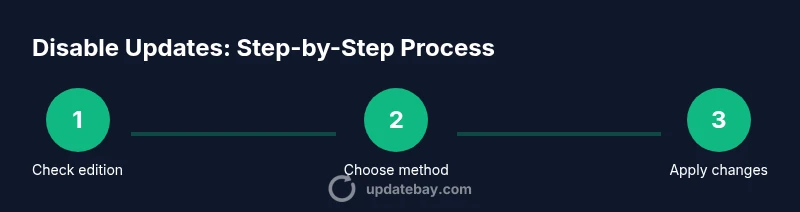
Determine whether you have Windows 10 Pro/Enterprise or Home, since Group Policy is only available on Pro/Enterprise. Verify your edition by running winver or checking Settings > System > About. This step informs which method will be most effective for your setup and reduces surprises later.
Tip: If you’re using Home, plan to use Registry or Metered Connection methods instead. - 2
Open Group Policy Editor (if Pro/Enterprise)
Press Win+R, type gpedit.msc, and press Enter to launch the Group Policy Editor. Navigate to Computer Configuration > Administrative Templates > Windows Components > Windows Update. This path lets you configure automatic updates behavior across the device.
Tip: If gpedit.msc isn’t available, skip to the Registry method. - 3
Configure Automatic Updates (Group Policy)
Double-click Configure Automatic Updates. Choose an option that reduces automatic install activity (e.g., Notify for download and notify for install) or Disabled to stop automatic handling. Apply and close, then run gpupdate /force in Command Prompt to apply changes immediately.
Tip: Document the exact policy setting you chose for future reference. - 4
Apply Registry tweaks (if you’re on Home or prefer registry control)
Open Regedit and navigate to HKLM\Software\Policies\Microsoft\Windows\WindowsUpdate\AU. Create NoAutoUpdate as a DWORD and set it to 1 to disable automatic updates. Optionally set AUOptions to control how updates are downloaded and installed. Reboot to apply changes.
Tip: Back up the registry before making edits; a wrong value can affect system stability. - 5
Set a Metered Connection to limit updates
Go to Settings > Network & Internet > Wi‑Fi, select your network, and switch Set as metered to On. This signals Windows to reduce background update activity and delay non-essential updates.
Tip: This won’t stop updates entirely but helps defer them during busy periods. - 6
Pause Updates temporarily when needed
Open Settings > Update & Security > Windows Update and use Pause updates for 7 days. You can extend in 7-day increments if supported by your version. This is a safe, sanctioned way to delay installations for short periods.
Tip: Use pauses sparingly and plan a rollback to ensure you don’t miss important patches. - 7
Verify your changes and test
Restart the device and check Windows Update status. Try manually checking for updates to confirm the behavior matches your settings. If updates still install automatically, revisit the policy or registry values and adjust as needed.
Tip: Run a test window to confirm your workflow remains uninterrupted before a critical deadline. - 8
Create a rollback plan
Prepare a documented rollback plan that describes how to re-enable updates, the steps to revert policy or registry changes, and how to monitor for updates post-rollback. This reduces risk if you need to restore standard behavior quickly.
Tip: Always have a tested rollback plan before applying changes on multiple devices.
Frequently Asked Questions
Is it safe to disable updates in Windows 10?
Disabling updates can leave your system vulnerable to security gaps. Use temporary deferral with a clear rollback plan, and re-enable updates as soon as your busy period ends. Always monitor for critical patches and apply them promptly when appropriate.
Disabling updates can be risky. Use pauses or policies for a planned break, then re-enable updates to stay protected.
Which Windows 10 editions support Group Policy for updates?
Group Policy is available on Windows 10 Pro and Enterprise. Home users should use registry tweaks or metered connections as alternative methods. Always confirm edition features before making changes.
Group Policy works on Pro and Enterprise editions; Home users should explore other options like registry tweaks.
Will disabling updates affect Windows Defender or security features?
Temporary deferral can momentarily delay new protections, but you should not neglect security. Re-enable updates within a planned window and ensure Defender definitions update regularly. Regularly review security settings even when updates are paused.
Deferring updates can affect security; re-enable updates for regular patches and definitions.
How do I re-enable updates after disabling them?
To re-enable, reverse the changes: reset Group Policy to default or Enabled with automatic updates, delete NoAutoUpdate and restore AUOptions, and turn off metered connection. Then run a system reboot and check for updates.
Reverting is straightforward: undo the changes and reboot, then check for updates.
What are common pitfalls when deferring updates?
Common pitfalls include forgetting to rollback, missing security patches, and inconsistent settings across multiple devices. Maintain a schedule to re-evaluate update needs and keep a centralized record of policies.
Pitfalls include forgetting to re-enable and missing patches; plan a rollback schedule.
Can I disable updates only for specific apps or features?
Windows updates affect the whole system rather than individual apps. You can’t selectively disable core OS updates for certain apps, but you can control timing and delivery through the methods described here.
Partial disable isn’t supported; control timing instead.
Watch Video
What to Remember
- Identify your Windows 10 edition to choose the right method.
- Group Policy offers robust control on Pro/Enterprise editions.
- Registry edits provide a workaround for Home users with caution.
- Metered connections and pause options help defer updates safely.
- Always have a rollback plan and re-enable updates when ready.