How to Stop a Update on Windows 10: A Practical Guide
Learn safe, practical ways to stop or pause Windows 10 updates. This guide covers built-in pause options, service tweaks, and best practices to minimize disruption while keeping your system secure.


You can stop a update on Windows 10 by using the built-in pause options in Settings, and, if necessary, temporarily disabling the Windows Update service. This guide offers safe, reversible methods that minimize risk to your system while you troubleshoot or install other software. Always re-enable updates when you are ready to receive security fixes.
What stopping a update on Windows 10 means for your system
According to Update Bay, stopping a update on Windows 10 can be a practical move when you need stability for critical work, compatibility testing, or to install other software without interruptions. However, it also reduces the timely delivery of security patches and feature improvements. The decision should be deliberate, reversible, and guided by a plan to resume updates after the immediate need passes. This article helps tech enthusiasts and everyday users understand the trade-offs, weigh the risks, and apply safe methods that minimize potential harm to your device. By pausing updates responsibly, you can regain control over your PC’s early adopter window without compromising essential security posture.
We’ll cover built-in pause features, service-level tweaks, policy-based controls (where available), registry-level adjustments (for power users), and best practices to stay secure while you’re paused. Expect clear steps, practical examples, and tips to avoid common mistakes. The goal is to empower you with options that maintain your system’s integrity while addressing your immediate needs.
Built-in pause options in Windows 10
Windows 10 includes a straightforward pause mechanism for updates that helps you avoid unexpected reboots during critical work sessions. The pause controls are designed to be temporary and user-friendly, allowing you to defer updates for a limited period while you complete urgent tasks or test software compatibility. In this section, we explain how to access these options, what to expect during a pause window, and how to plan a smooth transition back to normal update flow. Update Bay’s guidance emphasizes using these built-in features first, as they are reversible, require minimal risk, and don’t affect other system settings.
For many users, pausing updates is sufficient to regain control for a short window. On devices managed by an administrator, or on certain editions of Windows 10, there may be additional options to extend the pause or to defer specific types of updates. It’s important to understand that pausing is not the same as permanently disabling updates; you’ll have to re-enable updates later to keep your system protected and up to date.
Temporary vs permanent disabling: key differences
There are two broad approaches to controlling updates: temporary pausing and more persistent disabling. Pausing is designed for short-term relief and is easy to reverse; it preserves the ability to receive security patches once the pause ends. Permanent or long-term disabling, on the other hand, requires changes to services, policies, or registry keys, and carries greater risk if not documented and reversed properly. Update Bay recommends prioritizing built-in pause features first and treating any deeper changes as advanced options with clear rollback plans. This distinction helps you manage risk while achieving your immediate goals.
If you are testing software or solving a specific problem, pausing can be the safest initial step. If the pause just isn’t enough or you need extended control, you’ll need to consider more involved methods, which we cover in later sections with explicit steps and warnings.
Step-by-step: pause updates in Settings (non-destructive)
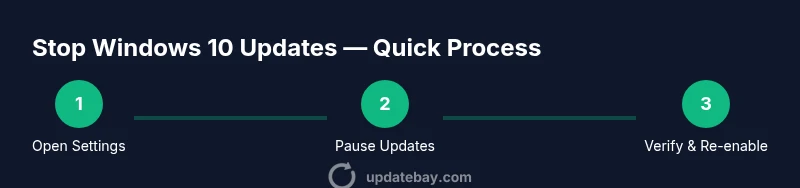
To pause updates in Windows 10 from the Settings app, navigate to Settings > Update & Security > Windows Update. Look for the Pause updates option and choose the maximum duration allowed by your device. This method is non-destructive and can be reversed at any time. After the pause period ends, Windows Update will resume automatically or you can manually resume updates. Using the built-in pause feature reduces reboot disruption and keeps your system in a known state, making it ideal for short-term control over update delivery.
Tip: If you don’t see the Pause updates option, ensure your device is connected to the internet and running a supported Windows 10 version. In some cases, organizational policies might restrict pausing.
Step-by-step: stop the Windows Update service (advanced)
For a more aggressive approach, you can stop the Windows Update service. Press Win + R, type services.msc, and press Enter. In the services list, locate 'Windows Update', right-click, and choose Stop. Then, to prevent automatic restarts, set the Startup type to Disabled or Manual, depending on your needs. This method is effective, but it temporarily breaks all update deliveries and may impact security.
Pro tip: If you later re-enable updates, restart the device to ensure changes take effect. Always create a restore point before making service-level changes so you can revert to a known-good state if something goes wrong.
Step-by-step: use Group Policy Editor to manage updates (Pro/Enterprise)
If your Windows 10 edition includes Group Policy support, open gpedit.msc and navigate to Administrative Templates > Windows Components > Windows Update. Configure 'Configure Automatic Updates' to 'Disabled' or 'Notify for download and notify for install' to gain more control over when updates occur. This method provides policy-level control for organizations or power users who need consistent behavior across multiple devices. Remember that policy changes can affect multiple settings and should be tested in a controlled environment before rolling out widely.
Note: Home edition users generally do not have gpedit.msc; use Settings or registry-based approaches instead.
Step-by-step: registry tweaks to manage updates (advanced)
Advanced users can modify registry settings under HKEY_LOCAL_MACHINE\Software\Policies\Microsoft\Windows\WindowsUpdate. For example, creating or adjusting a NoAutoUpdate DWORD can influence how updates are handled. Editing the registry is powerful but risky; always back up the registry and create a restore point before making changes. If you revert these changes later, you should re-run the same steps to restore the previous configuration. This approach should be used only when other methods are insufficient and you are comfortable with potential troubleshooting.
Important: Improper registry changes can cause system instability or boot issues. Proceed with caution and document every modification.
Best practices after pausing or stopping updates (security-aware)
After you pause or stop updates, establish a plan to resume updates promptly. Schedule a reminder to re-enable updates, verify essential security patches, and test critical applications for compatibility. If you rely on a device within a managed environment, coordinate with your IT team to ensure policy compliance. Update Bay recommends keeping a regular update cadence to maintain defenses against known vulnerabilities and to stay compatible with software ecosystems. Revisit settings monthly or after major software installations to ensure you aren’t inadvertently leaving your system exposed.
AUTHORITY SOURCES
For further reading and official guidance, consult these sources:
- https://learn.microsoft.com/en-us/windows/deployment/update-pause
- https://support.microsoft.com
- https://us-cert.cisa.gov/
Tools & Materials
- Administrator access on Windows 10 PC(Needed to modify services, policies, or registry.)
- System restore point or full backup(Essential safeguard before major changes.)
- Access to Settings and/or Group Policy Editor(Settings required for pause; gpedit.msc for advanced control.)
- Registry Editor (regedit)(Needed only for registry tweaks; back up first.)
- Internet connection (stable)(To apply updates or verify pause state.)
Steps
Estimated time: 30-60 minutes
- 1
Open Settings
Click the Start menu and select Settings, or press Windows + I to open the Settings app quickly. This is the first step to access update controls without touching system services.
Tip: Use Win + I for speed; ensure you are logged in with an admin account. - 2
Pause updates via Windows Update
Navigate to Update & Security > Windows Update and choose the Pause updates option. Select the maximum pause duration available on your device. This keeps the system installation-ready while you troubleshoot.
Tip: If the Pause option isn’t visible, check for policy constraints or connectivity issues. - 3
Verify the pause is active
Return to the Windows Update page and confirm the status shows the updates are paused. If needed, check for any pending actions under Optional updates.
Tip: Set a reminder to review the pause date and avoid long silent gaps. - 4
Create a restore point
Before proceeding with deeper changes, create a System Restore Point or backup. This ensures you can roll back if something goes wrong during later steps.
Tip: Name the restore point with a date and reason for easy reference. - 5
Stop the Windows Update service (advanced)
Open Run (Win + R), type services.msc, and stop the Windows Update service. Set Startup Type to Disabled to prevent automatic restarts. This step should be used only briefly and with caution.
Tip: Restart the device after changes to ensure settings take effect. - 6
Use Group Policy Editor (Pro/Enterprise)
If available, open gpedit.msc and navigate to Administrative Templates > Windows Components > Windows Update. Configure 'Configure Automatic Updates' to Disabled or to a more controlled option.
Tip: Test on a single device before applying to multiple machines. - 7
Registry tweaks (advanced users)
Edit HKEY_LOCAL_MACHINE\Software\Policies\Microsoft\Windows\WindowsUpdate to implement NoAutoUpdate or related controls. Back up registry before editing and document changes for future reference.
Tip: Avoid partial edits; incorrect values can cause boot issues. - 8
Re-enable updates and finalize
When you are ready to receive updates, revert policy, restart services, or delete registry entries as needed, then run Windows Update to catch up on missed patches.
Tip: Set a follow-up reminder to ensure updates surface again.
Frequently Asked Questions
Can I permanently disable Windows Update in Windows 10?
Permanent disablement is not recommended and may be overridden by Windows updates or policy changes. You can temporarily pause or selectively disable updates, but plan to re-enable security patches to keep your system protected.
Permanently disabling updates isn't advised; you can pause or temporarily disable them, then re-enable to stay protected.
Is it safe to disable updates?
Disabling updates can expose your device to known vulnerabilities. Use pausing or controlled configurations when necessary, and re-enable updates as soon as possible to maintain security and compatibility.
Disabling updates can leave you vulnerable; use pausing as a safer alternative and re-enable updates soon.
How do I pause updates for a specific time?
Open Settings > Update & Security > Windows Update and choose Pause updates for the maximum allowed duration. You can resume updates manually or wait for the automatic resume when the period ends.
Use the Pause updates option in Settings to defer updates for the allowed period, then resume when ready.
Will pausing updates affect security?
Yes, pausing updates may delay security patches. Plan to resume updates as soon as your temporary needs pass to maintain protection against threats.
Pausing can delay security patches, so resume updates as soon as feasible.
Do these steps work on Windows 10 Home edition?
Windows 10 Home supports pausing updates via Settings, but some advanced controls like Group Policy Editor aren’t available. Registry tweaks are possible but require caution.
Home edition users can pause via Settings; advanced options require care and may not be available.
What happens after restarting my computer?
Windows Update may resume automatically after a restart if updates were paused, or it may prompt you to complete pending installations. If you disabled services, you may need to re-enable them and restart to refresh policies.
After a restart, updates may resume automatically or prompt you to finish installations.
Watch Video
What to Remember
- Pause updates first, when possible, using built-in options.
- Different methods exist; start with safe, reversible steps.
- Avoid permanent disabling unless you understand security implications.
- Always re-enable updates after completing your task.
- Back up and document every change for easy rollback.