How to Stop Updates on Samsung Phone: A Practical Guide
Learn step-by-step how to stop updates on a Samsung phone, including OS and app updates, with safety considerations, re-enabling tips, and troubleshooting. Perfect for users seeking control over data usage and battery life without sacrificing essential security.


To stop updates on Samsung phones, disable automatic OS downloads under Settings > Software update > Auto download over Wi‑Fi, and turn off auto-updates for apps in Galaxy Store. You can re-enable later by reversing these toggles. This approach helps control data usage and battery drain, but be aware it may limit security patches and compatibility.
Why someone might want to stop updates on Samsung phones
In practice, people often want to stop updates on samsung phones to manage data usage, extend battery life, or avoid disruptive changes to apps and the user interface. If you’re looking for guidance on how to stop updates on samsung phone, you’re in the right place. This decision can be driven by limited mobile data plans, a heavy workload where you can’t afford reboot cycles, or a need to keep a critical app version stable for compatibility reasons. According to Update Bay, many users seek more granular control over when and how their device receives updates, rather than letting automatic downloads run unchecked. This article covers the full spectrum of OS and app updates on Samsung devices, including how to adjust Galaxy Store settings, how to pause updates temporarily, and how to safely re-enable updates when you’re ready. By the end, you’ll have a clear, actionable plan tailored to your device and usage patterns.
Understanding update types on Samsung devices
Samsung devices run two broad kinds of updates: Android OS updates (which deliver core system improvements, security patches, and new features) and app updates (which refresh individual apps installed on the device). In One UI, these updates can be managed separately. OS updates usually come through Settings > Software update, while app updates are controlled via Galaxy Store or Google Play (depending on your region and app installation sources). Knowing the difference helps you decide where to limit or pause activity. For many users, disabling automatic OS downloads while allowing manual app updates strikes a balance between control and security. It’s also useful to understand how notifications work: you can still be notified about updates without automatically downloading them, giving you the chance to decide when to proceed.
Risks and trade-offs of disabling updates
Disabling updates trades convenience for risk. OS updates often include critical security fixes and stability improvements; skipping them can leave devices more vulnerable to exploits. App updates fix bugs, improve performance, and patch security holes in third-party software. When you disable updates, you may miss these patches, which can affect app compatibility, new features, and overall performance. Data usage and battery life are common motivators for this choice, but there are meaningful trade-offs. If you proceed, plan a periodic review schedule to re-enable updates or selectively update critical security patches. Be prepared to revert settings if you notice unusual app behavior or if security advisories recommend an update.
Quick controls you can use without risking security
Before diving into full pause or disable modes, there are safer, lighter controls you can use. Start by limiting automatic downloads to Wi‑Fi only, which can save mobile data and preserve battery. Enable download restrictions for large updates when you’re connected to Wi‑Fi and have time to supervise the installation. In Galaxy Store, disable automatic updates for apps or set them to “auto-update over Wi‑Fi only” with manual confirmation. You can also disable background data for specific update services in Settings > Apps, which reduces background activity while still allowing you to trigger updates manually when you choose.
Step-by-step plan to stop updates (OS and apps)
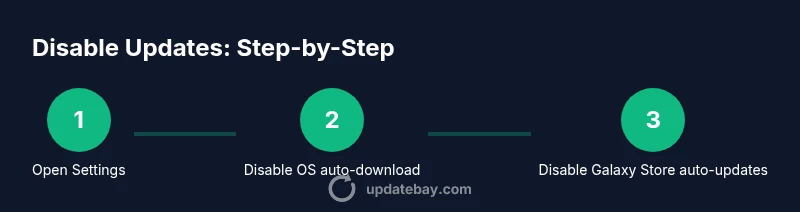
- Open Settings on your Samsung device. 2) Tap Software update, then toggle Auto download over Wi‑Fi to off to prevent OS from downloading automatically. 3) Open Galaxy Store, go to Menu > Settings > Auto update apps, and select Do not auto-update. 4) Adjust background data for update services under Settings > Apps > (Update-related services) > Data usage, and restrict background data where available. 5) If you use Google Play alongside Galaxy Store, review Play Store update settings and disable auto-update for apps there as needed. 6) Reboot the device to ensure changes take effect. 7) Test by attempting a manual update check to confirm no automatic downloads occur. 8) Create a quick plan to periodically re-check updates at a chosen interval. This plan aims to give you control while maintaining the option to update when necessary.
Temporarily pausing vs permanently disabling updates
If you want a middle ground, use temporary pause options where available. Some Samsung devices allow you to pause OS updates for a set number of days, or you can delay app updates by choosing “notify me before downloading.” Permanent disabling is riskier since essential security patches may be delayed. Consider setting reminders or quarterly recaps to review update status and re-enable updates if a critical vulnerability is announced.
How to re-enable updates when you're ready
Re-enabling updates is usually straightforward: reverse each toggle you set earlier. In Settings > Software update, turn Auto download over Wi‑Fi back on and manually check for updates periodically. In Galaxy Store, re-enable Auto update apps or switch to Auto update over Wi‑Fi. If you disabled Play Store updates separately, revert that setting too. After re-enabling, perform a manual update check to ensure you’ve installed the latest security patches and feature improvements.
Troubleshooting common issues after changing update settings
If updates still mysteriously download, revisit each setting to confirm you didn’t miss a secondary toggle (for example, a per-app auto-update setting). Reboot after changing settings, then test with a new update check. If a specific app behaves oddly after updates are paused, consider temporarily updating that app to ensure compatibility with other software. You may also clear cache for the Galaxy Store or Play Store to fix skipped-update behavior.
Final checks and best practices
In the end, the goal is to balance control with security. Regularly review update settings, especially after OS or app releases. Maintain a small schedule for checking critical security patches, and ensure you have current backups in case an update must be rolled back. The practice of updating on a schedule rather than never can extend device comfort while preserving core protections. Since updates matter, consider enabling security updates on a quarterly basis or whenever your device vendor recommends.
AUTHORITY SOURCES
For further reading and official guidance, consult these sources:
- Official Android updates overview: https://www.android.com
- Samsung Support: https://www.samsung.com/us/support/
- Government and major publications on device security: https://www.cisa.gov, https://www.theverge.com
Tools & Materials
- Samsung phone (any model with One UI)(Ensure device is updated to a supported One UI version for accurate menu paths.)
- Stable internet connection (preferably Wi‑Fi)(Used to verify that updates are truly suppressed rather than blocked by network issues.)
- Access to Settings and Galaxy Store(Needed to modify update-related toggles and app update behavior.)
- Backup solution (local/cloud)(Recommended before changing update settings in case you need to revert.)
Steps
Estimated time: 15-25 minutes
- 1
Open Settings
Navigate to the device Settings from the home screen or app drawer. This is your entry point to control updates on Samsung.
Tip: If you can't locate Settings, use the search bar at the top of the app drawer. - 2
Disable OS auto-downloads
Tap Software update, then toggle Auto download over Wi‑Fi to off. This prevents OS-level packages from downloading without your approval.
Tip: Keep a note of your chosen re-check interval so you can re-enable when needed. - 3
Pause or disable Galaxy Store app updates
Open Galaxy Store, access Menu > Settings > Auto update apps, and select Do not auto-update. This stops automatic app updates via the store.
Tip: If you rely on certain apps for security, consider manual updates with a known-trusted source. - 4
Restrict background data for update services
Go to Settings > Apps, locate update-related services, and restrict their background data usage. This reduces background activity that could trigger updates.
Tip: This step helps conserve data but may not stop updates if you manually trigger them. - 5
Review Google Play updates (if applicable)
If you use Google Play for app updates, review its Auto-update apps setting and adjust to manual updates or Wi‑Fi-only updates.
Tip: Consistency across stores prevents unexpected downloads from multiple sources. - 6
Test and verify the changes
Force a manual update check to confirm no automatic downloads occur. If updates start unexpectedly, revisit each toggle.
Tip: Reboot after changes to ensure settings take effect. - 7
Document your chosen approach
Create a simple note of what you changed and why. This helps if you need to revert or explain the setup later.
Tip: Set a reminder to re-evaluate updates every 1–3 months.
Frequently Asked Questions
Is it safe to stop updates on my Samsung phone?
Stopping updates can reduce data usage and prevent unexpected restarts, but it may delay important security patches and bug fixes. Use a planned schedule to re-check updates and apply critical patches.
Stopping updates can save data, but it may leave you vulnerable. Re-check security patches regularly.
Can I re-enable updates later?
Yes. You can re-enable by reversing the toggles you changed: OS auto-downloads, Galaxy Store auto-updates, and any store-specific settings. After re-enabling, run a manual check to ensure you’re up to date.
Absolutely. Just flip the toggles back and run a manual check.
Does this disable all updates permanently?
No. It primarily stops automatic updates; you can still perform manual updates when you choose. You should have a plan to check for critical security updates on a regular basis.
Not permanently; you’ll still be able to update manually when desired.
How do I stop Galaxy Store updates specifically?
Open Galaxy Store > Menu > Settings > Auto update apps, then select Do not auto-update. You can still update apps manually when you want.
Turn off auto-updates in Galaxy Store, then update apps yourself as needed.
What about background data restrictions?
Restricting background data can reduce background update checks, but it may also impact real-time app behavior. Balance restrictions with the need for timely updates when security matters arise.
Background data limits can help, but be mindful of app behavior.
Watch Video
What to Remember
- Disable OS auto-downloads to control data usage
- Turn off Galaxy Store auto-updates for apps
- Re-enable updates when security matters
- Keep backups and documentation of changes
- Review update settings periodically