How to Stop Updates on Android: A Practical Guide
Learn practical steps to manage Android updates, including pausing system updates, stopping automatic app updates, and safe trade-offs for security and performance.


Stop updates on Android by managing what updates occur and when. Start by disabling automatic app updates in Google Play Store, then review device settings for system updates—many devices let you pause or schedule updates. For data control, set a metered connection and restrict background data. Remember that delaying updates can impact security and app stability.
What stopping updates means in practice
In practice, stopping updates on Android means choosing when and how your device receives software and app improvements. It’s not a single switch that disables every patch; instead, you’ll manage two separate streams: OS updates from the device manufacturer and security/app updates delivered through Google Play. According to Update Bay, most users want a balance between control and security, so the first step is to understand what you’re changing and why. For many enthusiasts, pausing updates can be a temporary measure during testing, a data-management tactic, or a deliberate choice to conserve battery life. Before you begin, recognize that updates often include essential security fixes, feature improvements, and bug patches, so long-term suppression may increase risk. The right approach is typically to apply updates on a schedule that suits your needs while maintaining a baseline level of protection. In this article we’ll outline practical strategies, expectations, and caveats so you can make informed decisions about updates on Android devices.
Understanding the difference between system updates and app updates
Android updates fall into two broad categories: system updates (the OS) and app updates (individual apps). System updates are delivered by device manufacturers and carriers, often including security patches and new features. App updates come through Google Play and can be scheduled, paused, or restricted independently of the OS. Distinguishing these streams helps you decide where to apply pauses or controls. For example, you might want to delay OS updates while keeping apps current for compatibility and security. Conversely, if you’re testing a custom ROM or a device beta, you may choose to postpone general app updates to stabilize performance. Both streams affect battery life, data usage, and device behavior, so plan adjustments with your daily usage in mind.
Practical steps to pause app updates in Google Play
To gain immediate control over app updates, start with Google Play settings. Open Google Play, tap your profile icon, then go to Settings > Network preferences > Auto-update apps and select 'Don’t auto-update apps'. This stops automatic downloads for most apps and lets you decide when to update individually. Review any app-specific controls or enterprise policies that could override these settings. If you share your device, explain the change and make a fallback plan so critical apps don’t lag when updates are needed. After pausing, you can update selectively at a convenient time to balance usability and security.
Controlling system updates on Android devices
System (OS) updates are usually managed in the device Settings, but the exact path varies by OEM and Android version. Commonly, you’ll find them under Settings > System > Advanced > System update, or in a manufacturer-specific menu. Some devices offer a pause button or a scheduled update option; others require you to set a reminder to check for updates later. If your device doesn’t provide a pause feature, you can control timing by disabling automatic background checks or by delaying feature requests through developer options (where available). Always ensure you have a plan for security patches even when updates are paused.
Data usage and network management to reduce update downloads
Managing network settings can significantly reduce update downloads. Set your device to use a metered connection for mobile data, and enable data saver modes when possible to prevent background updates. In addition, consider scheduling updates to occur only over Wi‑Fi during off-peak hours. If you’re testing changes, temporarily disable large downloads or limit background data for apps that frequently pull updates. Remember that metering helps you stay in control, but you should periodically allow critical updates to install to maintain security and performance.
OEM-specific options and vendor apps
Some manufacturers provide their own update controls within their custom skins or apps. For Samsung devices, there might be a separate software update control panel; Xiaomi and other brands offer vendor apps that manage patches and feature updates. Search the Settings app for vendor name + Update, Patch, or Software, and read notes from the OEM about stability and security implications. If you rely on beta software or testing channels, keep a strict rollback plan in case updates affect daily use. Always back up important data before applying vendor-level changes so you can recover if something goes wrong.
Security trade-offs and best practices
Delaying updates can improve control and reduce interruptions, but it raises security risks. Delayed patches may leave devices exposed to known vulnerabilities. A practical approach is to delay non-critical updates while maintaining a baseline of essential security patches. Create a schedule to re-check and apply updates regularly, and keep an eye on critical advisories from trusted sources. If in doubt, apply updates in a controlled window and reassess your settings after testing. When updates are reenabled, verify that essential apps and services resume normal operation and that data usage remains within expected limits.
Authority sources and further reading
For security-focused guidance on mobile devices, consider consulting official resources from recognized organizations. The following sources provide reputable information on device security and update practices:
How to re-evaluate and revert changes
After testing or a period of delay, revert to your original update settings or adopt a new, balanced schedule. Re-enable automatic app updates in Google Play and resume OS update checks on a cadence that suits your usage. Monitor device performance, battery life, and data usage to ensure updates don’t disrupt daily tasks. Regular reviews help you maintain security while preserving the control you want over your Android device.
Tools & Materials
- Android device with internet access(Any brand; ensure you can access Settings and Google Play)
- Google account access (Play Store)(Needed to modify Play Store auto-update settings)
- Backup method (cloud or local)(Create a restore point before major changes)
- Stable internet connection(Needed to test updates without interruptions)
- OEM device manual or support page(Helpful for vendor-specific update controls)
Steps
Estimated time: 30-45 minutes
- 1
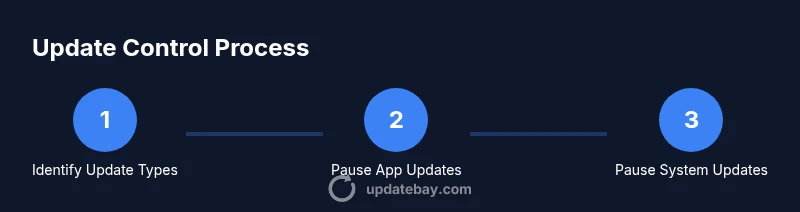
Identify update types to control
Clarify whether you want to pause OS updates, app updates, or both. This helps you choose the right settings and avoid over-tightening.
Tip: Note which apps you rely on for critical tasks, and decide if you can live without automatic updates. - 2
Pause Google Play auto-updates
Open Google Play, tap your profile icon, then Settings > Network preferences > Auto-update apps and select 'Don’t auto-update apps'.
Tip: If you need to test updates later, switch back to 'Over any network' or 'Over Wi‑Fi only' as appropriate. - 3
Pause or schedule system updates
Check Settings for System update and look for a pause or schedule option; if unavailable, plan checks at a later time or use developer options where provided.
Tip: If no pause exists, consider temporarily turning off automatic background checks or delaying update checks by a few days. - 4
Configure data usage and metered connections
Set mobile data as metered and enable data saver where possible to prevent background downloads for updates.
Tip: Monitor data usage and recheck settings after major device changes. - 5
Explore OEM-specific controls
Look for vendor-specific update controls in Settings or preinstalled vendor apps; these vary by brand and model.
Tip: Back up data before applying vendor-level changes. - 6
Test updates on a schedule
Trigger manual checks for updates at a controlled time to assess impact before fully committing to a pause.
Tip: Set reminders to revert or adjust settings after testing. - 7
Re-enable updates thoughtfully
Create a plan to re-enable updates on a cadence (weekly or monthly) to maintain security and stability.
Tip: Use calendar reminders to avoid forgetting to update.
Frequently Asked Questions
Can I permanently stop all updates on Android?
No. Updates are essential for security and reliability. You can delay or pause updates temporarily on many devices, but a permanent stop is not recommended.
You generally can't permanently stop updates; you should consider temporary pausing with a plan to re-enable later.
What is the difference between stopping app updates and OS updates?
App updates are managed in Google Play and can be paused without system repercussions in most cases. OS updates are controlled by Settings and OEM software and are more tightly integrated with security patches.
Apps updates are separate from OS updates, and they have different controls.
Do I need to worry about security if I delay updates?
Delaying updates can leave vulnerabilities unpatched. If you choose to pause updates, keep testing and re-enable patches as soon as possible.
Security patches are often bundled with updates; delaying them increases risk.
How can I re-enable updates after pausing them?
Return to the original settings for app auto-updates and system updates. In Google Play, set Auto-update apps back to your preferred option; for OS updates, re-check for updates on schedule.
To re-enable, revert the settings you changed and run a test update.
Will pausing updates affect app compatibility?
Some apps may miss new features and fixes, but most will continue to run. Periodically updating ensures compatibility and stability.
Pausing may slow feature updates, but compatibility usually remains.
Are there safer ways to limit updates without compromising security?
Yes. Use metered connections, limit background data, and schedule updates at convenient times while still applying critical patches.
Limit updates safely by scheduling and using data controls but don’t neglect critical patches.
Watch Video
What to Remember
- Identify update types to control now.
- Pause or schedule app updates via Google Play.
- Many devices allow pausing system updates; check Settings.
- Balance security with control by re-enabling updates periodically.