iOS iPhone Update: Safe, Step-by-Step Guide (2026)
Learn how to update your iPhone to the latest iOS safely. Back up data, choose the right method, troubleshoot issues, and understand new features with this comprehensive 2026 guide.


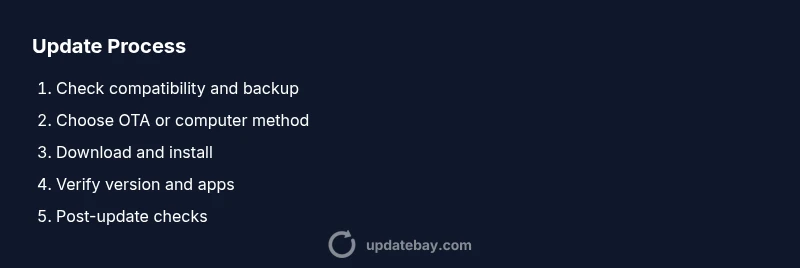
This guide shows you how to update your iPhone to the latest iOS safely and efficiently. You'll learn when to update, how to back up, and the steps to install the update either over the air or via a computer. You’ll also get troubleshooting tips and a quick feature overview.
Understanding iOS updates: minor vs major
iOS updates come in two broad flavors: minor releases that focus on bug fixes and security patches, and major releases that introduce new features, redesigns, and broader compatibility changes. Minor updates tend to be smaller in size and quicker to install, often addressing specific issues reported by users. Major updates, while more time-consuming, bring significant enhancements to the user interface, privacy controls, and app ecosystem. When planning to update, it’s helpful to know which type you’re applying, as this affects backup strategy, post-update expectations, and potential app compatibility considerations. Staying informed about the current version history helps you decide the right time to update and what to expect from the change log.
Why updating matters: security, performance, and features
Keeping an iPhone up to date is a practical way to maintain security, stability, and access to new features. Updates include security patches that close newly discovered vulnerabilities, performance improvements that smooth out slowdowns, and feature enhancements that improve usability and privacy. According to Update Bay, timely updates reduce exposure to threats and help devices run more reliably over time. For everyday users, an updated device often means fewer app crashes, better battery management, and improved compatibility with newer apps and accessories. Understanding these benefits helps you prioritize updates rather than delaying them.
Preparation before you update: backups, battery, and storage
Before starting an update, ensure you have a reliable backup, enough free storage, and a charged battery. Create a backup to iCloud or a computer to prevent data loss in case something goes wrong during installation. Check that you have at least a comfortable amount of free space and a stable Wi‑Fi connection; avoid updating over cellular data unless you have a robust plan and a strong signal. If you use iCloud, enable iCloud Backup and make sure your Photos, Messages, and app data are included in the backup. Finally, verify your Apple ID credentials are up to date so you can sign back in after the update without issues.
How to update using over-the-air (OTA) method: Settings route
The most common method is to update directly on your iPhone through Settings. Go to Settings > General > Software Update, then tap Download and Install. If prompted, enter your passcode and agree to the Terms and Conditions. The device will download the update, verify it, and then restart to complete the installation. Ensure you stay connected to Wi‑Fi and keep the device plugged in if the battery is low. After the update finishes, the device will boot into the new iOS version and present a short onboarding flow for new features.
Alternative: updating via a computer (Finder/iTunes)
If you prefer a computer-based update, connect your iPhone to a Mac with Finder (macOS Catalina and later) or a Windows PC with iTunes. In Finder or iTunes, select your device, then choose Check for Update. If an update is available, click Download and Update. The computer will download the update and transfer it to your iPhone, which will reboot to complete installation. This method can be useful if the OTA route is slow or if you need to recover from issues that require a more controlled install environment.
Troubleshooting common issues during updates: stalls, errors, and insufficient storage
If the update stalls or shows an error, try a few standard remedies: restart the device, ensure you have a stable Wi‑Fi connection, and reattempt the update. If storage is insufficient, offload unused apps, delete old videos or photos temporarily, or move data to a cloud backup. If an error persists, check Apple’s system status page to see if services are affected, then retry later. If problems continue, consider updating via a computer or contacting Apple Support for guided assistance.
Tools & Materials
- iPhone charged to at least 50-80%(Better to have a full charge or keep plugged in during update)
- Stable Wi‑Fi connection(Avoid updates over weak or metered connections)
- Backup option(iCloud Backup or computer with Finder/iTunes)
- Apple ID credentials(Needed to sign in after install)
- Sufficient storage space(Clear space for the update package)
Steps
Estimated time: 15-45 minutes
- 1
Check compatibility and current iOS version
Open Settings and navigate to General > About to confirm your device model and current iOS version. Review the release notes for the target update to ensure your device supports the new features and requirements.
Tip: Note your model and current version in case you need to compare features after updating. - 2
Back up your data
Choose iCloud Backup or use Finder/iTunes on a computer to create a full backup. A backup protects your photos, messages, apps, and settings in case anything goes wrong during installation.
Tip: Verify the backup completed by checking the timestamp and performing a quick restore test if possible. - 3
Charge and stabilize your network
Plug the device into power and connect to a reliable Wi‑Fi network. A stable power source and network minimize the risk of interruptions during download and installation.
Tip: Avoid updates on public or shared networks to reduce security risks. - 4
Initiate the OTA update
Go to Settings > General > Software Update, then tap Download and Install. If asked, enter your passcode and consent to the Terms. The device will download, verify, and prepare the installation.
Tip: If the download is slow, pause and resume or switch to a stronger Wi‑Fi signal. - 5
Complete the installation
Once the download finishes, the device will restart to finalize the update. Do not interrupt the process; wait until the progress bar reaches 100% and the device is ready.
Tip: If the screen stays on a single step for an extended period, give it a bit more time before taking action. - 6
Verify the update
After the restart, open Settings > General > About to verify that the new iOS version is installed. Check essential apps to ensure they function correctly.
Tip: Review updated Privacy settings and new controls introduced in the release notes. - 7
Optional: update via computer if OTA failed
If OTA fails, connect the iPhone to a computer and use Finder/iTunes to check for updates. This method can resolve issues caused by network or storage limitations.
Tip: Ensure you’re using the latest version of Finder or iTunes for compatibility. - 8
Post-update maintenance
Update any apps, check battery health, and reconfigure settings as needed. Review new features and adjust defaults for privacy, notifications, and accessibility.
Tip: Run a quick battery check and observe performance for the next 24–48 hours.
Frequently Asked Questions
Do I need to back up before updating my iPhone?
Yes. Backing up to iCloud or a computer protects your data if something goes wrong during installation.
Yes. Back up to iCloud or a computer to protect your data before updating.
Can I update over cellular data?
Most updates require Wi‑Fi due to size and security considerations, but some small patches can be downloaded over cellular depending on your carrier and plan.
Usually Wi‑Fi is required, but some small patches may download over cellular depending on your plan.
What if the update fails or gets stuck?
If an update stalls, restart the device, check storage and network, then retry. If problems persist, try updating via a computer or contact Apple Support.
If it stalls, restart, check storage and network, then retry. If needed, try a computer update or contact Apple Support.
Will updating erase my data or apps?
Updates generally do not erase data, but it’s essential to back up beforehand in case of unexpected issues or app compatibility changes.
Generally not, but always back up first in case something goes wrong.
How do I enable automatic updates?
Go to Settings > General > Software Update > Automatic Updates and turn on the toggle for automatic installations.
Go to Settings, then General, Software Update, and enable Automatic Updates.
Is downgrading iOS possible after an update?
Downgrading is typically not user-friendly and only briefly possible when Apple signs older versions. If you experience issues, contact Apple Support or wait for subsequent updates.
Downgrades are usually not practical; check with Apple Support if you’re trying to revert.
Watch Video
What to Remember
- Back up before updating
- Ensure a solid network, battery, and storage
- Choose OTA or computer method based on your situation
- Verify after install and update apps
- Consult official support if problems persist