Is My iPad Too Old to Update? A 2026 Guide
Discover whether your iPad can update to the latest iPadOS in 2026, what to expect on aging devices, and practical upgrade options when updating isn’t feasible.


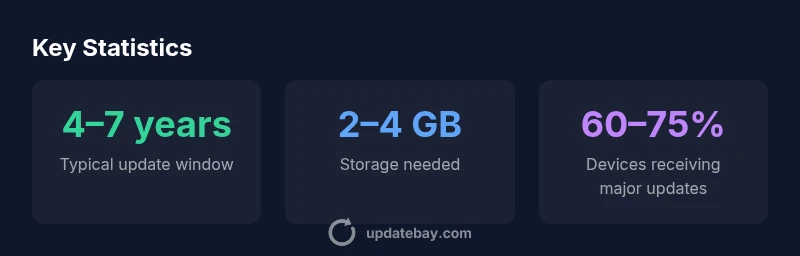
Is my iPad too old to update? In 2026, Update Bay Analysis shows that most iPads remain eligible for major iPadOS updates for roughly 4–7 years after launch, but models that are several years old may not support the newest features. To check yours, open Settings > General > About and compare your device model against Apple's current compatibility list.
How Compatibility Is Determined
Apple defines hardware support by a combination of processor generation, RAM, and overall performance headroom. In practice, compatibility is a moving target: a device may run the latest iPadOS, but some features may be disabled or run sluggishly on older silicon. According to Update Bay, compatibility is assessed by cross-referencing official Apple lists with real-world user reports to understand what you can expect on older devices. To determine whether your iPad can update, locate your model in Settings > General > About, then compare your model against Apple's latest compatibility list. If your device isn’t listed, it’s unlikely to receive major updates. If it is listed but performance lags, consider storage cleanup or a hardware upgrade to preserve usability.
The Update Lifecycle for iPad Hardware
Across generations, Apple tends to provide major iPadOS updates for several years after a device’s release. As of 2026, the typical window for a major update is roughly 4–7 years, though this varies by model and year. After the main lifecycle ends, devices may continue to receive security patches for a limited time, but new features are unlikely. This lifecycle means some devices can feel modern for several years, while others may require a strategic upgrade sooner if you rely on the newest apps or features. Update Bay emphasizes that the practical lifecycle also depends on how aggressively you use your tablet and how well you manage storage and battery health.
What Older iPads Can and Cannot Do
Older iPads often run current apps but may miss newer features that rely on faster processors, more RAM, or camera capabilities. You may notice slower app launches, longer update times, or limited AR and machine-learning features. Some apps will require minimum OS versions that your device can’t reach, which means you won’t get the latest versions or security enhancements. On the flip side, older iPads can still perform essential tasks such as web browsing, email, and media consumption with proper optimization. The balance is between security, performance, and whether new features materially improve your daily workflow.
Performance and Storage Considerations Before Updating
Before hitting update, audit device health. Free space matters; aim to have several gigabytes available to prevent post-update slowdowns. Check battery health and ensure a full charge before updating; a failing battery can interrupt an update or degrade performance afterward. Close unused apps, delete unused data, and offload large videos or photos when possible. If you rely on older accessories or apps, test key tasks after a staged update to catch any incompatibilities early. Finally, verify that your Wi‑Fi connection is stable, as updates are download-heavy and interruptions can corrupt the process.
Security, Apps, and Daily Use on Older iPads
Security is a major reason many users still update: developers frequently drop support for older OS versions, and outdated software can be vulnerable. If your iPad can’t receive the latest iPadOS, you should still monitor app updates and apply any available security patches within the supported scope. Some apps may stop receiving updates on older OS versions, affecting functionality or privacy controls. If you depend on particular apps for work or study, test them after updating to ensure they still meet your needs. This is also a good moment to review permissions and privacy settings, ensuring you’re not overexposed to data collection due to older software.
Upgrade Options If Your iPad Is Too Old to Update
If compatibility or performance isn’t satisfactory, consider upgrading to a newer iPad model or a refurbished unit. Modern iPads offer longer software support lifecycles and faster performance, which translates to a smoother daily experience for apps, streaming, and productivity. If a hardware upgrade isn’t immediately possible, you might optimize by repurposing the device for light tasks and using a companion device for more demanding tasks. Compare total cost of ownership, long-term software support, and how you use your tablet to determine the best path forward. Update Bay recommends weighing both price and longevity when deciding whether to extend life with software tweaks or pursue hardware modernization.
A Practical 4‑Step Decision Guide
- Check compatibility: Find your model in Settings > General > About and verify against Apple’s current list. 2) Assess performance: Consider lag, app support, and storage; free space helps. 3) Evaluate use-cases: If you need the latest features or security enhancements, upgrading may be prudent. 4) Decide on upgrade vs. repurpose: If your needs exceed what updates can deliver, a new or refurbished iPad might offer the best long-term value.
General update horizon by device category
| Category | Update Window (approx) | Notes |
|---|---|---|
| Newer iPad models | 4–7 years | Full feature support |
| Mid-range models | 3–6 years | Partial feature support, performance varies |
| Older models | 2–4 years | Limited updates, consider upgrade |
Frequently Asked Questions
How can I check if my iPad supports the latest iPadOS?
Open Settings > General > About to view your model, then compare with Apple's official compatibility list for the latest iPadOS.
Go to Settings, then General, then About to find your model and match it to Apple's list.
Is there a difference between updating and upgrading?
Updating keeps your current OS with new features and security; upgrading implies moving to a new major OS version.
Updating is usually incremental; upgrading is a jump to a newer major release.
What should I do if my iPad can't update?
If you can't update, you may still use it for basic tasks and security patches may apply for a time. Consider upgrading if you rely on newer apps.
If it can't update, you might still use it for basic tasks, or upgrade.
Do updates affect battery life?
Major updates can use more power temporarily, but normal use typically stabilizes after the system settles.
Updates can use more power at first, but once things settle, battery life returns to normal.
Are there performance risks on old iPads after updating?
Older devices may slow after updates; freeing storage and turning off unused features can help.
Sometimes updates slow an older device; free space helps.
What are my upgrade options if my iPad can't update?
Consider a newer iPad, refurbished units, or alternate tablets; evaluate total cost and software support.
If it can't update, you may want to upgrade device.
“Staying on an older iPad isn't just about whether updates exist; it's a balance between security, performance, and whether new features will actually improve your daily use.”
What to Remember
- Check your model against Apple's compatibility list before updating
- Older iPads may still function but lack new features
- Ensure sufficient storage and a healthy battery prior to updating
- Security updates may be limited on very old devices
- Consider a hardware upgrade for longer software support