Can You Update an Old iPad? A Practical Guide for 2026
Learn whether you can update an older iPad, how to check compatibility, and safe alternatives. This Update Bay guide helps tech enthusiasts extend device life with official updates and smart workarounds.


What updating an old iPad means for you
For many users, updating an older iPad means extending its useful life, gaining security patches, and enjoying small feature improvements. The reality is nuanced: while Apple periodically adds features to newer iPadOS versions, older hardware may not fully support every enhancement. The Update Bay team found that some modern features rely on hardware capabilities like processors, memory, and graphics performance that older devices simply lack. As a result, an update can bring security and stability benefits, but it may also introduce slower performance on very dated hardware. Your decision should consider how you use the device, which apps you rely on, and how important new features are to you.
Put simply: if your iPad can run a supported iPadOS version with acceptable performance, updating is generally worth it. If not, you’ll want to consider safer alternatives such as keeping your current OS and applying app updates, or planning a device upgrade in the near term.
How to check if your iPad can update
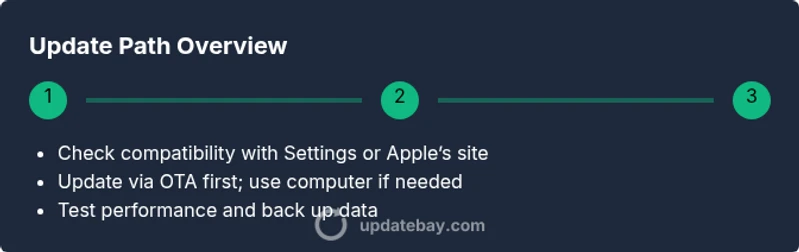
Determining whether an old iPad can update starts with identifying the model and current OS. Go to Settings → General → About to find your iPad’s model name and software version. Then visit Apple’s official “iPadOS” compatibility list to see which versions support your device. If your model appears on the supported list for a recent iPadOS release, you may have an update option. If not, the update may be blocked by hardware limitations. Remember to note your device’s battery level and storage before attempting any update, as low space or a dying battery can interrupt the process.
If you’re wondering can you update and old ipad, the quick test is: does the software update option show a newer version? If yes, proceed with the official update. If not, your device likely won’t receive that specific release and you’ll need to evaluate alternatives.
Compatibility and model limits you should know
Not all iPads support every iPadOS version. Older models may cap out at a specific major release, while newer devices receive ongoing updates. Apple publishes official compatibility data, and trusted outlets (like Update Bay) summarize what changes to expect. When a newer OS is released, reviews typically note performance impacts on older hardware, including slower app launches, reduced battery life, and limited feature support. If your device is near the lower end of the compatibility spectrum, prioritize essential updates (security patches) over feature-heavy upgrades. This block helps you answer the core question: which iPadOS version does your iPad support, and is it worth updating?
The Update Bay analysis shows that many users benefit from security updates even if big feature changes are limited on older hardware.
How to perform an over-the-air (OTA) update
OTA updates are the simplest path for most users. Ensure you’re connected to a reliable Wi‑Fi network and that your iPad has at least 50% battery life, ideally plugged in. Open Settings → General → Software Update to see if a newer iPadOS version is available. If yes, tap Download and Install, enter your passcode, and follow on-screen prompts. The device will reboot during the process, and you should avoid interrupting the update. OTA updates are convenient because they install the latest code directly on the device without a computer.
Updating via a computer (Finder/iTunes) when OTA isn’t available
If the OTA path isn’t offering an update, you can connect your iPad to a Mac (with Finder) or a Windows PC (with iTunes) to perform an upgrade. Make sure you’re running the latest version of Finder or iTunes, select your device, and choose Check for Update. If an update is available, follow the prompts to download and install. This method can sometimes offer a smoother update experience on older hardware because it handles the update package differently. Ensure you have a backup before proceeding.
For can you update an old iPad, this is often the reliable alternative when OTA options are limited.
Performance considerations after updating an older iPad
Updates can improve security and stability but may affect performance on very old hardware. After updating, monitor how apps launch, web browsing smoothness, and keyboard responsiveness. If you notice lag, consider closing background apps, resetting settings, or turning off nonessential features like motion effects. Some users report better battery life after a clean reinstall, while others see only marginal gains. The key is to compare daily usage before and after updating and adjust expectations accordingly.
Alternatives if updating isn’t feasible
If your iPad can’t update beyond its current OS, you still have viable options:
- Keep the device secured by applying the latest available security patches for your OS and updating your apps.
- Switch to lighter, well-supported apps designed for older iOS versions.
- Use cloud services and browser-based replacements instead of resource-heavy apps.
- Plan a device upgrade that aligns with your budget and usage needs.
Safer alternatives keep your data safer and your experience smoother than forcing an update that may degrade usability.
Backup and safety best practices before updating
Backing up is essential. Use iCloud or a local backup on a computer so that you can restore data if something goes wrong. Encrypt local backups to protect sensitive information. Verify that you can restore from the backup after updating. This practice protects your photos, messages, app data, and settings, reducing the risk of data loss during the update process.
If you’re short on storage for backups, temporarily offload large media to the cloud or a computer, then perform the update and restore once the device is updated.
Troubleshooting common update issues
If the update fails or stalls, try a few standard fixes: ensure a stable internet connection, free up storage, and restart the iPad. If the update downloads but won’t install, reboot the device and attempt again. For persistent issues, connect to a computer and use Finder/iTunes to perform the upgrade or DFU restore as a last resort. Always have a backup before attempting advanced steps.