Is My MacBook Too Old to Update? A Practical Guide for 2026
Explore whether your MacBook can run the latest macOS, what factors to check, and practical steps to extend life when updates slow down. Clear guidance for 2026.


If you're wondering 'is my macbook too old to update', the answer depends on your model and the macOS version you want. Update Bay analysis shows many older MacBooks still receive meaningful updates within a hardware-OS window, but the newest features and performance may be limited on the oldest devices. In practice, check RAM, disk space, and app compatibility to decide whether to update, replace, or optimize.
Is My MacBook Too Old to Update?
If you're asking 'is my macbook too old to update', the answer isn't a simple yes or no. It depends on your exact model, the macOS version you want, and what you use your Mac for. According to Update Bay, many older MacBooks can still receive meaningful updates long after their purchase, as long as the hardware meets the OS requirements and enough free storage remains. The key is to distinguish between operating-system compatibility and the practical experience of running new features. In 2026, Apple continues to push security patches and incremental improvements to older architectures, but major upgrades may be throttled on aging hardware. The Update Bay team found that the decision often comes down to three questions: Do I have enough RAM? Is there enough disk space for the new system? Will my essential apps run smoothly after the update? By answering these questions, you can decide whether to update, replace, or optimize.
How macOS updates decide compatibility
macOS compatibility is a moving target because Apple shifts requirements with each major release and architecture change. In general, updates look at three things: CPU class, available RAM, and storage space, plus firmware readiness. Apple Silicon devices tend to receive longer support windows than older Intel machines, but even those devices have limits. Major upgrades (for example, moving to a new system family) usually require more headroom than point security patches. For most users, your decision to update should weigh the new OS's features against real-world performance on your hardware. The Update Bay analysis shows that the balance point shifts as software demands grow, so staying on a supported, secure version with maintenance updates can be a viable strategy for many devices.
Hardware age vs. software demands
Hardware age matters because newer macOS features rely on faster CPUs, more RAM, and faster storage. A machine with 8 GB RAM and a traditional hard drive will feel noticeably slower after a major update, compared with a 16 GB RAM machine with an SSD. This doesn't mean you can't update; it means you should calibrate expectations and content uses. In practice, Apple has continued to extend support for newer chips, which helps, but the oldest devices face diminishing returns as new features require more GPU and memory headroom. If your workflows are light—browsing, docs, email—updates can be manageable; for professional video editing or virtualization, the threshold is higher.
Assessing your MacBook's current state
To determine whether your MacBook is still a candidate for updating, start with a quick audit. Open the Apple menu, choose About This Mac to see your model and year, then click Memory to view installed RAM and storage. Check the free disk space under Storage; macOS upgrades often require tens of gigabytes of free space. Run Disk Utility First Aid to catch disk problems that could be exacerbated by an update. Finally, review your critical apps to ensure they have versions compatible with the target macOS. If some apps lack updates, you may need to compromise or postpone upgrading.
Practical steps to extend usability
If you decide to pursue an update, take concrete steps to improve performance and longevity. Free up disk space by removing large unused files and moving archives to external storage. Disable unnecessary startup items and background processes, and consider upgrading to an SSD if the hardware allows. Keep macOS and apps updated to security patches and stability improvements. You can also optimize energy use, adjust visuals, reduce motion, and turn on ReducedTransparency to ease the load on older GPUs. These measures won't turn a vintage laptop into a new model, but they can make the update more tolerable and secure.
When to consider upgrading
A practical rule of thumb is: if essential apps require a newer OS, if you notice persistent performance bottlenecks after minor updates, or if security patches on older versions stop, it's time to upgrade. If the device handles light tasks and you can meet the OS's minimum requirements with a manageable investment (RAM upgrade on supported models, or a faster storage), upgrading could be cost-effective. For those who need modern software ecosystems, buying a newer MacBook or a refurbished unit might offer better long-term value than forcing an old device to chase updates.
Common misconceptions about 'too old' devices
One common myth is that any update will inevitably slow down everything; reality is context-dependent. Some updates optimize power efficiency and security while leaving compound performance unchanged for your workload. Another misconception is that security is guaranteed by staying on old software; in fact, unsupported versions stop receiving patches, increasing risk. Finally, people assume that older devices can't run current apps; in many cases, developers offer legacy versions or lighter alternatives. The key is to assess your own tasks and align updates with realistic expectations.
How to optimize an older MacBook for updates
Prep work matters. Reset PRAM/NVRAM and SMC when appropriate to restore hardware responsiveness. Clean up caches, remove unused apps, and run a maintenance script to reclaim disk space. Ensure firmware updates can install by allowing the installer to modify the boot partition. Enable automatic updates for security patches, but monitor large feature upgrades for performance impacts. Finally, consider external options (e.g., external SSD) to gain storage headroom without replacing the internal drive.
Case studies: different MacBook generations and outcomes
A 2012 MacBook Pro with 8 GB RAM can still run a supported macOS with modest performance improvements if the workload remains light and storage is optimized. An early-2015 MacBook Air with 8 GB RAM may handle modern browsers and office tasks if you keep background processes lean. A 2020 MacBook Pro with current RAM and SSD tends to perform well on recent macOS versions, offering longer update windows and smoother experiences. Each generation demonstrates that hardware age is just one factor; software requirements, storage headroom, and user needs drive the upgrade decision.
Final considerations and alternative paths
Ultimately, the decision to update or upgrade comes down to cost, need, and risk management. If your daily tasks are compatible with a supported macOS and you have enough storage to accommodate the upgrade, updating is often sensible and reduces security risk. If not, consider upgrading to a refurbished model or expanding storage and RAM to buy more time. The Update Bay team recommends evaluating your use case against the hardware realities and budgeting for a future-ready device when the cost-benefit favors a replacement over forced updates.
MacBook model types and OS update prospects
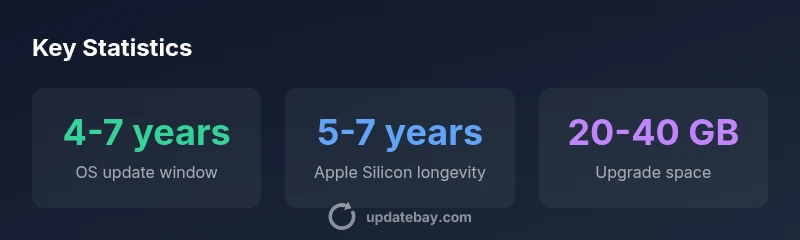
| Model Type | OS Compatibility Window | Hardware Notes |
|---|---|---|
| Intel-based MacBook (2015-2019) | 4-6 years | HDD/low RAM constraints |
| Apple Silicon MacBook (2020-2022) | 5-7 years | Efficient hardware, longer updates |
Frequently Asked Questions
Will Apple continue to support my older MacBook?
Apple's support depends on hardware architecture and OS compatibility. Newer macOS versions require newer hardware, and security patches may stop for very old versions. Always check Apple's official compatibility lists for your model.
Support timelines depend on your Mac's hardware; newer OS versions require newer devices, and older versions may stop receiving patches.
How can I check if my MacBook can run a new macOS version?
Open About This Mac to see your model and year, then compare with Apple's compatibility list for the target macOS. A Disk Utility check and app version lookups help confirm readiness.
Check your Mac's model and version, then verify against Apple's compatibility guide.
Is upgrading RAM or SSD worth it before updating?
RAM upgrades help only on devices that have upgradeable memory, while SSD upgrades generally improve speed and storage. Many older Macs have soldered RAM, so plan carefully and verify upgrade feasibility before purchasing.
RAM or SSD upgrades can help, but confirm whether your model supports them.
What about security if I stay on an old OS?
Older macOS versions stop receiving security patches, increasing risk from new threats. If you must stay, harden the setup with strong passwords, updated apps where possible, and limited exposure.
Staying on an old OS can be risky security-wise; consider alternatives.
Are there cheaper alternatives to buying a new MacBook?
Refurbished Macs, RAM/SSD upgrades where possible, or external storage and cloud-based workflows can extend life affordably. Still, ensure the OS will be supported on the device you choose.
Consider refurbished units or hardware upgrades to save money.
When is it time to upgrade vs. stay?
If essential software requires a newer OS or performance is consistently hindered, upgrading makes sense. For light workloads, maintenance and optimization can buy more time before a replacement is needed.
Weigh cost, performance, and needs before deciding to upgrade or replace.
“Staying current is about balancing security, performance, and cost. For many Mac users, updating to the latest supported macOS is worth it when hardware allows.”
What to Remember
- Verify hardware before updating
- Check available disk space and RAM
- Understand OS compatibility limits
- Consider upgrading or alternatives if needed
- The Update Bay verdict: weigh cost and usability before upgrading