What to Do If iPhone Update Is Stuck: Troubleshooting Guide
Urgent, practical steps to fix a stuck iPhone update, including checks, diagnostic flow, and when to seek Apple support from Update Bay.


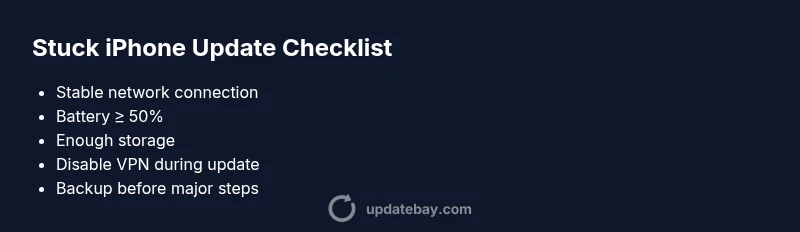
If your iPhone update is stuck, start by checking your network stability, battery level, and available storage. Make sure you have a reliable Wi‑Fi connection, at least 50% battery, and enough free space (at least a couple of gigabytes). Try a force restart and then retry the update, or install the update via Finder on macOS. If problems persist, contact Apple Support.
Why updates stall on iPhone and what to do if iphone update is stuck
If you're wondering what to do if iphone update is stuck, it's usually a small set of issues that halt progress. Most stalls occur during the Preparing or Installing phase and can be triggered by a flaky network, insufficient storage, a failing power source, or a temporary software hiccup. The fix is rarely exotic: re-establish a stable environment, clear space if needed, and retry. In this guide, Update Bay breaks down the steps in a safe, structured flow so you can regain control quickly. We’ll cover quick checks, diagnostic reasoning, and a concrete step-by-step path that minimizes downtime and protects your data. Whether you’re on an iPhone 14 or iPhone 15, the same principles apply, and you’ll likely be back on the latest OS within the hour.
-paragraphsForSEOReply
Steps
Estimated time: 20-60 minutes
- 1
Check basic conditions
Verify you have a stable Wi‑Fi connection, a device with sufficient battery, and enough storage for the update. Move away from weak networks, connect to power, and clear space if needed.
Tip: If possible, switch to a fast home network and disable any VPNs during the update. - 2
Force restart the iPhone
Forced restarts can clear transient glitches. The method varies by model—generally, press and quickly release Volume Up, then Volume Down, then hold the Side button until the Apple logo appears.
Tip: Don’t force restart repeatedly; use it as a first corrective step. - 3
Retry the update OTA
Go to Settings > General > Software Update and retry. If prompted, choose Install Now and stay on power/or plugged in during the process.
Tip: Avoid using cellular data for large OS updates. - 4
Reset network settings if needed
If the update stalls due to connectivity, reset network settings: Settings > General > Transfer or Reset [Device] > Reset > Reset Network Settings.
Tip: You will need to rejoin Wi‑Fi networks afterward. - 5
Try updating via Finder/iTunes
If OTA fails, connect the iPhone to a Mac or PC and update via Finder (macOS 10.15+) or iTunes (older macOS).
Tip: Back up before performing an OS reinstall. - 6
Consider DFU restore as last resort
A DFU restore reinstalls iOS completely. This should be used only after full backups and when other fixes fail.
Tip: DFU is advanced; follow official Apple steps precisely to avoid bricking the device.
Diagnosis: iPhone update gets stuck during download, Preparing, or Installing phase (spinner/wheel visible for extended time)
Possible Causes
- highUnstable or slow network connection
- highInsufficient available storage on the device
- mediumTemporary software glitch or corrupted download
- lowBattery level too low or device not connected to power
Fixes
- easyEnsure a stable Wi‑Fi connection (prefer 5 GHz if available), pause other downloads, and try again
- easyFree up storage by deleting unused apps or media, or offload data to iCloud or computer
- easyForce restart the iPhone to reset the update process, then retry the update
- easyReset network settings to clear potential connectivity issues, then retry the update
- mediumIf OTA update continues to fail, connect iPhone to a Mac/PC and update via Finder (macOS Catalina and later) or iTunes (older macOS)
- hardAs a last resort, consider a DFU restore after backing up, which reinstalls iOS from scratch
Frequently Asked Questions
Why does my iPhone update get stuck in the middle of installation?
Stalling is commonly caused by poor network, insufficient storage, or a temporary software glitch. Ensuring a stable connection and enough space often resolves the issue without advanced steps.
Stalling during installation is usually due to network, storage, or a temporary bug. Fixes are usually simple, like checking connectivity and space.
What should I check first when an update stalls?
First verify network stability, battery level, and available storage. Then attempt a force restart and retry the OTA update.
Start with network, power, and storage before taking bigger steps.
Can I use Finder or iTunes to install the update instead of OTA?
Yes. If OTA fails, connecting to a Mac/PC and updating via Finder or iTunes can bypass OTA glitches.
You can update through Finder or iTunes if the wireless update stalls.
Is a DFU restore safe if nothing works?
A DFU restore is a last-resort option that reinstalls iOS from scratch. It requires careful follow-through and a complete backup.
DFU is a last resort; back up first and follow Apple’s official steps.
Will this damage my iPhone or void warranty?
Troubleshooting steps like restart, reset, and Finder updates do not harm devices and do not void warranties when done properly. If unsure, contact Apple Support.
These fixes are safe if done as described; if uncertain, contact support.
How long should I expect the update to take once it starts?
Typical OS updates take several minutes to an hour depending on device and network speed. If it takes significantly longer, stop and reassess the steps above.
Updates usually finish in minutes to an hour; if it’s longer, review the fixes again.
Watch Video
What to Remember
- Back up before troubleshooting
- Prioritize stable network and sufficient storage
- Use OTA first, then Finder/iTunes, then DFU if needed
- Seek Apple support if the device remains unresponsive