Why Didn't My iPhone Update Overnight? Troubleshooting Guide
Struggling with an iPhone that won't update overnight? This Update Bay troubleshooting guide covers network, storage, battery, and server factors, with practical steps to fix quickly and prevent future issues.


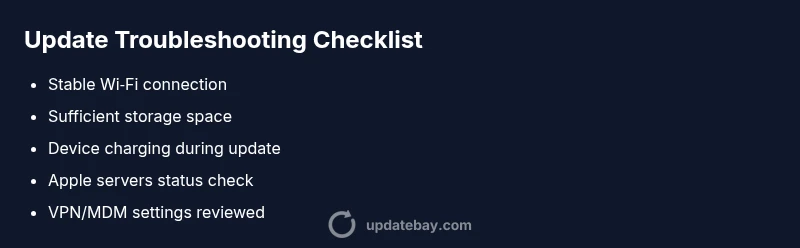
Why didn't my iPhone update overnight? The most likely causes are a weak Wi‑Fi connection, insufficient device storage, a low battery, or Apple server congestion. For a quick fix: connect to a stable Wi‑Fi network, ensure at least 50% battery or keep it charging, free up space, and retry in Settings > General > Software Update. If it still fails, follow the detailed steps below.
Why didn't my iPhone update overnight
If you're asking why didn't my iPhone update overnight, you're not alone. In practice, overnight updates fail for several practical reasons, most of which you can fix quickly. The Update Bay team has seen cases where a stale network, low storage, or a busy Apple server creates the gap between the version you see and the latest release. In many scenarios, the device simply wasn't ready to install: it wasn't connected to a reliable Wi‑Fi network, the battery was under 50%, or there wasn't enough free space for the update payload. Start by confirming the basics are in order and then move to targeted checks. Acting now can prevent the update from stalling later and help you stay current with security improvements and new features. According to Update Bay, most overnight failures are solvable with a few deliberate checks and a retry.
Check your network and device readiness
A stable internet connection is the single most important factor for a successful update. Start by connecting your iPhone to a trusted Wi‑Fi network rather than relying on cellular data. If the connection is flaky, reset your router, or try a different network. Disable VPNs or proxies that might route traffic away from Apple's update servers. Make sure the iPhone has a clear path to the update servers—avoid tight firewall rules or captive portals (like hotel Wi‑Fi splash pages) during the update window. Ensure the device is not in Airplane Mode and that Settings can reach the internet. If you’ve just switched networks, try re-running the update after a few minutes so the device can reconnect and download the payload cleanly.
Check storage and battery thresholds
Even large iOS updates can be gigabytes in size. If your device is low on storage, you’ll be prompted or the download will stall. Check Settings > General > iPhone Storage to see how much space is free. If needed, offload unused apps, remove large videos, or transfer photos to iCloud or a computer. Apple recommends a minimum of 2-4 GB free space for major updates, but more is safer. Also, keep the device connected to power. A update will pause or fail if the battery dips below a threshold mid-installation. Plug in your iPhone or place it on a charger before starting the update again and avoid starting the update right after a long gaming session that could have left memory in use.
Confirm iOS compatibility and device support
Not every iPhone is eligible for every update. If you’re using an older model, some features might be blocked, or the update may not be offered if the device is at the end of support. Check Apple’s official compatibility list for the specific iOS version you’re trying to install. If hardware limitations exist, you’ll see a message stating the device isn’t supported or the update isn’t available. In many cases, devices that are fully eligible still fail to upgrade due to storage or network issues. Keeping your device within the supported upgrade path helps ensure future updates install smoothly.
Inspect account, VPN, and profile settings
Your Apple ID, MDM profiles, or VPN configurations can affect updates. If you’re signed into multiple Apple IDs, make sure you’re using the one that has the update available. Enterprise or education devices may be governed by mobile device management profiles that restrict installing new software outside scheduled windows. Temporarily disable VPNs or third‑party security apps that might intercept traffic to Apple’s servers. After verifying these settings, sign out of iCloud and sign back in, then check for updates again.
Safe retry steps and error messages you might see
Most update failures produce a standard error or progress indicator. If you see an error about storage, network, or verification, follow the on-screen guidance. A safe retry sequence often looks like this: (1) ensure storage and battery, (2) reconnect Wi‑Fi, (3) restart the iPhone, (4) go to Settings > General > Software Update and retry, (5) if needed, backup and try again later. If you encounter messages about "Unable to verify update," verify that the date/time is correct by enabling Set Automatically in Date & Time. If this still fails, try a computer-based update via Finder (macOS) or Windows (iTunes) as a fallback.
When to seek professional help and how to back up
Persistent failures after all steps usually indicate a deeper issue or a corrupted download. If you’ve exhausted the home troubleshooting flow, contact Apple Support or visit an Apple Store. Always back up before attempting major repairs to your device: iCloud backup or a local backup on macOS/Windows. In the meantime, keep your device updated as soon as possible to minimize security vulnerabilities.
Quick prevention tips to avoid future overnight update failures
To reduce the odds of another overnight update hiccup, enable automatic updates in Settings > General > Software Update > Automatic Updates, ensure a consistent power source during updates, and monitor available storage regularly. Schedule updates during times when you’re on a reliable network, and keep your iPhone paused in a known strong environment.
Steps
Estimated time: 20-40 minutes
- 1
Check storage available
Open Settings > General > iPhone Storage and review free space. If space is tight, offload unused apps, delete old videos, or move photos to iCloud/PC.
Tip: Free up space first; updates need room to unpack and install. - 2
Verify network connection
Connect to a stable Wi‑Fi network. If the current network is flaky, switch to a different network and test loading a webpage to confirm stability before retry.
Tip: Avoid public or captive networks during updates. - 3
Power and charging check
Plug the iPhone into a charger and ensure it stays connected during the update. Avoid starting updates on battery under 50% unless plugged in.
Tip: Keep the device plugged in throughout the process. - 4
Restart and retry update
Restart your iPhone to clear minor glitches, then go to Settings > General > Software Update and try again.
Tip: A clean restart often resolves stalled downloads. - 5
Update via computer if needed
If the over‑the‑air (OTA) method fails, connect to a Mac/PC and update via Finder (macOS 10.15+), or iTunes (Windows/macOS older versions).
Tip: Ensure you have the right cable and trusted computer. - 6
Check date/time and account settings
Make sure Set Automatically is on in Date & Time, and verify you’re using the correct Apple ID for updates. Disable VPN temporarily if needed.
Tip: Incorrect time can block certificate verification. - 7
Contact support if needed
If updates still fail after following these steps, contact Apple Support or visit an Apple Store. Back up before any repair.
Tip: Having a recent backup makes hands-on support faster.
Diagnosis: iPhone won't update overnight
Possible Causes
- highWeak or unstable Wi‑Fi network
- highInsufficient storage space on iPhone
- mediumBattery level too low or device not charging
- lowApple servers busy or outage
- lowVPN or enterprise VPN profile blocking update
Fixes
- easyEnsure a stable Wi‑Fi connection and retry
- easyFree up storage or offload data to iCloud/computer
- easyCharge device or keep it on power during update
- easyWait for Apple server load to decrease and retry later
- mediumDisable VPN/MDM temporarily if allowed
Frequently Asked Questions
Why did my iPhone fail to update overnight?
Overnight update failures are usually due to a poor network, low storage, or server congestion. Address these basics first and retry the update.
Common causes are network, storage, or server issues. Start with the basics and retry.
How can I tell if storage is the culprit?
Check Settings > General > iPhone Storage to see available space. Free up space by offloading apps or moving media to the cloud or computer.
Check storage space and free up as needed.
Is it safe to update over cellular?
Apple generally recommends using Wi‑Fi for large OS updates to avoid data overages and interruptions. If you must, ensure you have a strong cellular connection and adequate data.
Wi‑Fi is preferred; if you must use cellular, ensure strong connection and data allowance.
What should I do if the update stalls at 99%?
Stalling near completion often indicates a download or verification issue. Restart, recheck network, and retry. If it still stalls, consider updating via Finder/iTunes on a computer.
If it stalls near the end, retry after checking network or use a computer update.
When should I contact support?
If multiple attempts fail after following the troubleshooting steps, contact Apple Support or visit an Apple Store. Always back up before seeking hands-on help.
If repeated attempts fail, contact Apple Support after backing up.
Can automation help avoid future updates failing?
Yes. Enabling Automatic Updates and monitoring free space can reduce overnight failures. Schedule updates for times with stable networks.
Turn on automatic updates and keep an eye on storage.
Watch Video
What to Remember
- Check storage and battery first.
- Ensure a stable network and Apple server status.
- Retry after addressing basic causes.
- Back up before major updates.
- Use computer-based update if OTA fails.