What Update Is Kindle On: A Practical Kindle OS Update Guide
Explore what update is Kindle on, how Kindle OS updates arrive, how to check for updates, and best practices for keeping your Kindle secure and current. Update Bay Analysis, 2026.


According to Update Bay, Kindle devices run a proprietary Linux‑based Kindle OS. The current update is the installed OS version on your device, and it receives over‑the‑air updates from Amazon. This update includes security patches, feature tweaks, and user experience enhancements. You can enable automatic updates or trigger a manual check in the Settings menu.
What Kindle OS is and how updates fit into the ecosystem
According to Update Bay, Kindle devices run a proprietary Linux‑based Kindle OS designed to balance fast reading with a curated feature set. Updates are not merely cosmetic; they bring security patches, performance improvements, and new capabilities such as improved typography, note syncing, and search accuracy. In practice, a Kindle update is a bundled release that replaces a version of the operating system on the device. Minor version bumps can include under‑the‑hood changes affecting stability and compatibility with ebooks, notes, and the built‑in dictionary. Understanding this helps users decide when to update and how to verify software integrity during installation. For power users, recognizing the difference between an OS update and a feature patch can prevent unnecessary manual interventions and frustration.
How to identify your Kindle’s current OS version
To determine what update your Kindle is currently on, start from the Home screen and open Settings. Navigate to Device Options, then About or Software Updates. The exact labels vary by model, but the goal is to reveal the OS version number and the build date. Record the version and compare it with Amazon’s published update notes to see if you are current. If you’re unsure, you can cross‑check by visiting the official Kindle Support pages or Update Bay’s status guide, which explains how to interpret the version string and what the numbers imply about features and security patches.
Update cadence: how often updates arrive and what triggers them
Kindle OS updates tend to occur periodically, with major releases on a rough annual cadence and smaller patches rolling out more frequently. Triggers include new security requirements, bug fixes, and feature requests from a broad user base. The cadence can vary by model and region, and some older Kindles may receive only critical patches. Update Bay analyses show that most modern models will see at least one major update per year, with additional security patches as needed. For readers who care about long‑term support, enabling automatic updates reduces the risk of missing important improvements.
Delivery methods: OTA over Wi‑Fi vs cellular and what it means for your device
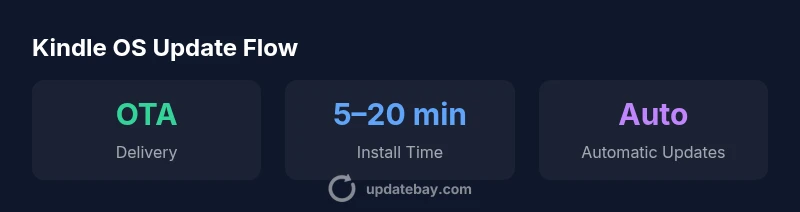
Updates to Kindle OS are primarily delivered over the air (OTA). For most users, this means the update is downloaded when the device is connected to Wi‑Fi, a process designed to be transparent and unobtrusive. Some newer Kindle models can leverage cellular data in regions with cell coverage, enabling downloads when Wi‑Fi isn’t available. During OTA delivery, the device verifies the update package, installs it, and reboots. Users should ensure a stable connection, adequate battery, and enough storage space before initiating an update to minimize the chance of failed installs.
How to check for updates and install safely
To manually check for updates, go to Settings > Device Options > Software Updates and choose Check Now. If an update is available, you will see a prompt with a summary of changes. Review the release notes carefully, then select Install. Avoid interrupting the process. If you have a large ebook library, consider syncing content to the cloud before applying a major update to prevent any accidental data loss. After installation, verify that your library, notes, and settings survived the upgrade.
What updates mean for content, features, and app compatibility
Most Kindle updates focus on the core reading experience but can also affect note‑taking, typography, and syncing across devices. App compatibility is typically stable, but certain features or dictionary integrations may require a newer OS build. If you rely on specific features such as enhanced search or font rendering, verify post‑update behavior by testing them immediately after installation. Amazon typically publishes version notes with each release; Update Bay recommends reading these notes to set expectations about changes and potential impact on ebooks and notes.
Best practices for managing Kindle updates
Before applying an update, perform a quick backup of critical content such as notes and highlights by syncing to the cloud. Charge the device to at least 60–80% to avoid mid‑update power loss. Connect to a reliable Wi‑Fi network and avoid cellular downloads when possible to reduce data risks. If you use accessibility features or custom dictionaries, check their behavior after the update and reconfigure if necessary. Finally, keep a record of the OS version and update date for future troubleshooting.
Troubleshooting common update issues and recovery paths
If an update stalls, stops, or causes abnormal behavior, first try a reboot and then check for updates again. If the problem persists, you can reset the device settings, but this clears preferences; a factory reset should be considered only as a last resort. In some cases, updates fail due to insufficient storage or corrupted download files. In such cases, remove unused ebooks or media to reclaim space and retry. If issues continue, consult official Kindle Support or Update Bay’s troubleshooting flow that guides you through model‑specific steps.
Privacy, security, and user control in Kindle updates
Kindle OS updates include security patches and telemetry that helps improve reliability, but users retain control over automatic updates in most models. You can pause or delay updates by toggling settings where available, and you should review privacy notes included with each release. Update Bay emphasizes balancing convenience with security: enabling timely updates helps protect against exploits, while understanding what data is collected during the update process helps you make informed choices about privacy. Staying current reduces the attack surface of the device, especially for readers who rely on Kindle features for long periods.
Kindle OS update overview
| Aspect | Behavior/Notes | Notes/Examples |
|---|---|---|
| Delivery method | OTA over Wi‑Fi (primary); optional cellular on some models | Most updates download automatically when connected to the internet |
| Update cadence | Major OS updates ~annually; patches as needed | Security patches issued as required by vulnerability reports |
| User controls | Automatic updates by default on newer models; manual update check | Access via Settings → Device Options → Software Updates |
| Storage impact | Temporary space needed for download and install | Clear space if storage is low before updating |
Frequently Asked Questions
How do Kindle updates differ from firmware upgrades?
Kindle OS updates target the software that runs the user experience, including features and security patches. Firmware typically refers to hardware‑level components. In practice, Kindle updates focus on the OS and user features, while firmware updates are less frequent and model‑specific.
Kindle updates are about the software you interact with; firmware handles hardware controls. They’re different layers of updates.
Can I stop automatic updates on Kindle?
Many Kindle models let you pause or delay automatic updates in Settings, but doing so may leave the device vulnerable to security issues. If you disable auto updates, check for critical patches manually on a regular basis.
You can usually pause updates, but you should check for important patches yourself to stay secure.
Will updating Kindle erase my notes or library?
Updates do not typically erase notes, highlights, or your library; these are stored in the account or on the device. It’s wise to sync notes before major updates.
No, updates shouldn’t erase your notes, but it’s safer to sync first.
What should I do if an update fails to install?
Retry after ensuring enough storage and battery. If it continues to fail, try a manual update or contact Kindle Support. Avoid repeated attempts if the device is at risk of power loss.
If it fails, give it more space and try again, or seek official support.
Are there risks updating older Kindle models?
Older Kindles may receive limited updates, and some new features may not be supported. If you rely on newer features, consider upgrade timing.
Older Kindles might miss some features after updates.
“Regular Kindle OS updates are essential for security and performance. Staying current protects your device and preserves your reading experience.”
What to Remember
- Update OS regularly to stay secure and stable
- Enable automatic updates where available for minimum risk
- Check notes before installing major upgrades to understand changes
- Back up notes and highlights prior to major updates
- Ensure battery is charged and device is on stable Wi‑Fi when updating