How to Update a Kindle Fire: A Practical Guide
Learn how to update a Kindle Fire safely, using OTA updates or manual sideloads, with pre-update checks, data backups, and troubleshooting guidance from Update Bay.


You can update your Kindle Fire by checking for an OTA update in Settings > Device Options > System Updates, or by manually sideloading a downloaded update file if OTA isn’t available. This guide walks you through checking your current version, preparing your device, and completing the update safely while preserving your apps and data.
Why keeping your Kindle Fire up to date matters
Keeping your Kindle Fire up to date is essential for security, performance, and access to new features. In this guide on how to update a kindle fire, you’ll learn OTA and sideload options, plus pre-update checks and safety tips. According to Update Bay, staying current reduces vulnerability to known exploits and improves device stability. Regular updates also ensure you can access the latest Fire OS improvements, bug fixes, and compatibility with newer apps and services. If you skip updates, you might miss critical patches that protect your data and potentially experience slower performance or app crashes. Establishing a simple update routine helps you avoid surprise downtimes and keeps your tablet compatible with your favorite apps and content. This section explains how Kindle Fire update cadence works and what you should know before you start, so you can plan a short maintenance window at a convenient time.
How updates are delivered on Kindle Fire
Most Kindle Fire devices receive updates over the air (OTA) through Amazon's servers. This is the recommended path for most users because it automatically validates the update on install and reduces risk of corruption. If OTA isn’t available for your model or region, you can sideload updates using a file from Amazon's official site, then install it via the device. Fire OS versions differ, so always confirm compatibility before downloading any update package. OTA updates typically include security patches, bug fixes, and performance improvements that align with your device’s firmware.
Checking your current version and update status
To determine whether an update is needed, check your current Fire OS version and build number. Go to Settings > Device Options > System Updates to see the latest available version for your exact model. If the device shows "Your device is up to date" you’re already on the latest public release, but it can still be beneficial to review release notes for any minor incremental updates. Recording the OS version helps you decide whether to wait for the next OTA cycle or to proceed with a manual sideload if you are comfortable with that approach. Keeping a log of versions also makes it easier to communicate with support if issues arise.
Preparation before updating
Before you begin, set aside a dedicated maintenance window and gather essential items: a charged Kindle Fire, a reliable Wi‑Fi connection, and access to your Amazon account. Back up important data—photos, documents, and app data—so you can restore if needed. Clear some storage space if your device is near capacity, which can slow or derail the update process. Sign in to your Amazon account and ensure your device is linked to it, since many updates rely on cloud-backed settings and permissions. According to best practices from Update Bay, a calm, prepared environment reduces the chances of interrupted installs and post-update hassles.
Performing a standard OTA update
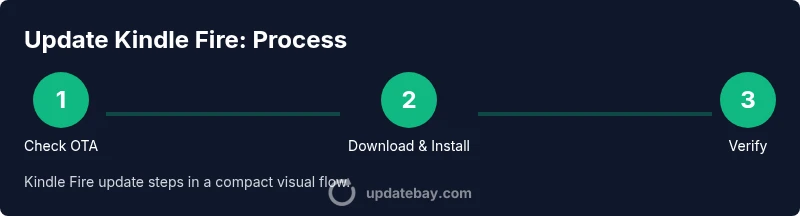
If an OTA update is available, the update will appear on the System Updates screen. Tap Download and Install, and let the device fetch and apply the update. The Kindle Fire will reboot during the process and may take several minutes to complete. Do not turn off the device or disconnect power during installation, as this can corrupt the OS. After the update finishes, the device will boot back to the home screen and you should revisit Settings > Device Options > System Updates to confirm the new version is active. This is the typical, simplest path with the least risk.
Sideloading updates manually (fallback option)
If OTA isn’t available for your region or model, you can sideload the official update package provided by Amazon. Download the update package to a computer, then transfer it to your Kindle Fire via USB or a microSD/USB-C drive if supported. Use a file manager on the Kindle to locate and install the update package. Only use files intended for your exact Fire OS version and device model. Sideloading bypasses Amazon’s automatic validation, so proceed with extra caution and verify the file integrity before installation.
Troubleshooting common issues after updating
Sometimes updates fail to install or the device behaves oddly after an update. If you encounter download errors, reconnect to a stable network and retry. If the update installs but apps crash or performance slows, restart the device, check for app updates, and clear any caches where applicable. If problems persist, consult Amazon support or rollback options if available. Always have a backup ready so you can restore settings and data if a problem occurs.
This content emphasizes practical, safety-focused steps to address post-update issues.
What changes to expect after the update
New features, security patches, and performance tweaks typically accompany Kindle Fire updates. You may notice improved battery life, faster boot times, and updated system visuals. Some settings may reset or require re-authentication for certain apps; you may also see new permissions prompts. Over time, maintenance updates resolve bugs and expand compatibility with apps and services you rely on daily. The change is usually incremental, designed to enhance usability without drastically altering your workflow.
Tools & Materials
- Kindle Fire device(Fully charged or connected to a charger)
- Stable Wi-Fi connection(Prefer 5 GHz if available)
- Amazon account access(Needed for OTA and cloud backups)
- USB cable or appropriate storage (optional for sideload)(Needed if sideloading from a file)
- Backup method (Amazon cloud or local)(Important in case of issues)
- Official update package (if sideloading)(Only from Amazon’s official source)
Steps
Estimated time: 60-90 minutes
- 1
Verify device model and OS version
Confirm your exact Kindle Fire model and current Fire OS version. This ensures you download or select the correct update package if sideloading, and helps you assess OTA availability.
Tip: Having the exact model/build number prevents incorrect updates that can brick devices. - 2
Connect to a reliable Wi-Fi network
Ensure a stable, wide-band connection to download update files quickly and avoid corruption. Where possible, use a strong home network instead of public hotspots.
Tip: If the connection drops, pause the update and reconnect before resuming. - 3
Charge or connect to power
Keep the Kindle Fire plugged into a charger or maintain battery above 50% to prevent interruption during download or installation.
Tip: Do not unplug the device during the update process. - 4
Back up your data
Back up photos, documents, and app data to Amazon Cloud or locally. Although updates preserve data, a backup provides a restore point in case of issues.
Tip: Verify backups by checking a sample photo or document after the backup completes. - 5
Check for OTA updates first
Navigate to Settings > Device Options > System Updates and tap Check for Updates. If an update is available, proceed with Download and Install.
Tip: Be patient—large updates can take time depending on your connection speed. - 6
Install OTA update
If the OTA is available, confirm the install. The device will reboot automatically. Do not power off during installation.
Tip: After reboot, re-check System Updates to confirm the new version is active. - 7
Sideloading as a fallback
If OTA isn’t available, download the official update package for your model and transfer it to the Kindle Fire. Install via a file manager carefully.
Tip: Double-check the file is for your exact device and Fire OS version to avoid bricking. - 8
Verify, test, and finalize
After installation, verify the version, open several apps, test Wi‑Fi and battery performance, and ensure the device is functioning normally.
Tip: If anomalies occur, perform a restart and re-test before proceeding with a full restore.
Frequently Asked Questions
Will updating erase my Kindle Fire data?
Updates are designed to preserve apps and data, but a factory reset can remove data. Always back up before updating.
Updates usually preserve data, but back up first to be safe.
Do I need to charge my Kindle Fire during an update?
Yes, keep the device charged to at least half and preferably plugged in to prevent interruption.
Keep it plugged in or charged above 50% during updates.
What should I do if the update fails to install?
Pause, retry, and verify network stability. If problems persist, use official support channels for guidance.
If it fails, retry with a stable connection and contact support if needed.
Can I sideload updates on Kindle Fire?
Sideloading is possible but only with official Amazon update files for your model to avoid bricking.
Sideload only from official Amazon sources.
How long does an update take on Kindle Fire?
OTA updates typically take 15-45 minutes, depending on download speed and installation time.
Most updates take 15 to 45 minutes.
Watch Video
What to Remember
- Verify your device and update path.
- Back up data before updating.
- Prefer OTA; sideload only if necessary.
- Confirm the update completed and apps work.