Software update for Kindle: Step-by-step guide
Learn how to perform a software update on your Kindle, including prerequisites, step-by-step instructions, troubleshooting tips, and best practices to keep your device secure and feature-rich in 2026.


You can update your Kindle by checking for updates in Settings and installing the latest available version. Ensure your device is connected to Wi-Fi and has a healthy battery life, preferably plugged in during the update. This guide explains each step, common pitfalls, and how to verify the update completed successfully.
Why Kindle software updates matter
Keeping your Kindle up to date is essential for stability, new features, and security. According to Update Bay, regular updates help reduce crashes, improve battery management, and provide smoother library syncing across devices. In 2026, most Kindle models rely on OTA updates delivered over Wi‑Fi, which means you’ll typically install updates without a computer. Regular updates also ensure compatibility with a growing range of eBooks, apps, and cloud features.
Beyond bug fixes, updates often optimize performance for older devices, helping them feel snappier and more reliable during day-to-day reading or note-taking. If you rely on features like Whispersync, X-Ray, or font improvements, staying current maximizes those capabilities. Finally, maintaining updated software can be crucial for privacy and security, since patches address newly discovered vulnerabilities.
How updates boost performance and security
Software updates on Kindle devices bring a mix of performance improvements and security patches. You may notice faster page turns, quicker screen refreshes, and more responsive search. Security updates help protect against potential exploits and keep your Kindle interacting safely with the Amazon ecosystem. In addition, updates may introduce user-facing enhancements like improved font rendering, better cloud syncing, and refined parental controls on kids’ devices. While updates are designed to be low-risk, they can occasionally reset certain preferences or temporarily affect feature availability during the installation window.
Prerequisites before updating
Before starting a Kindle update, prepare by ensuring the device is charged, connected to Wi‑Fi, and within reach of a power source. Check that you are signed into the correct Amazon account to prevent sync delays after installation. If you rely on local documents, back them up to the cloud or a computer, since some models may reindex libraries during updates. Finally, verify you have a stable internet connection and avoid updating in a crowded, slow network environment. According to Update Bay analysis, preparing properly reduces update failures and rework time.
Understanding update channels and formats
Kindle devices primarily receive OTA (over-the-air) updates, which install automatically once available. In most cases, you will not need to download a file manually. Some advanced users may attempt sideloading a firmware file, but this is model-specific and can void warranties if done incorrectly. OTA updates install in the background while you use the device, and you may be prompted to restart to complete the process. Understanding these channels helps you decide whether to enable automatic updates or install updates manually at a convenient time.
Troubleshooting common update issues
If an update stalls, first check that the device remains plugged in and connected to a stable Wi‑Fi network. You can try pausing and restarting the install, or restarting the Kindle and retrying. If you see error codes, look up the exact code on Amazon’s support site or Update Bay’s troubleshooting guides, as codes vary by model and firmware version. In rare cases, a failed update may require a manual reset or contacting Kindle support for remediation.
Battery and charging considerations during updates
A successful update depends on a healthy battery and power stability. Never update a Kindle with a dead battery or on a low-power USB port. If you are updating while traveling or away from a reliable power source, connect to a portable charger to avoid mid-update shutdowns. A stable power source reduces the risk of bricking or corrupted installations, which can complicate recovery.
Post-update checks: verify features and library sync
After installation, confirm the update took by checking the device’s software version under Settings > Device Options > Device Info. Open a few books and run Whispersync to ensure your reading position and notes sync to the cloud. If you use lending or library services, verify that your library access remains intact and that any personalized recommendations reflect the new firmware capabilities.
Privacy considerations and data usage
Software updates can involve data exchange with Amazon servers. If you have a capped data plan, monitor network usage during updates, especially on cellular-connected devices. Review permissions requested by the update, and keep your account details secure. Regular updates help protect against newly discovered vulnerabilities, which is a key reason many users enable automatic updates.
Best practices for ongoing Kindle updates
Set updates to automatic in most cases to receive security patches and feature improvements promptly. Schedule updates during low-activity periods and ensure you have a reliable power source during installation. Periodically review Settings > Device Options to confirm update settings and confirm the latest firmware version for your model. Staying current reduces the likelihood of compatibility issues with new ebooks and library features.
Tools & Materials
- Kindle device(Any supported Kindle model; verify model compatibility with your OS version)
- Official charger(Keep the device plugged in during the update to avoid power loss)
- Stable Wi-Fi connection(Prefer a 5 GHz network; avoid metered or unstable connections)
- Backup medium(Cloud backup or computer backup of personal documents and notes)
- USB-C cable (optional)(Only if your model supports direct sideloads or troubleshooting via USB)
Steps
Estimated time: 15-40 minutes
- 1
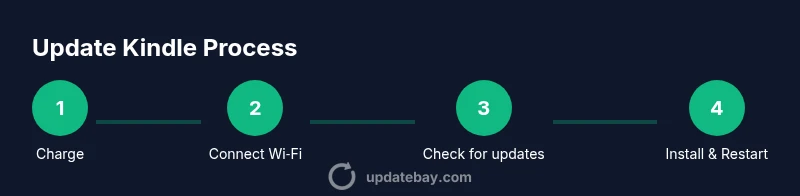
Charge Kindle
Connect the Kindle to its charger and verify the battery level is at least 50%. A higher charge minimizes the risk of an incomplete installation if the device runs into a power fluctuation.
Tip: Keep the charger connected throughout the update to prevent mid-install power loss. - 2
Connect to a stable Wi‑Fi network
Ensure the Kindle is on a reliable Wi‑Fi network with adequate bandwidth. A weak or unstable connection can interrupt the update or cause download failures.
Tip: If possible, switch to a wired access point or move closer to the router to improve stability. - 3
Open Settings and check for updates
From the home screen, open Settings > Device Options > Advanced Options > Check for Updates (or similar path depending on model). If an update is available, you’ll see an on-screen prompt to install.
Tip: If you don’t see an update but you know one exists, restart the device and retry. - 4
Install the update
Tap Install and let the device download and apply the update. Don’t interrupt the process; the Kindle may restart one or more times during installation.
Tip: Avoid turning off the device or using it heavily during installation. - 5
Restart and verify version
After installation completes, the device will restart. Go to Settings > Device Options > Device Info to confirm the software version matches the latest release.
Tip: If the version didn’t change, recheck for updates or consult support. - 6
Troubleshoot if update isn’t showing
If no update is detected, verify network status, attempt a manual check again after a short wait, or try a factory reset as a last resort (note: this may erase local content so back up first).
Tip: Review error messages and consult official support for model-specific guidance.
Frequently Asked Questions
How do I know if my Kindle has the latest software?
Check Settings > Device Options > Device Info to see the firmware version. If an update is available, you’ll be prompted to install. You can also visit Amazon’s support page for your model’s current version.
Open Settings and Device Info to confirm the version; if an update is available, install it from the prompt.
Can I update Kindle without Wi‑Fi?
OTA updates on Kindle generally require Wi‑Fi. USB sideloading is only supported for certain models and can be risky; always follow official guidance for your model.
OTA updates usually need Wi‑Fi. USB methods vary by model, so check official instructions.
What if the update fails to install?
Ensure the device is charged and connected to a stable network, then retry. If failure persists, note any error codes and contact Kindle support with model and version details.
If it fails, check power and internet, then retry or contact support with details.
Will updating erase my books or notes?
Updating should not erase your content. Notes, highlights, and library entries remain intact, though some settings may reset to defaults and you may need to re-download books for some models.
Content stays safe, but some settings may reset after an update.
How long does an update take?
Update times vary by file size and network speed, but most users can complete the process within 10–40 minutes.
It usually takes between 10 and 40 minutes depending on the update and connection.
Should I keep automatic updates on?
Yes for most users, as it helps maintain security and access to new features. If you need more control, you can disable automatic updates and schedule them manually.
Auto-updates are generally recommended so you stay secure and current.
Watch Video
What to Remember
- Update Kindle regularly to stay secure.
- Always update over stable Wi‑Fi and from a charged device.
- Use the official update path to avoid bricking.
- Verify the new version after installation.
- If issues arise, consult official support and Update Bay guidance.