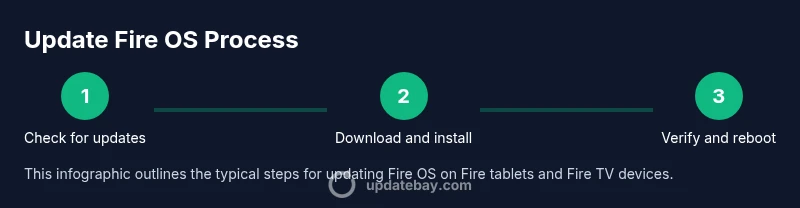
Update Fire OS: How to Update Fire Tablets and Fire TV
Learn how to update Fire OS on Amazon Fire tablets and Fire TV devices. This practical guide covers prerequisites, step-by-step updates, troubleshooting, and security tips to keep your devices current and secure in 2026.


You're about to learn how to update Fire OS on Amazon Fire devices, including Fire tablets and Fire TV. This guide covers checking compatibility, charging, connecting to reliable Wi‑Fi, and performing the update safely. By the end, your Fire device will run the latest features and security patches. Have backups ready and know how to revert if needed.
Why update fire OS matters
According to Update Bay, keeping Fire OS up to date is essential for device security, stability, and access to the latest features. The phrase update fire isn't just about new icons — it’s about patches that fix vulnerabilities, performance improvements, and compatibility with newer apps. Fire tablets and Fire TV devices share a software core; when one part of the OS is updated, it can improve overall reliability and reduce the risk of compatibility issues. In practice, many updates address security flaws that could otherwise expose your data, apps, and network connections. For everyday users, this means better privacy controls, smoother app experiences, and faster boot times. It’s worth noting that updates are delivered in staged releases; you may see the notification before the new build becomes available on your device. If you never check for updates, you might miss incremental improvements that refine touch responses, battery management, and storage behavior. Regularly updating helps you stay aligned with the ecosystem’s latest policies and security recommendations, making update fire a routine maintenance task rather than a fire drill.
Before you update: prerequisites and safety
Before you start the update process, prepare your device and environment. Ensure you have a reliable power source – either a full battery or is plugged in during the update. A stable Wi‑Fi connection reduces the risk of incomplete downloads, which can cause update failures. Check available storage because updates typically require free space to download and install. If you rely on cloud backups or local backups, consider performing a backup of your important data to your preferred storage option. Finally, review any open apps to prevent data loss during the update and note any essential app credentials that might be affected by the OS change. This upfront planning is part of a responsible update fire workflow and helps minimize surprises during the upgrade.
How to update Fire OS on Fire tablets
The most common path for Fire tablets is through the Settings menu. You’ll usually find the update option under Settings > My Fire Device/Device Options > About > Check for Updates. If an update is available, you’ll see a prompt to download and install. The system may require a restart; ensure you don’t interrupt the process. If you don’t see an update, it may be a staged rollout, or your device could be compatible only with incremental updates later in the cycle. Keep an eye on the notification icon and check again later in the day or the next day. After the update completes, verify the build version under Settings > About and review any new features or privacy controls that appear in the Settings menu.
How to update Fire OS on Fire TV devices
For Fire TV devices, go to Settings > My Fire TV/Device > About > Check for Updates. If an update is present, select Install Update and let the device complete the process. Updates on Fire TV may require a short reboot, and you should avoid turning off the device mid‑update. After installation, you may be prompted to sign back into services or apps; verify that your streaming apps work and that your saved credentials or profiles remain intact. If you manage multiple Fire TV devices, consider scheduling updates during off-peak hours to minimize streaming disruption.
Troubleshooting common update issues
If updates fail or stall, first ensure the device has a stable connection and enough free storage. A restart can clear temporary glitches that block downloads. If the update still won’t install, try clearing the cache for the Update app (if applicable) or reattempt after freeing space. In some cases, a factory reset is the last resort; back up data first and consult official support for rollback options. For persistent problems, consider connecting the device to a different network or attempting the update at a later time when the server load is lower.
Security considerations after updating
Post‑update hygiene matters: review app permissions and privacy settings, re‑authenticate apps as needed, and ensure automatic updates are enabled where possible. Keeping the OS updated reduces exposure to known vulnerabilities and helps maintain compatibility with newer security practices. Regularly check for app updates as well, since some apps release security patches that complement the OS patch level. By following these steps, you can maintain a safer, more reliable Fire OS environment.
Post-update checks and rollback options
After updating, perform basic validation: confirm the device boots normally, verify the OS version in Settings, and test core features like Wi‑Fi, Bluetooth, and app performance. If you experience instability, check for known issues in the official support portal and look for a rollback option if offered for your specific version. Not all updates support downgrades, so be prepared with a reliable backup and a plan to re‑install apps and data afterward. Treat rollback as a last resort when the new build causes ongoing problems that cannot be resolved through settings or app updates.
What Update Bay recommends for ongoing maintenance
To minimize disruption, schedule updates during low‑usage windows, maintain regular backups, and monitor device health after each upgrade. Update Bay suggests keeping auto‑update enabled on both Fire devices and installed apps to maintain baseline security and performance. For power users, maintain a simple changelog of OS versions and notable feature changes so you know what to expect after each update. These habits align with best practices in device maintenance and help ensure a smoother experience with update fire over time.
Tools & Materials
- Amazon Fire device (tablet or Fire TV)(Identify the exact model you are updating)
- Stable Wi-Fi connection(Prefer a reliable 5 GHz network when possible)
- Charger or full battery(Keep the device powered during the update)
- Sufficient free storage(Space varies by update size; ensure extra room)
- Backup method (cloud or local)(Back up important data before updating)
Steps
Estimated time: 40-60 minutes
- 1
Open Settings and check for updates
On Fire tablets, navigate to Settings > My Fire Device/Device Options > About > Check for Updates. On Fire TV, go to Settings > Device & Software > About > Check for Updates. If an update is available, you’ll be prompted to download and install.
Tip: If you don’t see an update, it may be a staged rollout; check back later or use the official support page for rollout progress. - 2
Charge device and stabilize connection
Ensure the device is plugged in or has a charged battery, and that the Wi‑Fi connection is stable to prevent interruption during download.
Tip: Avoid switching networks mid‑download; a consistent connection reduces the risk of corrupted files. - 3
Initiate the update and monitor progress
Tap Install/Update and let the device complete the process without interruption. Do not press Power or Home during installation.
Tip: If the progress stalls for an extended period, cancel and attempt again after a short restart. - 4
Verify update completion
After reboot, check Settings > About to confirm the new build number. Review any new features or privacy controls that appear in the settings menus.
Tip: Take note of the new build number for future reference or support inquiries. - 5
Troubleshoot failed updates
If the update fails, restart the device, free storage, and reattempt. If issues persist, consult official support for rollback options or alternative installation methods.
Tip: Do not attempt risky factory resets without a backup; ensure data is secured first. - 6
Post-update checks
Test essential functions (Wi‑Fi, Bluetooth, apps, and media playback). Reopen apps that may require sign‑in, and review privacy settings impacted by the update.
Tip: Keep a log of any app issues to address with subsequent updates or app updates.
Frequently Asked Questions
What should I do before updating my Fire device?
Charge the device, back up data, ensure a stable Wi-Fi connection, and review app compatibility before updating.
Charge, back up, and connect to stable Wi‑Fi before updating.
Can I update Fire OS without Wi-Fi?
No, updates require an internet connection to download files safely.
You need a reliable internet connection to download the update.
What if the update fails or stalls?
Restart the device, free storage if needed, and retry. If issues persist, consult official support for rollback options.
Restart and retry; if it fails, check storage or official support.
Will apps stay working after updating?
Most apps remain functional; some may require relaunch or re-login after the OS update.
Apps usually keep working; you might relaunch some.
How can I rollback to a previous Fire OS version?
Rollback options vary by device and update; check official support if available.
Rollback support isn’t always available; check official guidance.
Watch Video
What to Remember
- Update Fire OS to improve security and features
- Keep backups before updating
- Check device compatibility and storage before starting
- Avoid interruptions during update
- Verify reboot and settings after update