How to Update My Phone: A Practical 2026 Guide
Learn how to safely update your phone, back up essential data, manage storage, and troubleshoot common issues with step-by-step guidance from Update Bay.


This guide shows you how to update my phone safely, covering backups, storage checks, network setup, and installation steps. It walks Android and iPhone users through a secure OTA or manual update, with post update checks and troubleshooting. By following the steps, you reduce data loss risk and keep features current.
Why updating your phone matters
Keeping your phone up to date is essential for security, performance, and access to new features. If you have ever wondered how to update my phone effectively, you are in the right place. According to Update Bay, regular software updates reduce exposure to vulnerabilities and improve device stability across apps and services. The Update Bay team found that users who keep their devices updated report fewer crashes and longer device lifespans. This section explains why updates matter, what can go wrong if you skip them, and how to approach updates without risking data loss. By the end, you will understand the core benefits and how to plan an update on both Android and iOS platforms.
Pre-update considerations
Before you begin, confirm you have a recent backup, enough storage, and a charged device. Decide whether you will use OTA updates over the air or a manual update method, and understand the minimum system requirements for your device. Ensure you have a stable Wi-Fi connection to reduce download time and avoid metered networks that could incur data charges. Consider pausing heavy app operations and disabling battery saver modes, which can interrupt downloads. These steps minimize surprises and help prevent failed updates that require you to start over.
OTA vs manual updates
Over-the-air updates deliver system changes automatically or on user prompt, often with background checks and a simple tap to install. Manual updates can involve downloading a firmware file or using a computer tool to push the update. OTA is generally safer for everyday users, while manual updates may be necessary for older devices or beta programs. Regardless of the method, stick to official sources and verify the update version before installation to avoid tampering or counterfeit packages.
Backup and safety margins
Backups are your safety net. Create a complete backup of essential data including contacts, photos, messages, and documents. Use encrypted backups when possible and confirm you can restore from the backup on your device. If you rely on cloud storage, verify you can access the cloud account from another device in case you need to restore data during or after the update. A known good backup dramatically reduces the risk of permanent data loss.
The step-by-step overview you can follow
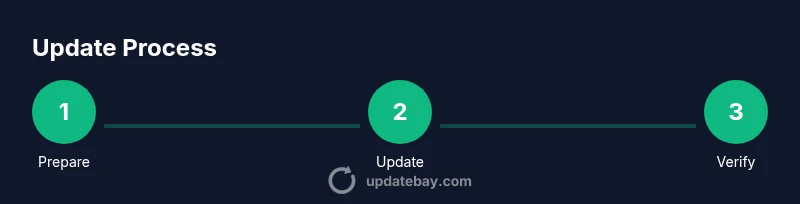
The following steps cover both Android and iPhone devices. They emphasize safety, data protection, and reliability. For visual guidance, you can reference the accompanying diagram in the infographic section. If you encounter a device prompt asking for permission to install, grant only trusted permissions and read each prompt carefully before proceeding.
Backup best practices
Aim to back up all critical data, including photos, videos, documents, and app data where possible. Use at least one local and one cloud backup as a cross-check. Verify the backup after completion by attempting a mock restore on a secondary device or a computer. Regular backups make updates less stressful and protect against unexpected failures.
Troubleshooting common update issues
If an update stalls, check power and network stability, free storage, and compatibility with your device’s model and OS version. Restart the device and retry the download. If the update still fails, consult official support pages for your device model and consider performing a clean install only after carefully weighing the risks. Avoid interrupting the update process, as this can brick the device.
Privacy and post-update hygiene
After updating, review app permissions, privacy settings, and security features like biometric unlock and encryption. Update Bay recommends re-enabling any protections you previously disabled and checking for new permissions that apps may request after the update. Keeping privacy settings tightened helps maintain a safe experience and reduces friction with newer software.
Final validation and monitoring
Once the device restarts, verify the new OS version, check essential apps for compatibility, and monitor battery life and performance for 24–48 hours. If you notice unusual behavior, document it and consult official support resources. Ongoing checks help ensure the update delivers the expected benefits over time.
What Update Bay recommends for reliable updates
The Update Bay team emphasizes performing a full backup, ensuring battery and network readiness, and only using official update channels. Our analysis shows that these practices minimize post update issues and improve long term device stability. Follow the step-by-step guide below to update your phone confidently and securely.
Quick-reference cheat sheet
- Back up data first, using encrypted methods if possible
- Verify storage and power before starting
- Connect to stable Wi-Fi and avoid metered networks
- Use official Settings to download and install the update
- After install, check apps and permissions and run a quick test of features
Tools & Materials
- Phone charged or connected to power(Keep device on charger during update to avoid power loss)
- Stable Wi-Fi connection(Prefer a strong 5 GHz network; avoid metered connections)
- Backup method(Cloud backup and local backup as a safety net)
- Backup target(Ensure you can access cloud account or computer during restore)
- Official update source(Only use Settings or official vendor tools)
Steps
Estimated time: 30-60 minutes
- 1
Back up your data
Create a complete backup of contacts, photos, messages, and documents using cloud backup and a local copy. Verify you can restore from the backup on another device if needed. This protects your information in case the update runs into issues.
Tip: Use encrypted backups and keep at least two backup copies. - 2
Check storage and compatibility
Ensure your device has enough free storage for the update and that your model supports the upgrade. If space is tight, remove unused apps or files and consider moving media to the cloud.
Tip: Aim for at least 2 GB free space beyond the update size. - 3
Connect to power and a stable network
Plug the device into a charger and connect to a reliable Wi-Fi network. Avoid updates over cellular data unless you have a strong unlimited plan. A stable connection prevents incomplete downloads.
Tip: If the signal fluctuates, pause the update and retry when the connection is stable. - 4
Initiate the update
Open the device settings and navigate to the software update section. Tap download and install if available. Follow on-screen prompts and avoid tapping random alerts.
Tip: On iPhone, go to Settings general Software Update; on Android, Settings System Software Update or similar. - 5
Monitor progress and avoid interruptions
Keep the device connected and let the installation complete. Do not restart or power off the device during installation, as this can corrupt the OS files.
Tip: If the progress stalls, pause briefly, then retry the installation. - 6
Verify post-update integrity
After reboot, confirm the OS version and check key features like calls, cameras, and network connectivity. If anything seems off, consult official support resources and consider restoring from backup if necessary.
Tip: Test essential apps and services before proceeding. - 7
Update apps and reconfigure settings
Open the app store and update installed apps for compatibility with the new OS. Review privacy and notification settings, and re-enable any features that were disabled during the update.
Tip: Enable automatic app updates to simplify future maintenance.
Frequently Asked Questions
Do I always need to back up before updating?
Backups protect against data loss if the update fails or encounters issues. A restore is much easier when you have a recent backup.
Yes, always back up before updating to reduce the risk of losing data.
What should I do if the update won't install?
Check power, storage, and network connection. Restart the device and retry. If it still fails, consult official support resources for your device.
If the update won't install, verify power, storage, and connectivity, then retry or seek official help.
Can I update without Wi-Fi?
You can update over mobile data if you have a generous plan, but Wi-Fi is recommended to minimize data usage and ensure stable downloads.
Wi-Fi is preferred, but mobile data can work if needed.
Should I update apps after the OS update?
Yes. Apps should be updated to ensure compatibility with the new OS and to receive new features and security fixes.
Yes, update apps after updating the OS.
What if I lose data after the update?
If you have a recent backup, restore from the backup to recover data. If not, contact support for recovery options.
Restoring from a backup is the fastest way to recover lost data.
Is it safe to reset if the update breaks things?
Factory resetting is a last resort and can wipe data. Try troubleshooting and contacting support before considering a reset.
Only reset if advised by official support and you have a backup ready.
Watch Video
What to Remember
- Back up data before updating
- Ensure battery and storage readiness
- Use official update channels
- Test key features after update
- Keep apps updated for compatibility