Why is my update not working? A Step-by-Step Troubleshooting Guide
Urgent, step-by-step guidance to diagnose and fix update failures across devices. Learn common causes, how to collect logs, and when to contact support for lasting fixes.


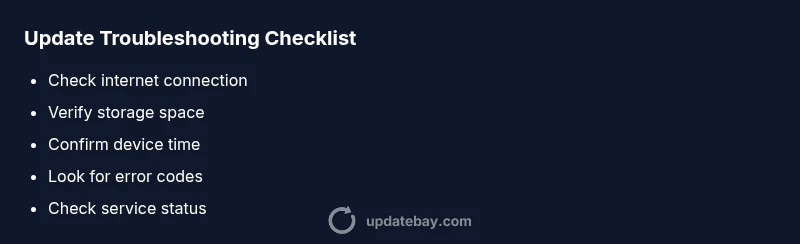
Most update failures come from connectivity problems, insufficient storage, or server-side outages. Start by confirming your internet is stable, then verify the device clock is accurate and that there is enough free storage. Retry the update, pause and resume syncing, or reboot the device. If the issue persists, check for outage notices and review any error codes shown by the updater.
Why is my update not working? A quick reality check
When you ask, why is my update not working, you’re usually facing a mix of network, storage, or server-related issues. Update Bay has observed that the most common culprits are unstable connectivity, insufficient local storage, incorrect device time, or temporary server outages. This section breaks down the typical failure modes and sets you up for a fast diagnosis with practical checks you can perform within minutes. By understanding the top failure patterns, you can cut through guesswork and land on a reliable fix fast.
Check your connectivity and device status
A stable internet connection is the backbone of most update processes. Start by testing your network speed, switching from mobile data to a trusted Wi-Fi network, or temporarily disabling VPNs or proxies. Next, ensure the device’s clock and time zone are correct, because an out-of-sync clock can cause updates to fail during authentication. If your device runs on battery, plug it in; many updates will not proceed on low power. Finally, verify there is enough free storage for the update payload and its temporary files. If space is tight, delete unused apps or move data to the cloud or an external drive.
Ensure sufficient storage and correct time
Low storage is a frequent, preventable cause of update failures. Free at least a few hundred megabytes for small updates and several gigabytes for major releases; consider clearing cache or temporary files to reclaim space quickly. Time sensitivity also matters: some updates require accurate time to validate certificates and server clocks. Make sure the date and time are set to automatic or correct for your time zone. After clearing space and syncing time, retry the update. If it still fails, proceed to the next checks.
Verify account status and permissions
Some updates require you to be logged into the correct account and to have sufficient permissions (administrative rights on a PC, or appropriate privileges on mobile devices). Confirm you are signed in with the right account and that your device is allowed to install updates from the official store or channel. Check for any pending security prompts or two-factor authentication requests that might block automatic updates. If using a managed device, verify that the management policy hasn’t paused updates.
Server-side issues and update channel settings
Even when your device is healthy, server outages or incorrect update channels can stall progress. Check the official status page for outages or maintenance notices from the service provider. If you participate in beta or insider channels, switch to the stable channel to see if the issue resolves. Sometimes, servers throttle demand; waiting 10-15 minutes and reattempting can help. If you’re on a corporate or enterprise update pathway, confirm the channel configuration with your IT admin.
How to collect logs and error messages for faster resolution
When updates fail, precise error codes save time. Open the updater’s logs or diagnostic panel to capture error codes, timestamps, and any failed file names. Take screenshots of the error dialog and note the exact message. If possible, enable extended logging for more details. These logs are valuable if you need to involve support, whether from the device manufacturer, software vendor, or Update Bay’s guidance when you report the issue.
Interpreting common error codes and what they mean
Error codes often point to specific root causes: certificates indicating trust failures, network timeout messages, or storage-related codes. Cross-reference codes with official support articles and Update Bay’s troubleshooting notes to translate cryptic messages into actionable steps. If a code implies network issues, test with a different network. If it indicates storage, revisit the free-space checks and cache clearing steps. Avoid guessing; rely on the code meaning to guide you to the right remediation.
When to contact support and what to provide
If you’ve exhausted basics and still face problems, reach out to support with your logs, device model, OS version, update version, and the exact error codes observed. Include the time of the failed attempt and any recent changes (new apps, patches, or policy updates). Having these details ready speeds up a resolution. Also, describe what you’ve already tried to prevent duplicate steps. In many cases, a support agent can push a fix or escalate to the software team.
Preventive practices to avoid future update failures
Once you’re back on track, set up preventive habits: keep devices plugged in during updates, enable automatic backups before major upgrades, and maintain an active, monitored connection. Regularly review storage usage and declutter as part of routine maintenance. If you rely on VPNs or firewalls, whitelist the updater’s domains and ports. Regularly check for updates to both your OS and critical apps so you’re not chasing out-of-date components when failures occur.
Steps
Estimated time: 30-60 minutes
- 1
Identify the symptom and gather details
Note whether the update fails with a specific error code, a frozen screen, or a slow download. Record the device model, OS version, and approximate time of failure. This diagnostic snapshot guides you through targeted fixes.
Tip: Having a clear failure snapshot saves back-and-forth time with support. - 2
Check connectivity and power
Test the network speed, switch networks if possible, and ensure the device remains plugged in if updating a battery-powered device. Disable VPNs temporarily to see if they interfere with the updater.
Tip: A quick network reset (toggle Wi‑Fi off/on) can clear minor routing hiccups. - 3
Verify storage and time
Confirm enough free space for the update payload and certificates. Set the clock to automatic or correct the time zone; an incorrect clock can cause certificate validation failures.
Tip: Even a small clock skew can cause authentication errors. - 4
Pause, resume, or restart the update
If the updater offers a pause/resume option, use it. Otherwise, restart the device, then relaunch the updater and retry the download.
Tip: A clean restart clears temporary locks and stuck processes. - 5
Test on an alternate network or device
If possible, attempt the update on a different network or a different device of the same family. This isolates whether the issue is network-related or device-specific.
Tip: Cross-device testing quickly isolates root causes. - 6
Check for outages and channel settings
Visit the service status page and confirm you’re on the correct update channel (stable vs beta). If outages are active, you may simply need to wait for service restoration.
Tip: Channel mismatches can silently block updates. - 7
Collect logs and provide details
Enable extended logging if available, save logs locally, and screenshot error messages. Compile a short report including codes and timestamps for support.
Tip: Logs are often the most decisive evidence. - 8
Apply fixes and re-test
Implement the identified fixes, then re-run the update. If it fails again, repeat the diagnostic steps with newly observed codes.
Tip: Document any new error codes for follow-up. - 9
Decide on professional help
If updates persistly fail after all steps, contact support or a certified technician. Provide your diagnostic notes and logs to expedite resolution.
Tip: Professional help saves time and prevents data loss.
Diagnosis: Update installs fail with error codes or stall during download.
Possible Causes
- highUnstable internet connection
- highInsufficient storage
- mediumServer-side outage/outage notices
- lowIncorrect device time or time zone
Fixes
- easyTest and stabilize internet connection; switch networks if needed.
- easyFree up storage by deleting unnecessary apps and files; clear cache.
- easyCheck official status pages for outages and switch update channel if needed.
- easyVerify device time/date settings and reattempt after syncing time.
Frequently Asked Questions
What should I do first when an update fails?
Begin by checking your internet connection, ensuring enough storage, and confirming the device time is correct. If needed, restart the updater or device and retry. Look for any error codes shown and search for their meaning.
Start with the basics—check connection, storage, and time. Restart and retry, then note any error codes for targeted fixes.
Why do I see 'insufficient storage' during an update?
Updates need space for the installer and temporary files. Free up space by removing unused apps and moving large files to the cloud or an external drive. After freeing space, retry the update.
You likely need more space. Free up storage, then try the update again.
Can VPNs or firewalls block updates?
Yes. Some networks block update ports or certificate checks. Temporarily disable VPNs or adjust firewall rules, then retry. If it works on a different network, the issue is network-related.
VPNs and firewalls can interfere. Try a different network or adjust settings before retrying.
Is there a safe mode to run updates?
Some devices offer a safe or minimal mode for updates to run with fewer background processes. Use it if available, then attempt the update again.
Check if your device supports a safe/update-safe mode and use it to retry.
Will updating erase my data?
Updates themselves typically don’t erase data, but major upgrades can alter configurations. Back up first, then apply updates to minimize risk.
Usually updates don’t erase data, but backups are essential before big changes.
Watch Video
What to Remember
- Diagnose with a quick fault map
- Stabilize connectivity and storage first
- Use logs/error codes to drive next steps
- Know when to seek professional help