Why Don't Automatic Updates Work on iPhone: Troubleshooting Guide
Is your iPhone failing to install automatic updates? This urgent guide from Update Bay covers storage, network, and setting fixes with clear steps to restore automatic updates.


If you’re wondering why don't automatic updates work on iphone, the answer usually comes down to a software hiccup, limited storage, or a misconfigured date/time. Start with a quick network check, verify space, and refresh Settings > General > Software Update. If it still fails, follow the diagnostic flow below.
Why automatic updates fail on iPhone
Automatic updates rely on a reliable internet connection, sufficient device storage, and correct system time. When any of these pieces are off, your iPhone may lag, pause, or skip updates. In practice, most user-facing faults begin with a simple misstep: too little free space, a weak network, or an out-of-sync clock. According to Update Bay observations, these root causes account for the majority of automatic-update woes, and fixing them often resolves the problem without more drastic actions. If you’re facing persistent issues despite addressing these basics, proceed to the diagnostic flow below.
How iPhone decides to install updates in the background
iOS checks storage, network quality, and server availability, then schedules downloads and installations during periods of low activity. If the device can't reach Apple’s servers or has insufficient space, the update is paused or postponed. Understanding these checks helps you target the real cause rather than guessing, saving time and avoiding unnecessary resets. Being mindful of background processes, like app updates running in parallel, can also impact timing and success.
Practical checks you can perform now
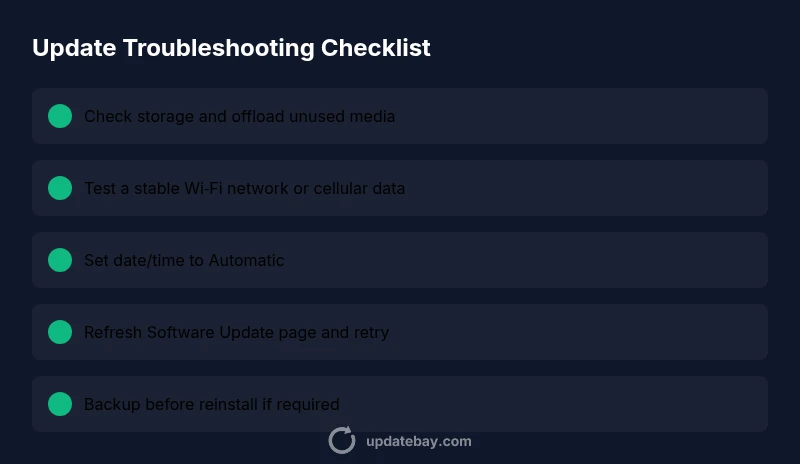
- Check storage in Settings > General > iPhone Storage and delete or offload unused apps or media to free space.
- Verify a stable network: switch to Wi‑Fi if possible, or test cellular data; disable VPNs that could interfere with traffic.
- Ensure your date and time are set to Automatic in Settings > General > Date & Time.
- Confirm you’re not in Low Power Mode and that Battery Health isn’t a red flag.
- Check Apple’s System Status page to see if update servers are experiencing issues.
- Refresh the Software Update screen by going to Settings > General > Software Update and swiping down to refresh. If available, tap Download and Install.
Advanced fixes and escalation paths
If basics are covered and updates still won’t install, try these next steps. Turn off and on the device, then reset network settings (Settings > General > Transfer or Reset iPhone > Reset > Reset Network Settings) and reattempt the update. If that fails, back up your iPhone and use Finder/iTunes on a computer to install the latest iOS version. If issues persist after a clean install, contact Apple Support.
Preventive habits for reliable automatic updates
Keep free storage, maintain a stable network, and keep your iPhone time synchronized. Regularly review app data usage and offload unused apps. Enable Automatic Updates and ensure you’re connected to trusted networks when updating. Routine maintenance reduces the odds of update failures and helps you stay on the latest iOS version.
Steps
Estimated time: 30-60 minutes
- 1
Check storage and offload media
Open Settings > General > iPhone Storage. Review large apps and media, then offload or delete items you don't need. This creates space for the update download and install.
Tip: Tip: Use the storage recommendations to identify heavy apps. - 2
Verify network stability
Switch to a trusted Wi‑Fi network or test cellular data. Disable VPNs and ensure firewall settings aren’t blocking Apple domains.
Tip: Tip: A wired network can provide more consistency if available. - 3
Set date and time to automatic
Go to Settings > General > Date & Time and enable Set Automatically. An incorrect time can block secure update handshakes.
Tip: Tip: If you travel across time zones, keep Set Automatically enabled. - 4
Refresh and retry the update
Open Settings > General > Software Update, pull down to refresh, then tap Download and Install if available. Give the device a moment after download to complete installation.
Tip: Tip: Keep the screen active and plugged in if possible. - 5
Toggle Automatic Updates and test again
In Settings > General > Software Update, turn on Automatic Updates (and Background App Refresh if applicable), then monitor for a successful update window.
Tip: Tip: If the toggle is grayed out, try a restart first. - 6
Advanced path: reset/network or reinstall
If still stuck, reset network settings or perform a clean install via Finder/iTunes after backing up. This step should be last-resort and only after data safety.
Tip: Tip: Always back up before a reinstall.
Diagnosis: iPhone won't update automatically or shows update stuck
Possible Causes
- highInsufficient storage space
- highUnreliable network connection
- mediumDate/time misconfiguration
- mediumSoftware glitch in iOS
- lowApple server outage or throttling
Fixes
- easyFree up space by removing unused apps/media
- easySwitch to a stable Wi‑Fi network or test cellular data
- easySet the date/time to Automatic
- easyRestart iPhone and force-quit Settings app
- mediumSign out of iCloud and sign back in or reset network settings
- mediumUpdate via Finder/iTunes after backing up
Frequently Asked Questions
Why won't automatic updates install on my iPhone?
Common causes include insufficient storage, unstable network, and a misconfigured date/time. Start with basic checks and then move to more advanced fixes if needed.
Common causes are storage, network, or time settings. Start with the basics and escalate as needed.
How can I force an iPhone to update manually?
Open Settings > General > Software Update, pull to refresh, and select Download and Install if available. Ensure device has enough space and a stable connection.
Open Software Update and retry the download on a stable connection.
Should I reset all settings to fix update problems?
Resetting network settings or all settings can help, but this resets Wi‑Fi passwords and preferences. Back up data before performing resets.
Reset settings can help, but back up first.
Can Apple servers cause update failures?
Yes. If Apple’s update servers are experiencing issues, updates may fail to download. Check Apple System Status before performing invasive fixes.
Server issues can block updates; check status first.
Will updating manually affect my data?
Manual updates are designed to preserve data, but it’s wise to back up your iPhone beforehand in case something goes wrong.
Back up before a manual update as a precaution.
When should I contact Apple Support?
If you’ve tried all troubleshooting steps and updates still fail, contact Apple Support or visit an Apple Store for diagnostics and potential hardware checks.
If in doubt, reach out to Apple Support for guidance.
Watch Video
What to Remember
- Troubleshoot in order: storage, network, date/time, then software.
- Manual update can bypass stuck automatic updates.
- Back up before deep fixes or reinstall.
- Persistent issues may require Apple Support.