Why Windows Updates Take So Long and How to Speed Them Up
A practical, urgent guide to diagnose why Windows updates are slow, with fast checks, step-by-step fixes, and tips to speed up future updates for Windows users.


Most Windows updates take long because a large, fragmented update file set meets tight disk space and network constraints. The update service may stall while verifying components or repairing corrupted data. Quick fixes: run the Windows Update Troubleshooter, free disk space, pause other bandwidth-heavy tasks, and restart the update service before retrying the installation.
Why is a Windows Update taking so long? The dynamics of update size and system load
You may wonder, why is a windows update taking so long, and the answer hinges on update package size, disk speed, and network conditions. According to Update Bay, large cumulative updates plus a slow hard drive can stretch the total time well beyond a simple reboot. The Update Bay team found that even a minor bottleneck—such as a VPN or a congested network—can push a routine update into hours of processing. Understanding these factors helps you target the bottleneck quickly and avoid wasted time on futile fixes.
The Windows update mechanism is designed to minimize risk: it downloads content, verifies signatures, installs in stages, and sometimes performs repairs on system files. When any stage slows down, the overall duration lengthens. For many users, the simplest path to relief is to remove competing workloads, confirm enough free disk space, and allow the update service to run without interruptions. Keeping expectations realistic and using a structured approach speeds things up considerably.
Common culprits that extend update times
- Large, cumulative updates: new features and patches patch many components at once, increasing download and install time.
- Disk performance: slow SSD/HDD or a nearly full drive slows read/write operations and can throttle the entire process.
- Network bottlenecks: unstable connections, VPNs, or proxy filtering can cap download speed.
- Background processes: antivirus scans and heavy disk I/O can stall update steps.
- Corrupted update components: a broken cache or service state can force retries.
- System health: underlying issues like corrupted system files or driver mismatches can extend verification and repair stages.
Understanding each factor helps you identify where to start, rather than guessing. The goal is to isolate the dominant bottleneck and apply a targeted fix, as emphasized in our troubleshooting guides at Update Bay.
How the update process actually works on Windows
The Windows Update journey begins with a download phase where the system fetches patches in the background. Next, Windows verifies the cryptographic signatures to protect against tampered files. The installation phase then applies updates, which may trigger restarts and, in some cases, repairs to broken components. If verification fails or if there are pre-existing system issues, Windows may revert to a safe state and retry later. This layered approach is designed to minimize risk but can increase total time when problems arise. Recognizing these stages helps you choose the right diagnostic steps rather than randomly rebooting.
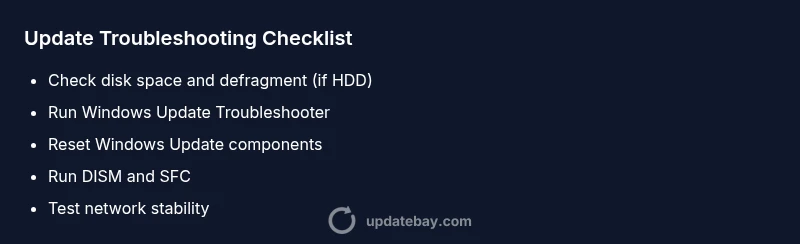
For many users, the most impactful steps are checking disk space, ensuring a stable network, and running built-in troubleshooters to repair or reset components. Update Bay’s practical advice emphasizes a methodical approach: identify the bottleneck, apply a safe fix, and re-test the update to confirm success.
Quick checks you can perform right away
- Verify free disk space: aim for at least 20–30% free space on the system drive.
- Check network stability: run a speed test and disconnect VPNs temporarily during the update.
- Run Windows Update Troubleshooter: built-in tool that detects and fixes common issues.
- Pause other heavy network usage: streaming, cloud backups, or large file transfers can throttle bandwidth.
- Temporarily disable nonessential security scans: rely on real-time protection but pause full scans during updates.
If these checks don’t yield results, proceed with deeper fixes in the next sections. Remember to back up important data before performing significant changes, as a safety precaution.
Steps
Estimated time: 60-90 minutes
- 1
Pause updates and check prerequisites
Open Windows Update settings and pause updates to prevent partial installations. Check that the device has enough battery or is plugged in, and ensure you’re connected to a stable network. This sets a safe baseline before deeper fixes.
Tip: Pause only to perform checks, then resume to avoid missing critical security updates. - 2
Free up disk space and optimize storage
Delete temporary files, run Disk Cleanup, and consider moving large files to another drive or cloud storage. A cleaner drive reduces read/write contention during update installation.
Tip: Aim for at least 20–30% free space on C: if possible. - 3
Run Windows Update Troubleshooter
Execute the built-in troubleshooter (Settings > Update & Security > Troubleshoot) to automatically detect problems with the update stack and apply recommended fixes.
Tip: If the troubleshooter offers to reset components, accept it to resolve stubborn issues. - 4
Reset Windows Update components
Stop services (wuauserv, bits), delete the SoftwareDistribution folder contents, then restart services and retry the update.
Tip: Do not delete system folders other than SoftwareDistribution to avoid further issues. - 5
Run DISM and SFC scans
Open an elevated command prompt and run DISM /Online /Cleanup-Image /RestoreHealth followed by sfc /scannow to repair corrupted files that block updates.
Tip: If DISM fails, retry with a restart and try again in Safe Mode." - 6
Perform a clean boot and test network
Disable non-essential startup apps and services, then attempt the update to see if third-party software is causing delays.
Tip: Re-enable items one-by-one to identify the culprit. - 7
Retry the update and monitor progress
Reinitiate Windows Update, allow it to complete, and watch for any repeating stalls. If it still stalls, proceed to more advanced fixes.
Tip: Avoid interrupting the update once it’s resumed to reduce risk of corruption. - 8
Post-update checks and reboot
After a successful update, run a quick health check (system integrity, driver status) and perform a reboot to finalize changes.
Tip: Keep a note of the update version for future reference.
Diagnosis: Windows Update stalls or takes excessively long to complete
Possible Causes
- highLarge cumulative updates with many components
- highInsufficient disk space or slow disk performance
- mediumUnstable or limited network bandwidth
- mediumCorrupted Windows Update components or system files
- lowConflicting background software (antivirus, other disk I/O)
Fixes
- easyRun the Windows Update Troubleshooter to automatically detect and repair common update issues
- easyFree up disk space and close bandwidth-heavy applications during the update
- mediumReset Windows Update components (stop services, delete cache, reinitialize)
- mediumRun DISM and SFC scans to repair system files and component store
- easyPerform a clean boot to minimize software conflicts during updates
Frequently Asked Questions
Why does a Windows update sometimes take hours to complete?
Updates can take longer when the installer handles large, multi-component packages, the drive is slow or full, or the network is unstable. Background security scans and corrupted update components can also extend the process. A structured approach helps isolate the bottleneck and resolve it efficiently.
Updates can take hours if the package is large, the drive is slow, or the network is unstable. Follow a structured troubleshooting order to resolve it.
What should I do first if an update is stuck?
First, pause the update, check network stability, and free disk space. Run the Windows Update Troubleshooter and retry. If it remains stuck, move on to resetting update components and scanning system files.
Pause, check network, free space, then run the troubleshooter and retry. If stuck, reset components and scan system files.
Can antivirus software slow Windows updates?
Yes, real-time antivirus scans can slow updates by scanning new files as they download or install. Consider temporarily pausing non-critical scans during the update window, then resume afterward.
Antivirus scans can slow updates; pause non-critical scans during the update and resume after.
Is it safe to reset Windows Update components?
Yes, when done carefully. Resetting components clears cached data and can resolve many update failures. Follow step-by-step instructions to avoid deleting the wrong files.
Resetting is safe if you follow the steps precisely; it often fixes stubborn update issues.
Should I perform a clean boot for updates?
A clean boot helps identify software conflicts by starting Windows with a minimal set of drivers and startup programs. If updates succeed in clean boot, re-enable items gradually to pinpoint the conflict.
A clean boot helps you find conflicts. If updates work, re-enable items one by one to identify the culprit.
When should I seek professional help?
If updates continue to fail after trying the standard fixes, or if you’re seeing persistent error codes, it’s wise to consult a technician or Microsoft support to avoid data loss or further issues.
If updates still fail after trying the steps, consider professional help to prevent data loss and further problems.
Watch Video
What to Remember
- Start with simple checks to identify bottlenecks
- Free disk space and secure stable bandwidth first
- Run built-in troubleshooters before deep repairs
- Back up data before major repairs
- Apply updates and reboot to finalize fixes