Windows Update Are Stuck: Fast Fixes and Troubleshooting
Urgent guide to fix Windows Update are stuck issues. Learn practical steps, checks, and methods from an expert Update Bay approach to get updates installed again without unnecessary downtime.


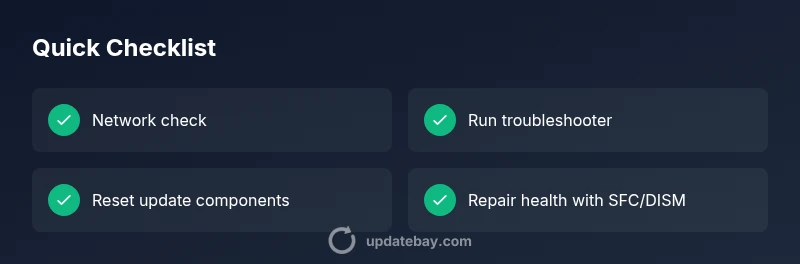
Most likely, the problem falls on a flaky network, a paused or blocked Windows Update service, or corrupted update components. Start with a fast triage: confirm a stable internet connection, temporarily disable VPNs, and run the built-in Windows Update Troubleshooter. If needed, reset the Windows Update components and verify disk space. For stubborn cases, consider a repair install to preserve apps and data.
Why the Windows update are stuck and what it means
windows update are stuck scenarios are more common than you might think and usually show up as a progress halt at 0%, 30%, or 99%. According to Update Bay, the most frequent culprits are network hiccups, Windows Update service issues, or corrupted cached files from prior attempts. In many cases, the fix is quick and repeatable if you follow a disciplined diagnostic flow. The goal is to restore a healthy update pipeline without resorting to a full OS reinstall. Recognizing the pattern and following the steps below can save you time and reduce downtime for your device and work.
Start with quick checks you can do right now
Before diving into deeper fixes, run through these fast checks. They address the most common causes of windows update are stuck occurrences and can often resolve the issue within minutes:
- Verify your internet connection is stable and not subject to throttling or a metered limit.
- Temporarily disable VPNs or firewalls that might interfere with update traffic.
- Ensure your system clock and time zone are correct, as mismatches can block secure update channels.
- Check disk space and remove unnecessary files if the drive is nearly full.
- Pause or defer other large transfers to prioritize the update process.
If these quick checks don’t resolve the problem, move to the built-in troubleshooter and service checks.
Check the Windows Update service and related components
The Windows Update service (wuauserv) and ancillary services like Background Intelligent Transfer Service (BITS) and cryptographic service (cryptsvc) must be running in the right state. If any of these services are stopped, set them to Automatic and start them. Look for stalled update queues in the SoftwareDistribution folder and consider clearing the cache after stopping the services. This step addresses many cases where windows update are stuck due to stale data or blocked services.
Run the official Windows Update troubleshooter and repair tools
Microsoft’s built-in troubleshooter is designed to identify common issues that prevent Windows Update from progressing. Run Settings > Update & Security > Troubleshoot > Additional troubleshooters > Windows Update. Follow the prompts to detect problems with the update components, then apply recommended fixes. It’s a safe first step that often resolves windows update are stuck when caused by minor misconfigurations.
Reset Windows Update components and clear cached data
If the troubleshooter doesn’t fix the problem, reset the update components: stop services related to Windows Update (wuauserv, bits, cryptsvc, msiserver), rename the SoftwareDistribution and Catroot2 folders, re-register update DLLs, and restart the services. This effectively clears corrupt or partial update data that might be blocking progress. Expect to re-run Windows Update after this reset to fetch fresh files.
Check system health: SFC, DISM, and disk cleanup
Corrupted system files can block updates. Run System File Checker (sfc /scannow) and Deployment Image Servicing and Management (DISM /Online /Cleanup-Image /RestoreHealth) to repair Windows images. While these run, perform Disk Cleanup to reclaim space and remove temporary files. A cleaner environment often resolves situations where windows update are stuck due to file system issues.
Consider a clean boot and driver checks for conflicts
If third-party software or drivers are interfering with updates, perform a clean boot to load only essential services and startup items. Then run Windows Update again. Also check for driver updates from the manufacturer’s site for components that frequently interact with updates ( chipset, storage, and network adapters ). Conflicts can manifest as windows update are stuck at various stages.
Advanced path: repair install or reset this PC if necessary
When standard fixes fail, an in-place upgrade (repair install) preserves applications while repairing Windows. This is a safe, non-destructive operation that often resolves stubborn updates. If all else fails, you can opt for a full reset, but back up your data first. This approach should be a last resort after exhausting simpler remedies.
Prevention: how to reduce the chances of future update stalls
Regular maintenance helps prevent windows update are stuck scenarios. Keep drivers current, maintain free disk space, and schedule periodic checks of your update settings. Avoid risky third-party software modifications during update windows, and run a monthly DISM/SFC check to keep the OS healthy.
Steps
Estimated time: 60-90 minutes
- 1
Back up and prepare
Save important work and plug in the power adapter. Ensure you have admin rights to modify system settings. Create a quick restore point if possible.
Tip: A restore point can save you from unexpected changes. - 2
Check network and pause other activity
Confirm a stable connection, pause large downloads, and disable VPNs temporarily. Retry Windows Update after stabilizing network conditions.
Tip: A stable connection dramatically improves success rates. - 3
Run the Windows Update troubleshooter
Open Settings > Update & Security > Troubleshoot > Additional troubleshooters > Windows Update. Apply any recommended fixes and retry the update.
Tip: Troubleshooter is designed for common misconfigurations. - 4
Reset Windows Update components
Stop services, rename SoftwareDistribution and Catroot2, re-register DLLs, and restart services. Then start Windows Update again and check for updates.
Tip: Renaming folders forces a clean cache. - 5
Scan and repair system files
Run sfc /scannow and DISM to fix corrupted files that block updates. Reboot and attempt the update again.
Tip: These tools fix integrity issues that can block updates. - 6
Free up disk space
Use Disk Cleanup or Storage Sense to remove temporary files and old update chunks. Ensure at least a few GBs are free.
Tip: Low disk space is a common, overlooked blocker. - 7
Perform a clean boot
Disable non-essential startup items and services, then retry updates. If updates succeed, re-enable items gradually to identify the culprit.
Tip: isolates software conflicts quickly. - 8
Repair install if needed
Run an in-place upgrade using the Windows installation media to repair system files without removing apps.
Tip: This preserves your apps and data while fixing core OS issues.
Diagnosis: Windows Update gets stuck during download or installation
Possible Causes
- highPoor or unstable network connection
- highWindows Update service not running or blocked
- mediumCorrupted update components or cached data
- lowInsufficient disk space
- lowDriver or software conflicts during update
Fixes
- easyCheck network connection and disable VPNs, then retry updates
- easyRun Windows Update Troubleshooter from Settings
- mediumReset Windows Update components (BITS, cryptSvc, msiserver, etc.) via Command Prompt
- easyFree up disk space and run Disk Cleanup
- mediumPerform a clean boot to identify software conflicts
- hardIf needed, perform a repair install (in-place upgrade) to preserve apps
Frequently Asked Questions
Why is Windows Update stuck during installation?
Windows Update can get stuck due to network issues, service blocks, or corrupted update data. Following a structured flow helps identify whether the problem is environmental or internal to the update process.
Common causes are network problems or corrupted update data; start with network checks and the built-in troubleshooter.
How do I fix Windows Update stuck at 0%?
Begin with a stable network and run the Windows Update troubleshooter. If needed, reset update components, free disk space, and run SFC/DISM to repair the image.
If updates are stuck at 0%, check connectivity and run the built-in troubleshooter, then reset components if needed.
Can I safely cancel or pause an update in progress?
It's usually safe to pause updates temporarily, but canceling ongoing installations can leave the system in a non-ideal state. After pausing, resume and follow recommended troubleshooting steps.
Pausing is sometimes possible, but avoid abrupt cancellations during critical install steps.
Should I disable antivirus or firewall during updates?
Disabling security tools is not generally required and can expose your system. If a specific conflict is identified by official guidance, disable temporarily and re-enable afterward.
Only disable security tools if it's explicitly advised, then re-enable right away.
When should I consider a repair install?
A repair install preserves apps and data while fixing Windows core files. It's a strong option after basic fixes fail and before a full reset.
Repair install is a solid middle-ground fix if simple steps don’t work.
Is a reset portable across devices?
A reset is highly device-specific and can remove apps and settings. Back up first and choose reset options carefully to minimize data loss.
Reset options can affect programs and data, so back up before proceeding.
What if nothing works during business-critical updates?
If updates are essential for business continuity and standard fixes fail, contact a professional or perform a controlled repair install with a backup strategy.
If business updates fail, seek professional help or perform a careful repair install with backups.
How long should Windows Update take after fixes?
Update duration varies by system and network. After fixes, run updates in a quiet window and monitor progress, allowing a reasonable amount of time for completion.
Time varies; give updates a dedicated window and monitor progress.
Watch Video
What to Remember
- Start with basic connectivity and Troubleshooter checks.
- Reset update components to clear corrupted caches.
- Use a repair install as a last resort to preserve data.
- Maintain regular maintenance to prevent future stalls.