Why Is Windows Update Not Downloading? A Comprehensive Troubleshooting Guide
Urgent: practical, step-by-step fixes for why Windows Update not downloading. Diagnose network, services, disk space, and components with safe, proven methods.


If you're wondering why is windows update not downloading, the answer usually points to four culprits: weak network, paused or blocked Windows Update service, insufficient disk space, or corrupted update components. Start with a quick check of your connection, then restart the Update service, free space, and run the built-in troubleshooter. Proceed to the diagnostic flow for deeper fixes.
Why this happens with why is windows update not downloading
In many cases, the prompt why is windows update not downloading isn't about a single bad file; it's about conditions on your PC. According to Update Bay, most problems fall into four categories: network issues, Windows Update service status, disk space, and component corruption. If your device can't reach Microsoft's update servers, downloads stall or fail with error messages. The first step is to confirm basic readiness: a stable internet connection, correct date/time, and no VPN interfering; then check that essential services are enabled.
- Common symptoms include stalled downloads, recurring error codes, or updates queuing without progress.
- Always check for pending reboots, since a restart may clear the queue and allow fresh downloads.
Quick Checks to Run Before Deep Troubleshooting
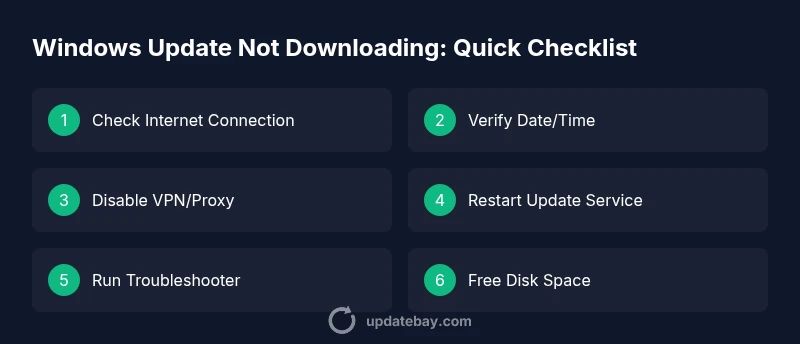
Before diving into deeper fixes, perform quick checks that often resolve the issue of why is windows update not downloading. Start with your internet: test speed, stability, and whether other devices can download updates. Temporarily disable VPNs or proxies to rule out interference, and verify your system clock and time zone. If you're on a laptop, plug in power to avoid power-saving interruptions during large downloads. These simple steps often fix blocking conditions without changes to settings.
Verify Windows Update Service and Background Services
The Windows Update service (wuauserv) and the Background Intelligent Transfer Service (BITS) must run for downloads to proceed. If either is paused or stopped, updates won't download. Open Services (type services.msc in Run), find the two services, set to Automatic (Delayed Start) for wuauserv and Automatic for BITS, then click Start. If you encounter errors starting them, note the error code and look up official guidance. After services restart, retry Check for updates.
Free Up Disk Space and Check Storage Health
Windows updates download to a temporary location before installation, so insufficient disk space can stall progress. Check your main drive (usually C:) for available space; aim for at least 20–25 GB free for feature updates. Use Disk Cleanup or Storage Sense to remove unnecessary files, and consider moving large files to another drive or external storage. A fragmented or nearly full drive can also slow downloads and cause failures.
Run the Windows Update Troubleshooter and Clear Update Cache
Microsoft's built-in troubleshooter can automatically detect and fix common update problems. Open Settings > Update & Security > Troubleshooter > Additional troubleshooters > Windows Update. Run the tool and follow prompts. If problems persist, reset the Windows Update components: stop services, delete software distribution files, and restart services. This clean slate often resolves download stalls caused by corrupted cache files.
Check for Conflicts: Antivirus, Firewall, and Driver Issues
Security software and network filters can block Windows Update downloads. Temporarily disable antivirus real-time protection and firewall rules (remember to re-enable them afterward). If you recently installed drivers or third‑party software, test by performing a clean boot to see whether it affects updates. Some software packages can trap update traffic in the background; disabling them during the update window helps verify the root cause.
Advanced Fixes: Reset Update Components (Hard) and Re-try
If basic steps fail, you can perform advanced resets of Windows Update components. Open Command Prompt as administrator and run a series of commands to stop services, rename update folders, reset BITS and cryptographic services, then reboot. Then try Windows Update again. This method resolves stubborn, corrupted component states that prevent downloads from starting. Remember to back up important data before major resets.
When to Seek Help and What to Expect
If updates still won't download after all the above steps, you may be facing a deeper Windows issue or server-side problem. Consider contacting Microsoft Support or visiting their community forums for error-specific guidance. Have your update history, error codes, and system information ready. Professional support can help you identify hardware compatibility issues or corrupted user profiles that blocks updates.
Prevention: Keep Windows Healthy to Avoid Download Issues
Regular maintenance reduces the chance of future update problems. Schedule periodic space checks, run the troubleshooter after major installs, and keep drivers up to date from official sources. Ensure a stable internet connection, avoid aggressive VPN use during updates, and reboot after significant changes to clear caches. Proactive maintenance makes updates download faster and install more reliably.
Steps
Estimated time: 60-90 minutes
- 1
Check Internet Connection
Verify your device has a stable connection. Run a speed test, try loading a website, or download a small file to confirm reliability. If you notice drops, switch to a wired connection or move closer to the router. A flaky connection is a frequent root cause of stalled downloads.
Tip: If you’re on Wi‑Fi, reboot the router and reconnect. - 2
Verify Date, Time, and Time Zone
Incorrect system time can break certificate validation and prevent updates from downloading. Set time automatically or manually adjust to a correct value. Ensure the time zone matches your location.
Tip: After adjusting, open a browser to confirm certificate-based sites load normally. - 3
Disable VPN/Proxy Temporarily
VPNs and proxies can interfere with update servers. Temporarily disable them to test if updates proceed. If updates start, re-enable VPN with a direct path to Windows Update.
Tip: Document your original settings so you can reapply them safely. - 4
Restart Windows Update Service and BITS
Open Services, locate wuauserv and BITS, set to Automatic, then restart both services. After they’re running, return to Windows Update and try again.
Tip: If a service won’t start, note the error code for lookup. - 5
Run Windows Update Troubleshooter
Navigate to Settings > Update & Security > Troubleshoot > Additional troubleshooters > Windows Update. Run the tool and apply suggested fixes.
Tip: Some issues require a follow-up reboot to take effect. - 6
Reset Update Components
If problems persist, reset update components by stopping services, renaming the SoftwareDistribution and Catroot2 folders, and restarting services.
Tip: Follow exact commands from the official guide to avoid mistakes. - 7
Free Up Disk Space
Check drive C: for space; delete or move nonessential files. Use Disk Cleanup or Storage Sense and consider extending or adding storage if space remains tight.
Tip: Aim for 20–25 GB free space for major feature updates.
Diagnosis: Windows Update fails to download or stalls during the download process
Possible Causes
- highWeak or unstable internet connection
- highWindows Update service is not running or is blocked
- mediumInsufficient disk space on the system drive
- mediumCorrupted Windows Update components or cache
Fixes
- easyTest your network speed and stability; reconnect to a reliable connection and try again
- easyRestart the Windows Update service and BITS; then retry update check
- easyRun the Windows Update Troubleshooter and perform a Reset Windows Update Components
- easyFree up disk space and perform Disk Cleanup / Storage Sense
- hardReset Windows Update components via Command Prompt (net stop wuauserv, etc.)
Frequently Asked Questions
Why is Windows Update not downloading on my PC?
Common causes include connectivity problems, an inactive or blocked Windows Update service, insufficient disk space, and corrupted update components. Following a structured troubleshooting flow usually resolves the issue.
Common causes are connectivity, update service, space, or corrupted components. Start with the basics and then move to component resets if needed.
What should I check first when updates won't download?
Check your internet connection, ensure the Windows Update service is running, verify your clock is correct, and confirm you’re not blocked by a VPN or firewall.
First check your connection and that the update service is active.
How do I reset Windows Update components?
Open Command Prompt as administrator and run a sequence to stop services, delete cache files, and restart services. Then try updating again.
Use the reset commands in an elevated prompt, then retry updates.
Can antivirus interfere with Windows Update?
Yes, security software can block update traffic. Temporarily disable real-time protection during the update, then re-enable it.
Security software can block updates; test with it temporarily disabled.
Is there a safe way to free up disk space for updates?
Yes. Use Disk Cleanup or Storage Sense, delete temporary files, and store large files elsewhere to free space for updates.
Freeing space helps updates download and install smoothly.
When should I contact Microsoft Support?
If you've followed the full troubleshooting flow and updates still won’t download, contact Microsoft Support and share error codes and system details.
If all steps fail, reach out to Microsoft Support with your error codes.
Watch Video
What to Remember
- Verify internet and system time first.
- Restart update services before deeper fixes.
- Use the built-in troubleshooter for quick wins.
- Ensure disk space before heavy downloads.
- Reset update components only if other steps fail.