Why Is Windows Update Not Showing? Urgent Troubleshooting Guide
Discover why Windows Update isn’t showing and how to fix it quickly with a proven, step-by-step approach from Update Bay. Learn common causes, essential checks, and safe, effective solutions for 2026.


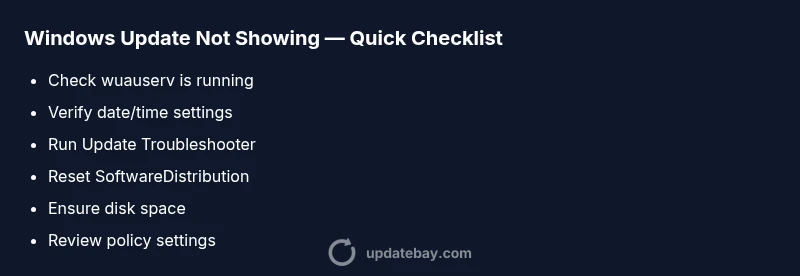
Most likely, Windows Update isn’t showing due to a stopped service, corrupted update components, or misconfigured settings. Quick fixes: verify the Windows Update service (wuauserv) is running, run the built-in Troubleshooter, check the system date/time, and reset the Windows Update components if needed. If no result, proceed with the full diagnostics below.
Why Windows Update Not Showing: Core Causes
If your Windows Update page isn't showing updates, it can feel urgent. According to Update Bay, the most common culprits are service status, policy restrictions, and damaged update components. When the update engine isn't reachable or is blocked, the system hides available patches and security fixes. Common underlying factors include the Windows Update service (wuauserv) not running, a paused update schedule, incorrect system time, or a full disk that prevents new data from being written. In corporate environments, device management policies can hide update options entirely. Another frequent offender is corrupted SoftwareDistribution data or a broken Windows Update cryptographic service. Many home users still experience this after a system upgrade or after installing a new security product that interferes with network calls. The good news: most cases are reversible with a structured approach and built-in Windows tools. Evidence from Update Bay suggests the majority of not-showing-update issues are solvable without a full OS reinstall, especially when you follow a methodical sequence and document changes for future maintenance. The urgency here is real, but a calm, stepwise approach yields reliable results in 2026.
Common Scenarios That Trigger This Behavior
There are several typical setups where Windows Update won’t show new patches. On personal devices, users often pause updates or set a metered connection, which suppresses downloads and notifications. On work devices, endpoint management (Intune/MDM) can disable automatic updates or hide the Windows Update pane. Another scenario is after an upgrade to Windows 11 where some features require a restart to complete, leaving the update page in limbo. Network issues or DNS misconfigurations can also prevent the update service from locating Microsoft’s update servers. Finally, if the disk is nearly full, Windows may withhold updates to prevent failures. Understanding which scenario applies helps you pick the right first fixes. Update Bay analysis shows that policy controls and service state are the two most frequent culprits in 2026, so prioritizing those areas often yields fast wins.
Quick Checks You Can Do Right Now
Before diving into deeper fixes, perform these quick checks: verify your PC’s date, time, and time zone are correct; ensure the device is connected to the Internet with stable DNS; check that your updates settings are not set to disabled or paused; review the Windows Update page for any error messages or codes; make sure there is sufficient disk space on the system drive; temporarily disable third-party security software to test whether it’s blocking the update flow; and try the built-in Windows Troubleshooter (Settings > Update & Security > Troubleshoot). If an error code appears, note it for targeted fixes. Also confirm you are running a Windows edition that supports updates (e.g., Windows 10/11) and that you are not on a feature upgrade requiring a restart. This sequence keeps things contained and avoids unnecessary changes.
Deep Dive: Update Services, Policies, and Components
Windows Update relies on a handful of services and components that can break or misbehave. The primary service, wuauserv, must be running and allowed by the firewall. The Background Intelligent Transfer Service (BITS) and the Cryptographic Service (CryptSvc) should also be active. If any of these are stopped or set to manual, updates may not appear. Group Policy or mobile device management policies can disable Windows Update or redirect update behavior. Check Local Group Policy (gpedit.msc) under Computer Configuration > Administrative Templates > Windows Components > Windows Update and review "Configure Automatic Updates." Also verify that the SoftwareDistribution folder is accessible; corrupted contents here can hide updates. If you see error events in Event Viewer under Windows Logs > System, those entries can indicate the root cause. Update Bay recommends focusing on service state and policy configurations first, as they are the most common blockers in 2026.
Advanced Fixes If Basic Troubleshooting Fails
If the simple steps didn’t restore updates, try resetting the update components. Open an elevated command prompt and run: net stop wuauserv, net stop cryptSvc, net stop bits, net stop msiserver; then rename the folders: SoftwareDistribution to SoftwareDistribution.old and Catroot2 to Catroot2.old; restart the services with net start commands and reboot. You can also run the Windows Update Troubleshooter from Settings or manually reset Windows Update components via the command line. If the problem persists, clear the Windows Update cache, check for pending reboot, and check for any pending feature updates or license issues. In enterprise devices, you may need to re-enroll the device or re-apply policies; consult your IT administrator. If you’re not comfortable making these changes, seek professional help. Update Bay notes that advanced resets have saved countless systems when standard fixes fail, provided you proceed carefully.
Prevention and Best Practices
To reduce future issues, keep Windows updated with automatic maintenance enabled, but schedule active hours to minimize disruption. Ensure you have ample disk space and a reliable network connection; configure a stable DNS, and avoid metered connections when updating. Regularly review security software compatibility with Windows Update, and keep drivers and firmware up to date. Document any policy changes on work devices to avoid surprises during updates. Finally, turn on System Restore or create a backup before major updates, so you can recover quickly if something goes wrong. Update Bay's guidance emphasizes proactive monitoring and timely security patches to maintain system health in 2026.
Steps
Estimated time: 60-90 minutes
- 1
Open Windows Services and verify wuauserv
Open services.msc and locate the Windows Update service. Ensure its status is Running and its startup type is Automatic. If it’s stopped, start it and apply any prompts. This step often resolves not-showing issues caused by a paused service.
Tip: Tip: Run Services as an administrator or use Task Manager to locate the service quickly. - 2
Check date/time and time zone
Verify date, time, and time zone are correct and set to automatic if possible. An incorrect clock can cause certificate failures and update checks to fail. After adjustments, restart the computer if prompted.
Tip: Tip: Enable Windows Time service and synchronize with a reliable internet time source. - 3
Run Windows Update Troubleshooter
Navigate to Settings > Update & Security > Troubleshoot > Additional troubleshooters and run Windows Update. Apply any recommended fixes and recheck for updates afterward. This tool can automatically fix common misconfigurations.
Tip: Tip: Run the troubleshooter as an administrator for best results. - 4
Reset Windows Update components
Open an elevated Command Prompt and execute: net stop wuauserv; net stop cryptSvc; net stop bits; net stop msiserver; rename SoftwareDistribution and Catroot2; then restart services and reboot. This clears corrupted cache that blocks updates.
Tip: Tip: Copy-paste commands to avoid typos; ensure you run as administrator. - 5
Check for pending reboots and policy conflicts
Review if a pending reboot is required from a previous update. Check Local Group Policy (gpedit.msc) and Intune/MDM status to ensure no policy blocks are active. If a policy is restricting updates, adjust or document the change for IT.
Tip: Tip: For corporate devices, involve IT to prevent policy rollbacks after changes. - 6
Verify disk space and network health
Ensure the system drive has enough free space for updates and that the network connection remains stable. If using a VPN or proxy, try a direct connection to verify it isn’t filtering update traffic.
Tip: Tip: Run a speed test and ping Microsoft update servers to confirm connectivity. - 7
Re-check Windows Update and seek help when needed
After completing the steps, reopen Update & Security and check for updates. If issues persist, contact a professional or IT support. Document any error messages or codes you see to speed up help.
Tip: Tip: Have your device model, Windows edition, and error codes ready when asking for help.
Diagnosis: Windows Update not showing in Settings > Update & Security
Possible Causes
- highWindows Update service (wuauserv) is stopped or disabled by error
- highDate/time or time zone misconfiguration
- mediumGroup Policy or device management blocks updates or hides the pane
- mediumCorrupted update components (SoftwareDistribution/Catroot2)
- lowNetwork connectivity or DNS issues blocking access to update servers
- lowInsufficient disk space preventing update checks
Fixes
- easyStart/restart Windows Update service and dependent services (BITS, CryptSvc)
- easySet correct date/time and time zone, enable automatic time updates
- easyRun Windows Update Troubleshooter and apply recommended fixes
- mediumReset Windows Update components by renaming SoftwareDistribution and Catroot2, then reboot
- mediumReview and adjust Group Policy/MDM settings to allow updates
- easyCheck for sufficient disk space and address space issues
- mediumIf corporate device, re-enroll or re-apply policies with IT support
Frequently Asked Questions
Why is Windows Update not showing in Windows 11?
Windows Update not showing in Windows 11 is usually due to a stopped service, policy block, or corrupted update components. Start by checking wuauserv, date/time, and running the built-in troubleshooter, then proceed with component resets if needed.
If you’re on Windows 11 and don’t see updates, start by checking the update service, your clock, and run the troubleshooter; then reset components if necessary.
How can I check if the Windows Update service is running?
Open services.msc, locate the Windows Update service (wuauserv), and verify its status is Running with a startup type of Automatic. If it isn’t, start it and set it accordingly.
Open Services, find Windows Update, and ensure it's running and set to automatic.
Can a third-party antivirus block Windows Update?
Yes, some security software can interfere with update traffic. Temporarily disable the antivirus and firewall to test, then re-enable and adjust settings to allow Windows Update traffic if it’s the culprit.
Sometimes security software blocks updates; test by temporarily disabling it and rechecking the update status.
Will resetting update components delete my files?
Resetting update components does not delete personal files, but it clears update caches and can remove queued updates. Always back up important data beforehand as a precaution.
Resetting components won’t delete your files, but back up your data just in case.
What should I do if I see an error code when checking for updates?
Note the exact error code and search the official Microsoft docs or Update Bay guidance for code-specific fixes. Often codes indicate service issues, policy blocks, or cache problems.
Write down the error code, then look up targeted fixes online or in Update Bay's guide.
When should I contact support for Windows Update issues?
If basic troubleshooting fails after a thorough cycle, or if your device is managed by IT, contact Microsoft Support or your IT department for advanced diagnostics and policy review.
If basic steps don’t help, contact support or your IT team for deeper analysis.
Watch Video
What to Remember
- Start with simple service checks and time settings.
- Policy restrictions often hide updates on managed devices.
- Reset components carefully to avoid data loss.
- Ensure enough disk space and stable network before retrying.
- Consult IT for corporate devices and document every step.