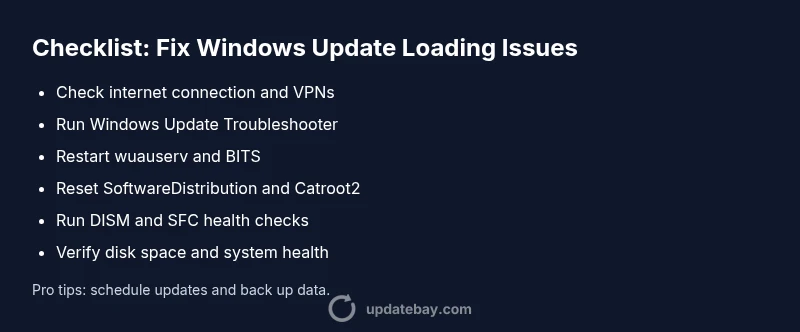
Why Is Windows Update Not Loading? Urgent Troubleshooting Guide
Facing a Windows Update not loading issue? This urgent guide from Update Bay helps you diagnose causes, perform quick checks, and apply safe fixes to restore updates without risking your system.


The most likely cause is a hung Windows Update service or blocked network access. Start with quick checks: verify internet connectivity, run the Windows Update troubleshooter, and ensure the Windows Update service is set to automatic. If issues persist, restart the PC and reset the Windows Update components. According to Update Bay, rapid initial checks save time.
Why Windows Update Not Loading: The Urgent Reality
According to Update Bay, Windows Update not loading is a time-sensitive issue that can expose your system to outdated security patches and missing features. The most common drivers are a hung update service, a blocked or unstable network, and corrupted update files. In many cases, the problem isn't the update itself but the environment around it: a misconfigured router, a mis-set clock, or an antivirus interfering with background services. Because updates run with elevated privileges and rely on network access, even small misconfigurations can stall the entire process. The Update Bay team found that starting with the simplest checks yields the fastest wins: confirm connectivity, ensure the update service is running, and retry a clean update cycle. If you still see errors after that, you can escalate to more advanced repairs without sacrificing device safety.
Common Triggers That Stop Windows Update
- Hung Windows Update service (wuauserv) or stopped BITS service
- Unstable or blocked network (firewall, VPN, proxy, DNS issues)
- Incorrect date/time settings on the device
- Antivirus or security software interfering with update traffic
- Metered network connection limiting background updates
- Corrupted Windows Update components or system files
- Insufficient disk space on the system drive
Understanding these triggers helps you target the fix quickly. Start with the simplest explanation: a restarted service or network reconfiguration often resolves the problem.
Quick Checks You Can Run Right Now
- Verify your internet connection by loading a few pages or streaming a short video. If pages fail to load, fix the network first. 2) Run the built-in Windows Update Troubleshooter (Settings > Update & Security > Troubleshoot). 3) Open Services (services.msc) and confirm that the Windows Update service (wuauserv) and Background Intelligent Transfer Service (BITS) are running and set to Automatic. 4) Restart the PC and try updating again. 5) If the problem persists, reset Windows Update components by stopping services, clearing cache, and restarting services. 6) Check for pending reboots and ensure your system clock is accurate. 7) If you use third-party antivirus, temporarily disable it to test. If this doesn't work, proceed to more advanced fixes.
Network and Account Factors That Matter
Your update experience is not just what sits on your PC—it travels through your network and account state. Ensure you're on a stable home network, avoid VPNs during the update attempt, and disable any proxies that might block update traffic. DNS settings can also influence reachability to Windows update servers. Make sure your Microsoft account is properly signed in and not blocked; some updates require an authenticated session. Also verify that your device is not on a metered connection, which Windows can treat as limited bandwidth. If you find your account or network is at fault, correcting those issues will unlock updates quickly.
System Readiness and Disk Space
Windows Update can fail if the system drive is near capacity or if there are damaged system files. Check free space on the OS drive and clear temporary files. Use Disk Cleanup or Storage Sense to reclaim space, then reboot and retry. Ensure your disk is healthy by running a basic check (CHKDSK) if you notice file system errors. For deeper integrity issues, run the DISM and SFC tools: DISM /Online /Cleanup-Image /RestoreHealth followed by sfc /scannow. A clean environment helps Windows Update complete successfully.
Troubleshooting Flow: Step-by-Step Diagnostic Path
- Symptom: Update checks show errors or hang on the download/install stage.
- Diagnosis: Likely causes include stuck services, network blocks, or corrupted update components.
- Solution: Start with service checks, verify network integrity, and attempt a clean update cycle. If you see specific error codes, tailor the fix to that code (e.g., 0x800f081f or 0x80240034).
Progressively escalate from easy to harder fixes: basic checks → service reset → component cache reset → system file health → repair install if needed.
Advanced Fixes for Silent Failures
- Stop services and reset caches:
- Run as Administrator: net stop wuauserv
- net stop bits
- net stop cryptsvc
- Rename SoftwareDistribution and Catroot2 folders:
- ren C:\Windows\SoftwareDistribution SoftwareDistribution.old
- ren C:\Windows\System32\catroot2 Catroot2.old
- Restart services: net start wuauserv, net start bits, net start cryptsvc
- Run health checks:
- DISM /Online /Cleanup-Image /RestoreHealth
- sfc /scannow
- Rejoin Windows Update components and retry:
- Reboot, then check for updates again.
- Safety note: disable third-party antivirus temporarily to test; if you’re not comfortable, skip to professional help.
When to Seek Professional Help and Prevention Tips
If updates still refuse to load after these steps, professional support is recommended to prevent data loss or misconfiguration. Contact Microsoft Support or a trusted technician, especially if you see persistent error codes or boot loops. To prevent future problems, keep your system updated in a regular maintenance window, monitor disk space, avoid flaky VPNs for update traffic, and run routine integrity scans. Regular backups ensure you can recover quickly if a repair installation becomes necessary. The Update Bay team emphasizes proactive maintenance and timely patches to minimize disruption.
Steps
Estimated time: 25-45 minutes
- 1
Open basic checks and validate connectivity
Confirm that the device has internet access by loading multiple pages and streaming a short video. If content won’t load, fix the network first before touching Windows Update. This step often resolves transient network issues that block updates.
Tip: Tip: try a wired connection to rule out Wi‑Fi instability. - 2
Run Windows Update Troubleshooter
Navigate to Settings > Update & Security > Troubleshoot > Additional troubleshooters > Windows Update. Run the wizard and apply recommended fixes. This tool can automatically repair common problems without manual steps.
Tip: Tip: after running, reboot and attempt updates again. - 3
Check and restart update services
Open Services.msc, locate wuauserv and BITS, ensure they are running and set to Automatic. If they are stuck, stop and start them again, then try updates once more.
Tip: Tip: avoid stopping services during active downloads. - 4
Reset Windows Update components
Stop services, rename SoftwareDistribution and Catroot2 folders, then restart services. Clearing caches resolves many stalled update scenarios.
Tip: Tip: back up the SoftwareDistribution folder name if you want to revert. - 5
Run health checks on the OS
Execute DISM /Online /Cleanup-Image /RestoreHealth and then sfc /scannow to fix corrupted system files that block updates. Reboot after completion and retry updates.
Tip: Tip: run these commands in an elevated command prompt. - 6
Evaluate network and account factors
Disable VPNs/proxies, verify DNS resolution, and ensure your Microsoft account is active. Network changes can significantly impact the update path.
Tip: Tip: if you use a corporate VPN, consult your IT team before disabling security controls. - 7
Consider a repair install if needed
If updates still fail, a repair install or in-place upgrade can fix deep-seated issues without erasing your apps or data. This should be a last resort before a clean reinstall.
Tip: Tip: ensure you have a current backup before proceeding. - 8
Re‑attempt and monitor
After applying fixes, re-run Windows Update. If problems persist, collect logs and seek professional help.
Tip: Tip: enable Windows Update history to track recurring errors.
Diagnosis: Windows Update won't load or shows persistent errors when checking for updates.
Possible Causes
- highStuck Windows Update service (wuauserv) or related background services
- highNetwork connectivity issues or firewall blocking update traffic
- mediumCorrupted update components or system files
- lowAntivirus/firewall/VPN interfering with update process
Fixes
- easyRestart Windows Update service and BITS, then retry updates
- easyRun Windows Update Troubleshooter and check network settings
- mediumReset Windows Update components and cache, then reattempt
- mediumRun DISM and SFC to repair system files, then retry
- easyTemporarily disable antivirus/VPN and verify network reachability
- hardIf required, perform a repair install or in-place upgrade
Frequently Asked Questions
Why won't Windows Update load on my PC?
A combination of stuck services, network blocks, or corrupted update components commonly cause this issue. Following a structured troubleshooting flow helps isolate the cause and apply the right fix.
Common causes are stuck services, network blocks, or corrupted update components. Start with basic checks and then follow the step-by-step flow.
How do I run the Windows Update Troubleshooter?
Go to Settings > Update & Security > Troubleshoot > Additional troubleshooters > Windows Update. Run the tool and apply any recommended fixes, then reboot and retry.
Open Settings, go to Troubleshoot, and run Windows Update troubleshooter to auto-detect and fix issues.
What is the Windows Update service and why does it matter?
The Windows Update service (wuauserv) handles downloading and installing updates. If it’s not running or blocked, updates cannot progress, causing loading issues.
Wuauserv is the core service that manages updates; without it, updates won’t install.
Can antivirus software block Windows Update?
Yes, some security suites can interfere with update traffic. Temporarily disable the antivirus to test if updates proceed. If it helps, add an exception for Windows Update.
Some antivirus programs can interfere with updates; try disabling it briefly to test.
When should I reinstall Windows to fix update issues?
A reinstall is usually a last resort after all other fixes fail. An in-place upgrade can repair core OS components while keeping apps and data.
A reinstall is a last resort; consider an in-place upgrade to preserve your apps and data.
Watch Video
What to Remember
- Start with quick connectivity and service checks
- Common causes include services, network, and corrupted files
- Use built-in troubleshooters before manual fixes
- Escalate to professional help if issues persist