Can You Remove Updates? A Practical How-To Guide
Explore whether you can remove updates, when it’s safe, and step-by-step methods for Windows, Android, macOS, and iOS. Learn risks, alternatives, and best practices from Update Bay.


Yes, you can remove many updates, but it depends on the platform and the update type. In general, you can uninstall recent app updates or hide certain updates, while most OS and security updates cannot be permanently removed without triggering reinstallation. Always back up first and consider safer options like deferring updates when feasible.
Why removing updates matters
According to Update Bay, the decision to remove updates hinges on balancing stability, security, and feature needs. Updates can fix critical bugs but occasionally introduce compatibility issues or reduce performance on older hardware. Before you attempt removal, you should assess why the update was installed and what problems it caused. This section explores common scenarios where removing updates might be considered, and when it’s better to seek alternatives such as deferring or selectively pausing updates. We’ll also discuss the risks of removing updates, including security vulnerabilities and potential rollback challenges. By understanding your goals and constraints, you can make a safer choice that preserves data integrity and system usability while still giving you control over your software environment.
What updates can be removed vs what cannot
Not all updates are equal. App updates for individual programs are typically removable, offering a rollback path if a new version introduces issues. System and security updates, however, are more tightly integrated into the operating system and are often not fully removable. Some platforms allow you to uninstall the last few updates or hide future ones, but the patch files and security fixes can reappear during the next update cycle. This distinction matters because removing non-removable updates can leave the device exposed or unstable, whereas removing removable app updates is usually low-risk and reversible. If you rely on certain software for business or accessibility, test thoroughly after any removal to confirm compatibility and performance.
Platform-by-platform realities
Windows users can often uninstall recent updates via Settings > Update & Security > View update history > Uninstall updates. macOS users typically cannot remove a system update once installed, but you can manage app updates and disable automatic OS updates in some cases. Android devices allow uninstalling updates for individual apps from the Google Play Store entry, and you can disable automatic updates for future installations. iOS devices generally do not permit removal of iOS system updates once applied; you can delay future updates or back up before upgrading, but revert options are limited. In practice, the exact steps depend on the device model and OS version, so always consult the official support resources before making changes.
Step-by-step overview
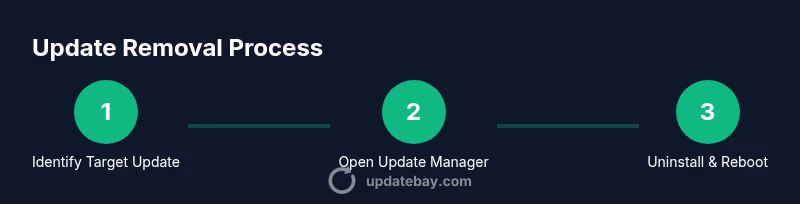
The removal process is best understood as a sequence of checks, actions, and verifications. Start by identifying the target updates, then access the appropriate update management interface, perform the uninstall or hide action if supported, and verify system stability after a reboot. If removal isn’t possible or safe, consider alternatives like deferring updates, pausing automatic updates for a grace period, or rolling back to a previous restore point when available.
Safer alternatives to removing updates
If the goal is to regain performance or compatibility, try safer options first. Pause or defer future updates for a defined window to test performance with existing software. Use selective updates where possible, focusing on drivers or feature updates that are known to cause issues. Create a full backup or restore point before making changes so you can recover quickly if problems arise. Consider using a test environment or spare device to evaluate updates before applying them to your primary system.
Common mistakes and safety warnings
Avoid removing updates without backups; losing a critical security patch can expose you to malware or data theft. Don’t attempt to uninstall updates that are deeply integrated into the OS, as this can corrupt system files or trigger boot failures. Always check for known issues with the specific update in your device’s support forums or official release notes before attempting removal. If you’re unsure, consult the official guidance from the platform provider rather than guessing.
What to do after removing updates
After removal, monitor system performance, application behavior, and security notices. Run a full system check and ensure automatic updates are configured safely to prevent future instability. Document the updates you removed and the dates, so you have a rollback trail. If issues emerge, reapply updates in a controlled manner or revert to a prior restore point and reassess the configuration.
Tools & Materials
- Device with target OS(Windows PC, macOS machine, Android phone, or iOS device)
- Backup option(Create a system restore point or full data backup before removing updates)
- Admin credentials(You may need admin rights to uninstall updates on desktop OS)
- Stable internet connection(Needed to fetch update notes or re-download updates if needed)
- Official support access(Open browser to platform-specific support pages or help centers)
Steps
Estimated time: 30-60 minutes
- 1
Identify target updates
Review which updates were recently installed and determine if they are app updates or system/security patches. This helps you decide if removal is feasible and safe.
Tip: Check update history logs and note the exact KB or version numbers for reference. - 2
Open the update management panel
Access the device’s update settings: Windows (Settings > Update & Security), macOS (System Preferences or App Store settings), Android (Play Store or Settings), or iOS (Settings).
Tip: Ensure you are logged in with an account that has admin rights if required. - 3
Uninstall or disable updates
If the platform supports it, uninstall the target update or disable automatic installations for future updates. In some cases, you may only be able to hide updates.
Tip: Prefer uninstalling the most recent update first to minimize cascading changes. - 4
Reboot and verify functionality
Restart the device and test the apps and core functions to confirm stability. Look for error messages, crashes, or unfamiliar behavior.
Tip: Run a quick security scan after removal to ensure no new vulnerabilities are exposed. - 5
Pause or delay future updates
If possible, set a pause window to observe system performance before re-enabling updates. This minimizes risk while you assess long-term effects.
Tip: Document the pause period and any observed changes for future reference. - 6
Create a rollback plan
Keep a backup or restore point and a clear plan to revert changes if issues arise. This reduces downtime if something goes wrong.
Tip: Store a copy of essential data off-device as an extra safety layer.
Frequently Asked Questions
Is it safe to remove updates from my operating system?
Removal can introduce security risks or stability issues. It’s safer to defer updates or uninstall only non-critical app updates when possible. Always back up before proceeding.
Removal can pose risks, so back up first and consider deferring or uninstalling only non-critical updates.
Can I uninstall Windows updates?
Yes, Windows allows uninstalling some recent updates via Settings, but security patches may reinstall automatically. Check View update history and uninstall updates; reboot to complete the process.
You can uninstall some Windows updates by using the update history, but be aware security patches may reinstall.
What about macOS updates?
Most macOS system updates cannot be removed once installed. You can manage apps and delay future macOS updates, but the option to roll back is limited.
MacOS system updates can be hard to remove; you can delay or manage apps instead.
Can I remove Android app updates?
Yes. You can uninstall updates for individual apps from the Google Play Store entry. This reverts the app to its earlier version, but some apps may not support downgrade.
On Android, you can uninstall updates for individual apps from the Play Store entry.
What should I do if removal causes problems?
If problems occur, restore from the backup or restore point and reapply updates more cautiously. Use official support docs to guide any reinstallation steps.
If issues arise, revert to a backup and reapply updates carefully.
Are there safer alternatives to removing updates?
Yes—consider deferring updates, pausing automatic installs, or using a test device to assess impact before applying changes to primary devices.
Deferring or pausing updates can be safer than removal.
How do I re-install a removed update?
Visit the platform’s update center and re-download the specific update or perform a full system update. If you’re unsure, consult official support resources for exact steps.
Go through the platform’s update center to re-install the update with official steps.
Watch Video
What to Remember
- Understand which updates are removable and which aren’t
- Back up and plan rollback before removal
- Deferring or pausing updates can be safer than removal
- Platform behavior varies; consult official docs for specifics