How to Remove a Software Update from Your Phone Quickly
Discover safe, practical steps to remove or postpone a software update on Android and iPhone. Learn backup tips, OS-specific options, and how to prevent future re-installs with this comprehensive how-to guide for 2026.


How to remove a software update from your phone can be tricky, but you can usually avoid automatic re-installation and, where supported, revert to a prior build. This guide outlines OS-specific options for Android and iPhone, what to back up, and safe steps to prevent future re-updates. Whether you want to stabilize performance, reclaim storage, or resolve bugs, this approach gives you control.
Why removing a software update might be desirable
For many users, a recently installed software update can bring unintended consequences: lag, battery drain, incompatibilities with specific apps, or storage issues. Before you grow frustrated, it's helpful to assess whether the update itself is the source of the problem. In some cases, you may choose to remove or avoid the update to restore stability, but you should proceed with caution because not all updates can be reversed, and attempts to revert may affect other parts of the system. This section explains common symptoms that lead people to consider removal, and how to approach the decision methodically. Start by identifying the exact update version and noting the behavior you observed that changed after installation. If you documented this context, you’ll have a clearer path to solutions and safer outcomes.
- Common symptoms include battery drain, unexplained reboots, app compatibility issues, and storage pressure.
- Consider whether issues started immediately after the update or after a subsequent app change.
- Documenting observations helps you evaluate whether removal is warranted and which recovery path to choose.
OS differences: Android vs iPhone
The options to remove or avoid updates diverge widely between the two major mobile ecosystems. On Android devices, some OEMs and devices offer official downgrade or uninstall options for specific updates, while others do not. Android users can sometimes revert to a previous build or clear the update cache, but this is highly device-specific and may require manufacturer instructions or a service appointment. On iPhone, downgrades are rarely supported by Apple, and attempting an official downgrade is typically not an option available to consumers. Instead, you’ll often manage updates by delaying or hiding them, and you may need to prepare for a future OS reinstall only under special circumstances.
- Android: potential downgrades depend on device model and OEM support; always consult official support pages.
- iPhone: downgrades are generally not available through consumer options; focus on postponing updates and managing release channels where possible.
- In both ecosystems, stock options for avoiding future re-installs are more reliable than attempting a downgrade.
Back up and prep before making changes
Before touching system updates, back up your data to protect against any misstep. Use cloud backups, local backups to a computer, or both if available. Ensure your device has sufficient battery life or is connected to a charger during the process, and note your current OS version and update details. If you encounter any unexpected prompts, record screenshots or notes to reference later. Preparation reduces risk and makes it easier to recover if something goes wrong.
- Back up photos, messages, contacts, and app data.
- Have your device charged to at least 50% or keep it plugged in.
- Note the exact update version and release date for future reference.
Safer alternatives to full removal
If a full removal isn’t feasible or feels risky, consider safer alternatives that can still address problematic symptoms. Pause automatic updates so the device doesn’t reinstall the same update right away. Hide or postpone the update if your OS offers that option, and adjust update notification settings to reduce nagging prompts. Resetting certain update preferences or limiting background activity related to updates can also help. Finally, investigate whether specific apps are causing issues and whether updating or downgrading those apps resolves conflicts without impacting the OS.
- Pause auto-updates in Settings.
- Hide or postpone the update and adjust reminder timing.
- Review app compatibility and update schedules.
- Consider a controlled test by temporarily disabling features tied to the update.
What to expect after removing or delaying updates
Removing or delaying a software update can restore performance and stabilize behavior in some cases, but it may also carry trade-offs. Security patches are often bundled with updates, so delaying them can leave your device exposed to vulnerabilities. Some features introduced by newer updates might be unavailable until you re-enable or re-install updates. After making changes, monitor battery life, app responsiveness, and overall performance. If issues reappear, you may need to revisit the decision and consider official support channels for a workaround or reinstallation plan.
Quick checklist after completing removal or delay
- Verify OS version and update status.
- Confirm that automatic updates are paused or blocked.
- Ensure data integrity with a spot-check of essential apps.
- Be prepared for possible reinstallation if needed for security or compatibility.
Tools & Materials
- Phone with internet access(Stable connection to download official guidance and verify settings)
- Data backup method (cloud or local)(Always back up before modifying system updates)
- Charger or power source(Keep device charged to avoid interruption)
- Official device settings access(You may need administrator-level access to OS settings)
- Device model and current OS version(Helpful for confirming official downgrade options)
- Manufacturer support page or manual(Use as reference if official downgrade is supported)
Steps
Estimated time: 45-90 minutes
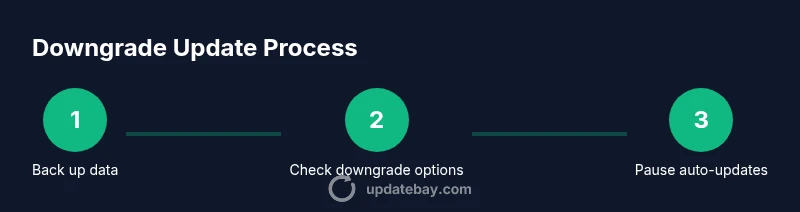
- 1
Back up your data
Start by creating a complete backup of your important data, including contacts, photos, messages, and app data. Use cloud backup, local backup, or both if available. This protects your information in case something goes wrong during the update management process.
Tip: Choose both cloud and local backups if possible for redundancy. - 2
Check for official downgrade or uninstall options
Search the manufacturer’s support pages for any official guidance on downgrading or uninstalling the specific update. If your device supports a downgrade, follow the official steps exactly to avoid voiding warranties or bricking the device.
Tip: Use the exact update version information when reviewing options. - 3
Pause automatic updates
If your OS allows, disable automatic downloads and installations of updates to prevent automatic re-installation. This is the safest way to avoid immediate reversion and gives you time to decide on next steps.
Tip: Disable automatic updates in the same settings area where you checked for downgrades. - 4
Hide or postpone future updates
Where available, hide the problematic update or set a postponement period. This reduces disruption while you evaluate long-term options and maintain device usability.
Tip: Document the update you hid and the date you postponed it. - 5
Consider official reinstallation if supported
If the manufacturer offers an official reinstallation path or stock image for an older build, follow it precisely. Do not use third-party files unless explicitly approved by the device maker.
Tip: Only use official sources to avoid malware or bricking your device. - 6
Test the device and re-evaluate settings
After applying changes, test essential functions, apps, and battery life. If performance stabilizes, monitor for any new issues and decide whether to keep, hide, or re-install updates later.
Tip: Keep a short log of observed behavior for future reference.
Frequently Asked Questions
Is it usually possible to downgrade an iPhone to an earlier iOS version?
Downgrading iOS is typically not supported for consumer devices. You’ll generally need to wait for a future release or restore data via a backup, but you cannot freely revert to an older iOS version through regular settings.
Downgrading iPhone is usually not available through normal settings; you’ll likely need to wait for an update and rely on backups for data safety.
Can Android phones revert to a previous update?
Some Android devices offer official downgrade or stock firmware options, but it’s not universal and may void warranties. Always check the manufacturer’s guidance before attempting any downgrade.
Some Android devices support downgrades, but it’s not universal and can affect warranties.
Will removing an update erase my data?
Removing an update typically does not erase personal data, but factory resets or certain reflash procedures can. Always back up first and proceed with caution.
Removing an update usually won’t erase data, but resets can. Back up first.
What should I do before attempting removal?
Back up data, note the current version, check for official guidance, and ensure your device is charged. Having these ready reduces risk and speeds up recovery if something goes wrong.
Back up data, verify version, and ensure the device is charged before you start.
Are there safer alternatives to removal?
Yes. Pause automatic updates, hide or postpone updates, and use app-level troubleshooting to address issues without removing the OS update.
Pause updates or hide them to avoid automatic reinstall while you troubleshoot.
Will removing updates improve device performance?
Updates often include security and stability fixes; removing them can reduce protection and may not improve performance in the long term. Weigh benefits against risks.
Removing updates can reduce protections and might not improve performance long-term.
Watch Video
What to Remember
- Back up data before any change
- Downgrades are not universally supported
- Pause or hide updates to avoid automatic re-installation
- Seek official guidance or professional help if uncertain