How to Remove an Update: A Step-by-Step Guide for Devices
Learn how to safely remove problematic updates across Windows, macOS, Android, and iOS. This practical guide covers backups, risks, and platform-specific steps to uninstall or pause updates while keeping data intact.


This guide shows you how to safely remove an update across Windows, macOS, Android, and iOS, including when to uninstall, how to back up, and how to pause future installations. Follow platform-specific steps below to remove a problematic update without risking data loss or system instability.
Why removing an update might be necessary
In many cases, updates bring improvements but some can cause compatibility issues, performance slowdowns, or user interface glitches. According to Update Bay, removing a problematic update can restore stability, free up resources, and reduce unexpected reboots. Before you decide to uninstall an update, assess the problem's scope: is it affecting a specific app, a hardware component, or the entire system? If the issue is reproducible and widely reported, you may have enough justification. However, not all updates can or should be removed — some may be security-critical or required for app compatibility. This section explains why you might want to remove, and when you should avoid it.
Key points:
- Updates do not always fix all issues; sometimes they create new ones.
- Rolling back can undo beneficial fixes, including security patches.
- Always weigh the risk and have a rollback plan before proceeding.
Brand note: The Update Bay team emphasizes careful consideration and preparation before attempting removal to minimize disruption.
Platform differences and typical update behavior
Update removal procedures vary by platform. Windows stores updates under Settings > Update & Security > View installed update history; macOS uses System Settings > General > Storage or Software Update; Android devices differ by vendor; iOS uses Delete Update in iPhone Storage. In general:
- Windows: You can uninstall specific updates from the 'Installed Updates' list, then restart.
- macOS: Some updates can be removed via the Software Update utility; others require a clean install or system restore.
- Android: Some system updates are not uninstallable; you may be able to uninstall app updates or delay future updates.
- iOS: OTA updates can sometimes be removed by deleting the downloaded update file from Settings.
Note that on devices where updates install as part of a full OS image, uninstalling may not be possible; refer to official guides for your device.
This section highlights that your approach should align with your platform's capabilities and official guidance.
Backups and safety nets you should not skip
Before removing updates, back up your data and establish a rollback plan. Backups protect you if removal leads to boot loops, apps failing, or data loss. Create a restore point or export critical data, and ensure you have access to recovery options. If your device supports cloud backups, enable automated backups before proceeding. Verify that you can restore from the backup by performing a quick test on a non-critical file. Finally, gather the official support links for your platform in case you need to reapply or re-download the update.
Pro tip: Always confirm that your backup can be used to restore your most important files, then store recovery information in a safe place.
How to approach removal: a practical overview across platforms
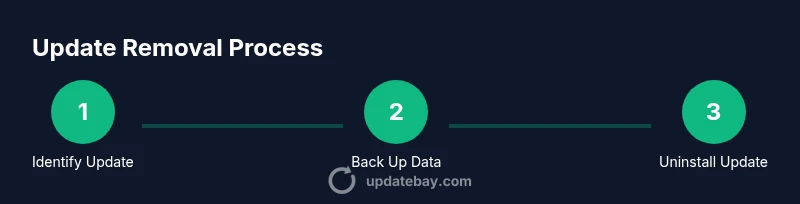
Follow this high-level approach: identify the update to remove, verify it's safe to uninstall, backup, perform the uninstall, reboot, and then adjust update settings to prevent automatic reinstallation. For Windows: use Settings to view installed updates and uninstall; for macOS: use System Settings or Recovery; for Android: use Settings to remove system updates where available; for iOS: delete the downloaded update under iPhone Storage. If the uninstall option is greyed out, you may need to use rollback or factory reset as last resort.
This section provides a safe framework but you must adapt to your platform's supported methods and escape routes if an uninstall isn't possible.
When to defer instead of removing permanently
In some cases, you may not need to remove an update entirely. Deferring or hiding future updates can preserve security patches while avoiding disruptive changes. Use built-in options like pause updates, set active hours, or select update channels if your device supports it. This approach reduces risk and gives you time to test compatibility with critical apps before committing to removal.
Think of deferral as a risk-managed option when the current update creates only marginal problems and can wait for a more stable future release.
Common pitfalls and troubleshooting after removal
Even with careful planning, removal can lead to unexpected issues. If you encounter boot loops, missing features, or apps failing after removal, use your backups to restore a previous state or apply the latest stability-focused update from the official channel. Check for software conflicts, reset network settings, or reinstall problematic apps. If problems persist, consult official support resources and consider a professional diagnostic. Remember to document the changes for future reference and to re-evaluate update policies on a regular cadence.
Tools & Materials
- Backup storage (cloud or local)(Create a complete backup before removing updates)
- Official platform guides(Keep links to Windows, macOS, Android, and iOS uninstall/deferral instructions)
- Recovery media (optional)(USB drive or installer media for recovery if uninstall causes boot issues)
- Power source(Ensure device is plugged in or powered during uninstall)
- Stable internet connection(Needed to re-download updates or download recovery files)
Steps
Estimated time: 60-120 minutes
- 1
Identify the update to remove
Open your device's update history and locate the exact update by its identifier (KB number, version, or date). Verify that this is the update causing the issue and that removing it is likely to fix the problem without discarding essential security patches.
Tip: Note the exact update identifier before proceeding to avoid removing the wrong item. - 2
Confirm uninstallability on your platform
Check whether the update can be uninstalled directly from the update history or if platform-specific rollback is required. Some platforms may not allow removal of certain updates.
Tip: If uninstall is not available, look for alternative options like deferral or selective reinstallation of security patches. - 3
Back up your data before proceeding
Create a current backup of your important files and system state. This ensures you can recover if uninstalling the update leads to data loss or system instability.
Tip: Verify backup integrity with a quick restore test on a representative file. - 4
Windows: Open Update history and locate the target update
Navigate to Settings > Update & Security > View installed updates and find the update you identified in Step 1.
Tip: If you cannot find it, search by the update's KB number or date to narrow the list. - 5
Windows: Uninstall the update and confirm
Select the update and choose Uninstall. Confirm the prompt and allow the process to complete before reboot.
Tip: A restart is usually required to finalize removal; avoid interrupting the reboot. - 6
macOS: Open System Settings to access update history
Visit System Settings > General or Software Update to locate the same update you identified and determine if it can be removed.
Tip: On some macOS versions, uninstall options may be limited; check for an available rollback path. - 7
macOS: Remove the update if the option exists
If an uninstall option is available, perform it and allow the system to complete any required processes.
Tip: If the remove option is not present, consider a system restore as a safer alternative. - 8
Android: Open Update settings and locate the update
Go to Settings > System > System update (or similar) to check for uninstall or rollback options for the target update.
Tip: Some devices do not permit system updates to be uninstalled; plan accordingly. - 9
Android: Uninstall the update (if available)
If the option exists, remove the update and reboot as required.
Tip: When unavailable, defer future updates instead to minimize disruption. - 10
iOS: Delete the downloaded update from iPhone Storage
Settings > General > iPhone Storage > iOS update, then delete the downloaded update if the option is present.
Tip: This does not remove already installed versions; it prevents automatic re-downloads. - 11
Restart the device
Perform a full reboot to ensure the removal is properly applied and the system stabilizes.
Tip: Don’t skip this step; some changes take effect only after a restart. - 12
Pause or hide future updates
Adjust update settings to pause, defer, or hide future updates to avoid immediate reinstallation.
Tip: Use this as a temporary measure while you test for compatibility. - 13
Verify system stability and functionality
Check essential apps, devices features, and performance to confirm the issue is resolved and no new problems appeared.
Tip: Run a quick test suite or practical tasks relevant to your daily use. - 14
Document changes and plan next steps
Record which update was removed, when, and why, plus any deferral settings applied for future reference.
Tip: Keep this log accessible for future troubleshooting or policy reviews.
Frequently Asked Questions
Is it safe to remove updates on my device?
Removal is safe when backed by a reliable backup and used only to resolve a concrete issue. However, it can expose security gaps, so proceed cautiously and prefer deferral if possible.
Removal is safe if you have a good backup and a clear reason, but it can expose security gaps, so proceed carefully.
What if the uninstall option is grayed out?
If uninstall isn’t available, consider using a rollback, system restore, or deferring updates. Consult official guides for platform-specific alternatives.
If uninstall isn’t available, use rollback or deferral options and check official guides for alternatives.
Will removing updates affect security?
Removing updates can reintroduce known vulnerabilities if a security patch is part of the update. Always weigh security risks against the issue you’re solving and patch back promptly when feasible.
Yes, removing updates can reintroduce vulnerabilities, so balance risk and apply patches when possible.
Can I hide or postpone updates instead of removing them?
Yes. Many platforms offer deferral, pause, or selective update channels. This lets you delay disruptive updates while maintaining essential security patches.
Deferral or pausing updates is often safer than removal.
What should I do if my device won’t boot after removal?
If boot issues occur, revert to the last good backup or use recovery options provided by the platform. Seek official support if problems persist.
If the device won’t boot, restore from backup or use recovery options and contact support if needed.
Watch Video
What to Remember
- Identify the exact update to remove before acting
- Back up data and confirm uninstallability across platforms
- Follow platform-specific steps in sequence and reboot when required
- Pause or defer future updates as a safer alternative when possible
- Document changes for future reference