How to Update Your iPad: A Practical Guide for 2026
Learn how to update your iPad with practical, step-by-step guidance, smart backups, and troubleshooting tips to ensure a smooth iPadOS upgrade in 2026.


In this guide you will learn how to update your iPad safely. You’ll prepare by backing up your data, ensuring a charged battery, and connecting to reliable Wi‑Fi. Then you’ll check for available updates in Settings, download the update, and install it. We cover troubleshooting and post-update checks, including how to verify the version and restore apps if needed.
Why updating your iPad matters
Regular iPad updates are not just about new features — they fix security holes, improve performance, and enhance app compatibility. If you’re wondering how do update my ipad, the answer is straightforward when you follow best practices: back up first, have a stable connection, and apply the update during a time when you won’t need the device immediately. According to Update Bay, keeping iPadOS up to date reduces exposure to known vulnerabilities and helps apps run more smoothly. Updates also optimize battery management and system stability, which matters for devices used daily for work, education, and entertainment. This is especially true in 2026, when many users report fewer crashes and faster app launches after applying the latest iPadOS release, though results can vary by device model and storage availability. Understanding the why sets the stage for a smoother, safer update experience with fewer surprises. The Update Bay team emphasizes that a disciplined update routine pays off in long-term performance and security.
How iPad updates work
Apple releases updates that include new features, bug fixes, and security improvements. Updates may come as delta packages or full system images, depending on the device and iPadOS version. The update file is downloaded, verified, and installed, often requiring a restart to apply changes. The process ensures integrity by cryptographic signing and rollback safety, so you can recover if something goes wrong. By understanding this flow, you’ll be better prepared to monitor progress and avoid interruptions during the installation. Based on Update Bay Analysis, 2026, keeping iPadOS up to date reduces exposure to vulnerabilities and improves overall compatibility across apps and services.
Check compatibility and back up before updating
Before you start, verify that your iPad model supports the newer iPadOS version. You can review Apple’s compatibility list and confirm you’re on a compatible baseline. Back up your data to iCloud or a computer to protect against data loss if something unexpected happens during the update. Having a backup not only safeguards photos and documents but also makes it easier to restore settings and apps if you encounter issues after the upgrade. You should also ensure your Apple ID is accessible and that you know the required password. This upfront preparation helps minimize stress during the process.
Prepare your device for the update
Charge the iPad to a healthy level and connect to a stable Wi‑Fi network. Free up storage space by deleting or offloading unused apps and files to avoid download failures due to insufficient space. If you’re near a power outlet, plug in the charger to prevent the device from shutting down mid‑update. Consider temporarily disabling background tasks or auto‑download features to reduce interruption risk. A well-prepared device reduces the chance of a failed installation and helps the update finish smoothly.
How to perform the update (step-by-step description)
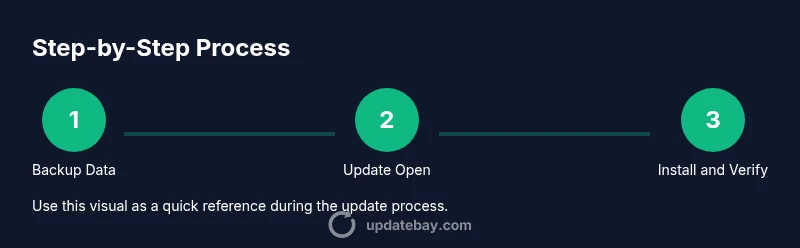
To start the update, open the iPad’s Settings app and navigate to General, then Software Update. If an update is available, you’ll see a Download and Install option; tap it to begin. You may be asked to enter your passcode or confirm terms. The download can take from a few minutes to half an hour depending on your network speed, and the installation may take additional time. Avoid using the device during the install, and keep it connected to power if possible. After the update completes, the iPad will restart and land on the new iPadOS version. You can verify the update by going back to Settings > General > About and checking the software version.
Troubleshooting common update issues
If the update stalls or fails, first try pausing and resuming the download, then restart the device and attempt again. Ensure you have sufficient storage space and a reliable Wi‑Fi connection. If you still can’t install, you can try updating via a computer using Finder (macOS) or iTunes (Windows), which can help with stubborn updates. In some cases, resetting network settings or signing out and back into your Apple ID can resolve verification or download errors. If all else fails, contact Apple Support for guidance.
Post-update checks and maintenance
After the update finishes, verify the new iPadOS version and explore new features in Settings and apps you use daily. Check for app updates in the App Store, since many apps release compatibility updates after OS upgrades. Re-enable any preferred settings you turned off during the update, such as automatic app updates or background activity. Finally, run a quick backup again to capture the post-update state for added security.
Alternatives and safe options
If the over‑the‑air OTA update isn’t working, you can update using a computer with Finder (macOS Catalina and later) or iTunes (Windows or older macOS). Connecting the iPad to a computer allows you to download and install the update offline via the computer’s connection. You should still back up before attempting any alternative method, and you may want to try a test update on another Apple device if available. The goal is to complete the upgrade with minimal risk and maximum reliability.
Tools & Materials
- A charged iPad(Aim for 80% battery or higher before starting)
- Stable Wi‑Fi connection(Prefer a strong 5 GHz network if available)
- Apple ID and password(Needed for iCloud backup and updates)
- Recent backup (iCloud or computer)(Back up before updating to protect data)
- Mac or PC with Finder/iTunes (optional)(Helpful if OTA update fails or you choose a computer-based install)
- Sufficient device storage(Free space for download and installation)
Steps
Estimated time: 30-60 minutes
- 1
Prepare and back up
Plug in the iPad and ensure you have a recent backup either to iCloud or a computer. This protects your data in case anything goes wrong during the update.
Tip: Verify backup success before moving on. - 2
Charge and connect to Wi‑Fi
Make sure the device is charged to a healthy level and connected to a stable Wi‑Fi network. A weak connection can cause download failures.
Tip: Prefer a reliable power source to avoid mid‑update shutdown. - 3
Check for updates
Open Settings, go to General, then Software Update. If an update is available, you’ll see Download and Install or Install Now.
Tip: If you see Automatic Updates, you may enable them after updating. - 4
Download the update
Tap Download and Install and wait for the download to finish. Larger updates take longer and require continued network access.
Tip: Avoid using the iPad during the download. - 5
Install the update
After download, tap Install Now or Install. You may need to enter your passcode and agree to terms.
Tip: If prompted to restart later, choose Install Now to complete the process sooner. - 6
Restart and verify
The iPad will restart and apply the update. Once back to the home screen, verify the version in Settings > General > About.
Tip: Take a moment to test a few essential apps after the restart. - 7
Backup again
Create a fresh backup now that the update is installed. This captures the post‑update state for future safety.
Tip: Store the backup in iCloud or your computer for redundancy. - 8
Troubleshoot if needed
If something goes wrong, consult the troubleshooting steps above or use Finder/iTunes as an alternative path.
Tip: Seek official support if update issues persist beyond basic steps.
Frequently Asked Questions
What should I do before updating my iPad?
Back up your data, ensure the device is charged, and confirm you have a stable Wi‑Fi connection. Review the update release notes so you know what changes to expect.
Before updating, back up, ensure power, and connect to a stable Wi‑Fi network.
What if the update stops or fails to install?
Pause and resume the download, restart the iPad, and try again. If it still fails, try updating via Finder or iTunes on a computer.
If the update fails, restart and try again, or use a computer to update.
Can I update using cellular data?
Apple recommends using Wi‑Fi for updates to avoid potential data charges and slower speeds. If you must, ensure you have an adequate data plan.
Wi‑Fi is best for updates, but cellular can work if necessary.
How long does an iPad update take?
Duration varies by device and network, but you should expect the process to take anywhere from 20 minutes to an hour or more, including download and installation.
It typically takes from 20 minutes up to an hour, depending on your setup.
Will apps stop working after updating?
Most apps continue to work, but some may require updates from their developers. Check the App Store for updates and re‑open apps after the OS upgrade.
Most apps stay working, but some may need updates from the developers.
Should I wait for a newer update or install now?
If you rely on security features and new functionality, install now after reviewing the release notes. If you’re unsure, monitor user feedback and update when you’re ready.
If security matters and you have space, install now; otherwise wait a bit to read user feedback.
Watch Video
What to Remember
- Back up before updating to protect data.
- Maintain a charged device and stable Wi‑Fi during update.
- Verify the OS version after installation.
- If issues occur, retry or use Finder/iTunes as an alternative.