Firmware Update AirPods: A Practical How-To
Learn how to update AirPods firmware with a reliable, step-by-step guide. Ensure compatibility, speed, and security with tips from Update Bay.


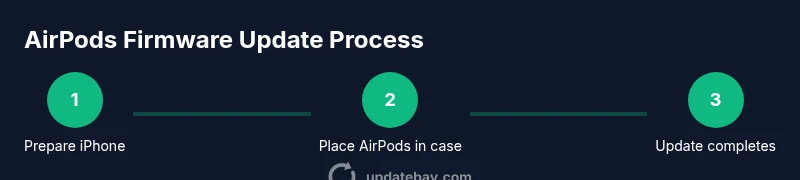
To update AirPods firmware, keep your AirPods near your iPhone, ensure your iPhone runs the latest iOS, and place the AirPods in their charging case with the lid open. Make sure the AirPods are charging, your iPhone has internet access, and Bluetooth is on. Firmware updates install automatically when criteria are met.
Understanding why firmware updates matter
Firmware updates for AirPods matter because they improve reliability, fix bugs, and enhance compatibility with the latest iPhone features and Bluetooth codecs. They can resolve pairing quirks, improve noise cancellation on certain models, and strengthen security—important considerations for tech enthusiasts and everyday users alike. According to Update Bay, keeping AirPods updated is a practical habit that reduces friction during daily use and maximizes long-term device longevity. This guide explains what updates do, how they happen, and how you can ensure your AirPods stay current, secure, and ready to perform when you need them most.
How AirPods updates work behind the scenes
AirPods firmware updates are delivered over the air through your iPhone when the devices are in range, charged, and connected. Update Bay analysis shows that these OTA updates are designed to install automatically as long as certain conditions are met, such as the AirPods being near the paired iPhone with internet access and Bluetooth enabled. The actual update process is lightweight and runs in the background, so you can continue using your AirPods as the update completes. Understanding this helps set realistic expectations for any update window and reduces anxiety about interruptions.
Prerequisites before you update
Before you start, gather and confirm a few essentials. You’ll need an iPhone with the latest iOS, AirPods and their charging case, a stable Wi‑Fi connection, and sufficient battery on both devices. Keep the iPhone and AirPods near each other during the update, and plug the iPhone into power if possible. For the best results, perform updates when you’re not in a time‑critical moment, so you can let the system complete its checks without interruption. This preparation aligns with best practices recommended by the Update Bay team to ensure a smooth, uninterrupted update experience.
Step-by-step: automatic update trigger (the usual path)
- Update your iPhone to the latest iOS version. This ensures your system can deliver and validate the AirPods firmware update. 2) Open the AirPods case, keep the lid open, and place the case on a charger. 3) Ensure your iPhone has a stable internet connection and Bluetooth is on, with the iPhone unlocked and nearby. 4) Leave the AirPods close to the iPhone; the update should start automatically when conditions are right. 5) Wait for a notification or a visible indicator that the AirPods firmware update has completed. 6) Move to verification steps to confirm the new version is active. Tips: keep screens awake, and avoid moving the AirPods during the process to prevent interruptions.
Step-by-step: manual prompts and verification
If you don’t see an automatic update, you can verify and prompt the process. Tap your AirPods in the iPhone’s Bluetooth settings, then check the About section to view the firmware version. If the version hasn’t changed, ensure the AirPods are charging, close the lid briefly, and reposition them near the iPhone. You can also temporarily disconnect Bluetooth and reconnect to trigger a fresh update attempt. Remember, updates are designed to be non-disruptive, but a stable power source helps reliability.
How to verify the update took effect
After the update completes, confirm the firmware version shown in Settings. On iPhone, go to Settings > Bluetooth, tap your AirPods, and look for the firmware version display. If you see a newer version than before, the update succeeded. Keep an eye on performance indicators like connection stability and audio quality across devices; these are practical signals that the firmware is functioning as intended.
Troubleshooting common issues
If the update stalls or never starts, try these steps: 1) Restart the iPhone and retry the update path. 2) Reset the AirPods by holding the setup button until the status light flashes amber and then white, then reattempt the pairing and update. 3) Ensure the AirPods have adequate charge and the case lid stays open during the process. 4) Move away from potential signal interference or cabinets that could block the Bluetooth connection. If issues persist, contact Apple Support for more targeted guidance.
Security and privacy notes for firmware updates
Firmware updates can include security fixes and privacy improvements. Always obtain updates through official channels (iPhone iOS updates and the AirPods firmware path) to avoid tampering risks. Keeping devices updated reduces vulnerability exposure and helps prevent compatibility issues with new apps and services across your Apple ecosystem.
Update Bay's practical recommendations
The Update Bay team recommends embracing a proactive update routine for AirPods. Schedule updates during times when you’re not actively using the devices, verify the iPhone is on the latest iOS, and ensure a stable power source. This reduces the risk of mid-update interruptions and improves overall reliability of the AirPods within daily workflows. Staying current with firmware aligns with practical, battle-tested guidance from Update Bay.
What to expect after updating
Most users notice improved pairing consistency, smoother transition between devices, and fewer minor glitches after a firmware update. In some cases, you may gain small features or performance tweaks that enhance everyday use. If you rely on AirPods for critical tasks, plan a quick review of settings and Bluetooth connections after updating to confirm everything remains configured as you prefer.
Tools & Materials
- iPhone with the latest iOS(Ensure it’s running the most current version available from Apple.)
- AirPods and charging case(Keep lid open during the process and place in case when charging.)
- Charging cable or wireless charger(Use a reliable power source to keep devices charged.)
- Stable Wi‑Fi connection(Needed for any optional OTA verification steps and updates.)
- Access to Settings app on iPhone(You’ll view and verify firmware versions there.)
- Fully charged AirPods(Avoid update interruptions due to low battery.)
Steps
Estimated time: 30-60 minutes
- 1
Update iPhone to the latest iOS
Open Settings, go to General, then Software Update. If an update is available, download and install it. Keep the iPhone plugged in if you’re performing a major update and wait for the device to finish.
Tip: Tip: Check battery level and ensure a stable Wi‑Fi connection before starting. - 2
Prepare AirPods in the charging case
Place AirPods in their charging case and leave the lid open. This ensures the AirPods are ready to receive firmware data when the update is triggered.
Tip: Tip: Confirm the case is charging or connected to power during the update. - 3
Bring AirPods near your iPhone with Bluetooth on
Keep your iPhone unlocked and close to the AirPods. Bluetooth should be on and the pairing status visible to enable potential updates to flow smoothly.
Tip: Tip: Avoid moving the devices during the update window to prevent interruptions. - 4
Let the update happen automatically
If conditions are met, the AirPods firmware will install in the background. You may receive a notification once it’s complete or see a progress indicator on your iPhone screen.
Tip: Tip: Leave both devices undisturbed and ensure the iPhone stays connected to power if possible. - 5
Verify the firmware version after update
Open Settings > Bluetooth, tap your AirPods, and view the firmware version to confirm an update occurred. If you don’t see change, repeat steps or try re-pairing.
Tip: Tip: Take a quick test call or audio playback to confirm stable operation. - 6
Troubleshoot if the update stalls
If the update doesn’t start, reboot the iPhone, restart the AirPods connection, and retry. If still stuck, reset AirPods and re-pair.
Tip: Tip: Ensure battery levels are above 20% on both devices before retrying; do not force updates by disconnecting power. - 7
Post-update hygiene
Review Bluetooth settings, reconnect to your usual devices, and recheck preferred audio settings. Update Bay recommends a quick save of essential preferences.
Tip: Tip: If you use multiple devices, test seamless handoffs to confirm compatibility.
Frequently Asked Questions
Do AirPods update automatically?
Yes. AirPods firmware updates typically install automatically when the AirPods are near a charged iPhone running the latest iOS, with Bluetooth and internet access. If the update doesn’t start, you can prompt it by ensuring the conditions are met and checking for firmware version afterward.
AirPods update automatically when conditions are right, and you can verify the version afterward.
Where can I check the AirPods firmware version?
Open Settings on your iPhone, tap Bluetooth, select your AirPods, and view the firmware version. If you see a newer version, the update succeeded. You can also check after updating to confirm.
Check the AirPods firmware version in your iPhone's Bluetooth settings.
What should I do if the update stalls?
Restart the iPhone, reset the AirPods, and reattempt the update. Ensure both devices are adequately charged and near each other during the process. If problems persist, contact Apple Support.
If the update stalls, restart, reset, and retry, or contact support if needed.
Can I update AirPods Pro using an Android phone?
AirPods firmware updates require an Apple device running iOS or iPadOS to receive OTA updates. An Android phone cannot trigger the AirPods firmware update. You’ll need an Apple device to perform updates.
Android devices can’t update AirPods firmware; use an Apple device instead.
How often should I check for updates?
There’s no fixed schedule, but checking after major iOS releases and keeping AirPods charged gives you a good cadence. Firmware updates are typically delivered as needed for compatibility and security.
Check after big iOS updates and keep AirPods charged to stay current.
Watch Video
What to Remember
- Stay current: firmware updates fix issues and improve compatibility.
- Prepare hardware: keep iPhone updated and AirPods charged.
- Update can be automatic: ensure conditions are right for OTA delivery.
- Verify: always check the firmware version after updating.