How to Know If Your Phone Needs an Update
Learn practical, step-by-step methods to determine whether your smartphone requires an update. Discover signals, how to check OS versions on iOS and Android, backup best practices, and tips to update safely for improved security and performance.


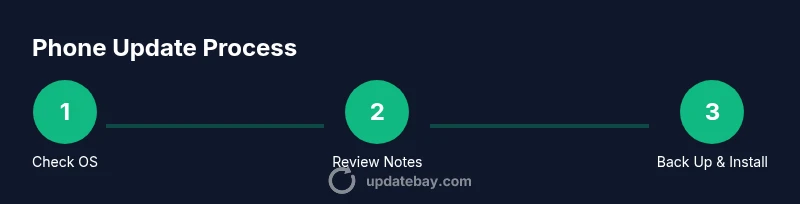
To know if your phone needs an update, look for slower performance, more frequent app crashes, unexpected battery drain, or security prompts. Check your device’s software version in Settings, compare it to the latest available version, and read the update notes. If a newer version is listed or your store prompts an update, plan to install after backing up data.
Why Regular Updates Matter
Regular updates are the backbone of device security and longevity. According to Update Bay, consistent OS and app updates reduce security risks, fix critical bugs, and optimize performance. In practice, updates bring patches for known vulnerabilities, smoother app compatibility, and improved battery management. They also introduce new features that can enhance everyday tasks, from messaging to camera improvements. Skipping updates can leave your device exposed to threats, slow responses, and incompatibilities with newer apps. This section explains why staying current matters for both iOS and Android devices, and how to approach updates in a way that feels manageable rather than overwhelming. By keeping software up to date, you maintain a reliable foundation for calling, texting, browsing, and using your favorite apps.
Staying current also helps with compatibility across devices and services you use daily, such as cloud backups, messaging platforms, and security keys. The Update Bay team has found that many users underestimate the ripple effect of a single update: it often improves the stability of several third-party apps and reduces the risk of security warnings down the line. The best approach is regular checks on a predictable schedule, with a quick review of what the update promises before you install. This disciplined approach minimizes surprises and maximizes the benefits of every release.
Key Signals Your Phone Needs an Update
There are several telltale signs that your phone could benefit from the latest software. First, you may notice slower performance, lag when launching apps, or longer times to wake from sleep. Second, apps might crash or behave oddly after updates to their own code or to the OS. Third, battery life can deteriorate more quickly than usual, especially if background processes are misbehaving post-update. Fourth, storage warnings appearing despite not installing large apps can indicate system cache growth or bloat from old software layers. Fifth, security prompts or warning messages from the OS should not be ignored; they often indicate unpatched vulnerabilities that updates address. Sixth, you might see new features or settings that require a newer OS version to function correctly. Finally, if you try to install an app and it reports incompatibility, that can be a sign the OS needs an update. If several of these signals occur together, plan an update soon.
In practice, modern devices rarely fail all at once. Instead, you’ll notice a combination of slowdowns, occasional glitches, and security advisories. Keeping a daily note of any unusual behavior helps you decide when an update is due rather than waiting until the device becomes unusable. The overarching message is to stay proactive: regular checks prevent problems from piling up.
How to Check for Updates on iOS and Android
Checking for updates is straightforward on both major platforms, but the paths differ. On iOS, start in Settings, then General, and select Software Update. If an update is available, you’ll see a description of the release along with an option to Download and Install. On Android, the route varies by manufacturer and UI, but the general path is Settings, System, and Software Update (or About phone followed by System Update). If an update is ready, you’ll typically see the version, size, and a brief changelog. For both platforms, ensure you’re connected to Wi‑Fi and have sufficient battery. If you don’t see an update, confirm you’re using the latest OS supported by your device. In some cases, updates may be rolled out gradually by the manufacturer, so you might receive the notice later while others get it sooner.
Note the release notes: even if you don’t recognize every item listed, reading them can reveal security improvements, bug fixes, and new features you can expect after installation. Keep in mind that updates may require several minutes or longer, depending on download size and device performance. A scheduled approach makes the process predictable: set aside a window when you won’t need the phone for critical tasks.
Interpreting Update Notes and Features
Release notes aren’t just marketing fluff; they explain what changes you can expect. Look for security improvements, bug fixes, performance tweaks, and new permissions or features. If the notes emphasize fixes for crashes, freezes, or battery issues you’ve experienced, an update is likely to improve your daily experience. If the notes introduce new features you don’t plan to use, that’s okay—updating often benefits overall stability even if you don’t leverage every addition. Pay attention to compatibility notes for essential apps you rely on; sometimes an update enables better integration with cloud services or accessories. If the notes warn about potential issues with certain models or apps, consider waiting on those specific combinations until patches are released. Finally, some updates optimize energy efficiency or background task handling, which can translate directly into longer battery life and smoother multitasking over time.
When to Back Up Before Updating
Backing up is a smart prerequisite to any update, because software changes can sometimes go wrong. Start by backing up photos, contacts, messages, and essential app data. Use automatic cloud backups when available, or connect your device to a computer to create a local copy. Ensure you know how to restore from your backup in case something goes awry. If you rely on two‑factor authentication, make sure you have recovery codes or access to your authentication apps after updating. It’s also wise to note down Wi‑Fi passwords and important settings that may shift during an OS change. A quick backup not only protects data but also reduces the stress of updating, since you can proceed with confidence. After updating, verify critical data is intact and apps function as expected. If you ever encounter a problem, you’ll have a clean restore point to fall back on.
Troubleshooting After an Update
Post‑update troubleshooting focuses on confirming basic health first. Restart the device if you notice unusual behavior, including app crashes or lag. Check for app updates; developers often release patches that align with the new OS version. If you run into battery drain, review battery usage statistics and identify any misbehaving background tasks or misconfigured settings. Clear cache for apps known to cause trouble, and consider reinstalling any stubborn programs. For connectivity issues, re‑connect to Wi‑Fi or reset network settings, then rejoin networks. If problems persist, consult the device’s official support site or forums for model‑specific advice. In rare cases, a factory reset is the last resort to resolve stubborn software incompatibilities, but this should only occur after backing up and as a last resort.
Best Practices for Staying Updated
Create a simple, repeatable routine to check for updates monthly or quarterly, depending on your device and usage. Enable auto‑updates over Wi‑Fi when possible to minimize manual steps, but keep notifications enabled so you don’t miss important security patches. Maintain a current backup schedule so updates don’t threaten your data. Regularly review app permissions after updates to ensure personal data access remains appropriate. If you use multiple devices, coordinate updates to minimize downtime across your ecosystem. Finally, stay informed about end‑of‑support timelines for your device model, so you aren’t caught by surprise when updates stop rolling out. The bottom line is to balance caution with progress: updates are foundational for security, performance, and feature reliability.
Common Myths vs Reality
Myth: Updates slow down an older device forever. Reality: Updates often optimize performance and battery management, though some very old devices may experience slower post‑update behavior due to newer requirements. Myth: You should skip updates to preserve storage space. Reality: Updates require storage, but they also fix vulnerabilities that could cost more in risk than the space saved. Myth: Automatic updates remove user control. Reality: You can customize update settings and still receive critical security patches automatically. Myth: If your device runs well today, you don’t need updates. Reality: Without updates, you may miss security protections and bug fixes that improve stability and longevity. Myths can mislead, so rely on official release notes and trusted sources to guide decisions.
Tools & Materials
- Phone charger or a device with at least 50-80% battery(Keep your device charging during updates to avoid interruptions)
- Stable Wi‑Fi connection(Update downloads can be large; use a reliable network)
- Backup method (cloud or computer)(Back up your data before updating in case you need to restore)
- Recent access to passwords and recovery codes(Some updates may prompt you to re-authenticate)
- Note-taking for release notes(Record any settings you customize during the update)
Steps
Estimated time: 30-60 minutes
- 1
Open Settings and locate the update option
On iOS, open Settings, then General, then Software Update. On Android, open Settings, then System, and look for System Update or About Phone. This first step confirms whether an update is available and shows the current version.
Tip: If you don’t see an update, confirm you’re on the latest build offered for your device model. - 2
Review the release notes
Read the update notes to understand security fixes, bug patches, and any new features. This helps you gauge the impact on daily use and identify potential compatibility changes.
Tip: Look for mentions of stability improvements and security hardening relevant to apps you use daily. - 3
Back up your data
Create a full backup of photos, contacts, messages, and app data. Use cloud backups or a local copy to a computer. A verified backup means you can restore quickly if something goes wrong.
Tip: Check the backup completed message and test a quick restore of a sample file to ensure reliability. - 4
Prepare the device for update
Plug the device into power or ensure a strong charge, connect to Wi‑Fi, and reserve sufficient time. Close heavy apps to speed up the download and installation process.
Tip: Avoid starting updates during peak usage times to prevent throttling or slow downloads. - 5
Install the update
Tap Install or Download and Install. Do not disconnect the device during the process. Your screen may refresh several times as the update applies.
Tip: If prompted, enter your password or device unlock method to authorize the update. - 6
Verify post‑update health
After installation, launch essential apps and check for any prompts to sign in again. Monitor battery life and performance over the next 24 hours.
Tip: Open a few representative apps to confirm they run smoothly and check for any unusual settings changes. - 7
Have a fallback plan
If the update causes issues, you can restore data from your backup or seek official guidance from your device vendor. Avoid factory resetting unless you’ve exhausted other options.
Tip: Document any error messages you see to help support channels diagnose the problem quickly.
Frequently Asked Questions
Why should I update my phone regularly?
Regular updates patch security vulnerabilities, fix bugs, and improve performance. They also ensure compatibility with new apps and services, reducing the risk of security warnings and crashes.
Regular updates patch security holes and improve performance, reducing crashes and compatibility issues.
What if the update slows down my older device?
Some older devices may experience slower performance after major updates due to higher system requirements. In many cases, users still gain security benefits and stability improvements; you can compare performance and decide.
Some older devices may slow a bit after updates, but security and stability often improve overall.
Can I automate updates?
Yes. You can enable automatic updates over Wi‑Fi on most devices, which helps you stay current without manual checks. You still get prompts for larger or optional updates.
Yes, you can enable automatic updates over Wi‑Fi to stay current with minimal effort.
Is it safe to update if I have limited storage?
Updates require some free space. If storage is tight, free up space before updating or postpone optional updates until you have room. Always backup data first.
If storage is tight, free space before updating and back up your data first.
What should I do if an update fails to install?
If an update fails, retry after ensuring a stable Wi‑Fi connection and sufficient battery. If it persists, consult official support or rollback options and verify backups.
If it fails, retry with good Wi‑Fi and battery, then check official support if needed.
How can I tell if an app will work after an OS update?
Most apps remain compatible after updates, but some may require app updates or temporary tweaks post‑install. Check the App Store/Play Store for app updates and read any notes from developers.
Apps usually stay compatible; check for app updates if you notice issues.
Watch Video
What to Remember
- Check OS version and available updates regularly
- Read release notes to understand benefits and risks
- Back up data before updating
- Update in a stable environment with power and Wi‑Fi
- Verify device health after installation